To enable IIS in Windows 10, open Control Panel > Programs > Turn Windows features on or off, check Internet Information Services, and select OK. When Windows finishes, open a browser and go to http://localhost. If you see the IIS welcome page, the web server is running.
IIS (Internet Information Services) is Microsoft’s web server. On Windows 10 it’s handy for building and testing websites and web apps on your own PC.
Applies to: Windows 10. You need an administrator account. Checked against Microsoft Learn on September 24, 2026.
Turn on IIS
- Search Start for Control Panel and open it.
- Select Programs > Turn Windows features on or off.
- Check Internet Information Services. The box fills in with a square, which means the default components are selected. That’s enough for a basic website.
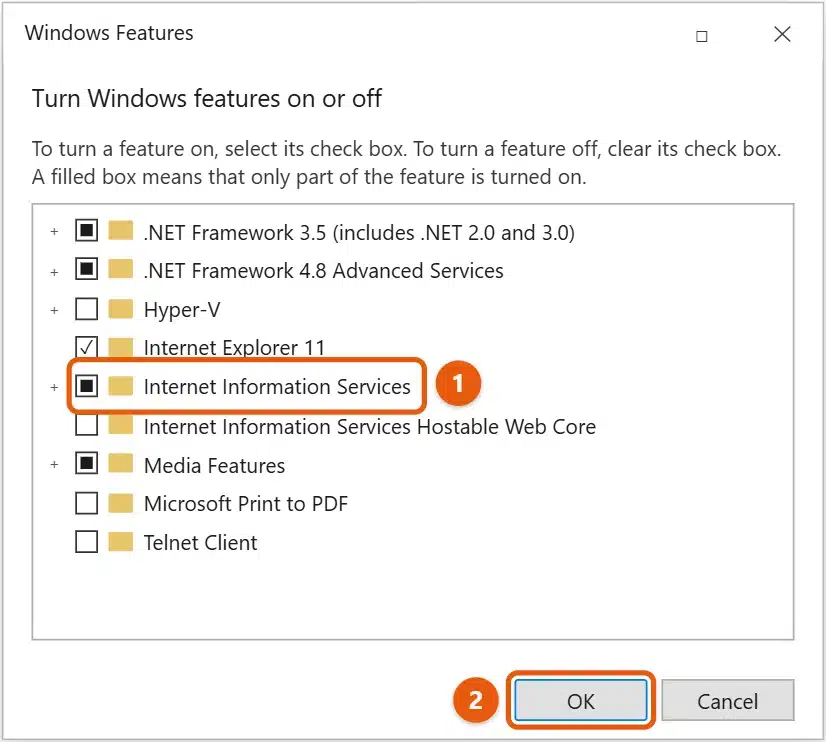
- Select OK and wait while Windows installs IIS. It can take a few minutes. Restart if Windows asks you to.
Shortcut: press Windows + R, type optionalfeatures, and press Enter to open Windows Features directly.
Check that IIS is working
Open a browser and go to http://localhost. The blue IIS welcome page means it’s working.
The files for that page are in C:\inetpub\wwwroot. Put your own index.html there to replace it.
Add ASP.NET, FTP, and other features
The default install serves plain HTML pages. To run other kinds of sites, go back to Windows Features, expand Internet Information Services, and check what you need:
- ASP.NET: expand World Wide Web Services > Application Development Features and check ASP.NET 4.8 (the version number depends on your Windows 10 update).
- FTP: check FTP Server. See how to create an FTP server in Windows 10.
- IIS Manager: Web Management Tools > IIS Management Console is on by default. Leave it checked.
Only add features you’ll use. Each one adds more to keep updated.
Turn on IIS with PowerShell
Right-click Start, select Windows PowerShell (Admin), and run:
Enable-WindowsOptionalFeature -Online -FeatureName IIS-WebServerRole, IIS-WebServer, IIS-ManagementConsole -All
This turns on the web server and IIS Manager. The -All switch adds anything they depend on.
Open IIS Manager
Use any of these:
- Press Windows + R, type
inetmgr, and press Enter. - Search Start for IIS and select Internet Information Services (IIS) Manager.
- Open Control Panel > System and Security > Administrative Tools > Internet Information Services (IIS) Manager.
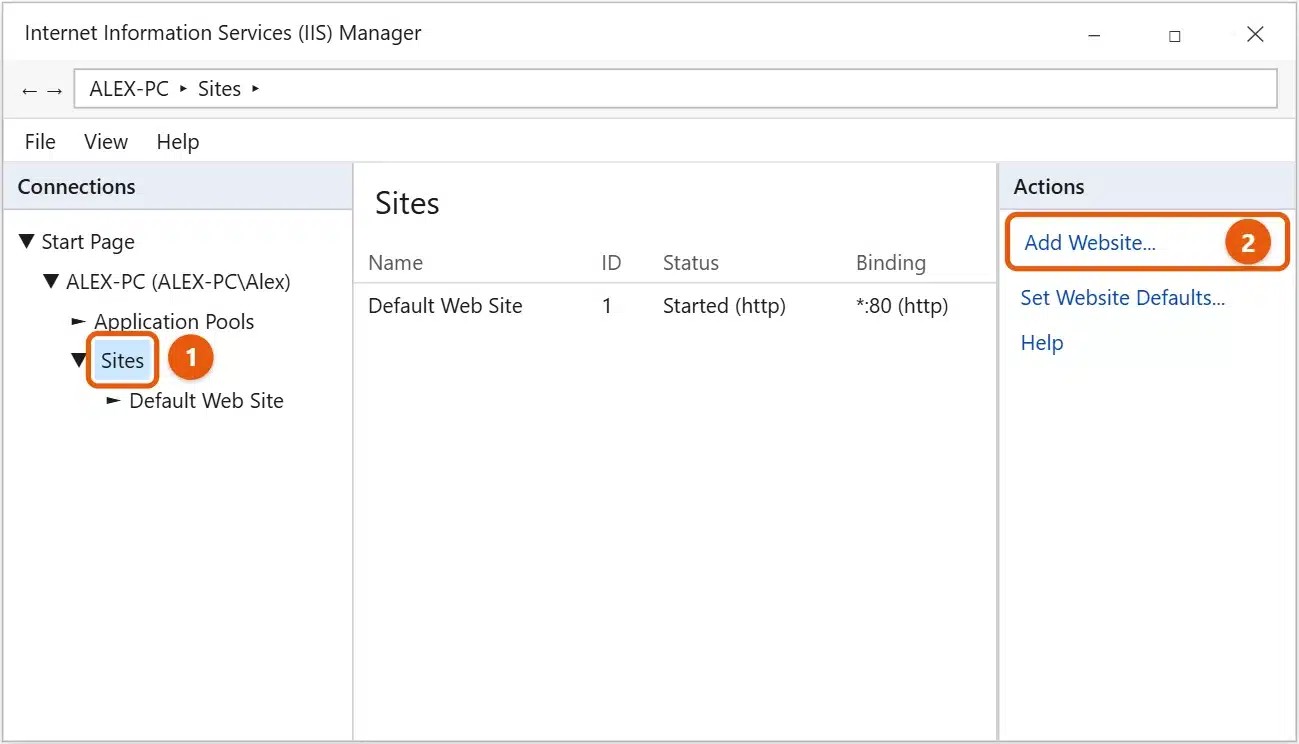
In the Connections pane, expand your PC’s name, then Sites. Default Web Site is the page you saw at localhost.
Add a simple website
- In IIS Manager, select Sites, then select Add Website in the Actions pane.
- Enter a Site name, such as
TestSite. - For Physical path, choose the folder that holds your site’s files, such as
C:\Sites\TestSite. - Under Binding, set Port to
8080. Default Web Site already uses port 80. - Select OK, then go to
http://localhost:8080in your browser.
IIS creates an application pool with the same name as the site automatically. If you get an access error, right-click the site folder, select Properties > Security, and give IIS_IUSRS Read permission.
To stop, start, or restart a site, select it and use Stop, Start, or Restart in the Actions pane. To restart all of IIS, run iisreset in Command Prompt as an administrator.
Keep it safe
- Use it for testing. Windows 10 reached end of support on October 14, 2025. For a public website, use Windows Server or a hosting service.
- Don’t expose it to the internet. Don’t forward ports on your router to this PC.
- Only allow your network if you need to. Other PCs can’t reach the site unless Windows Defender Firewall allows it.
- Install only the features you need, and turn IIS off when you’re done with it.
Turn off IIS
Open Windows Features, uncheck Internet Information Services, and select OK. Your files in C:\inetpub stay on the PC.
Frequently asked questions
Why doesn’t localhost show the IIS page?
Make sure Default Web Site is started in IIS Manager. Open Services (services.msc) and check that World Wide Web Publishing Service is running. Another program using port 80, such as Apache, can also block it.
Does Windows 10 Home include IIS?
Yes. You turn it on the same way in Windows Features.
What’s the difference between IIS and IIS Express?
IIS Express is a lightweight version that developers get with Visual Studio. It runs only while you’re working on a project. Full IIS runs all the time as a Windows service.
On Windows 11, see how to enable IIS on Windows 11. For other options, see how to set up a web server on Windows 10. To open your site from another PC on your network, use this PC’s IP address. See how to find your IP address in Windows 10. Microsoft’s guide is Install IIS and ASP.NET modules. More help is on our Windows Help & Guides page.
Related: How to Install Apache in Windows 10.

Matt Jacobs has been working as an IT consultant for small businesses since receiving his Master’s degree in 2003. While he still does some consulting work, his primary focus now is on creating technology support content for SupportYourTech.com.
His work can be found on many websites and focuses on topics such as Microsoft Office, Apple devices, Android devices, Photoshop, and more.