To fix Wi-Fi not working in Windows 11, start with the quick checks: select the Network icon at the right end of the taskbar, make sure Wi-Fi is on and Airplane mode is off, then restart your PC and your router. If that doesn’t help, select Start > Settings > System > Troubleshoot > Other troubleshooters and select Run next to Network and Internet. Most other cases are fixed by forgetting and rejoining the network, updating or reinstalling the Wi-Fi driver, or resetting the network stack, which are all covered below.
Applies to: Windows 11, including versions 24H2 and 25H2. Menu names can differ slightly on older builds. Checked against Microsoft Support on October 12, 2026.
Start here: match your symptom to a fix
“Wi-Fi not working” can mean several different problems. Look at the Wi-Fi icon on the taskbar and at what Windows tells you, then jump to the fix most likely to help. If you’re not sure, work through the fixes in order. They go from quickest and safest to most disruptive.
| What you see | Most likely cause | Try first |
|---|---|---|
| No Wi-Fi tile in quick settings, and no Wi-Fi page in Settings | Adapter disabled, driver problem, or WLAN AutoConfig service stopped | Fix 5, Fix 6, then Fix 10 |
| Wi-Fi is on, but your network isn’t in the list | Router off or out of range, band your adapter can’t use, or Airplane mode | Fix 1, Fix 2, then Fix 11 |
| “Can’t connect to this network” | Wrong or old saved password, or a damaged network profile | Fix 4 |
| Connected, but “No internet” and websites won’t load | Router or internet provider problem, or bad IP or DNS settings | Check PC or router, then Fix 8 and Fix 9 |
| Wi-Fi drops after sleep or every few minutes | Power saving on the adapter, driver, or weak signal | Fix 7, Fix 6, then Fix 11 |
| Wi-Fi stopped right after a Windows update | A new driver or update that doesn’t suit your adapter | Fix 6 (roll back), then Fix 12 |
Tip: If you have another way online, such as an Ethernet cable or your phone’s hotspot, keep it handy. Some fixes work best when you can download a driver or an update.
Find out whether it’s your PC or your router
This one-minute test saves a lot of time, because it tells you which half of the problem to work on.
- Pick up your phone, turn off mobile data so it can only use Wi-Fi, and connect it to the same network.
- Open a website you don’t normally visit, so the phone can’t show a saved copy.
- If the phone loads the page, the internet and router are fine. The problem is on your Windows 11 PC, so continue with the fixes below.
- If the phone can’t load it either, the problem is your router, modem or internet provider. Restart them (Fix 2). If that doesn’t work, check your provider’s outage page from mobile data or call them.
You can also run a quick check from the PC. Select Start, type cmd, and open Command Prompt. Type ipconfig and press Enter. Under Wireless LAN adapter Wi-Fi, find the Default Gateway address, often something like 192.168.1.1. Then type ping 192.168.1.1 (using your own address) and press Enter. If you see lines that start with Reply from, your PC is talking to the router, and Microsoft says the problem is more likely the modem or your internet provider. If you see Request timed out, the problem is between the PC and the router.
Fix 1: Turn Wi-Fi on and Airplane mode off
It sounds too simple, but a Wi-Fi radio that is switched off is one of the most common reasons Wi-Fi “stops working.”
- Select the Network, Volume or Battery icon at the right end of the taskbar, or press Windows key+A. Quick settings opens.
- If the Airplane mode tile is highlighted, select it to turn it off. Airplane mode turns off all wireless radios, including Wi-Fi and Bluetooth.
- If the Wi-Fi tile isn’t highlighted, select it to turn Wi-Fi on. If it is on, select it to turn it off, wait about 10 seconds, and turn it on again. This restarts the connection.
- Select the arrow (>) on the Wi-Fi tile to see the list of networks. Select your network and select Connect. Under the network name, you should see Connected, secured.
You can also check both settings in Start > Settings > Network & internet, where there are toggles for Wi-Fi and Airplane mode.
Laptop key or switch: Many laptops have a wireless key on the top row, marked with an airplane or antenna icon, or a small slider switch on the side. On some models you hold Fn while pressing it. If the radio is switched off this way, Windows may not be able to turn it back on, so press the key or flip the switch and wait a few seconds.
Note: Microsoft explains that Windows remembers whether you had Wi-Fi or Bluetooth on the last time you used Airplane mode and keeps that setting, so check the Wi-Fi tile separately after you turn Airplane mode off.
Fix 2: Restart your PC, modem and router
A restart clears temporary glitches in both Windows and your router. Everyone on your Wi-Fi network is disconnected for a few minutes while the router restarts, so warn them first.
- Save your work and restart the PC: select Start > Power > Restart. Use Restart rather than Shut down, because Windows’ Fast startup feature means a shutdown doesn’t fully reset everything.
- If the PC still can’t connect, unplug the power cable from the router, then from the modem. If you have a single box from your internet provider that does both jobs, unplug just that one.
- Wait at least 30 seconds. Microsoft notes that some modems have a backup battery. If the lights stay on after you unplug it, remove the battery too.
- Plug the modem back in first and wait until its lights stop blinking and settle.
- Plug the router back in and wait a few minutes for the Wi-Fi to come back.
- On the PC, select your network from quick settings and connect again.
Fix 3: Run the Network and Internet troubleshooter
Windows 11 includes an automatic troubleshooter that checks your adapter, connection and settings, and offers fixes such as turning on Wi-Fi or resetting the adapter. In current versions of Windows 11, it runs inside the Get Help app, because Microsoft has retired the older built-in troubleshooters.
- Select Start > Settings > System > Troubleshoot.
- Select Other troubleshooters.
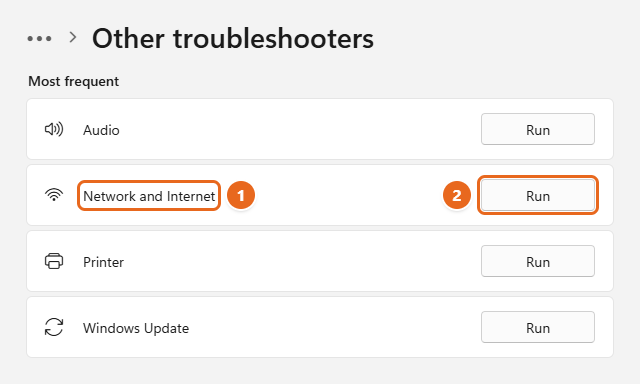
- Under Most frequent, find Network and Internet and select Run. The Get Help app opens and starts its checks.

Find Network and Internet (1) under Most frequent, then select Run (2) to open the troubleshooter in Get Help. - If Get Help asks for permission to run diagnostics, select Yes.
- If you have more than one network adapter, such as Wi-Fi and Ethernet, choose your Wi-Fi adapter from the list at the top of the window.
- Read the result and try the recommendations in the order shown. Some include a button that applies the fix for you, such as Turn on Wi-Fi.
Other way to start it: Microsoft’s own steps are to open the Get Help app from the Start menu, type connect to network and internet in the search box, and select Run network diagnostics.
The troubleshooter can’t fix every problem, especially router and driver issues. If it reports nothing, or the problem comes back, keep going.
Fix 4: Forget the network and join it again
If you see “Can’t connect to this network,” or a network you’ve used for months suddenly refuses the password, the saved profile on your PC may be out of date. This often happens after someone changes the router password or replaces the router. Forgetting the network deletes the saved password and settings on this PC only. It doesn’t change the router or any other device.
Before you start: make sure you know the Wi-Fi password, because you’ll need to type it again. If you’ve forgotten it, see how to find your Wi-Fi password on Windows 11 first.
- Select Start > Settings > Network & internet > Wi-Fi > Manage known networks.
- Find your network in the list and select Forget.
- Open quick settings, select the arrow on the Wi-Fi tile, choose your network and select Connect.
- Type the current password and select Next.
For other ways to do this, such as forgetting a network from quick settings or with a command, and what to do when there’s no Forget button, see our full guide on how to forget a Wi-Fi network in Windows 11.
Still can’t connect? Check whether the router uses MAC address filtering, a list of allowed or blocked devices. Your PC’s MAC address is shown as Physical address (MAC) in Settings > Network & internet > Wi-Fi > Hardware properties. If Random hardware addresses is turned on for the network, the PC may use a different address from the one the router expects. Some routers also have a maximum number of connected devices.
Fix 5: Make sure the Wi-Fi adapter is enabled
If the Wi-Fi tile and the Wi-Fi page in Settings are missing completely, Windows probably can’t see a working Wi-Fi adapter. The adapter is the hardware inside your PC, or a USB stick, that talks to the router. It may simply be disabled.
Check in Settings
- Select Start > Settings > Network & internet > Advanced network settings.
- Under Network adapters, find the adapter named Wi-Fi. Its description usually includes the maker, such as Intel, Realtek, Qualcomm or MediaTek.
- If the button next to it says Enable, select it. When the adapter is on, the button reads Disable.
Check in Device Manager
- Right-click Start and select Device Manager.
- Select the arrow next to Network adapters to expand it.
- Look for an adapter with Wi-Fi, Wireless, WLAN or 802.11 in its name. A small down arrow on its icon means it’s disabled. A yellow warning triangle means the driver has a problem, so go to Fix 6.
- If it’s disabled, right-click it and select Enable device.
- If you can’t find a Wi-Fi adapter at all, select View > Show hidden devices, then select Action > Scan for hardware changes. If it still doesn’t appear, see When it’s a hardware or work PC problem.
Tip: Microsoft suggests looking at the Driver tab in the adapter’s Properties to check the Driver Date and Driver Version. If the date is several years old, an update in Fix 6 is worth trying.
Fix 6: Update, roll back or reinstall the Wi-Fi driver
A driver is the small piece of software that lets Windows use your Wi-Fi hardware. A damaged, outdated or freshly updated driver that doesn’t suit your adapter is a common cause of Wi-Fi that vanishes, won’t find networks or keeps dropping.
Important: Before you uninstall a driver, download the correct Wi-Fi driver for your exact PC model from your PC maker’s support site, or for your adapter from the adapter maker. If your PC has no other way online, download it on another computer and copy it over with a USB flash drive. Without a backup driver, an offline PC can be left with no way to get one.
Update the driver
- Right-click Start and select Device Manager.
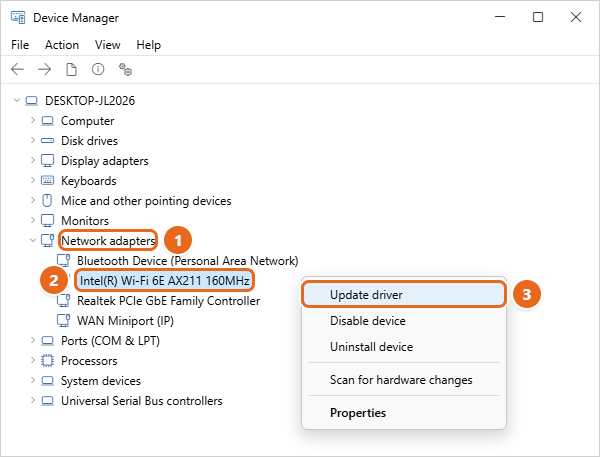
- Expand Network adapters, then right-click your Wi-Fi adapter.

Expand Network adapters (1), right-click your Wi-Fi adapter (2), then choose Update driver (3). Disable device, Uninstall device and Properties are on the same menu. - Select Update driver.
- Choose Search automatically for drivers to let Windows look, or choose Browse my computer for drivers and point it to the driver you downloaded.
- Restart the PC when the update finishes.
Windows often says the best driver is already installed. That only means Windows has nothing newer. Your PC maker’s site, or the adapter maker’s site for an Intel or USB adapter, may still have a newer version. Also check Settings > Windows Update > Advanced options > Optional updates, where driver updates sometimes wait. For more detail, see how to update drivers in Windows 11. Avoid third-party “driver updater” tools, which can install the wrong package.
Roll back the driver after an update
If Wi-Fi broke right after a Windows or driver update, going back to the previous driver is often the quickest fix.
- In Device Manager, right-click the Wi-Fi adapter and select Properties.
- Select the Driver tab, then select Roll Back Driver.
- Pick a reason, select Yes, and restart the PC.
If Roll Back Driver is grayed out, Windows doesn’t have an older driver saved. Install the driver from your PC maker instead, or reinstall it as shown next.
Reinstall the driver
- In Device Manager, right-click the Wi-Fi adapter and select Uninstall device.
- If you’ve already downloaded a replacement driver, check Attempt to remove the driver for this device. If Wi-Fi is your only way online and you don’t have a replacement driver, leave it cleared, so Windows can reinstall the copy it already has.
- Select Uninstall, then select Start > Power > Restart.
- After the restart, Windows looks for the adapter and installs a driver automatically. If the adapter doesn’t come back, run the driver installer you downloaded, or select Action > Scan for hardware changes in Device Manager.
Fix 7: Stop Windows from turning off the adapter
To save battery, Windows can switch off the Wi-Fi adapter when it thinks you aren’t using it. Some adapters don’t wake up properly afterward, so Wi-Fi drops after sleep or while the PC is idle. Turning off this option is safe. The only cost is a little more battery use.
- Right-click Start and select Device Manager.
- Expand Network adapters, right-click your Wi-Fi adapter, and select Properties.
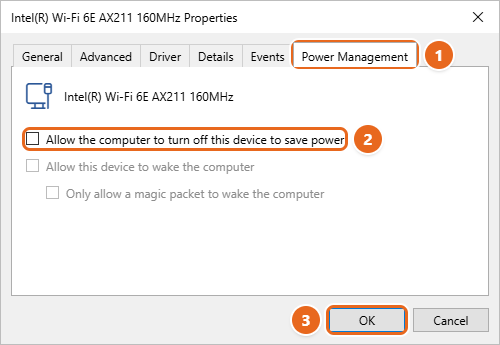
- Select the Power Management tab. If your adapter has no Power Management tab, skip to the power plan setting below.
- Clear Allow the computer to turn off this device to save power, then select OK.

Open the Power Management tab (1), clear Allow the computer to turn off this device to save power (2), then select OK (3).
Power plan setting: Microsoft also suggests changing the adapter’s power saving mode. Open Control Panel > Hardware and Sound > Power Options, select Change plan settings next to your plan, then Change advanced power settings. Expand Wireless Adapter Settings > Power Saving Mode and set it to Maximum Performance. On a laptop, set both On battery and Plugged in. Some PCs don’t show this setting.
To test, put the PC to sleep for a few minutes, wake it, and check whether Wi-Fi reconnects on its own.
Fix 8: Reset the network stack with commands
When Wi-Fi says it’s connected but nothing loads, the cause is often damaged network settings inside Windows, an old IP address from the router, or stale DNS records. DNS is the system that turns website names into addresses. These commands reset those parts without removing your adapters or saved Wi-Fi networks.
- Select Start, type cmd, then select Run as administrator on the right. Select Yes when User Account Control asks. Need help? See how to open Command Prompt in Windows 11.
- Type each command below and press Enter after each one, in this order:
netsh winsock resetresets Winsock, the part of Windows that lets apps use the network.netsh int ip resetresets the TCP/IP settings.ipconfig /releaselets go of the current IP address. Your connection drops for a moment, which is expected.ipconfig /renewasks the router for a new IP address.ipconfig /flushdnsclears saved DNS records.
- Restart the PC. The Winsock and IP resets don’t fully take effect until you do.
Note: Resetting Winsock can remove changes made by some VPN or proxy programs, so you may need to reinstall them afterward. If only some websites fail to load, flushing DNS alone may be enough. See how to flush the DNS cache in Windows 11.
Fix 9: Check your IP address, DNS, proxy and VPN
Windows can be connected to your router but still unable to reach the internet. Windows shows this as No internet under the network name. These checks find the most common reasons.
Look for a 169.254 address
Open Command Prompt, type ipconfig and press Enter. Under Wireless LAN adapter Wi-Fi, look at IPv4 Address. If it starts with 169.254, Windows couldn’t get an address from the router. Microsoft says to check that DHCP, the router feature that hands out addresses, is turned on, using your router’s manual. Restarting the router (Fix 2) and running ipconfig /renew often fixes it. For other ways to see your address, see how to find your IP address in Windows 11.
Set IP and DNS back to automatic
An old manual IP address or DNS server can stop a network from working, especially on a laptop that moves between home, work and public Wi-Fi.
- Select Start > Settings > Network & internet > Wi-Fi > Manage known networks, and select your network.
- Next to IP assignment, select Edit.
- Choose Automatic (DHCP) and select Save.
- If DNS server assignment also shows manual addresses you didn’t set on purpose, select Edit next to it and choose Automatic (DHCP).
If your network needs a fixed address, for example at some offices, ask the person who manages it before you change anything.
Turn off a manual proxy
Select Start > Settings > Network & internet > Proxy. Under Manual proxy setup, if Use a proxy server is on and you don’t need it, select Edit next to it, turn it off, and select Save. A proxy left behind by old software, or by malware, can block every website.
Disconnect your VPN
If you use a VPN app, disconnect it or close it and test again. A VPN that can’t reach its server can block all traffic, even when Wi-Fi itself is fine. Third-party firewall or security software can do the same. Turn it off briefly to test, and turn it back on afterward.
Fix 10: Restart the WLAN AutoConfig service
WLAN AutoConfig is the Windows service that finds Wi-Fi networks and connects to them. If it’s stopped or disabled, often by a “PC tune-up” or debloating tool, Wi-Fi can disappear from Windows even though the adapter is fine.
- Press Windows key+R, type
services.msc, and press Enter. - Scroll down and double-click WLAN AutoConfig.
- Set Startup type to Automatic.
- If Service status says Stopped, select Start. Then select OK.
- If it’s already running, right-click WLAN AutoConfig in the list and select Restart.
Wi-Fi usually comes back within a few seconds. If you can’t change the startup type, your PC may be managed by an organization (see When it’s a hardware or work PC problem).
Fix 11: Try the other band and check the signal
Most routers broadcast on two or three frequency bands. 2.4 GHz reaches farther and passes through walls better. 5 GHz and 6 GHz are faster but have a shorter range. Many routers show each band as a separate network name, such as HomeNet and HomeNet-5G.
- Try the other network name. If your list shows both, connect to the other one. Microsoft suggests this as a basic fix.
- Your network may not show up at all. An older adapter that only supports 2.4 GHz can’t see a 5 GHz or 6 GHz network. Check your adapter’s specifications on the maker’s website.
- Check the adapter’s band setting. In Device Manager, open the Wi-Fi adapter’s Properties and select the Advanced tab. Look for a setting such as Wireless Mode, Preferred Band or Band. The names vary by maker. Make sure it isn’t limited to a band your router doesn’t use. If you aren’t sure, leave it on its default or automatic value.
- Move closer. Walls, floors, metal furniture and some appliances weaken the signal. If Wi-Fi works next to the router but not in another room, the problem is coverage, not Windows. A mesh system or an extender can help.
- Change the router’s channel. If many neighbors’ networks show in your list, interference can cause drops. Microsoft suggests changing the wireless channel on the router’s admin page, which your router’s manual explains.
Fix 12: Install or remove Windows updates
Microsoft regularly fixes Wi-Fi bugs and ships driver updates through Windows Update. If you can get online another way, such as Ethernet or a phone hotspot, select Start > Settings > Windows Update > Check for updates, install what’s offered, and restart. See how to update Windows 11 for more help.
If Wi-Fi broke right after an update, try rolling back the Wi-Fi driver first (Fix 6), because that’s the more focused change. If that doesn’t help, you can remove the latest update:
- Select Start > Settings > Windows Update > Update history.
- Note the dates of the most recent updates, then select Uninstall updates under Related settings.
- Select Uninstall next to the update that arrived when Wi-Fi stopped working, confirm, and restart.
Removing a security update leaves your PC less protected, so treat this as temporary. Windows offers it again later, often with a fix.
Fix 13: Use network reset as a last resort
Network reset removes every network adapter, then reinstalls them with default settings after a restart. Microsoft recommends it as the last step, and says it can help with problems after an upgrade from Windows 10.
Before you reset: Windows forgets all your saved Wi-Fi networks, so have your passwords ready. VPN apps and virtual network adapters, such as Hyper-V switches, may need to be set up again. Your networks may also be set to Public, which hides the PC from other devices on your home network. Your files and apps aren’t touched.
- Select Start > Settings > Network & internet > Advanced network settings.
- Under More settings, select Network reset.
- Select Reset now, then Yes. Save your work, because your PC restarts within a few minutes.
- After the restart, connect to your Wi-Fi network again and enter the password.
For what the reset changes, how to back up your Wi-Fi passwords first and what to set up afterward, see our step-by-step guide on how to reset network settings in Windows 11.
When it’s a hardware or work PC problem
If none of the fixes work, the cause may be outside Windows.
- Wi-Fi turned off in the BIOS or UEFI. Some laptops let you disable the wireless card in their setup screen. Restart, press the key your PC maker uses to open setup (often F2, F10, F12 or Delete), and look for a wireless or WLAN option. Change only that setting.
- The adapter failed or came loose. If the adapter never appears in Device Manager, even after you install your PC maker’s driver, the card may have failed. Contact your PC maker, especially if the PC is under warranty.
- A quick workaround. A USB Wi-Fi adapter is an inexpensive way to get back online, and it’s also a good test. If a USB adapter works, the problem is the built-in card or its driver.
- A work or school PC. Your organization may control which networks you can join, or block Wi-Fi settings. If you see Some of these settings are managed by your organization, contact your IT department instead of changing settings yourself.
Tip: If you need help from a technician or from your PC maker, note your Windows version (Settings > System > About) and your adapter’s name and driver version from Device Manager. Don’t share your Wi-Fi password or the full output of ipconfig /all in public forums.
How to undo these changes
- Driver update: In Device Manager, open the adapter’s Properties > Driver > Roll Back Driver.
- Power Management: Check Allow the computer to turn off this device to save power again if you want the battery savings back.
- Forgotten networks or network reset: There’s no undo. Join each network again with its password.
- Removed update: Select Settings > Windows Update > Check for updates to install it again.
FAQ
Why did my Wi-Fi suddenly stop working on Windows 11?
The most common reasons are Airplane mode or a laptop wireless key, a router or internet outage, a new driver or update, and a saved network profile with an old password. Test with another device first to rule out the router, then check the date Wi-Fi stopped against Settings > Windows Update > Update history.
Why does Windows 11 say “No internet” when I’m connected to Wi-Fi?
It means your PC reached the router but couldn’t reach the internet. Microsoft explains that Windows checks by sending a small request to a server online. If the request fails, you see the No internet message. Check another device, restart the modem and router, then run the commands in Fix 8 and the checks in Fix 9.
Why is the Wi-Fi option missing in Windows 11?
Windows hides Wi-Fi settings when it can’t find a working wireless adapter. Check for a disabled adapter (Fix 5), a driver problem (Fix 6), or a stopped WLAN AutoConfig service (Fix 10). A laptop’s wireless switch can also cause it.
Will a network reset delete my files?
No. It removes and reinstalls network adapters and their settings, and forgets saved Wi-Fi networks. Your files, apps and router settings are not affected.
Why does my Wi-Fi disconnect after sleep?
Usually because Windows turned the adapter off to save power and it didn’t wake properly. Clear the power-saving option in Fix 7, then update the driver if it still happens.
Do these steps work on Windows 10?
Most do, but some Settings paths are different, and Windows 10 doesn’t have the same quick settings panel. See our separate guide on how to fix Wi-Fi and network problems in Windows 10.
Next step
If Wi-Fi is working again, note which fix helped. If it was the driver, check your PC maker’s support page now and then for newer versions. If Wi-Fi keeps failing on more than one network and nothing here helps, test with a USB Wi-Fi adapter and contact your PC maker about the built-in card.

Matt Jacobs has been working as an IT consultant for small businesses since receiving his Master’s degree in 2003. While he still does some consulting work, his primary focus now is on creating technology support content for SupportYourTech.com.
His work can be found on many websites and focuses on topics such as Microsoft Office, Apple devices, Android devices, Photoshop, and more.