Partly. A Windows 10 Home PC can’t be controlled with Remote Desktop, because only Windows 10 Pro, Enterprise and Education can accept Remote Desktop connections. A Home PC can use Remote Desktop Connection to connect to a Pro PC. To get or give help on a Home PC, use Quick Assist, which is built into Windows 10.
Applies to: Windows 10 Home. Checked against Microsoft Support on September 28, 2026.
Check your edition
- Select Start > Settings > System > About.
- Under Windows specifications, look at Edition.
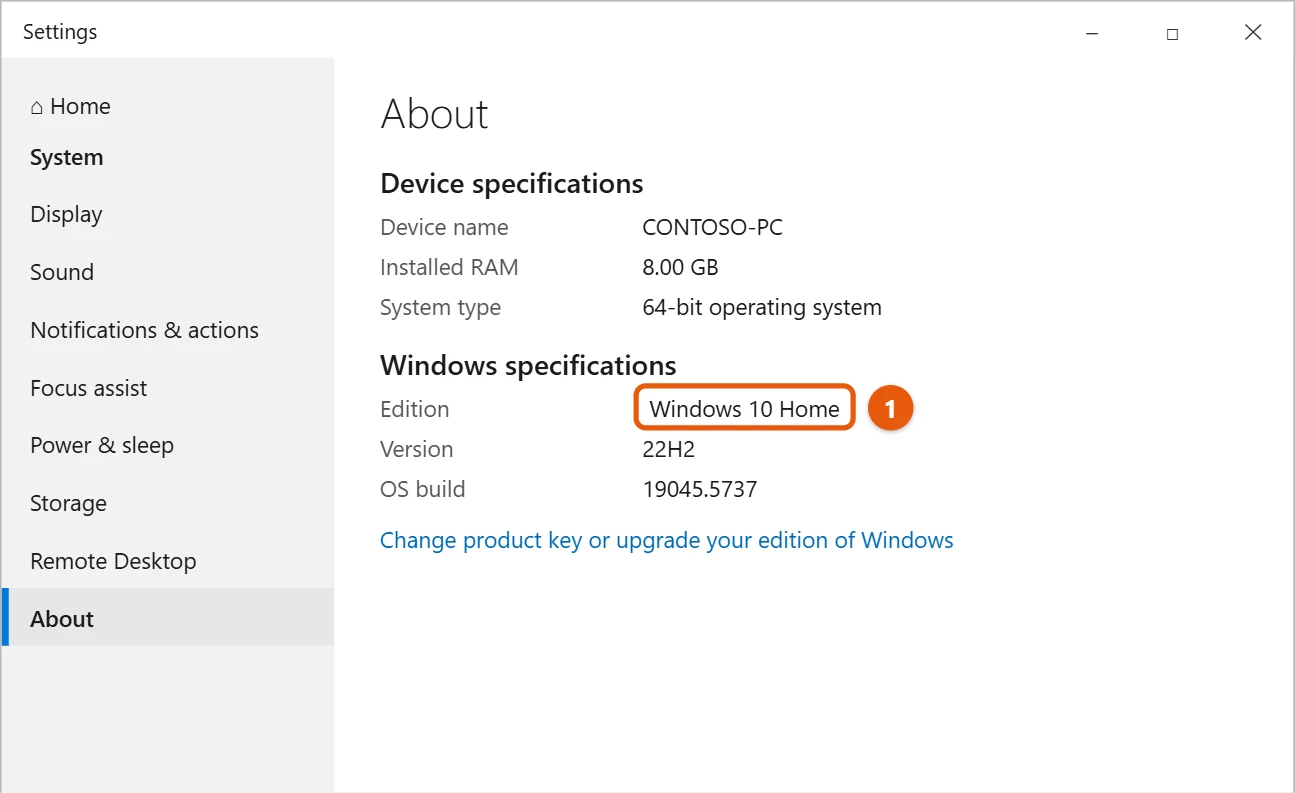
What works on Windows 10 Home
- Connecting to a Pro PC: Select Start, type Remote Desktop Connection, open it, and type the other PC’s name. The other PC must be set up first. See how to set up Remote Desktop on Windows 10.
- Being connected to: Not possible with Remote Desktop on Home. Use Quick Assist instead, or upgrade the PC to Windows 10 Pro.
Get or give help with Quick Assist
- Both people select Start, type Quick Assist, and open it.
- The helper selects Assist another person and gives the 6-digit code to the other person.
- The person getting help types the code under Get assistance and selects Share screen, then allows access.
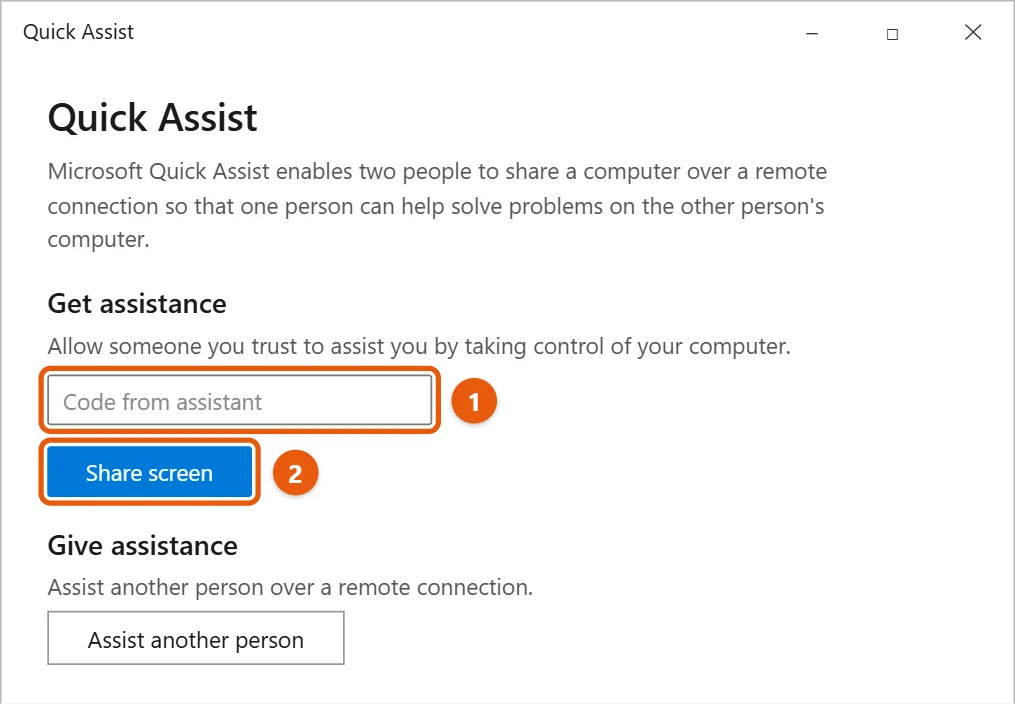
Only use Quick Assist with someone you know and trust. Scammers sometimes call and ask for a Quick Assist code. Microsoft won’t call you to offer help. For more, see how to get help in Windows 10.
Frequently asked questions
Can I turn on Remote Desktop on Home with a setting?
No. Windows 10 Home doesn’t include the Remote Desktop host. Tricks that add it change system files and aren’t supported, so we don’t recommend them.
Does Quick Assist work when no one is at the other PC?
No. Someone has to be there to type the code and allow access each time.
Microsoft’s reference is How to use Remote Desktop. More help is on our Windows Help & Guides page.

Matt Jacobs has been working as an IT consultant for small businesses since receiving his Master’s degree in 2003. While he still does some consulting work, his primary focus now is on creating technology support content for SupportYourTech.com.
His work can be found on many websites and focuses on topics such as Microsoft Office, Apple devices, Android devices, Photoshop, and more.