To set up Windows Hello face recognition in Windows 11, press Windows key + I to open Settings, then select Accounts > Sign-in options. Select Facial recognition (Windows Hello), select Set up, then Get started. Enter your PIN, look at the camera until the scan finishes, and select Close.
The catch is hardware. Face sign-in needs a Windows Hello-compatible infrared (IR) camera, either built into your PC or plugged in over USB. An ordinary webcam won’t work, no matter how good its picture is.
Applies to: Windows 11 (versions 24H2 and 25H2, Home and Pro). The steps match Microsoft’s Windows Hello setup page and its Enhanced sign-in security documentation.
What you need: the IR camera requirement
Windows Hello face recognition doesn’t just look at a normal photo of you. It uses a camera specially configured for near-infrared (IR) imaging. Most PCs that support it have two sensors behind the screen bezel: a regular color camera for video calls and an IR camera, usually with a small IR light next to it.
Infrared matters for two reasons:
- Consistent images in different lighting. An IR image of your face looks much the same whether you’re sitting under a desk lamp or next to a bright window, so recognition is more reliable than with a color camera alone.
- Resistance to spoofing. A printed photo or a picture on a phone screen doesn’t look like a real face in infrared. That makes it much harder for someone to unlock your PC with a picture of you.
Here’s what each Windows Hello sign-in method needs:
| Sign-in method | Hardware needed | Works on most PCs? |
|---|---|---|
| Facial recognition (Windows Hello) | A Windows Hello-compatible IR camera, built in or external | No. Common on business laptops, Surface devices, and higher-end consumer laptops, but many PCs don’t have one. |
| Fingerprint recognition (Windows Hello) | A fingerprint reader, built in or USB | Many laptops; few desktops |
| PIN (Windows Hello) | None | Yes, every Windows 11 PC |
You also need these before you start:
- A PIN. Windows uses your PIN to confirm it’s you during setup, and the PIN is your backup when the camera can’t recognize you. If you don’t have one yet, set a PIN in Windows 11 first. Windows may also walk you through creating one when you start face setup.
- Your own user account. Each person enrolls their own face in their own Windows account. Face recognition works with a Microsoft account, a local account, or a work or school account. You don’t need a Microsoft account.
- A clear view of your face. Open any privacy shutter on the camera and set up in normal, even lighting.
If your PC doesn’t have an IR camera but does have a fingerprint reader, fingerprint sign-in gives you the same password-free convenience; setup is covered in adding a fingerprint in Windows 11.
How to check whether your PC supports face sign-in
The quickest test is the Settings page itself.
- Press Windows key + I to open Settings.
- Select Accounts in the left pane, then select Sign-in options.
- Under Ways to sign in, select Facial recognition (Windows Hello) to expand it.
- Look at what appears. If you see a Set up button, your PC has a compatible camera and you can continue. If you see a message such as This option is currently unavailable or a note that Windows couldn’t find a compatible camera, Windows isn’t detecting a Hello camera.
If the option is unavailable on a laptop you believe has an IR camera, check the laptop’s specifications on the manufacturer’s website. Look for terms like “IR camera,” “infrared camera,” or “Windows Hello face.” You can also open Device Manager (right-click Start > Device Manager) and expand Cameras and Biometric devices. Device names vary by manufacturer, but an IR camera is often listed with “IR” in its name. If you only see one camera with a generic name like “Integrated Camera,” your PC probably doesn’t have an IR sensor. The troubleshooting section covers driver problems that can hide a camera that is present.
How to set up face recognition
Setup takes about a minute. Sit at your normal distance from the screen, roughly an arm’s length, and face the camera directly.
- Press Windows key + I to open Settings. You can also select Start > Settings.
- Select Accounts, then select Sign-in options on the right.
- Under Ways to sign in, select Facial recognition (Windows Hello). Its description reads Sign in with your camera (Recommended). The section expands and shows Use your face to sign in to Windows, apps, and services.
- Select Set up. A Windows Hello setup window opens with a Welcome to Windows Hello screen.
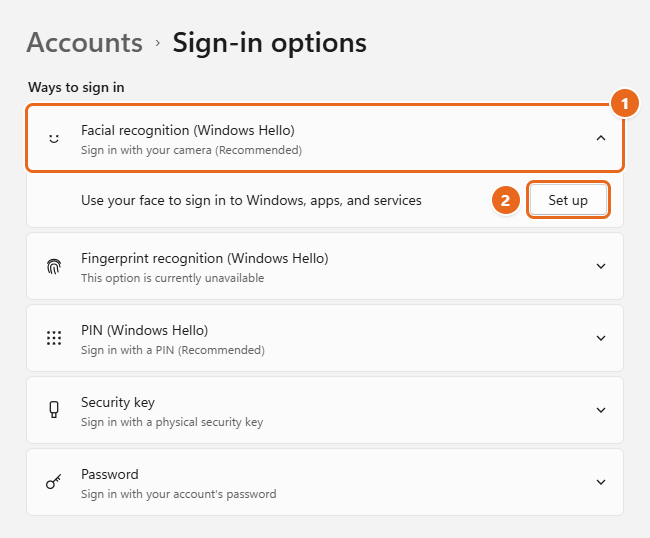
- Select Get started.
- When Windows asks you to verify your identity, enter your PIN (or your password if Windows asks for it). If you don’t have a PIN yet, follow the prompts to create one first.
- The window shows the camera view and the message Keep looking directly at your camera. Keep your face centered and look at the screen until the scan finishes. You don’t need to click anything during the scan. Don’t move away early, or the scan may have to restart.
- When you see All set!, select Close. If you wore glasses during the scan, you can select Improve recognition here to scan again without them (or with them, if you scanned without).
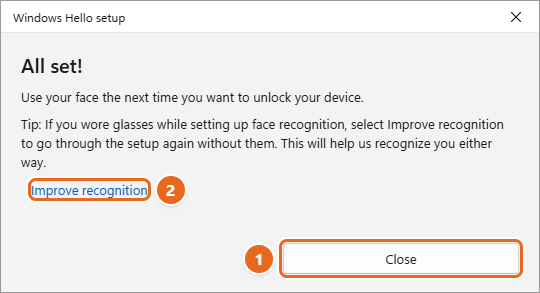
Back on the Sign-in options page, the Facial recognition (Windows Hello) section now shows new options, including Improve recognition and Remove. Your face is enrolled only for your account on this PC. If you use more than one Windows 11 PC, set up face recognition on each one separately.
Signing in with your face
To try it, press Windows key + L to lock your PC. Then wake the screen and look at it. The IR light near the camera may glow or flicker briefly while Windows checks your face. That’s normal.
- If Automatically dismiss the lock screen if Windows recognizes your face is turned on (described in the next section), Windows goes straight to your desktop once it recognizes you.
- If that setting is off, Windows shows that it recognized you, and you press a key, click, or swipe up to finish signing in.
- If Windows can’t recognize you, it shows Couldn’t recognize you. Select Sign-in options on the lock screen and use your PIN or password instead.
Face recognition also works beyond the lock screen. Apps, websites, and the Microsoft Store can ask Windows Hello to confirm it’s you, and you can use your face to approve passkey sign-ins, as explained in using passkeys in Windows 11.
Face recognition settings worth knowing
After setup, go back to Settings > Accounts > Sign-in options and expand Facial recognition (Windows Hello). The exact list depends on your hardware and Windows build, but you’ll typically see these options.
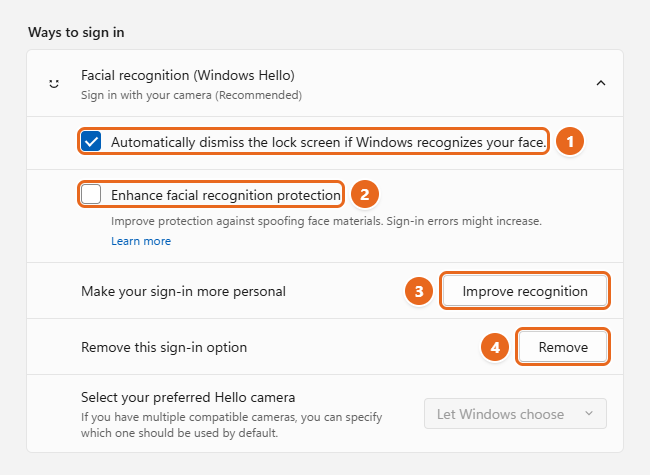
Automatically dismiss the lock screen if Windows recognizes your face
When this box is checked, recognizing your face takes you straight to the desktop. When it’s unchecked, Windows recognizes you but waits for you to press a key or click before it leaves the lock screen. Uncheck it if you like reading lock screen notifications first, or if the PC sometimes unlocks when you only meant to glance at it.
Enhance facial recognition protection
This option turns on stronger anti-spoofing, which sets a higher bar for recognizing a live face. The trade-off is that sign-in errors might increase. This stricter setting may especially cause problems in darkened rooms. On a work or school PC, your IT administrator may turn it on for you.
Improve recognition
Improve recognition adds another face scan to your profile instead of replacing the first one. It helps if you sometimes wear glasses, change your facial hair, or have trouble being recognized. Removing face recognition and setting it up again keeps only the newest scan, so try Improve recognition first.
- Go to Settings > Accounts > Sign-in options.
- Expand Facial recognition (Windows Hello) and select Improve recognition.
- Confirm with your PIN, then look at the camera until the new scan finishes.
A good habit: do one scan with glasses and one without, or one at your desk and one in the room where you often use the laptop.
Select your preferred Hello camera
If your PC has more than one compatible camera, such as a laptop’s built-in IR camera and an external Hello webcam, this menu lets you pick which one Windows uses. The default is Let Windows choose. The menu may be grayed out when only one Hello camera is connected.
Automatic screen brightness in dark rooms
There’s also a setting called automatically adjust screen brightness during face recognition. When the IR camera can see your face but the room is too dark for the color camera, Windows briefly brightens the screen to light your face, then returns the brightness to normal. This setting is off by default, was temporarily removed, and is scheduled to reappear starting November 2026. If you don’t see it yet, that’s expected. Once it’s available, turn it on in the same Facial recognition (Windows Hello) section if you often sign in with the lights low.
Using an external Windows Hello camera
Desktop PCs and many laptops don’t have an IR camera. You can add one. You can buy a compatible camera that connects over USB.
- Buy the right kind of camera. Look for a webcam that the manufacturer specifically lists as supporting Windows Hello facial recognition, with an infrared sensor. Some monitors also have a built-in Hello IR camera. Check the specifications rather than relying on a “Windows” label alone.
- Connect it. Plug the camera into a USB port and give Windows a minute to install its driver. If the manufacturer offers a driver or setup app, install it.
- Position it. Mount it at about eye level, facing you directly. Windows needs you to face the sensor fairly squarely to recognize you.
- Set up face recognition. Follow the setup steps above. If the PC also has a built-in Hello camera, use Select your preferred Hello camera to choose which one Windows uses.
If the external camera isn’t offered: Enhanced sign-in security
Some newer PCs, including all Copilot+ PCs, use Enhanced sign-in security (ESS). ESS isolates face and fingerprint processing from the rest of Windows for extra protection, but it only works with specific built-in sensors. ESS isn’t supported for external cameras, and when ESS is on, sensors that don’t support it are blocked from Windows sign-in.
To use an external Hello camera on one of these PCs:
- Go to Settings > Accounts > Sign-in options.
- Scroll down to Additional settings and find Enhanced sign-in security.
- On Windows 11 version 24H2 or later, turn the toggle Off to allow external Hello cameras and fingerprint readers. If there’s no toggle and the setting shows Pending set up, the first sensor you enroll decides the setting: an external camera enrolled first leaves ESS off.
Warning: Turning off Enhanced sign-in security lowers the protection around your biometric data. On a work or school PC, leave this to your IT team. Also, on 23H2 the control had a different name, Sign in with an external camera or fingerprint reader, and it worked the opposite way: On allowed external devices. If your PC still shows that label, update Windows, or set that toggle to On.
How to remove or turn off face recognition
Removing face recognition deletes your face data for that account on this PC. You can still sign in with your PIN, password, or fingerprint.
- Go to Settings > Accounts > Sign-in options.
- Expand Facial recognition (Windows Hello).
- Next to Remove this sign-in option, select Remove.
- If Windows asks, confirm with your PIN or account password.
To turn it back on, select Set up in the same section and scan your face again. To stop using your PIN as well, remove the PIN in Windows 11 afterward.
Troubleshooting
Facial recognition shows “This option is currently unavailable”
- No IR camera. This is the most common cause. A standard webcam can’t be used for Windows Hello face sign-in. Use a PIN or fingerprint instead, or add an external Hello camera.
- Driver problem. Open Device Manager and expand Cameras and Biometric devices. If you see a warning icon, right-click the device and select Update driver, or get the latest camera driver from your PC maker’s support site. Then check Settings > Windows Update > Advanced options > Optional updates for driver updates.
- Camera turned off. Some laptops let you disable the camera in the firmware (BIOS/UEFI) settings or with a function key. Also make sure the device isn’t disabled in Device Manager.
- Organization policy. On a work or school PC, your administrator can turn off face sign-in. The Sign-in options page may show a message that some settings are managed by your organization. Ask your IT team.
- External camera on an ESS PC. See Enhanced sign-in security above.
“Couldn’t recognize you” at sign-in
Sign in with your PIN, then work through these fixes:
- Clean the camera lens and make sure nothing covers it, including a privacy shutter, sticker, or a laptop lid that’s almost closed.
- Avoid harsh light from one side, such as a bright window or lamp right beside you.
- Take off hats or accessories that frame your face. Some kinds of makeup can also make recognition harder.
- Run Improve recognition, especially if you started or stopped wearing glasses or changed your facial hair.
- If none of that helps, remove face recognition and set it up again. If recognition still fails, the camera may have a hardware problem. Contact the PC or camera manufacturer.
Face sign-in stopped working in a dark room
Windows Hello needs a clear, confident view of a live face. If the room is very dark, or if Enhance facial recognition protection (enhanced anti-spoofing) is turned on, recognition can fail. Turn on a light, or uncheck Enhance facial recognition protection if it’s on and you set it yourself. When the automatic screen brightness setting returns, it can also help.
It stopped working after a Windows update
Restart the PC first. Then check Windows Update for optional driver updates and run Improve recognition. If the option disappeared completely, update or reinstall the camera driver as described above, then set up face recognition again.
Windows keeps asking you to create a PIN
This can happen after security updates or system changes. Create the PIN again, or sign out and back in and then try. Face recognition depends on the PIN, so fix the PIN first.
Is Windows Hello face recognition safe?
Windows Hello doesn’t store a photo of your face. During setup it builds a mathematical representation (an enrollment profile) and keeps it on your device. Your face data isn’t uploaded to Microsoft’s servers, and enrollment data is never sent to websites or apps when you use Windows Hello to sign in to them.
The IR sensor makes simple tricks like holding up a photo ineffective, and Microsoft reports a false-acceptance rate of less than 1 in 100,000 for a random person. Your PIN remains the backup, so keep it private and don’t reuse it elsewhere.
FAQ
Can I use Windows Hello face recognition with a regular webcam?
No. Windows Hello face sign-in requires a camera with an infrared sensor that’s compatible with Windows Hello. A standard color webcam, even an expensive one, won’t show up as an option.
Do I need a Microsoft account?
No. Face recognition works with local accounts, Microsoft accounts, and work or school accounts. With a Microsoft account, you get the extra benefit of an online “I forgot my PIN” reset.
Can more than one person use face sign-in on the same PC?
Yes. Each person signs in to their own Windows account and sets up face recognition there. Faces are enrolled per account, so your face won’t open someone else’s account.
Do I have to look straight at the camera?
Roughly, yes. The algorithm checks that you’re facing the device within about 15 degrees before it makes a decision.
Can I use face recognition and a fingerprint at the same time?
Yes. You can set up both, plus a PIN, and use whichever is convenient. Windows uses face recognition automatically when it sees you, and you can touch the fingerprint reader instead at any time.
What if my face changes or I get new glasses?
Use Improve recognition to add another scan. Additional enrollments help after major changes, with certain glasses, or if you often use the PC in strong sunlight, which contains a lot of infrared light.
Once face recognition is working, lock your PC with Windows key + L a few times in different lighting to make sure it recognizes you reliably, and run Improve recognition if it struggles anywhere you use it often.

Matt Jacobs has been working as an IT consultant for small businesses since receiving his Master’s degree in 2003. While he still does some consulting work, his primary focus now is on creating technology support content for SupportYourTech.com.
His work can be found on many websites and focuses on topics such as Microsoft Office, Apple devices, Android devices, Photoshop, and more.