To turn on Mobile hotspot in Windows 11, select Start > Settings > Network & internet > Mobile hotspot, choose the connection you want to share under Share my internet connection from, then turn on the Mobile hotspot switch at the top of the page. Other devices can then join the network name and password shown under Properties. Once it’s set up, you can switch it on and off faster from the Mobile hotspot button in Quick Settings (Windows key + A).
Applies to: Windows 11 (versions 24H2 and 25H2; earlier Windows 11 versions use the same Settings path). The steps match Microsoft’s mobile hotspot page.
Before you start
Mobile hotspot turns your Windows 11 PC into a small wireless access point. Your PC stays connected to the internet the usual way, and other devices connect to your PC instead of to a router. A few things decide whether it will work for you:
- Your PC needs a working internet connection. Windows can share a Wi-Fi, Ethernet or cellular data connection. If the PC itself can’t load a web page, the devices that join your hotspot won’t be able to either.
- Your PC needs a way to broadcast. Sharing over Wi-Fi needs a Wi-Fi adapter. Almost every laptop has one, but many desktop PCs don’t. Sharing over Bluetooth needs Bluetooth on both devices.
- You can share Wi-Fi over Wi-Fi. On most laptops, Windows can stay connected to a Wi-Fi network and broadcast a second network from the same adapter. This is handy in a hotel or on a plane where you pay for access on one device.
- Cellular data counts against your plan. If you share a cellular connection, the data comes from your data plan. Phones and tablets that join a hotspot often download updates and back up photos, so data can go faster than you expect.
- Check the rules of the network you’re sharing. Some workplaces, schools, hotels and airlines don’t allow connection sharing. A work PC may have the feature turned off by its administrator (see Troubleshooting).
Here’s a quick way to decide what to choose in the two menus you’ll see on the Mobile hotspot page:
| Your situation | Share my internet connection from | Share over |
|---|---|---|
| Laptop plugged into a router with a cable, phone needs internet | Ethernet | Wi-Fi |
| Laptop on hotel or airplane Wi-Fi, tablet needs internet | Wi-Fi | Wi-Fi |
| Laptop with a built-in SIM or eSIM, no other internet nearby | Cellular | Wi-Fi |
| Device that can’t use Wi-Fi but supports Bluetooth networking | Any of the above | Bluetooth |
Method 1: Turn on Mobile hotspot in Settings
Use Settings the first time, because it’s where you choose what to share and set the network name and password.
- Select Start, then select Settings. You can also press Windows key + I.
- Select Network & internet in the left pane.
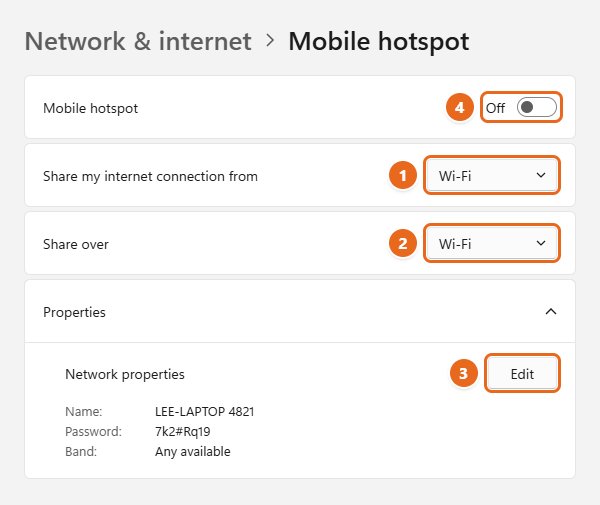
- Select Mobile hotspot on the right. Don’t turn on the switch next to it yet. The Mobile hotspot page opens with the switch at the top and the setup options below it.
- Next to Share my internet connection from, open the menu and select the connection your PC is using to get online, such as Wi-Fi, Ethernet or Cellular. If you only have one connection, it’s usually selected already.
- Next to Share over, select Wi-Fi or Bluetooth. Wi-Fi is usually faster, and it’s the default.
- Expand Properties to see the network name, password and band Windows has created. Write down the name and password, or select Edit to choose your own (see Change the hotspot name, password or band).
- Turn on the Mobile hotspot switch at the top of the page. The word next to it changes from Off to On, and your PC starts broadcasting its network.
Tip: To jump straight to this page, press Windows key + R, type ms-settings:network-mobilehotspot and press Enter. This shortcut comes from Microsoft’s Launch Windows Settings page.
While the hotspot is on, the Share my internet connection from menu may be grayed out. To switch to a different source connection, turn the hotspot off, change the menu, then turn it back on.
Method 2: Turn on Mobile hotspot from Quick Settings
Quick Settings is the panel that opens from the network, volume and battery icons at the right end of the taskbar. The Mobile hotspot button there turns the hotspot on with the settings you last used in Settings, so it’s the fastest option after you’ve set it up once.
- Select the Network, Volume or Battery icon on the right side of the taskbar, or press Windows key + A. Quick Settings opens above the taskbar.
- Look for the Mobile hotspot button. In current versions of Windows 11, the buttons are spread across more than one page, so you may need to select the down arrow on the right side of the buttons to see the next page.
- Select Mobile hotspot. The button turns your accent color when the hotspot is on.
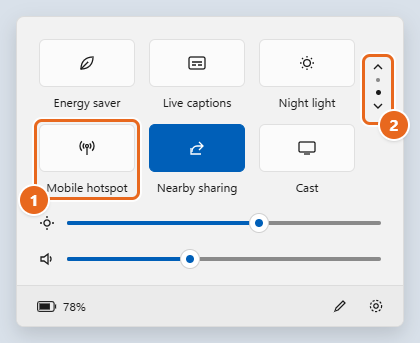
When the hotspot is on, the button shows how many devices are connected. To see the password or change any setting, right-click the Mobile hotspot button (or press and hold it on a touch screen) and select Go to Settings.
If the Mobile hotspot button is missing
If you’ve checked every page and the button isn’t there, it may have been removed. You can add it back:
- Open Quick Settings and select the Edit quick settings button (the pencil icon at the bottom of the panel).
- Select Add, then select Mobile hotspot from the list.
- Select Done.
If Mobile hotspot isn’t in the list either, Windows may not detect a Wi-Fi adapter that can host a hotspot. Use Method 1 and check the Troubleshooting section.
Connect a phone, tablet or laptop to the hotspot
To the other device, your PC’s hotspot looks like any other Wi-Fi network.
- On your PC, open Settings > Network & internet > Mobile hotspot and expand Properties. Note the Name and Password.
- On the other device, open its Wi-Fi settings. On an iPhone, that’s Settings > Wi-Fi. On most Android phones, it’s Settings > Network & internet (or Connections) > Wi-Fi.
- Select your hotspot’s name in the list of networks.
- Enter the password exactly as shown, including uppercase letters and symbols, then select Join or Connect.
If your PC shows a QR code for the hotspot, you can scan it with the other device’s camera instead of typing the password. This is easiest with phones.
If you chose Bluetooth under Share over, pair the two devices first, then join the PC’s network from the other device’s Bluetooth settings. The device must support connecting to the internet over Bluetooth, and the connection is much slower than Wi-Fi. Pairing starts with turning on Bluetooth in Windows 11.
Change the hotspot name, password or band
Windows creates a network name based on your PC’s name and a random password. Changing them makes the network easier to find and the password easier to share. You can make these changes while the hotspot is off or on; devices that are already connected will need the new password to reconnect.
- Open Settings > Network & internet > Mobile hotspot.
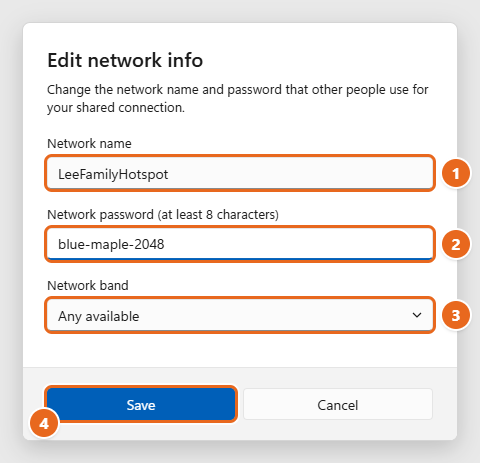
- Expand Properties and select Edit. The Edit network info window opens.
- In Network name, type a name people will recognize. Avoid your full name or address, because anyone nearby can see it.
- In Network password, type a password of at least 8 characters. A short phrase with a number, like
blue-maple-2048, is easier to share than random characters and still hard to guess. - Under Network band, leave Any available selected unless you have a reason to change it (see the table below).
- Select Save.
The bands you can pick depend on your PC’s Wi-Fi hardware and driver, so you may see fewer options than these:
| Network band | When to use it |
|---|---|
| Any available | The best choice for most people. Windows picks a band that works with your adapter. |
| 2.4 GHz | Older phones, smart TVs, game consoles and smart-home gadgets that can’t see 5 GHz networks. Reaches farther through walls, but it’s slower. |
| 5 GHz | Faster for nearby devices, such as a phone on the same desk. Some older devices can’t connect to it. |
| 6 GHz | Only appears when your PC’s Wi-Fi chip and driver support a 6 GHz hotspot. The connecting device must also support 6 GHz (Wi-Fi 6E or newer). |
See connected devices and control when it turns off
With the hotspot on, the bottom of the Properties section shows Devices connected, along with the name and addresses of each connected device. Windows allows up to 8 devices at a time. If someone you don’t recognize is connected, change the password (see the previous section), then turn the hotspot off and back on so every device has to reconnect with the new password.
The Mobile hotspot page also has a Power saving switch. When it’s on, Windows automatically turns off the hotspot when no devices are connected, which saves battery on a laptop. If your hotspot keeps switching itself off while you’re setting up another device, turn off Power saving.
The hotspot also doesn’t turn itself back on after you restart or shut down your PC. After a restart, turn it on again from Quick Settings.
If your PC has a cellular connection, you can also let another device turn the hotspot on remotely. For that to work, both devices need Bluetooth and must be paired with each other.
How to turn Mobile hotspot off
Turning off the hotspot disconnects every device that’s using it. Your PC keeps its own internet connection.
- From Quick Settings: Press Windows key + A and select Mobile hotspot so it’s no longer highlighted.
- From Settings: Go to Settings > Network & internet > Mobile hotspot and turn off the Mobile hotspot switch.
Your name, password and band settings are saved, so the next time you turn the hotspot on, devices that joined before should reconnect automatically.
Troubleshooting
The Mobile hotspot switch is grayed out or shows “We can’t set up mobile hotspot”
- Check your own connection first. Open a web page on the PC. If the PC isn’t online, Windows has nothing to share. Make sure the source you chose under Share my internet connection from is the one that’s actually connected.
- Turn off Airplane mode. Open Quick Settings and make sure Airplane mode is off and Wi-Fi is on.
- Check that your PC has a Wi-Fi adapter. A desktop PC connected only by Ethernet can’t broadcast a Wi-Fi hotspot unless you add a Wi-Fi adapter. You can still try Share over > Bluetooth if the PC has Bluetooth.
- Update the Wi-Fi driver. Hosting a hotspot depends on the adapter’s driver. Get the latest driver from Windows Update or your PC maker; both routes are covered in updating drivers in Windows 11.
- Look for “Some of these settings are managed by your organization.” If you see this message at the top of the page, an administrator has blocked connection sharing with a policy. On a work or school PC, ask your IT department; don’t try to work around it.
- Some connection types may not share. Certain dial-up style broadband (PPPoE) and VPN connections may not be available as a source. Try sharing a different connection.
Devices connect but have no internet
- Confirm the PC itself can still browse the web.
- Turn the hotspot off and back on, then reconnect the other device.
- On the other device, forget the hotspot network and join it again with the current password.
- If you use a VPN or third-party firewall on the PC, pause it briefly to see if it’s blocking shared traffic, then turn it back on.
- Restart the PC and turn the hotspot on again.
- As a last resort, reset the PC’s network adapters. This removes saved Wi-Fi networks and VPN setups, so note your passwords first. The steps are in resetting network settings in Windows 11.
A device can’t see the hotspot
- Move the device closer to the PC. A laptop’s Wi-Fi antenna has much less range than a router.
- If Network band is set to 5 GHz or 6 GHz, an older device may not support it. Select Edit and choose Any available or 2.4 GHz.
- Make sure the hotspot is still on. If Power saving is on and nothing was connected, Windows may have turned it off.
The password is rejected
Passwords are case-sensitive. Compare what you typed with the password under Properties, or use the QR code if it’s shown. If you changed the password recently, forget the network on the other device and join it again.
Your data allowance disappears quickly
When the shared connection is cellular, every connected device uses your plan. Turn the hotspot off when you’re done, and on the connecting phone or tablet, pause automatic photo backups and app updates while you’re on the hotspot. On the PC itself, a metered connection setting limits background downloads; see how metered connections work in Windows 11.
FAQ
Can I share a Wi-Fi connection over Wi-Fi?
Yes. Choose Wi-Fi under Share my internet connection from and Wi-Fi under Share over. Most laptop Wi-Fi adapters can stay connected to one network while broadcasting the hotspot. If yours can’t, the switch won’t turn on.
How many devices can connect to a Windows 11 hotspot?
Up to 8 devices at the same time. The Devices connected line under Properties shows how many are connected out of 8.
Does Mobile hotspot work on a desktop PC?
Only if the desktop has a Wi-Fi adapter (for sharing over Wi-Fi) or Bluetooth (for sharing over Bluetooth). Many desktops connect by Ethernet only, and they’ll need a USB or internal Wi-Fi adapter first.
Is the hotspot secure?
The hotspot requires a password, and only people who know it can join. Use a password that isn’t easy to guess, change it if you’ve shared it widely, and turn the hotspot off when you don’t need it. The network name is visible to anyone nearby, so keep personal details out of it.
Why does my hotspot keep turning off?
The most common reason is Power saving, which turns the hotspot off when no devices are connected. The hotspot also turns off when the PC restarts or shuts down.
How do I find the hotspot password again?
Go to Settings > Network & internet > Mobile hotspot and expand Properties. The password is listed there. You can also right-click the Mobile hotspot button in Quick Settings and select Go to Settings.
I have Windows 10. Are the steps the same?
They’re similar, but the switch has a different name and the page looks different. The Windows 10 version is covered in turning on mobile hotspot in Windows 10.
Next step
Once your hotspot works, set a network name and password you’ll remember, and keep the Mobile hotspot button in Quick Settings so you can share your connection with one click the next time you need it.

Matt Jacobs has been working as an IT consultant for small businesses since receiving his Master’s degree in 2003. While he still does some consulting work, his primary focus now is on creating technology support content for SupportYourTech.com.
His work can be found on many websites and focuses on topics such as Microsoft Office, Apple devices, Android devices, Photoshop, and more.