To type accents in Windows 11 without changing any settings, press Windows logo key + . (period), select Symbols (the Ω icon), choose Latin symbols, and click the letter you need, such as é. If your keyboard has a number pad, you can also hold Alt and type a four-digit code, for example Alt + 0233 for é. If you type accents often, add the free United States-International keyboard so that pressing ‘ and then e types é.
Applies to: Windows 11, versions 24H2 and 25H2 (the steps are the same in earlier Windows 11 versions), Word and Outlook for Microsoft 365, and Microsoft PowerToys. The Windows methods match Microsoft’s keyboard tips and tricks.
Which method should you use?
Windows 11 has no accent key on a standard US keyboard, but it gives you several free ways to add one. They all produce the same characters, so pick the one that suits how often you need accents and what kind of keyboard you have.
| Your situation | Best method | Setup needed | Works in |
|---|---|---|---|
| You need an accent once in a while | Emoji panel (Windows + .) | None | Most apps with a text box |
| You have a touchscreen or prefer clicking | Touch keyboard, press and hold a letter | Show the touch keyboard icon once | Any app |
| You type in Spanish, French, German or Portuguese regularly | US-International keyboard | Add the layout once | Every app |
| You have a full keyboard with a number pad | Alt codes | None | Almost every app |
| You need a rare letter and don’t know where to find it | Character Map | None | Any app, by copy and paste |
| You’re writing in Word or Outlook | Office Ctrl shortcuts | None | Word and Outlook only |
| You want Mac-style press and hold on a physical keyboard | PowerToys Quick Accent | Install PowerToys | Every app |
If you aren’t sure, start with the emoji panel today and add the US-International keyboard when you get tired of clicking. Most people who write in another language every week end up with US-International, because it’s the fastest once your fingers learn it.
Method 1: Use the emoji panel (Windows + period)
The emoji panel isn’t only for smiley faces. It has a Symbols section with every common accented letter, and it works on laptops without a number pad.
- Click in the place where you want the letter, such as an email, a document or a search box. The blinking cursor must be in a text field, or the panel has nowhere to put the character.
- Press Windows logo key + . (period). You can also press Windows logo key + ; (semicolon). The emoji panel opens next to your cursor.
- Select the Symbols icon, which looks like the Greek letter Ω, in the row of icons near the top of the panel. A row of categories appears, starting with General punctuation and Currency symbols.
- Select Latin symbols. Use the small arrows at either end of the category row if you can’t see it. The panel scrolls to a grid of letters with accents, cedillas, tildes and umlauts.
- Click the letter you want. It’s typed at your cursor, and the panel stays open so you can pick another.
- Press Esc or select the X to close the panel.
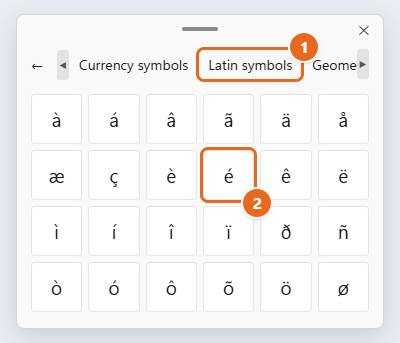
Letters you’ve used appear under Recent at the top of the Symbols view, so the second time you need é it’s one click away. Capital versions such as É and Ñ are in the same Latin symbols grid, a little further down.
The same panel holds currency signs such as € and £, punctuation such as the em dash, and math symbols. The emoji and GIF parts of the panel are covered in the emoji keyboard in Windows 10.
Method 2: Press and hold on the touch keyboard
The on-screen touch keyboard in Windows 11 works like a phone keyboard: press and hold a letter and its accented versions pop up. It’s built for touchscreens, but you can use it with a mouse too.
Show the touch keyboard icon
- Right-click an empty part of the taskbar and select Taskbar settings. On a touchscreen, press and hold the taskbar instead.
- Under System tray icons, find Touch keyboard and choose Always from the menu next to it. The other choices are Never and When no keyboard attached.
- Look near the clock on the taskbar. A small keyboard icon now appears there.
Type an accented letter
- Click in the text box where you want the letter.
- Select the keyboard icon on the taskbar. The touch keyboard opens at the bottom of the screen.
- Press and hold a letter such as e. With a mouse, click the key and keep the button held down. A small strip of variations appears above the key, such as è, é, ê and ë.
- Slide your finger or pointer onto the letter you want and let go. The letter is typed at your cursor.
Only letters that have accented forms show a strip, and the choices depend on the keyboard language you’re using. Vowels, c, n and s are the ones you’ll use most. To type a capital, tap the Shift arrow on the touch keyboard first.
Method 3: Add the US-International keyboard
United States-International is a free keyboard layout that’s already part of Windows. Your letters and numbers stay exactly where they are. The difference is that five punctuation keys become accent keys, also called dead keys: you press the accent first, release it, and then press the letter.
Add the layout
- Select Start > Settings > Time & language > Language & region.
- Under Preferred languages, find English (United States). Select the three dots (More options) next to it, then select Language options.
- Under Keyboards, select Add a keyboard next to Installed keyboards.
- Scroll the list and select United States-International. It’s added under your current keyboard, labeled QWERTY.
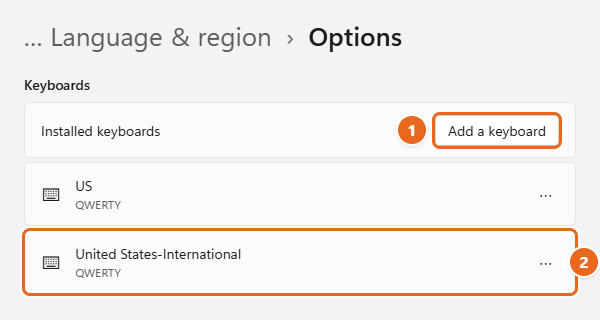
Ordering and removing layouts are covered in changing the keyboard layout in Windows 11.
Switch to it
Press Windows logo key + Spacebar to open the keyboard switcher, keep holding the Windows key, and press Spacebar until United States-International is selected. You can also select the language letters next to the clock on the taskbar (they usually say ENG) and pick it from the list. Windows remembers your choice until you switch again.
Type accents with the dead keys
Press and release the accent key, then press the letter. Nothing appears after the first key; that’s normal, because Windows is waiting to see which letter you want. Add Shift to the letter for a capital, such as ‘ then Shift + E for É.
| Press first | Then a letter | You get |
|---|---|---|
| ‘ (apostrophe) | a, e, i, o, u, y, c | á, é, í, ó, ú, ý, ç |
| ` (grave, left of 1) | a, e, i, o, u | à, è, ì, ò, ù |
| Shift + 6 (^) | a, e, i, o, u | â, ê, î, ô, û |
| Shift + ‘ (“) | a, e, i, o, u, y | ä, ë, ï, ö, ü, ÿ |
| Shift + ` (~) | a, n, o | ã, ñ, õ |
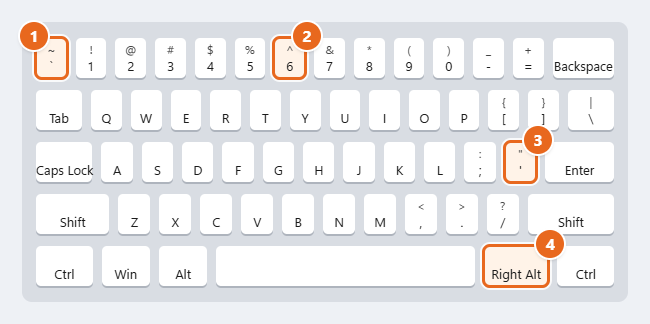
To type a plain apostrophe or quotation mark, press the key and then Spacebar. If you press the key and then a letter that can’t take that accent, such as ‘ then t, Windows types both characters normally, so words like don’t still come out right.
Use Right Alt for one-step letters
US-International also turns the Right Alt key (labeled AltGr on some keyboards) into a second shift key. Hold Right Alt and press a letter to get an accented character in one step. Add Shift for the capital, for example Shift + Right Alt + N for Ñ. The left Alt key doesn’t do this.
| Right Alt + | Gives | Right Alt + | Gives |
|---|---|---|---|
| A | á | N | ñ |
| E | é | , (comma) | ç |
| I | í | S | ß |
| O | ó | Q | ä |
| U | ú | P | ö |
| Y | ü | W | å |
| Z | æ | L | ø |
| 1 | ¡ | / (slash) | ¿ |
| 5 | € | C | © |
To see every character, hover over the AltGr key on the published map of the United States-International keyboard.
What about a French or Spanish keyboard?
You can add a full national layout, such as French or Spanish, in the same Add a keyboard list. Those layouts have dedicated accent keys, but they also move letters and punctuation. The French (France) layout, for example, swaps A with Q and Z with W. Unless your physical keyboard matches, US-International is usually easier. If you want the French layout anyway, typing French accents on Windows 10 walks through it, and the steps are almost identical in Windows 11.
Method 4: Type Alt codes on the number pad
Every common accented letter has a four-digit code. Holding Alt and typing that code on the number pad types the letter in almost any app, with no setup.
Before you start: Alt codes only work with the numeric keypad, the block of number keys on the right side of a full-size keyboard. The row of numbers above the letters does not work.
- Make sure Num Lock is on. On most keyboards, a light on or near the Num Lock key shows it’s active.
- Click where you want the letter.
- Press and hold the Alt key.
- While holding Alt, type all four digits on the number pad, including the leading zero. For é, type 0233.
- Release Alt. The letter appears.
| Letter | Alt code | Capital | Alt code |
|---|---|---|---|
| á | Alt + 0225 | Á | Alt + 0193 |
| à | Alt + 0224 | À | Alt + 0192 |
| â | Alt + 0226 | Â | Alt + 0194 |
| ä | Alt + 0228 | Ä | Alt + 0196 |
| ã | Alt + 0227 | Ã | Alt + 0195 |
| ç | Alt + 0231 | Ç | Alt + 0199 |
| é | Alt + 0233 | É | Alt + 0201 |
| è | Alt + 0232 | È | Alt + 0200 |
| ê | Alt + 0234 | Ê | Alt + 0202 |
| ë | Alt + 0235 | Ë | Alt + 0203 |
| í | Alt + 0237 | Í | Alt + 0205 |
| î | Alt + 0238 | Î | Alt + 0206 |
| ï | Alt + 0239 | Ï | Alt + 0207 |
| ñ | Alt + 0241 | Ñ | Alt + 0209 |
| ó | Alt + 0243 | Ó | Alt + 0211 |
| ô | Alt + 0244 | Ô | Alt + 0212 |
| ö | Alt + 0246 | Ö | Alt + 0214 |
| õ | Alt + 0245 | Õ | Alt + 0213 |
| ú | Alt + 0250 | Ú | Alt + 0218 |
| ù | Alt + 0249 | Ù | Alt + 0217 |
| û | Alt + 0251 | Û | Alt + 0219 |
| ü | Alt + 0252 | Ü | Alt + 0220 |
| œ | Alt + 0156 | Œ | Alt + 0140 |
| ß | Alt + 0223 | ¿ / ¡ | Alt + 0191 / Alt + 0161 |
Always type the leading zero. Codes with four digits that start with 0 use the standard Windows character set, so they’re consistent across apps. Three-digit codes without the zero come from an older DOS table and give different results. For example, Alt + 225 types ß, not á, and Alt + 233 types the Greek letter Θ, not é. Some lists online, and even some older reference tables, mix the two systems, which is why a code you found may give the wrong letter.
No number pad on your laptop?
Many laptops don’t have a separate number pad. Some have one built into the letter keys (often marked in a different color on keys such as J, K, L, U, I and O) that you turn on with Fn + Num Lock or a similar key. If yours has that, Alt codes work with it. If it doesn’t, use the emoji panel, the touch keyboard or the US-International layout instead. A USB number pad also works. If Num Lock keeps turning itself off after a restart, you can keep Num Lock on permanently.
Method 5: Copy letters from Character Map
Character Map is a small Windows tool that shows every character in a font. It’s slower than the other methods, but it has letters the emoji panel doesn’t, such as the Polish ł or the Czech ř, and it tells you the Alt code for any character that has one.
- Select Start, type character map, and select Character Map in the results. You can also press Windows logo key + R, type
charmap, and press Enter. - Next to Font, choose the font you’re writing in, such as Arial or Calibri.
- Click the letter you want. In Arial, the accented letters start a few rows down, after the punctuation and currency signs. The bar at the bottom shows its name and, for many letters, its Keystroke, such as Alt+0233.
- Select Select. The letter appears in the Characters to copy box. You can select several letters this way.
- Select Copy, then switch to your document and press Ctrl + V to paste.
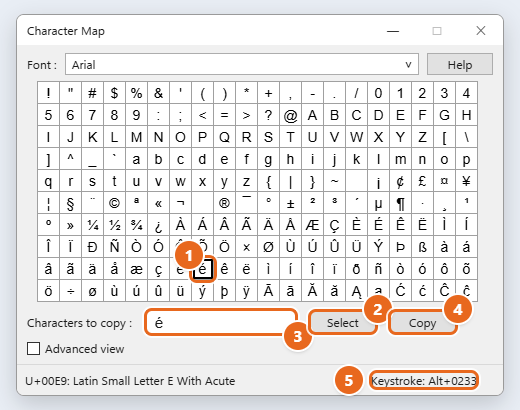
To search by name, check Advanced view, type part of the character’s name in Search for, and select Search. Unicode names use the formal words for the marks: acute (é), grave (è), circumflex (ê), diaeresis (ë, the umlaut), tilde (ñ), cedilla (ç) and stroke (ł). Select Reset to go back to the full list.
If a letter pasted into Word appears in a different font, Character Map’s font came with it. Right-click where you’re pasting and choose the Keep Text Only paste option instead.
Method 6: Use shortcuts in Word and Outlook
Word and Outlook have their own accent shortcuts that work on any keyboard, including laptops. Press the Ctrl combination, let go, and then type the letter. For capitals, type the letter with Shift.
| To type | Press, release, then type the letter |
|---|---|
| á, é, í, ó, ú, ý | Ctrl + ‘ (apostrophe) |
| à, è, ì, ò, ù | Ctrl + ` (grave) |
| â, ê, î, ô, û | Ctrl + Shift + ^ (caret, on the 6 key) |
| ä, ë, ï, ö, ü, ÿ | Ctrl + Shift + : (colon) |
| ã, ñ, õ | Ctrl + Shift + ~ (tilde) |
| ç | Ctrl + , (comma), then c |
| å | Ctrl + Shift + @, then a |
| æ, œ, ß | Ctrl + Shift + &, then a, o or s |
| ø | Ctrl + /, then o |
| ¿ and ¡ | Alt + Ctrl + Shift + ? and Alt + Ctrl + Shift + ! |
For example, to type the Spanish word mañana, type ma, press Ctrl + Shift + ~, let go, type n, and finish with ana. The full list is on the page of keyboard shortcuts to add language accent marks in Word and Outlook.
Type a code and press Alt + X
Word can also turn a Unicode code into a character. Type the code, such as 00E9, and press Alt + X. It changes into é. This works on laptops without a number pad and covers letters with no Alt code, such as 0142 for ł. If the code sits right after other letters or numbers, put U+ in front of it (U+00E9) so Word converts only the code.
Use Insert > Symbol
In Word, select Insert > Symbol > More Symbols, choose a letter, and select Insert. The box also shows the letter’s shortcut and code. The Symbol box is explained in detail in adding special characters in Word.
These Ctrl and Alt + X shortcuts are Word and Outlook features. They don’t work in your web browser, Notepad, Google Docs or most other apps, so use one of the Windows methods there.
Method 7: Hold a letter with PowerToys Quick Accent
Windows 11 doesn’t have Mac-style press and hold for physical keyboards, but Microsoft’s free PowerToys app adds it with a tool called Quick Accent.
- Install Microsoft PowerToys from the Microsoft Store (search for PowerToys) and open it.
- In PowerToys Settings, select Quick Accent in the left pane and turn on the Enable toggle.
- Click where you want to type. Press and hold a letter such as e, then press Spacebar or the Left Arrow or Right Arrow key. A bar of accented letters appears.
- Keep holding the letter and press Spacebar or an arrow key to move to the accent you want.
- Release the keys. The highlighted letter is typed at your cursor.
In the Quick Accent settings you can change the Activation key, including a Press and hold the letter option that opens the bar after you hold a key, limit the choices to the languages you use under Characters, and list apps where it should stay off under Excluded apps. Every option is described on the Quick Accent page.
Cheat sheet for common accented letters
Use this table to find the quickest way to type the letters you’ll see most in Spanish, French, German and Portuguese.
| Letter | Used in | Alt code | US-International | Word or Outlook |
|---|---|---|---|---|
| é | French, Spanish, Portuguese | Alt + 0233 | ‘ then e | Ctrl + ‘, e |
| è | French, Italian | Alt + 0232 | ` then e | Ctrl + `, e |
| ê | French, Portuguese | Alt + 0234 | Shift + 6 then e | Ctrl + Shift + ^, e |
| à | French, Portuguese | Alt + 0224 | ` then a | Ctrl + `, a |
| ç | French, Portuguese | Alt + 0231 | ‘ then c | Ctrl + ,, c |
| á | Spanish, Portuguese | Alt + 0225 | ‘ then a | Ctrl + ‘, a |
| í | Spanish, Portuguese | Alt + 0237 | ‘ then i | Ctrl + ‘, i |
| ó | Spanish, Portuguese | Alt + 0243 | ‘ then o | Ctrl + ‘, o |
| ú | Spanish, Portuguese | Alt + 0250 | ‘ then u | Ctrl + ‘, u |
| ñ | Spanish | Alt + 0241 | Shift + ` then n | Ctrl + Shift + ~, n |
| ã | Portuguese | Alt + 0227 | Shift + ` then a | Ctrl + Shift + ~, a |
| ä | German | Alt + 0228 | Shift + ‘ then a | Ctrl + Shift + :, a |
| ö | German | Alt + 0246 | Shift + ‘ then o | Ctrl + Shift + :, o |
| ü | German, Spanish | Alt + 0252 | Shift + ‘ then u | Ctrl + Shift + :, u |
| ß | German | Alt + 0223 | Right Alt + S | Ctrl + Shift + &, s |
Need only the Spanish ñ? Typing ñ on Windows covers it in more depth.
Troubleshooting
An Alt code types nothing or the wrong character
- Num Lock is off. With Num Lock off, the number pad acts as arrow and Home/End keys. Press Num Lock and try again.
- You used the number row. Only the numeric keypad works.
- The leading zero is missing. Alt + 0233 and Alt + 233 are different codes. Type all four digits.
- The app handles Alt itself. Some games and remote desktop windows catch the Alt key before Windows does. Use the emoji panel or US-International there.
Apostrophes and quotation marks don’t appear until the next key
The US-International keyboard is active, and those keys are waiting for a letter. Press Spacebar after the key to type the plain mark. If you don’t want this behavior at all, switch back to the plain US layout with Windows logo key + Spacebar, or remove US-International as shown in How to undo these changes.
Your keyboard types é when you didn’t ask for it
If the / or ? key suddenly types é, Windows has switched to a French layout, usually Canadian French. Press Windows logo key + Spacebar to switch back. To stop it from happening again, follow the steps to get rid of é on your keyboard in Windows 11.
Windows + period doesn’t open the panel
- Click inside a text box first. The panel only opens where you can type.
- Try Windows logo key + ; (semicolon) instead.
- Some programs, especially older desktop apps, don’t accept input from the panel. Type the letter in Notepad, copy it, and paste it into that program.
Ctrl + ‘ doesn’t add an accent
The Ctrl accent shortcuts work only in Word and Outlook. In a browser, Excel or another app, use the emoji panel, an Alt code or US-International.
There’s no keyboard icon on the taskbar
Go to Taskbar settings > System tray icons and set Touch keyboard to Always. If it’s set to When no keyboard attached, the icon hides whenever a keyboard is connected.
A bar of accents pops up whenever you hold a key
That’s PowerToys Quick Accent. Open PowerToys, select Quick Accent, and turn off Enable, or change its activation key so it no longer opens just from holding a letter.
How to undo these changes
None of these methods change your files or your physical keyboard, and each one is easy to reverse.
- Remove US-International: select Start > Settings > Time & language > Language & region, select the three dots next to English (United States) > Language options. Under Keyboards, select the three dots next to United States-International and choose Remove. Keep at least one other keyboard, such as US, in the list.
- Hide the touch keyboard icon: in Taskbar settings > System tray icons, set Touch keyboard back to Never or When no keyboard attached.
- Turn off Quick Accent: open PowerToys, select Quick Accent, and turn off Enable. You can also uninstall PowerToys from Settings > Apps > Installed apps.
- Fix a wrong letter: press Ctrl + Z or Backspace to remove it, just like any other character.
FAQ
How do I type é on a Windows 11 laptop without a number pad?
Press Windows logo key + ., select Symbols > Latin symbols, and click é. For regular use, add the US-International keyboard and press ‘ then e, or press Right Alt + E. In Word or Outlook, Ctrl + ‘ then e also works.
Does Windows 11 have press and hold for accents like a Mac or iPhone?
Only on the on-screen touch keyboard. For a physical keyboard, Microsoft’s free PowerToys Quick Accent adds a similar feature, including a Press and hold the letter mode.
How do I type capital letters with accents?
Each method has a capital version: use the capital’s own Alt code (such as Alt + 0201 for É), add Shift to the letter after a US-International accent key, add Shift to Right Alt combinations, or pick the capital in the emoji panel or Character Map.
Will the US-International keyboard change my other keys?
No. Letters, numbers and most symbols stay in the same place. Only the apostrophe, quotation mark, grave, tilde and caret keys wait for a second key, and Right Alt gains extra characters. You can keep the regular US layout installed and switch between the two with Windows logo key + Spacebar.
Do Alt codes work in every app?
They work in most Windows apps, including browsers, Notepad and Office, as long as you use the number pad with Num Lock on. A few programs that capture the Alt key themselves, such as some games and remote desktop sessions, may ignore them.
Why does a code from a website give me a different letter?
The site probably listed a three-digit DOS code or a code without its leading zero. Use the four-digit codes in this guide, or look up the exact code in Character Map, which shows it next to Keystroke at the bottom of the window.
Can I type accents in Google Docs on Windows 11?
Yes. The emoji panel, Alt codes and the US-International keyboard all work in Google Docs because they’re part of Windows. The Word Ctrl shortcuts don’t. Docs also has its own Insert > Special characters menu.
Next step: if you write in another language at least once a week, add the US-International keyboard now and keep this page’s cheat sheet handy for the first few days. After that, most of the accents become as automatic as typing a capital letter.

Matt Jacobs writes and maintains the guides on Support Your Tech, which he started in 2017. He spent most of his career keeping small-business PCs running and still takes the occasional consulting job, so the steps here come from fixing the same problems on other people’s computers. Every guide is checked on his own Windows 11, Windows 10, Mac, iPhone and iPad before it goes up.