To superscript or subscript in Word, select the text, go to the Home tab and select Superscript (x²) or Subscript (x₂) in the Font group. The keyboard shortcut for superscript is Ctrl + Shift + Plus sign (+). For subscript, current versions use Ctrl + Shift + Minus sign (-), while older versions of Word use Ctrl + Equal sign (=). On a Mac, use Command + Shift + Plus and Command + Shift + Minus.
Applies to: Word for Microsoft 365, Word 2024, Word 2021, Word 2019 and Word 2016 on Windows, Word for Mac, and Word for the web. The steps match Microsoft’s superscript and subscript article.
Superscript vs subscript
Both are character formats. Word makes the selected characters smaller and moves them off the normal line of text, which typographers call the baseline.
- Superscript sits slightly above the line. You see it in exponents (x², 10³), ordinal numbers (1st, 22nd), footnote and citation markers, and symbols such as ™.
- Subscript sits slightly below the line. It’s used mostly in chemical formulas (H₂O, CO₂) and in math or science notation (x₁, x₂, log₂).
A simple way to remember the difference: super means above and sub means below, like a submarine.
Because these are formats, the characters underneath are still normal letters and numbers. That matters when you copy the text into a plain-text place such as an email subject line or a text message: the formatting is dropped and H₂O becomes H2O. If you need the raised or lowered look to survive copying, use Method 4 instead.
Quick reference
| Method | Windows | Mac |
|---|---|---|
| Ribbon button | Home > Font group > Superscript (x²) or Subscript (x₂) | Home > Superscript or Subscript |
| Superscript shortcut | Ctrl + Shift + Plus sign (+) | Command + Shift + Plus sign (+) |
| Subscript shortcut (current Microsoft 365) | Ctrl + Shift + Minus sign (-) | Command + Shift + Minus sign (-) |
| Subscript shortcut (older versions) | Ctrl + Equal sign (=) | Command + Equal sign (=) |
| Font dialog box | Ctrl + D, then check Superscript or Subscript | Command + D, then check Superscript or Subscript |
| Remove all character formatting | Ctrl + Spacebar | Control + Spacebar |
The shortcuts use the keys in the main part of the keyboard, not the number pad, and they assume a US keyboard layout.
This is the easiest method if you only need a raised or lowered character now and then.
- Select the characters. Drag across or double-click the text you want to change. For H2O, select only the
2. For an exponent such as m2, select only the2after the m. - Open the Home tab. Select Home on the ribbon if it isn’t already showing.
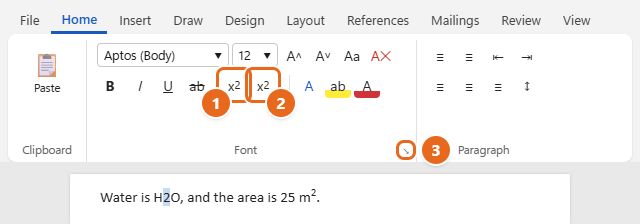
- Select the button. In the Font group, select Subscript (x₂) to lower the text, or Superscript (x²) to raise it. Hover over a button to see its name and shortcut if you aren’t sure which is which.

On the Home tab, select Subscript (1) or Superscript (2) in the Font group. The small launcher in the corner (3) opens the Font dialog box. - Check the result. The selected characters shrink and move above or below the line. The button stays highlighted while your cursor is inside the formatted text.
Type in superscript or subscript as you go
You don’t have to type first and format later. Click where you want the raised or lowered text, select Superscript or Subscript, type the characters, then select the same button again to go back to normal text before you keep typing. The keyboard shortcuts below work the same way.
If the buttons don’t fit on a narrow window, Word may shrink the Font group. Widen the window, or use the shortcuts or the Font dialog box instead.
Method 2: Use keyboard shortcuts
Shortcuts are the fastest option if you write formulas, citations or lab reports often.
- Select the characters you want to change, or click where you are about to type them.
- For superscript, press Ctrl + Shift + Plus sign (+). The plus sign shares a key with the equal sign on most keyboards, so this is the same as pressing Ctrl + Shift + =.
- For subscript, press Ctrl + Shift + Minus sign (-) in current Word for Microsoft 365. If nothing happens, or if you have an older version of Word, press Ctrl + Equal sign (=) instead.
- Press the same shortcut again to switch the format off.
Why there are two subscript shortcuts
For many years, Word’s subscript shortcut was Ctrl + = on Windows and Command + = on a Mac. Microsoft changed it in newer Microsoft 365 builds. The official keyboard shortcuts list for Word now gives Ctrl + Shift + Minus sign for subscript on Windows and Command + Shift + Minus sign on a Mac, pairing it with the Plus-sign superscript shortcut.
The change moved two other shortcuts that people relied on:
- Nonbreaking hyphen (a hyphen that keeps both words on the same line) is now Alt + Shift + Minus sign on Windows. It used to be Ctrl + Shift + Minus, which now applies subscript.
- Ctrl + = in newer Microsoft 365 builds may zoom in instead of applying subscript, according to Microsoft MVP answers in a Microsoft Q&A thread about the changed shortcuts.
Older guides, including many still near the top of search results, list only Ctrl + =. If that shortcut zooms your page or does nothing, use Ctrl + Shift + Minus. If you prefer the old shortcut, you can assign it yourself (see below).
Assign your own shortcut
On Windows:
- Select File > Options > Customize Ribbon.
- At the bottom, next to Keyboard shortcuts, select Customize.
- In Categories, select Home Tab. In Commands, select Subscript or Superscript. The Current keys box shows what is assigned now.
- Click in Press new shortcut key and press the keys you want, such as Ctrl + =. Word shows under the box whether those keys are already used by another command.
- Leave Save changes in set to Normal so the shortcut works in every document, then select Assign and Close.
Assigning keys that are already in use replaces the other command’s shortcut, so check the message before you select Assign. In Word for Mac, the same settings are under Tools > Customize Keyboard.
Method 3: Use the Font dialog box
The Font dialog box is useful when you want to see a preview first, or set several formats at once, such as superscript plus a different color.
- Select the characters you want to format.
- Open the Font dialog box. On the Home tab, select the small arrow (the dialog box launcher) in the bottom-right corner of the Font group, or press Ctrl + D. On a Mac, press Command + D or select Format > Font.
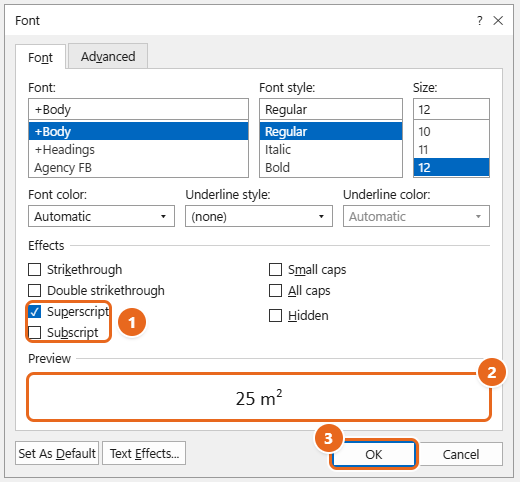
- Check the box you need. On the Font tab, under Effects, check Superscript or Subscript. Checking one clears the other, because text can’t be both at once.
- Look at the Preview. The Preview box at the bottom shows how the selection will look.

Under Effects, check Superscript or Subscript (1), confirm the result in Preview (2), then select OK (3). - Select OK. The dialog closes and the format is applied.
Keyboard users can skip the mouse: in the Font dialog box on Windows, press Alt + P for Superscript or Alt + B for Subscript (the underlined letters), then press Enter.
Raise or lower text without shrinking it
Superscript and subscript always make the text smaller. If you want text at full size but a little higher or lower, for example to line up a symbol in a logo or heading, use character position instead:
- Select the text and press Ctrl + D.
- Select the Advanced tab.
- Under Character Spacing, set Position to Raised or Lowered, and enter an amount in the By box, such as 3 pt.
- Select OK.
Some instructions mention an Offset box for setting the height. That box is in PowerPoint’s Font dialog box. In Word, the Position setting on the Advanced tab does the same job.
Method 4: Insert superscript and subscript characters
Unicode, the standard that defines the characters computers use, includes real superscript and subscript digits and a few letters and signs, such as ¹ ² ³ ⁴ and ₀ ₁ ₂ ₃. These are separate characters, not formatting, so they keep their raised or lowered look when you paste them into a file name, a spreadsheet cell, a chat message or a website form.
- Click where the character should go.
- Open the Symbol dialog box. Select Insert > Symbol > More Symbols. If the Word window isn’t full screen, you may need to select Symbol once more before More Symbols appears.
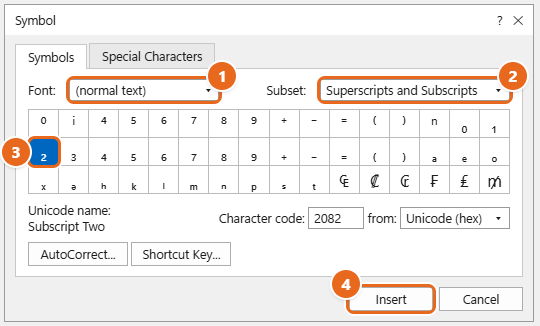
- Choose the font. In the Font list, select (normal text), the first item, so the character matches the text around it.
- Jump to the right group. In the Subset list, select Superscripts and Subscripts.
- Insert the character. Select the character you need, select Insert, and then select Close when you’re done. The dialog stays open until you close it, so you can click elsewhere in the document and insert more.

Set Font to (normal text) (1) and Subset to Superscripts and Subscripts (2), select the character you need (3), then select Insert (4).
The superscript 1, 2 and 3 (¹ ² ³) are in the Latin-1 Supplement subset rather than the Superscripts and Subscripts subset, because they were added to Unicode earlier. The Character code box at the bottom of the dialog shows each character’s code. In Word for Windows you can also type a code and press Alt + X to convert it, for example 00B2 then Alt + X for ², or 2082 then Alt + X for ₂.
Keep in mind that the set is limited. There are no superscript or subscript versions of every letter, and some fonts don’t include all of them, which shows up as an empty box. For everyday documents, Methods 1 to 3 are simpler. Other symbols, such as arrows and accented letters, are covered in adding special characters in Word.
Symbols that Word raises automatically
Some symbols look like superscript as soon as you insert them. Symbols such as ® and ™ are usually shown raised, so you don’t need to format them. The copyright sign © is normally full size; if your style guide wants it raised, apply Superscript to it like any other character.
Word for Mac and Word for the web
Word for Mac
- Select the text.
- On the Home tab, select Superscript or Subscript. Or press Command + Shift + Plus sign (+) for superscript and Command + Shift + Minus sign (-) for subscript.
- For the dialog box, select Format > Font or press Command + D, check Superscript or Subscript, and select OK.
If you have used Word for Mac for a long time, you may remember Command + = for subscript. The current Mac shortcut is Command + Shift + Minus sign. If Command + = does nothing, that’s why.
Word for the web
- Open the document in Word for the web and select the text.
- On the Home tab, select Superscript or Subscript.
- If you don’t see the buttons, the ribbon is probably in its simplified, one-line layout. Select More font options (the three dots near the font buttons) and choose Superscript or Subscript from the list.
To insert ® or ™ in Word for the web, select Insert > Symbol, then choose from Symbols or Special Characters.
How to remove superscript or subscript
There are three ways, depending on what else is applied to the text:
- Toggle it off. Select the text and select the same Superscript or Subscript button again, or press the same shortcut. Only that format is removed.
- Clear the check box. Open the Font dialog box (Ctrl + D), clear Superscript or Subscript, and select OK.
- Remove all manual character formatting. Select the text and press Ctrl + Spacebar (Control + Spacebar on a Mac). This is quick, but it also removes bold, italic, underline, color and font changes you made by hand, so the text goes back to its paragraph style. Use it when you want a clean reset, not when you only want to drop superscript.
If you just applied the format by mistake, Ctrl + Z (Command + Z on a Mac) undoes it.
Stop Word from superscripting 1st, 2nd and 3rd
When you type an ordinal number such as 1st or 23rd and press the spacebar, Word’s AutoFormat raises the letters automatically. To undo it once, press Ctrl + Z right after it happens. To turn it off for good on Windows:
- Select File > Options > Proofing.
- Select AutoCorrect Options.
- Open the AutoFormat As You Type tab.
- Clear Ordinals (1st) with superscript, then select OK twice.
This only affects new typing. Ordinals that are already raised stay that way until you select them and turn off Superscript. Some style guides prefer full-size ordinals, so check which your school or workplace wants. On a Mac, the same check box is in Word’s AutoCorrect settings on the AutoFormat As You Type tab.
Footnotes and equations: let Word do the formatting
You don’t need to superscript numbers by hand for two common jobs:
- Footnotes and endnotes. Use References > Insert Footnote (or Insert Endnote). Word adds a superscript number, keeps the numbering in order when you add or delete notes, and links the number to its note. A hand-formatted superscript number doesn’t renumber itself.
- Math equations. For anything more than a simple exponent, use Insert > Equation. Inside an equation, typing
x^2and then a space turns the 2 into a superscript, andx_2followed by a space creates a subscript. The equation tools also include a Script gallery with a layout for a subscript and superscript stacked on the same character, which ordinary formatting can’t do.
Troubleshooting
The subscript shortcut zooms in or does nothing
You are probably using the older Ctrl + = shortcut in a newer build of Microsoft 365. Press Ctrl + Shift + Minus sign instead, or reassign Ctrl + = to Subscript as shown in Method 2.
Ctrl + Shift + Minus applies subscript when you wanted a nonbreaking hyphen
That shortcut now belongs to Subscript. Undo with Ctrl + Z and press Alt + Shift + Minus sign to insert a nonbreaking hyphen. You can also insert one from Insert > Symbol > More Symbols > Special Characters.
The superscript shortcut doesn’t work
- Use the plus/equal key next to Backspace, not the plus key on the number pad.
- Check your keyboard layout. The shortcuts are written for a US layout, and on some other layouts the plus, equal and minus signs are on different keys. Use the ribbon buttons or the Font dialog box, or assign a shortcut that suits your keyboard.
- Another program, such as a screen recorder or keyboard utility, may be using the same combination. Close it and try again.
The buttons are grayed out
Word can’t edit the document. Look for a yellow or red bar at the top of the window: select Enable Editing if the file opened in Protected View, or check whether the document is read-only or restricted to certain kinds of editing. The buttons are also unavailable in Read Mode; switch back with View > Edit Document or View > Print Layout.
Lines with superscript look farther apart
Raised characters can push a line slightly away from the one above it when line spacing is set to Single or At least, so the paragraph looks uneven. Setting the paragraph’s line spacing to Exactly keeps every line the same height. The full set of fixes is in how to reduce the gap between lines in Word.
The formatting disappears when you paste the text somewhere else
The destination only accepts plain text, so formatting is removed. Use the Unicode superscript and subscript characters from Method 4 for text that has to keep its look outside Word.
The superscript is too small to read
Superscript and subscript are scaled down from the surrounding text. If the base text is small, increase the font size of the formatted characters, or use the Raised or Lowered position on the Advanced tab of the Font dialog box to keep them full size.
FAQ
What is the shortcut for superscript in Word?
Ctrl + Shift + Plus sign (+) on Windows and Command + Shift + Plus sign on a Mac. Press it again to turn superscript off.
What is the shortcut for subscript in Word?
Current versions use Ctrl + Shift + Minus sign (-) on Windows and Command + Shift + Minus sign on a Mac. Older versions of Word use Ctrl + = and Command + =.
How do I type a squared or cubed symbol in Word?
Type the number 2 or 3, select it, and apply Superscript (Ctrl + Shift + Plus). If you need a ² or ³ character that keeps its look when copied, insert it from Insert > Symbol > More Symbols, or type 00B2 or 00B3 and press Alt + X.
How do I write H2O with a small 2 in Word?
Type H2O, select only the 2, and select Subscript on the Home tab or press Ctrl + Shift + Minus sign (Ctrl + = in older versions).
Can text be superscript and subscript at the same time?
Not with ordinary formatting: checking one box in the Font dialog clears the other. To stack a superscript over a subscript on one character, use an equation (Insert > Equation) and its Script layouts.
Is the degree sign a superscript o?
No. A superscript letter o is a different character from the degree sign (°), and it usually sits at a slightly different height and thickness. Insert the real degree sign from the Symbol dialog box instead.
Do superscript and subscript work the same in Excel and PowerPoint?
PowerPoint has Superscript and Subscript in its own Font dialog box (Ctrl + T), which also has the Offset box for fine-tuning the height. Excel has no Superscript button or shortcut by default: you edit the cell, select the characters, press Ctrl + 1 and check Superscript or Subscript in the Format Cells dialog box.
Next step
Try the shortcuts on a sample line such as E = mc2 and CO2 until they feel natural. The same Font group also has strikethrough, which works the same way.

Matt Jacobs has been working as an IT consultant for small businesses since receiving his Master’s degree in 2003. While he still does some consulting work, his primary focus now is on creating technology support content for SupportYourTech.com.
His work can be found on many websites and focuses on topics such as Microsoft Office, Apple devices, Android devices, Photoshop, and more.