To insert a text box in Word, select the Insert tab, then select Text Box in the Text group. Pick a ready-made design such as Simple Text Box, or choose Draw Text Box and drag on the page to draw a box the size you want. Click inside the box and type. In Word for the web, the route is different: Insert > Drawing > Text Box.
Applies to: Word for Microsoft 365 (Windows and Mac), Word 2024, Word 2021, Word 2019, Word 2016 and Word for the web. The steps follow Microsoft’s text box help page.
Do you need a text box?
A text box is a container for text that sits on the page as an object, the same way a picture or shape does. You can drag it anywhere, give it its own border and background, and let the rest of the document wrap around it. That makes it a good fit for:
- A callout or pull quote in a newsletter or flyer
- A sidebar with tips or contact details
- A label placed over a picture or diagram
- Short text that has to sit in an exact spot, such as an address block on a form
A text box isn’t always the best tool. If you just want a border around a paragraph that stays in the normal flow of the document, a paragraph border is simpler and easier to edit later; putting a box around text in Word covers that and other options. Long passages are also better as regular paragraphs, because text in a text box doesn’t show up in the Navigation pane, can be skipped by some features, and is harder for screen reader users to follow.
| You want to | Best choice |
|---|---|
| Place a short block of text anywhere on the page | Text box |
| Box in a paragraph that stays where it is in the text | Paragraph border (Home > Borders) |
| Put text inside a circle, arrow or star | A shape from Insert > Shapes (you can type in most shapes) |
| Line up text side by side in rows | A table |
Insert a text box in Word for Windows
These steps are the same in Word for Microsoft 365, Word 2024, Word 2021, Word 2019 and Word 2016.
- Open your document and click roughly where you want the text box. The exact spot doesn’t matter, because you can move the box afterward.
- Select the Insert tab on the ribbon.
- In the Text group near the right end of the ribbon, select Text Box. A menu opens with a Built-in gallery of designs.
- Choose one of these options:
- A built-in design, such as Simple Text Box, Austin Quote or Banded Sidebar. Word adds the box with placeholder text already selected, so anything you type replaces it.
- Draw Text Box. The pointer turns into a crosshair (+). Click on the page and drag diagonally to draw the box, then release the mouse button. A blinking cursor appears inside the empty box.
- More Text Boxes from Office.com for extra designs, if your Office connected services are turned on.
- Type or paste your text into the box.
- When you’re done, click anywhere outside the box (or press Esc) to go back to editing the main document.
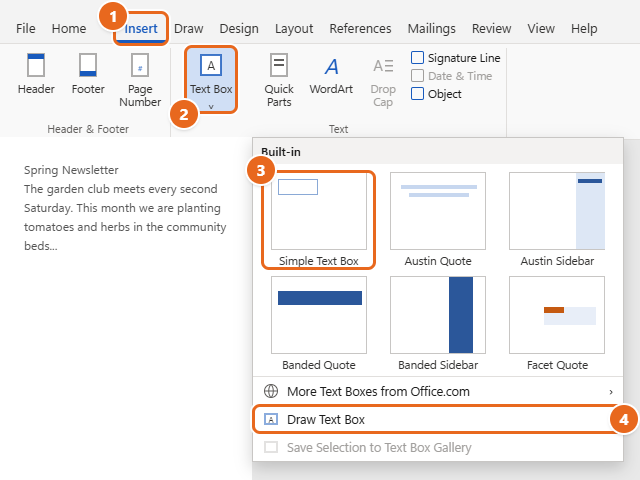
Which should you pick? Built-in designs are quick and come pre-styled, and some (the sidebars) are already sized and positioned on the page. Draw Text Box gives you a plain box exactly where and how big you want it, and it’s the one to use if you plan to link boxes together later.
Insert a text box with the keyboard
- Press and release Alt, then N (Insert tab), then X (Text Box).
- Use the arrow keys to highlight the design you want, then press Enter.
- Type your text. Press Esc when you want to return to the main document.
Put existing text into a text box
If the words are already in your document, you don’t have to retype them.
- Select the text you want inside the box.
- Select Insert > Text Box > Draw Text Box.
- Word creates a text box that contains the selected text and removes it from the main text. Resize or move the box as needed.
If that doesn’t give you the result you want, use the manual route: select the text, press Ctrl + X to cut it, draw an empty text box, click inside it and press Ctrl + V to paste.
Type, move, resize and rotate a text box
A text box has two “modes,” and knowing which one you’re in solves most frustrations:
- Editing the text: click inside the box. You see a blinking cursor, and typing changes the words.
- Selecting the box itself: click the box’s border. The border becomes solid and round sizing handles appear on the corners and sides. Now commands like copy, delete and formatting apply to the whole box.
With the box selected:
- Move it: point at the border until the pointer becomes a four-headed arrow, then drag the box to a new spot. For small nudges, select the box and press the arrow keys.
- Resize it: drag any round handle. Corner handles change width and height together; hold Shift while dragging a corner to keep the proportions. For exact measurements, type a Height and Width in the Size group at the right end of the Shape Format tab.
- Rotate it: drag the circular arrow handle above the top edge. Hold Shift to rotate in 15-degree steps.
If the box won’t move where you want, or it jumps back into the middle of a line of text, the wrapping setting is the cause. That’s the next section.
Make text wrap around the text box
The wrapping setting decides how the rest of your document behaves around the box. You’ll find it in two places: the small Layout Options button that appears next to a selected box, and Shape Format > Wrap Text.
- Click the border of the text box to select it.
- Select the Layout Options button beside the top-right corner of the box.
- Under With Text Wrapping, choose a style. Square is the safest choice for most documents: the surrounding paragraphs flow neatly around the box.
- Choose Move with text if the box should stay next to a particular paragraph when you add or delete text above it, or Fix position on page if it should stay in the same spot on the page (for example, a sidebar at the top-right corner).
- Close the menu and drag the box into place.
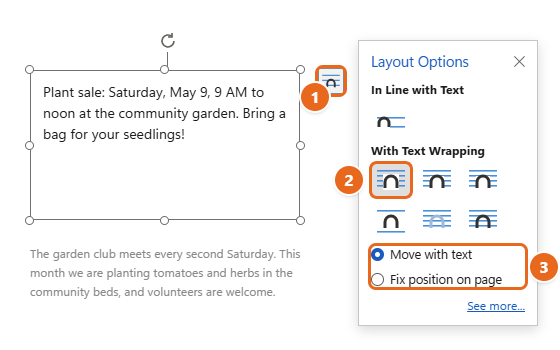
What each wrapping option does:
| Option | What happens |
|---|---|
| In Line with Text | The box behaves like one large character in a line of text. You can’t drag it freely. |
| Square | Text wraps around the box’s rectangular outline. |
| Tight / Through | Text wraps close to the edges. For a rectangular text box, the result looks much like Square. |
| Top and Bottom | Text stops above the box and continues below it, leaving the sides empty. |
| Behind Text | The box sits behind the document text, like a background. |
| In Front of Text | The box floats on top and can cover the words underneath. |
Every floating text box is tied to a paragraph by an anchor, which you can see as a small anchor icon when the box is selected. If a box keeps jumping to another page, check which paragraph it’s anchored to. Moving or locking it is explained in the anchor in Word.
Change the border, fill and text inside the box
Formatting comes in two layers: the words inside the box, and the box itself.
Format the text
- Click inside the box and select the words you want to change (press Ctrl + A while the cursor is in the box to select all of its text).
- Use the Home tab to change the font, size, color, bold, alignment or line spacing, just as you would for normal text.
Format the box
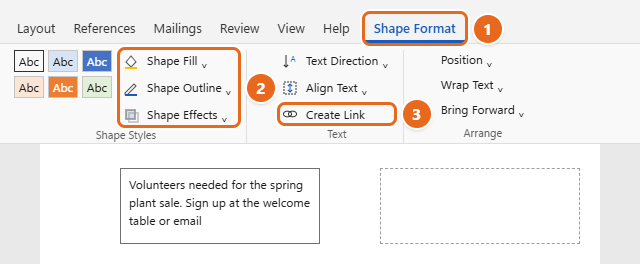
- Click the border of the box. The Shape Format tab appears at the end of the ribbon. (In Word 2016 it may be labeled Format under Drawing Tools.)
- In the Shape Styles group, pick a ready-made style, or use:
- Shape Fill to set a background color. Choose No Fill for a transparent box.
- Shape Outline to change the border color, thickness (Weight) or style (Dashes). Choose No Outline to hide the border completely.
- Shape Effects to add a shadow, glow or soft edges.
- In the Text group, use Text Direction to rotate the text sideways, or Align Text to place it at the top, middle or bottom of the box.
For more control, right-click the box’s border and choose Format Shape. In the pane that opens, the Text Options tab has Layout & Properties settings for the space between the text and the border (the left, right, top and bottom margins), Resize shape to fit text, and Wrap text in shape. Turning on Resize shape to fit text is a quick fix when words are getting cut off at the bottom of the box.
Microsoft’s page on adding or removing a border on a text box or shape covers the outline options in more detail. Other kinds of lines in a document are removed differently, as shown in removing a border line in Word.
Link text boxes so text flows between them
Linking lets one story continue from one box into another, which is handy for newsletters where an article starts on page 1 and finishes on page 3. When the first box fills up, the extra text flows into the next box automatically.
Before you start: the box you link to must be empty. Draw the boxes with Draw Text Box so you have plain, empty boxes to work with.
- Draw two or more text boxes. Leave every box except the first one empty.
- Click the border of the first text box to select it.
- On the Shape Format tab, in the Text group, select Create Link. The pointer changes to a small pitcher (cup) icon.
- Click inside the empty text box you want the text to continue in. Overflow text from the first box now appears there.
- To add a third box, select the second box and repeat steps 3 and 4.
To undo a link, select the first box and choose Break Link, which appears in the same spot as Create Link. The text that had flowed into the next box returns to the first box (you may need to make it larger to see it all). Press Esc if you start linking by accident and want to cancel.
Insert a text box in Word for Mac
- Select the Insert tab, then select Text Box.
- Choose Draw Text Box for normal, horizontal text, or Vertical Text Box for text that runs vertically.
- Click in the document and drag to draw the box at the size you want.
- Click inside the box and type or paste your text.
- To format the text, select it and use the Home tab, or Control-click the text and choose Font.
- To style the box itself, select it and use the Shape Format tab. Create Link works the same way as on Windows, and the target box must be empty.
To move the box, point at it until you see the four-headed arrow and drag. To copy it, make sure the pointer is on the border (not inside the box), then press Command + C and paste with Command + V.
Insert a text box in Word for the web
Word for the web doesn’t use the desktop Text Box gallery. Instead, you go through the Drawing tool, which creates the text box inside a drawing you save into the document.
- Open the document at office.com or microsoft365.com and click where you want the text box to appear. Make sure you’re in Editing mode, not Viewing.
- Select Insert, and then in the Illustrations group select Drawing. A Drawing (Preview) window opens.
- Select Text Box, then drag inside the drawing area to create the box.
- Type your text and apply any styling you want from the drawing toolbar.
- Select Save and Close. The text box appears in your document.
To change the text later, double-click the drawing to reopen it, click the text box to edit the words, then select Save and Close again. Because the box lives inside a drawing, you have fewer options than in the desktop app. If you need linked boxes or precise wrapping, open the file in the desktop app (look for Open in Desktop App in the editing-mode menu near the top right) and finish the layout in Word for Windows or Mac.
Copy or delete a text box
Warning: deleting a text box also deletes all the text inside it. If you want to keep the words, select the text inside the box, cut it with Ctrl + X, click in the main document and paste it with Ctrl + V before you delete the box.
Copy a text box
- Click the border of the text box so the whole box is selected, not the text inside.
- Press Ctrl + C.
- Click where you want the copy and press Ctrl + V.
If only the words are pasted, the cursor was inside the box when you copied. Click the border and try again.
Delete a text box
- Click the border of the text box so the border looks solid and the sizing handles appear.
- Press Delete (or Backspace).
If only some text disappears, you were inside the box. Press Ctrl + Z to undo, click the border and press Delete again. If you delete the wrong box, Ctrl + Z (or Command + Z on a Mac) brings it back.
Troubleshooting
The Shape Format tab is missing
The tab only appears while a text box or shape is selected. Click the box’s border, not empty space on the page. If the ribbon is collapsed, double-click any tab name to expand it.
The text box won’t move freely
It’s probably set to In Line with Text. Select the box, open Layout Options and choose Square or another option under With Text Wrapping.
The text box covers my document text
The box is set to In Front of Text. Change it to Square or Top and Bottom so the body text moves out of the way.
Text is cut off at the bottom of the box
The box is too small for its contents. Drag the bottom handle down, or right-click the border, choose Format Shape and turn on Resize shape to fit text under Text Options > Layout & Properties. Large line spacing or paragraph spacing inside the box can also push text out of view.
Create Link is grayed out or won’t link
The box you’re linking to must be empty, and it can’t already be part of another chain. Delete any text or spaces in the target box, then try again. Built-in designs that already contain placeholder text can’t be link targets until you clear them.
The text box moved to another page or disappeared
Floating boxes follow their anchor paragraph. If you deleted or moved that paragraph, the box may have moved too. Turn on Home > Show/Hide ¶, select the box to see its anchor, and use Fix position on page if it should stay put. A box with Behind Text wrapping under a picture or a filled shape can also seem to vanish; use Shape Format > Selection Pane to find and select it.
The text box doesn’t print
Go to File > Options > Display and make sure Print drawings created in Word is checked under Printing options. Also check that the box isn’t sitting behind a solid-colored shape or picture.
Word count or spell check skips the text box
In the Word Count dialog (Review > Word Count), check Include textboxes, footnotes and endnotes. Headings typed inside a text box won’t appear in the Navigation pane or an automatic table of contents, so keep important headings in the main text.
FAQ
What is the keyboard shortcut for a text box in Word?
There’s no single key combination, but on Windows you can press Alt, N, X in sequence to open the Text Box menu, then use the arrow keys and Enter to choose a design.
How do I make a text box transparent?
Select the box, then go to Shape Format > Shape Fill > No Fill. Add Shape Outline > No Outline as well if you want only the words to show.
How do I center text vertically in a text box?
Select the box, then choose Shape Format > Align Text > Middle. To center it horizontally too, click inside the box and press Ctrl + E.
Can I put a picture inside a text box?
Yes. Click inside the text box and use Insert > Pictures. The picture sits in line with the text in the box, which makes a text box a simple way to keep a photo and its caption together. For other layouts, placing a picture anywhere in Word has more options.
What’s the difference between a text box and a shape with text?
Very little in practice. Both are drawing objects, both appear on the Shape Format tab, and you can type in most shapes. A text box is a rectangle designed for text, and it’s the object Word expects when you link boxes together.
How do I remove a text box but keep the text?
Click inside the box, press Ctrl + A to select all of its text, press Ctrl + X, click where the text should go in the main document and press Ctrl + V. Then click the empty box’s border and press Delete.
Why can’t I see the Text Box button?
On a narrow window, Word shrinks ribbon groups, so Text Box may be hidden under a Text button at the end of the Insert tab. Make the window wider or select that button to see it. In Word for the web, use Insert > Drawing instead.
Next step: once your box is in place, select its border and try Shape Format > Shape Styles to give it a finished look, then print a test page or export a PDF to make sure it lands where you expect.

Matt Jacobs has been working as an IT consultant for small businesses since receiving his Master’s degree in 2003. While he still does some consulting work, his primary focus now is on creating technology support content for SupportYourTech.com.
His work can be found on many websites and focuses on topics such as Microsoft Office, Apple devices, Android devices, Photoshop, and more.