To insert a PDF into Word, click where you want it, select Insert > Object (in the Text group), open the Create from File tab, select Browse, choose the PDF and select OK. Word embeds the file and shows its first page, or a clickable icon if you check Display as icon. If you need the PDF’s words as editable text, or every page visible on the page, use one of the other methods below.
Applies to: Word for Microsoft 365, Word 2024, Word 2021, Word 2019 and Word 2016 on Windows, with separate notes for Word for Mac and Word for the web. The steps follow Microsoft’s page on adding a PDF to an Office file.
Which method should you use?
“Insert a PDF” can mean three different things. Decide what your reader needs to do with the PDF, then pick the matching method.
| What you want | Method | What the reader sees | Can the text be edited in Word? |
|---|---|---|---|
| Attach the whole PDF so it travels with the document | Object (embedded) | The first page, or an icon; double-click opens the full PDF | No |
| A small clickable attachment, like an appendix file | Object with Display as icon | A PDF icon with the file name | No |
| Always open the latest copy of a PDF stored on a shared drive | Object with Link to file | The first page or an icon, linked to the original file | No |
| Reuse or change the PDF’s words, lists and tables | Convert to text (Open, or Text from File) | Normal Word text that flows with your document | Yes |
| Show one or more pages exactly as they look | Pictures | An image of each page | No |
A quick example: if you are sending a proposal and want to include a signed quote, embed the quote PDF as an icon. If you want to copy three paragraphs from a supplier’s PDF into your proposal and reword them, convert it to text. If you want the quote’s first page printed inside the proposal, insert it as a picture.
Method 1: Insert the PDF as an object or icon
This keeps the PDF intact. Word stores a copy of the PDF inside your document, so you can send just the .docx file and the PDF goes with it. You can resize the object, but you can’t edit the PDF’s contents in Word.
- Place the cursor. Open your Word document and click where the PDF should appear, for example on a blank line at the end of the document.
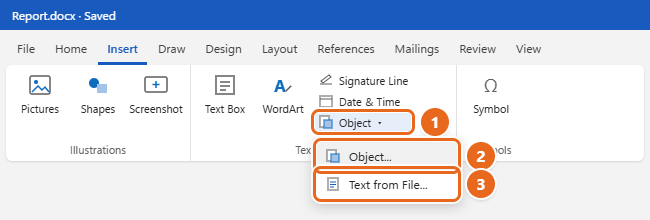
- Open the Object command. Select the Insert tab, then select Object in the Text group. If you clicked the small arrow next to it, a menu opens; choose Object. In a narrow Word window, the Text group may show only icons, so look for the small icon with two overlapping pages.

On the Insert tab, select the arrow next to Object (1). Choose Object to embed the PDF (2) or Text from File to bring in its text (3). - Switch to Create from File. In the Object dialog box, select the Create from File tab. The Create New tab is for making a brand-new object, not for using a file you already have.
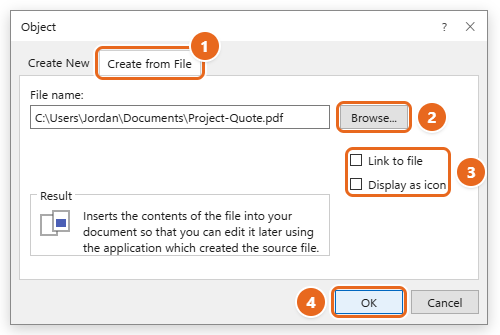
- Choose the PDF. Select Browse, find the PDF, select it and select Insert (or Open). Its path appears in the File name box.
- Decide how it should behave. Leave both check boxes clear to embed the PDF and show its first page. Check Display as icon to show a small icon instead. Check Link to file only if you want a link to the original file instead of a copy (see below). The Result area at the bottom of the box describes what your choice will do.
- Select OK. The PDF appears at the cursor.

Open Create from File (1), select Browse to pick the PDF (2), decide on Link to file and Display as icon (3), then select OK (4). - Check the result. Double-click the object to open the full PDF in your PDF app. Drag a corner handle to resize it. To move it more freely, select it, then use Layout Options (the small icon beside the object) to choose a text wrapping style such as Square.
To see or read inserted PDF files, you need Adobe Acrobat or Adobe Reader installed. If the object shows up blank, as a plain icon you didn’t ask for, or won’t open, see Troubleshooting.
Show the PDF as an icon
An icon takes up less space and makes it clear to readers that a separate file is attached. In step 5, check Display as icon. Select Change Icon if you want a different icon or a friendlier label, for example Signed quote (PDF) instead of the file name. Readers double-click the icon to open the PDF.
Link to the PDF instead of embedding it
When you check Link to file, Word stores only the location of the PDF and shows a preview of it. Linked objects can be updated when the source file changes, and linking keeps your Word file smaller. The downside is that the link only works while the PDF stays in the same place and the reader can reach that location.
- Embed when you will email or share the document, or you’re not sure where it will be opened.
- Link when the PDF lives on a shared network drive or synced folder, changes often (such as a price list), and everyone who opens the document can reach it.
Remove or replace an inserted PDF
Click the object once to select it, then press Delete. To swap in a newer PDF, delete the old object and insert the new file with the steps above. Undo (Ctrl+Z) brings back an object you deleted by mistake.
Method 2: Insert the PDF’s content as editable text
If you want the PDF’s words, lists and tables to become normal Word text, Word for Windows can convert the PDF. Microsoft calls this PDF reflow: Word pulls the content out of the fixed PDF layout and flows it into a Word document, keeping as much of the layout as it can. Your original PDF is never changed.
Before you start: conversion works best on PDFs that are mostly text, such as letters, reports and contracts. The result may not look exactly like the original, and lines and pages can break in different places. Keep the original PDF until you have checked the converted text.
Option A: Open the PDF in Word, then copy what you need
This method lets you check the converted text before it touches your document.
- In Word, select File > Open, find the PDF and open it. You may need to select Browse to reach the folder.
- Word tells you it will make a copy of the PDF and convert it into a format Word can display. Select OK. A long PDF can take a minute.
- If a yellow Protected View bar appears, select Enable Editing once you trust the file.
- Look through the converted copy. Fix any obvious problems, such as a heading that became plain text or a table that split.
- Select the content you want (or press Ctrl+A for everything), copy it, switch to your own document and paste it where you need it.
- Close the converted copy. Save it as a Word document only if you want to keep an editable version.
Option B: Use Insert > Text from File
Microsoft’s Insert a document in Word steps use Text from File to drop the contents of another file straight into your document. In Word for Windows, the file picker for this command can also open PDFs, and Word runs the same conversion before inserting the text.
- Click where the PDF’s text should start.
- Select Insert, then the arrow next to Object, and choose Text from File.
- Find the PDF. If it isn’t listed, open the file type list next to the file name box and choose All Files or the PDF option.
- Select the PDF and select Insert. If Word warns that it is converting the PDF, select OK.
- The converted text appears at the cursor and takes on your document’s layout. Review it carefully.
Option B is faster, but any conversion problems land right in your document. If the PDF has a complex layout, use Option A so you can clean things up first. Inserting whole Word documents rather than PDFs is covered in inserting a Word document into another Word document.
What doesn’t convert well
Several elements often cause problems when Word converts a PDF. If your PDF relies on these, embed it as an object or insert it as pictures instead:
- Tables with cell spacing, frames, and page colors or page borders
- Footnotes that span more than one page, and endnotes
- Tracked changes, PDF comments, PDF bookmarks and PDF tags
- Audio, video and other active PDF elements
- Font effects such as glow or shadow, which turn into graphics
Pages that are mostly charts or graphics may come through as one image, and the text on them can’t be edited. A scanned PDF is a picture of a page, so Word has no real text to pull from it.
Copy and paste a short passage
If you only need a sentence or a paragraph, open the PDF in your PDF reader or web browser, select the text, press Ctrl+C, and paste it into Word with Ctrl+V. You usually get plain text without the formatting. To make the pasted text match your document, right-click where you paste and choose Keep Text Only under Paste Options.
Method 3: Insert PDF pages as pictures
Word for Windows can’t place a PDF page directly as a picture, but you can turn each page into an image first. Pictures show every page you add, print exactly as they look, and can be cropped and resized. The trade-off is that nobody can select or edit the text in them.
Quickest: use Word’s Screen Clipping tool
- Open the PDF in your PDF reader or browser, go to the page you want, and zoom so the whole page fits on the screen and is easy to read.
- Switch to Word and click where the page should go.
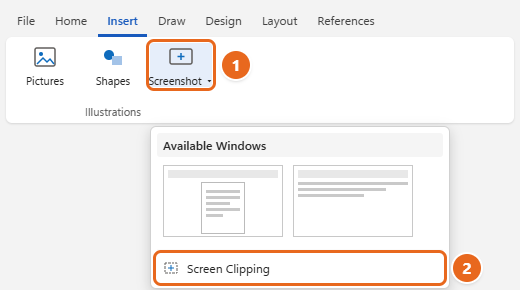
- Select Insert > Screenshot in the Illustrations group. The Available Windows gallery shows the windows you have open.
- Select Screen Clipping. The screen turns white and the pointer becomes a cross. Drag across the PDF page you want.

Select Insert > Screenshot (1), then choose Screen Clipping (2) and drag across the PDF page you want to add. - When you let go, the clipping is inserted as a picture. Repeat for each page.
Screen Clipping captures the first window in the Available Windows gallery. If it grabs the wrong window, click the PDF window first, then go straight back to Word and start again. Minimized windows can’t be captured.
Sharper pages: export images from your PDF app
A screen capture is limited by your screen’s resolution, so small print can look soft. For better quality, export the pages as image files. Adobe Acrobat and many other PDF apps can export pages as PNG or JPEG. PNG keeps text edges crisp, so it’s usually the better choice for documents.
- Export the pages you need from your PDF app as PNG files, and give them names that keep them in order, such as Quote-page-1.png and Quote-page-2.png.
- In Word, click where the first page should go and select Insert > Pictures > This Device.
- Select the image files. Hold Ctrl to select several at once, then select Insert.
- To give each PDF page its own Word page, click after each picture and press Ctrl+Enter to add a page break.
Tip: Insert pictures at full size and let Word shrink them to fit. Stretching a small image larger is the most common reason a page looks blurry. Drag a corner handle, not a side handle, to resize without distorting the page.
Insert a PDF into Word for Mac
Word for Mac handles PDFs a little differently from Word for Windows.
- As a picture: Office for Mac accepts PDF as a graphic file type, so you can place a PDF directly as a picture. Click where it should go, select Insert > Pictures > Picture from File, choose the PDF and select Insert. Expect a single page to appear. For a specific page, export that page as an image first.
- Exporting a page as an image: open the PDF in Preview, go to the page you want and choose File > Export. Pick PNG or JPEG from the Format menu and select Save. Apple’s guide to converting file types in Preview covers the options. Then insert the image with Picture from File.
- Screenshots: press Shift+Command+4 and drag across the PDF page. The image is saved to your desktop by default, and you can insert it with Picture from File.
- As editable text: Microsoft’s PDF reflow instructions are written for Word for Windows. In current Microsoft 365 versions of Word for Mac, opening a PDF with File > Open offers to convert it. That and other options are covered in converting a PDF to Word on a Mac.
Word for Mac also has an Object command on the Insert tab, but Microsoft’s object instructions are written for Windows. The picture route above is the more predictable way to show a PDF page on a Mac.
Word for the web
Word for the web doesn’t let you insert objects such as PDFs into a document. You have two choices:
- Select Open in Desktop App (it may say Open in Word) to continue in the desktop app and use Method 1.
- Open the PDF itself in Word for the web. It is converted to a Word document, which you can copy content from into your other document.
You can also insert a PDF page saved as an image with Insert > Picture.
Troubleshooting
Only the first page of the PDF shows
That is how an embedded object works. Word shows the first page as a preview, but the whole PDF is stored inside the document; double-click it to see every page. If every page must be visible and printable in Word, insert the pages as pictures (Method 3) or convert the PDF to text (Method 2).
The PDF shows as an icon, a blank box, or won’t open
- If you checked Display as icon, delete the object and insert it again with the box cleared.
- Make sure a PDF app is installed, as noted in Method 1. If a preview still doesn’t appear, installing the free Acrobat Reader is the documented fix.
- If double-clicking opens nothing, set a default app for PDF files in Windows: open Settings > Apps > Default apps, search for .pdf, and pick your PDF reader.
Object is grayed out or missing
You may be in Word for the web, which can’t insert objects; switch to the desktop app. In the desktop app, a document opened in Protected View needs Enable Editing first, and a document with editing restrictions has to be unprotected with Review > Restrict Editing > Stop Protection (you may need the password from the document’s owner).
The converted text looks messy
Complex layouts, multi-column pages and the elements listed under What doesn’t convert well often shift during conversion. Use Option A so you can tidy the text before copying it, or show those pages as pictures instead.
No text comes through, or the text is gibberish
The PDF is probably a scan. Word can’t read text from a picture of a page, so you need a PDF app with OCR (optical character recognition), which turns scanned text into real text. Run OCR, save the PDF, then convert it with Method 2. Always proofread OCR results.
A linked PDF stopped updating or shows an error
The original file was probably moved, renamed or deleted, or you are offline from the shared drive. Put the PDF back in its original location, or delete the object and insert it again as an embedded file.
The Word file got much bigger
An embedded PDF adds roughly its own size to the document. Use Link to file instead, insert only the pages you need as pictures, or attach the PDF separately when you email the document.
FAQ
How do I insert all pages of a multi-page PDF into Word?
An embedded object only displays the first page, so use pictures: export each page as an image and insert them in order, with a page break after each one. If you need the content to be editable, convert the whole PDF to text with Method 2 instead.
Can I edit a PDF after inserting it into Word?
Not when it’s inserted as an object or picture. Edit the original PDF in a PDF editor and insert it again, or convert the PDF to Word text (Method 2) and edit that.
Will an inserted PDF print with my document?
Word prints what is shown on the page. An embedded PDF prints its first-page preview (or the icon), not the rest of the PDF. Pictures and converted text print exactly as they appear.
How do I insert a PDF into Word without losing formatting?
Embed it as an object or insert its pages as pictures. Both keep the original look because Word doesn’t change the PDF’s layout. Converting to text is the only method that can change formatting.
Can I insert just one page of a PDF?
Yes. Capture that page with Insert > Screenshot > Screen Clipping, or export just that page as an image and insert it with Insert > Pictures.
Is attaching a PDF the same as inserting it?
Word has no separate attachment feature. Inserting the PDF as an object with Display as icon checked is the closest thing: the file is stored inside the document and opens when someone double-clicks the icon. Microsoft’s guide to inserting an object in Word explains the difference between embedded and linked objects.
Next step
Pick the method that matches what your reader needs: an object or icon to attach the file, converted text to reuse the words, or pictures to show the pages. When your document is finished, you can turn it back into a single file to share by converting the Word document to PDF.

Matt Jacobs has been working as an IT consultant for small businesses since receiving his Master’s degree in 2003. While he still does some consulting work, his primary focus now is on creating technology support content for SupportYourTech.com.
His work can be found on many websites and focuses on topics such as Microsoft Office, Apple devices, Android devices, Photoshop, and more.