No converter keeps a PDF’s formatting perfectly, because a PDF stores positions on a page, not rows and columns. You can still get close. In Excel for Microsoft 365, use Data > Get Data > From File > From PDF to import tables with their rows, columns and numbers intact. If you have Adobe Acrobat (paid), its Export PDF > Spreadsheet option keeps more of the visual look, such as fonts, borders and cell colors. For scanned PDFs, use Data from Picture. Below is how to use each method, which to choose, and how to restore the formatting quickly afterwards.
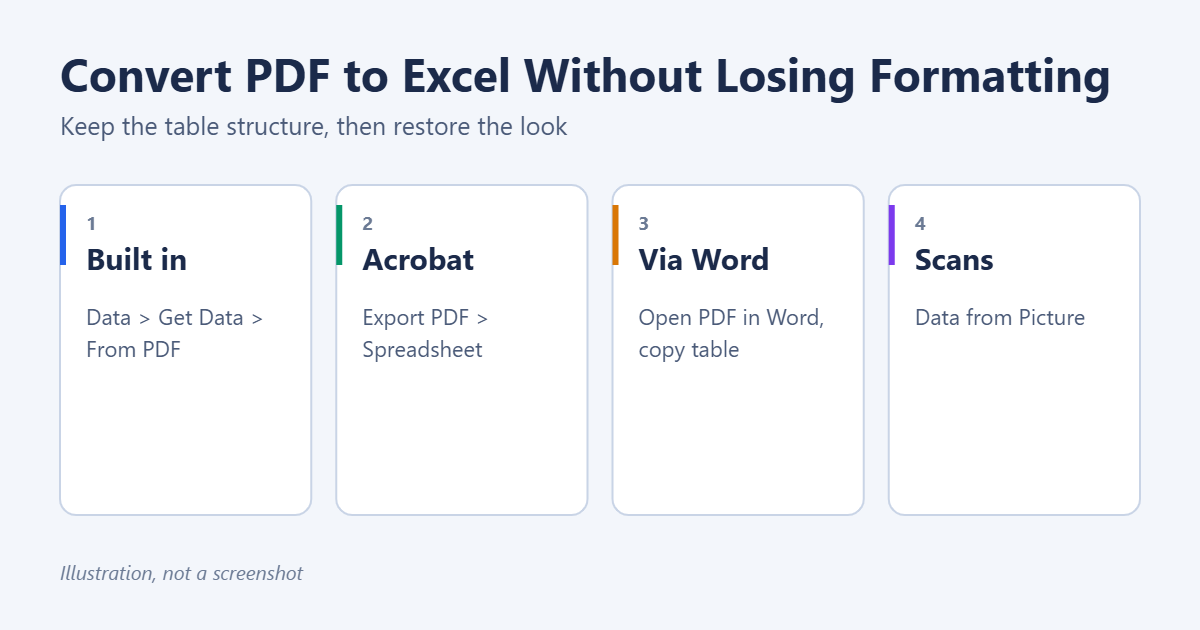
Which method keeps the most formatting?
| Method | Keeps table structure | Keeps visual formatting | Cost |
|---|---|---|---|
| Excel Get Data From PDF | Very good | No, it imports data only | Included with Microsoft 365 |
| Adobe Acrobat Export PDF | Good | Good (fonts, borders, fills) | Paid Acrobat subscription |
| Open in Word, then copy | Fair | Fair | Included with Office |
| Data from Picture | Good for small tables | No | Included with Microsoft 365 |
If you need clean, usable numbers, Get Data From PDF is usually best. If the spreadsheet has to look like the PDF, Acrobat comes closest.
Method 1: Get Data From PDF (Excel for Microsoft 365)
- Open a blank workbook and go to Data > Get Data > From File > From PDF.
- Choose the PDF and click Import.
- In the Navigator, click each item to preview it. Table items are tables Excel detected, and Page items are whole pages.
- Pick the table you want. Tick Select multiple items to choose several.
- Click Load, or Transform Data to fix headers and column types first.
Numbers and dates come in as real values you can calculate with. If you can’t see From PDF, your version of Excel doesn’t include it. Use another method instead. For more about the editor that opens with Transform Data, see how to find and enable Power Query in Excel.
Method 2: Adobe Acrobat
- Open the PDF in Adobe Acrobat (not the free Reader).
- Choose Export a PDF (or Export PDF) from the tools.
- Select Spreadsheet > Microsoft Excel Workbook.
- Click Export and save the .xlsx file.
Acrobat tries to reproduce fonts, borders and fills, and to keep each page’s table together. Complex layouts may still need some tidying.
Method 3: Open the PDF in Word
- In Word, go to File > Open and choose the PDF. Click OK when Word says it will convert it.
- Select the table in Word and press Ctrl + C.
- In Excel, click a cell and press Ctrl + V. Use Keep Source Formatting from the paste options.
This works well for simple tables and keeps basic formatting. Multi-page tables may break into pieces.
Method 4: Scanned PDFs (Data from Picture)
A scanned PDF is just an image, so the first three methods can’t read it. Take a screenshot of the table (Windows + Shift + S), then use Data > From Picture in Excel and choose the screenshot. Check each highlighted cell before you click Insert data. See how to insert data in Excel from a picture.
Restore the formatting quickly
Whatever method you use, a few steps make the sheet look right in minutes:
- Apply a table style: Click in the data and press Ctrl + T, then pick a style on the Table Design tab for borders and banded rows.
- Fix number formats: Select amounts and apply Currency or Comma style, and select dates and apply a date format.
- Match fonts: Select all with Ctrl + A and set the font and size once.
- Autofit columns: Select all and double-click any column border.
- Copy formatting: Use Format Painter to copy the look of one finished row to the others.
Fix common problems
Numbers came in as text
Select the column and use Data > Text to Columns > Finish, or click the warning icon and choose Convert to Number.
Leading zeros disappeared
In Power Query, set the column type to Text before loading.
Each page became a separate table
In Power Query, use Append Queries to combine the page tables into one.
About online converters
Free conversion websites are convenient, but you upload your file to someone else’s server. Avoid them for anything confidential, such as financial, medical or HR documents. For bank statements specifically, see how to convert a bank statement to Excel.
Frequently asked questions
Can I convert a PDF to Excel for free?
Yes. If you have Microsoft 365, Get Data From PDF and Data from Picture are included. Opening the PDF in Word is another free option if you have Office.
Why does the converted sheet have merged cells everywhere?
Converters sometimes merge cells to copy the PDF’s layout. Select the area and click Merge & Center to unmerge it, then fill any gaps.
Can I convert just one page?
Yes. In the Get Data Navigator, pick only that page or table. In Acrobat, you can choose a page range before you export.
Related guides
Summary
- For usable data, use Data > Get Data > From PDF.
- To match the PDF’s look, export from Adobe Acrobat.
- For scans, use Data from Picture.
- Restore the look with a table style, number formats and Format Painter.

Matt Jacobs has been working as an IT consultant for small businesses since receiving his Master’s degree in 2003. While he still does some consulting work, his primary focus now is on creating technology support content for SupportYourTech.com.
His work can be found on many websites and focuses on topics such as Microsoft Office, Apple devices, Android devices, Photoshop, and more.