To turn off autocorrect on iPhone, open Settings > General > Keyboard and turn off the Auto-Correction switch. The change takes effect right away in every app that uses the Apple keyboard, including Messages, Mail and Notes. Your iPhone stops replacing words on its own, but you can leave Check Spelling on so mistakes are still underlined.
Applies to: iPhone with iOS 26. The same Settings path appears in Apple’s iOS 27 guide and in earlier versions; the tap-to-undo underline needs iOS 17 or later. The steps match Apple’s support article.
How to turn off Auto-Correction in Settings
Auto-Correction is the feature most people mean by “autocorrect.” It checks each word against the keyboard dictionary as you type and swaps in what it thinks you meant when you press the Space bar or add punctuation. Apple turns it on by default.
- Open the Settings app from your Home Screen or App Library.
- Tap General.
- Tap Keyboard. The screen that opens lists your keyboard options, and its title reads Keyboards.
- Scroll to the All Keyboards section. These switches apply to every Apple keyboard you have installed, whatever the language.
- Tap the switch next to Auto-Correction so it turns gray. Gray means off; green means on.
- Leave the other switches as they are unless you want to change them too. The table in the next section explains each one.
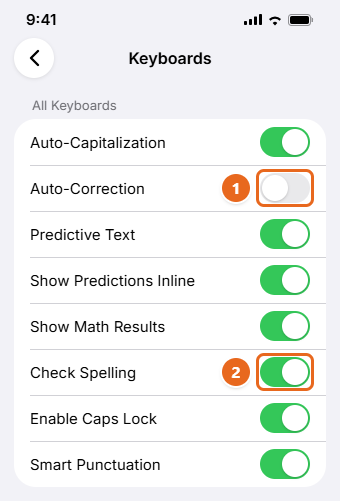
There’s no Save button. Close Settings and type something in Messages or Notes to test it. Try typing teh followed by a space: with Auto-Correction off, it stays teh. With Check Spelling still on, the word gets a red underline so you can fix it yourself.
Faster way: open Keyboard Settings from the keyboard
You don’t have to dig through Settings. Apple builds a shortcut into the keyboard itself, which is handy when autocorrect is fighting you in the middle of a message.
- Tap in any text field so the keyboard appears.
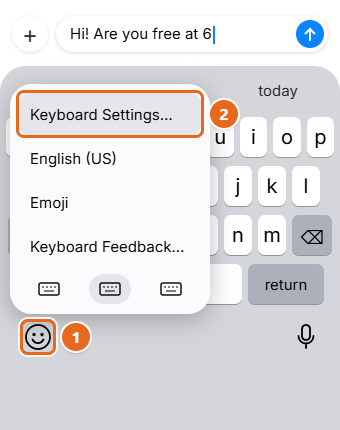
- Touch and hold the emoji key (the smiley face) or the globe key in the bottom-left corner. The globe appears instead of the smiley when you have more than one keyboard installed.
- In the menu that opens, tap Keyboard Settings. The same Keyboards screen from the steps above opens.
- Turn off Auto-Correction, then swipe up from the bottom of the screen (or use the app switcher) to go back to what you were typing.
Which keyboard switch does what?
Several features change your typing, and they’re easy to confuse. Turning off the wrong one can leave the annoying behavior in place. Here is what each switch in the All Keyboards section of iOS 26 controls.
| Switch | What it does | Turn it off if… |
|---|---|---|
| Auto-Capitalization | Capitalizes the first word of each new sentence | You want messages to start in lowercase |
| Auto-Correction | Replaces words it thinks are misspelled | Your iPhone keeps changing words you typed on purpose |
| Predictive Text | Shows suggested words, emoji and info in the bar above the keys | You don’t use the suggestion bar (this also turns off inline predictions) |
| Show Predictions Inline | Shows gray text ahead of the cursor that finishes the word or phrase you’re typing; tapping Space accepts it | Words get finished for you when you press Space |
| Show Math Results | Solves math expressions as you type them | You don’t want answers appearing after an equals sign |
| Check Spelling | Underlines possible misspellings in red without changing them | You don’t want any underlines at all |
| Enable Caps Lock | Double-tapping the Shift key locks capital letters on | You keep turning on caps lock by accident |
| Smart Punctuation | Changes straight quotes to curly quotes and double hyphens to a dash | You type code, commands or passwords that need plain characters |
A few points that catch people out:
- Turning off Predictive Text does not turn off autocorrect. Even with Predictive Text off, your iPhone can still offer corrections for misspelled words, which are accepted when you type a space, punctuation or Return. To stop words being replaced, you need the Auto-Correction switch.
- Inline predictions can feel like autocorrect. If your iPhone finishes words you never typed, the cause is usually Show Predictions Inline. Turning off Predictive Text turns off both the suggestion bar and inline predictions.
- Older versions use different names. On some earlier iOS versions, Predictive Text is labeled just Predictive, and the inline and math switches don’t exist.
- Auto-Correction off plus Check Spelling on is a good middle ground. You still see red underlines, and you can tap an underlined word to pick a spelling, but nothing changes unless you choose it.
Keep autocorrect but stop bad corrections
If autocorrect usually helps and only gets a few words wrong, such as a friend’s name, a street, a product or slang, you can fix those words without turning the whole feature off.
Undo a correction right after it happens
Since iOS 17, Auto-Correction briefly underlines each word it changes. Tap the underlined word, then choose your original spelling from the pop-up menu. This is faster than deleting the word and retyping it, which often triggers the same correction again.
Reject a suggestion before it’s applied
When the suggestion bar shows a correction you don’t want, tap the option in quotation marks, which is exactly what you typed. If Predictive Text is off, tap the small x on the correction bubble instead. If you reject the same suggestion a few times, your iPhone stops suggesting it.
Add the word with Text Replacement
Text Replacement gives you a permanent fix for names and terms your iPhone doesn’t know. The trick is to add the word as a phrase with no shortcut. This example uses the name Brennagh, which autocorrect might change to Brenna or Bregagh.
- Go to Settings > General > Keyboard, then tap Text Replacement.
- Tap the Add button (the plus sign) at the top right.
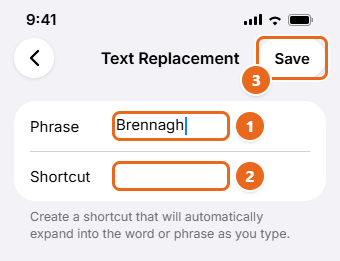
- In the Phrase field, type the word exactly as you want it to appear, including capital letters.
- Leave the Shortcut field blank.
- Tap Save. The word appears in your Text Replacement list.
You can also use Text Replacement the other way around, as a typing shortcut. For example, put See you at the front entrance in 10 minutes in Phrase and fe10 in Shortcut. Don’t store passwords or account codes this way, because your text replacements can sync to your other Apple devices. There’s a longer walkthrough in adding a word to the iPhone dictionary.
To delete an entry later, open Text Replacement, tap Edit, tap the remove button next to the entry, tap Delete, then tap Done.
Your personal dictionary stays up to date on your other devices when iCloud Drive is on. To check, go to Settings > [your name] > iCloud.
Check your keyboard languages
Autocorrect checks words against the dictionary for the keyboard you’re using. If you type English on a keyboard set to another language or region, correct words can be “fixed” into something else. Go to Settings > General > Keyboard > Keyboards to see which keyboards you have. To remove one you never use, tap Edit, tap the remove button next to it, tap Delete, then tap Done.
Reset the keyboard dictionary
Your iPhone learns from you. Words get added to the keyboard dictionary when you reject its suggestions, so years of typos and accidental taps can teach it bad habits. Resetting the dictionary clears those learned words and starts fresh.
Before you reset: Apple’s pages describe this option a little differently. One describes it as erasing only the words you’ve added; another states that all custom words and shortcuts are deleted. To be safe, open Settings > General > Keyboard > Text Replacement and note any entries you want to keep before you continue. A reset does not delete your messages, photos, apps or contacts.
- Open Settings and tap General.
- Scroll to the bottom and tap Transfer or Reset iPhone.
- Tap Reset. A menu with several reset options appears.
- Tap Reset Keyboard Dictionary. Be careful not to tap Erase All Content and Settings, which is on the previous screen and wipes the whole phone.
- Enter your passcode if asked, then confirm. The keyboard dictionary returns to its default state.
After a reset, your iPhone may suggest corrections for words it had already learned, so you may need to reject a few suggestions again. Older guides list this option under Settings > General > Reset; on current versions it’s inside Transfer or Reset iPhone. The other reset options, and what each one removes, are explained in resetting an iPhone without erasing it.
How to turn autocorrect back on
Turning Auto-Correction off doesn’t delete anything, so you can switch it back on at any time.
- Open Settings > General > Keyboard, or touch and hold the emoji or globe key and tap Keyboard Settings.
- Tap the switch next to Auto-Correction so it turns green.
Your Text Replacement entries and learned words are still there, unless you reset the keyboard dictionary in the meantime.
Troubleshooting
Words still change after I turned off Auto-Correction
- Check for inline predictions. If gray text appears ahead of the cursor and your word is completed when you tap Space, turn off Show Predictions Inline or Predictive Text.
- Check capitals and punctuation. Capital letters come from Auto-Capitalization, and curly quotes or dashes come from Smart Punctuation. Both are separate switches.
- Check for a Text Replacement shortcut. If one specific word or abbreviation always turns into something else, open the Text Replacement list and look for a shortcut that matches it.
- Check which keyboard you’re using. If the keyboard looks different from Apple’s, you may be using a third-party keyboard such as Gboard or SwiftKey. Those keyboards have their own autocorrect settings inside their own apps, and Apple’s switch doesn’t control them. Touch and hold the globe key to switch back to an Apple keyboard.
Autocorrect only misbehaves in one app
Some apps use their own text editor or spell checker. Type the same sentence in Notes. If Notes behaves correctly, look for a spelling or autocorrect option in the problem app’s own settings, and check for an update to the app in the App Store.
Autocorrect keeps changing words to another language
Review your installed keyboards as described in Check your keyboard languages. With keyboards for two languages, your iPhone can switch between the two languages you use most often as you type, which isn’t available for all languages. Removing keyboards you don’t use cuts down on wrong-language corrections.
I can’t find the Keyboard option
It’s in Settings > General, not in the main Settings list. If you can’t spot it, use the search field in Settings, type Auto-Correction, then tap the result.
Typing makes clicking sounds or vibrations
That’s not autocorrect. Keyboard sounds and haptics are under Settings > Sounds & Haptics > Keyboard Feedback, and the emoji or globe key menu has a Keyboard Feedback shortcut too. Keyboard clicks and alert tones are both covered in turning off text message sounds on iPhone.
FAQ
Does turning off autocorrect turn off spell check?
No. Auto-Correction and Check Spelling are separate switches. With Auto-Correction off and Check Spelling on, your iPhone underlines possible mistakes but doesn’t change them.
Can I turn off autocorrect only in Messages?
Not with Apple’s keyboard. The switches in the All Keyboards section apply across every app that uses it. If you only want to protect certain words, add them with Text Replacement instead.
Will turning off autocorrect delete words my iPhone has learned?
No. Turning the switch off and back on keeps your learned words and Text Replacement entries. Only Reset Keyboard Dictionary clears learned words.
Does this work on iPad?
Yes. Apple’s support article covers iPhone and iPad, and the iPad uses the same Settings > General > Keyboard path. The screen layout is slightly different because of the larger display.
Why are some words underlined?
In iOS 17 and later, Auto-Correction temporarily underlines words it changed. Tap the underlined word to see your original text and other options. A red underline is different: it comes from Check Spelling and marks a word that may be misspelled.
Why does my iPhone keep “correcting” a word I spell correctly?
Usually the word isn’t in the keyboard dictionary, or the dictionary learned a bad version of it. Add the word with Text Replacement and leave Shortcut blank. If many words are affected, resetting the keyboard dictionary can help.
Next step: if you turned off Auto-Correction to stop one or two stubborn words, try adding those words with Text Replacement and switching Auto-Correction back on. You keep the typo fixes and lose the bad corrections. Apple’s own text replacement guide for iOS 26 has more on shortcuts and syncing.

Matt Jacobs has been working as an IT consultant for small businesses since receiving his Master’s degree in 2003. While he still does some consulting work, his primary focus now is on creating technology support content for SupportYourTech.com.
His work can be found on many websites and focuses on topics such as Microsoft Office, Apple devices, Android devices, Photoshop, and more.