To alphabetize a list in Microsoft Word, select the list, click the Sort button (the A-to-Z icon) on the Home tab, choose Paragraphs and Text, pick Ascending, and click OK. Word reorders the lines from A to Z. The same tool sorts tables, reverses the order to Z to A, and can sort names by last name. All of that is covered below.
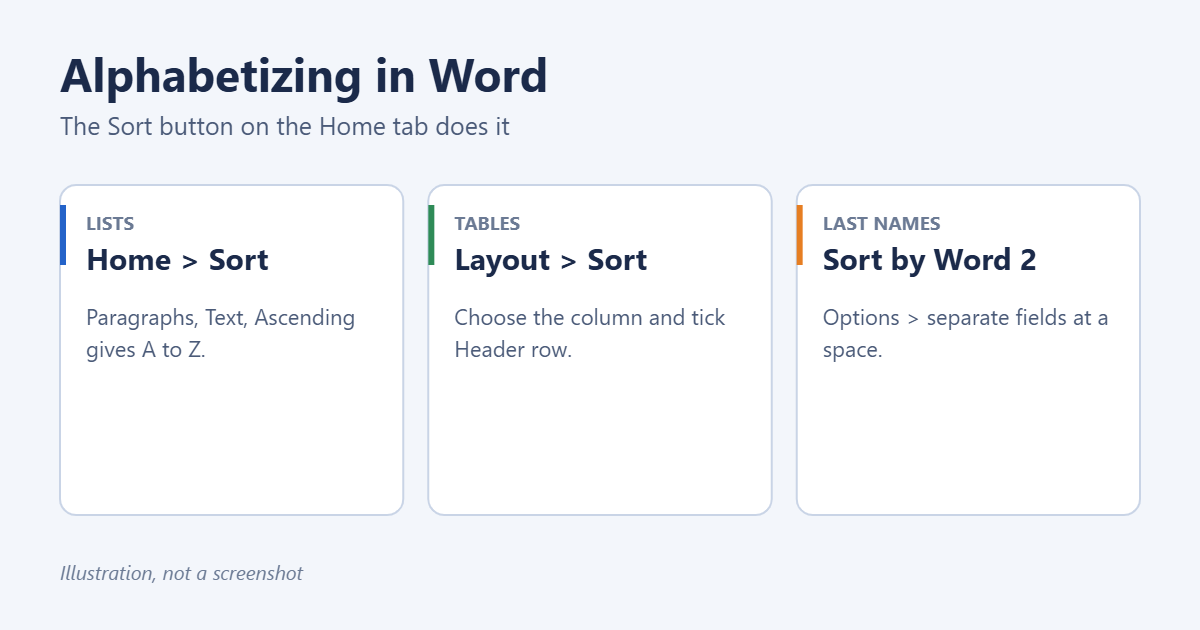 Sort, tables with Layout > Sort, and names by last name with Word 2″ width=”1200″ height=”630″ />
Alphabetize a list
- Select the lines you want to sort. Each item should be on its own line (its own paragraph).
- On the Home tab, in the Paragraph group, click Sort (the A/Z icon with a down arrow).
- In the Sort Text window, set Sort by to Paragraphs and Type to Text.
- Choose Ascending for A to Z, or Descending for Z to A.
- Click OK.
This works for plain lines, bulleted lists, and numbered lists. Numbered lists renumber automatically after sorting.
Alphabetize a table
- Click anywhere in the table.
- On the Table Layout tab (just Layout in some versions), click Sort.
- If the first row has column titles, tick Header row at the bottom so it stays at the top.
- Under Sort by, choose the column, set Type to Text, and choose Ascending.
- Add a Then by column if you want to break ties, such as sorting by city and then by name.
- Click OK.
Whole rows move together, so data in other columns stays matched up. More table options are in sorting a table in Word.
Sort names by last name
If each line is a “First Last” name:
- Select the list and click Home > Sort.
- Click Options, choose Other under Separate fields at, type a single space in the box, and click OK.
- Set Sort by to Word 2, Type: Text, Ascending.
- Click OK.
Names with middle names or initials won’t sort correctly this way, because the last name won’t always be word 2. For mixed lists, it’s easier to sort in Excel and paste the result back.
Alphabetize words in a single line
Sort only works on separate lines, so a comma-separated list like “pear, apple, fig” needs a quick conversion first:
- Select the line and press Ctrl + H.
- In Find what, type a comma and a space. In Replace with, type ^p (a paragraph mark). Click Replace All.
- Sort the resulting lines with Home > Sort.
- Select them again and reverse the replacement: find ^p and replace with a comma and a space.
Sort by number or date
Set Type to Number or Date instead of Text. This makes 10 sort after 9 rather than after 1.
Tips
- Remove blank lines first. Empty paragraphs sort to the top of the list.
- Watch leading spaces and symbols. Items that start with a space, quote mark, or number sort before letters.
- Case-sensitive sorting is available under Options > Case sensitive, but it’s usually best left off.
- Undo works. Press Ctrl + Z right away if the result isn’t what you wanted.
Troubleshooting
The Sort button is greyed out
The document may be in Read Mode or protected. Switch to View > Print Layout or turn off editing restrictions.
Only part of the list sorted
Not all lines were selected, or some items span two lines. Make sure each item is a single paragraph.
Sub-items got separated from their parents
Sort works line by line and doesn’t keep multi-level list structure. Sort each level separately, or rebuild the list after sorting.
Frequently asked questions
Can I alphabetize in Word for Mac?
Yes. The Sort button is on the Home tab in the same place.
Can I alphabetize in Word for the web?
Word for the web has fewer sort options. Open the document in the desktop app for full sorting.
Summary
Select the list, click Home > Sort, choose Paragraphs, Text, and Ascending, and click OK. For tables, use Table Layout > Sort with Header row ticked. To sort names by last name, separate fields at a space and sort by Word 2.
Related: How to Fix Numbering in Word.
Related: put Excel in alphabetical order.

Matt Jacobs has been working as an IT consultant for small businesses since receiving his Master’s degree in 2003. While he still does some consulting work, his primary focus now is on creating technology support content for SupportYourTech.com.
His work can be found on many websites and focuses on topics such as Microsoft Office, Apple devices, Android devices, Photoshop, and more.