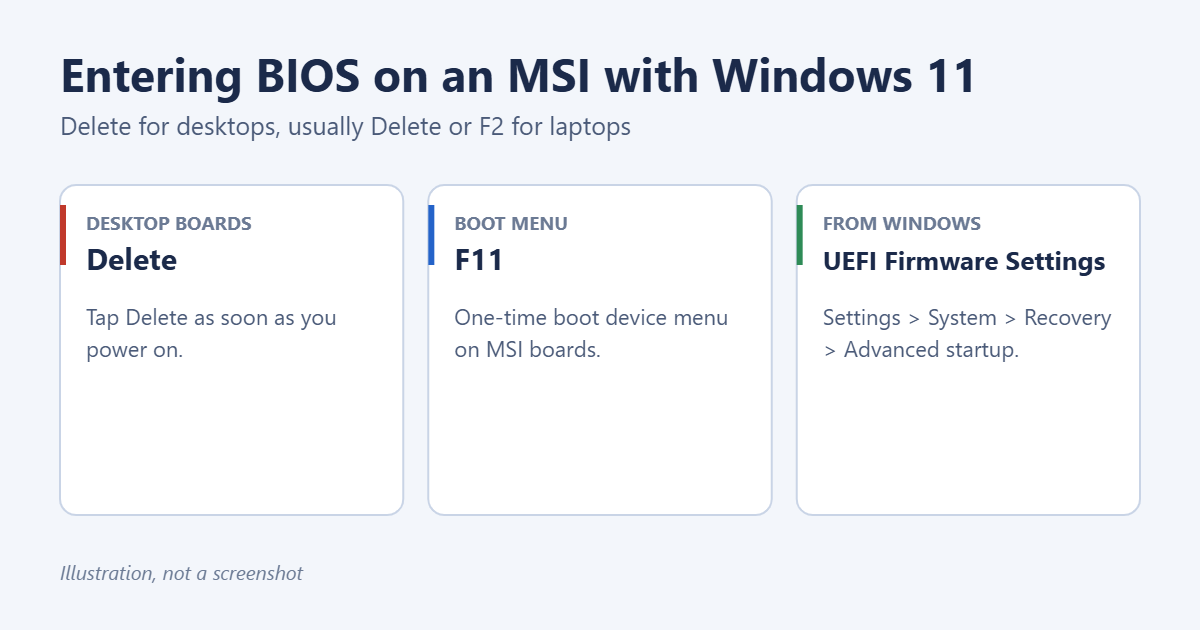
To enter the BIOS on an MSI computer or motherboard running Windows 11, restart it and tap the Delete key repeatedly as soon as it powers on. That opens MSI’s Click BIOS. Most MSI laptops also use Delete. If you miss the timing, or your PC boots too fast, go through Windows instead: Settings > System > Recovery > Advanced startup > Restart now, then Troubleshoot > Advanced options > UEFI Firmware Settings. Both methods are below, plus a quick tour of MSI’s BIOS.
Method 1: Press Delete at startup
- Save your work and restart the PC. Restarting works more reliably than a cold start because of Windows Fast Startup.
- As soon as the screen goes black, tap Delete about once per second.
- Keep tapping until the MSI Click BIOS screen appears.
Use a wired USB keyboard plugged directly into the PC. Wireless and Bluetooth keyboards may not work this early in startup.
Method 2: From Windows 11
- Open Settings > System > Recovery.
- Next to Advanced startup, click Restart now and confirm.
- On the blue screen, choose Troubleshoot > Advanced options > UEFI Firmware Settings.
- Click Restart. The PC restarts straight into the MSI BIOS.
Quick shortcut: hold Shift while clicking Restart in the Start menu.
To boot once from a USB drive without changing settings, tap F11 at startup instead. It opens a list of boot devices. Choose one with the arrow keys and press Enter.
Getting around MSI Click BIOS
- EZ Mode shows the basics: CPU and memory speed, temperatures, boot priority, and quick toggles such as XMP/EXPO for memory.
- Advanced Mode (press F7) shows every setting, organized into sections like Settings, OC, and M-Flash.
- Boot priority is at the top of the screen in EZ Mode. Drag a device to the left to boot from it first.
- Virtualization is usually under OC > CPU Features as SVM Mode (AMD) or Intel Virtualization Tech, and the Windows side is covered in enabling virtualization in Windows 11.
Press F10 to save changes and exit, or Esc to leave without saving. Only change settings you understand; incorrect memory or CPU settings can stop the PC from starting.
Turn on TPM and Secure Boot for Windows 11
Windows 11 needs TPM 2.0 and Secure Boot. On MSI boards they’re sometimes off on older BIOS versions:
- TPM: in Advanced Mode, open Settings > Security > Trusted Computing and enable Security Device Support. Choose AMD fTPM or Intel PTT as the TPM device.
- Secure Boot: open Settings > Advanced > Windows OS Configuration, set BIOS UEFI/CSM Mode to UEFI, then enable Secure Boot.
Menu names can vary between MSI BIOS versions, so check your board’s manual if you can’t find them.
Troubleshooting
Windows starts before I can press Delete
Use Method 2, or turn off Fast Startup in Control Panel > Power Options > Choose what the power buttons do.
UEFI Firmware Settings is missing
Windows may be installed in legacy mode. Use the Delete key instead.
The screen stays black after changing settings
Wait a minute; memory training after BIOS changes can take time. If it still won’t start, clear CMOS using the button on the back panel or the jumper on the motherboard, as described in your board’s manual.
Frequently asked questions
How do I update an MSI BIOS?
Download the update for your exact board or laptop model from MSI’s support site, then use M-Flash in the BIOS. For the full process, read about updating your BIOS on Windows 11.
What keys do other brands use?
Dell uses F2 and Lenovo often uses F1, F2, or the Novo button. The brand pages for Dell and Lenovo have the details, and entering BIOS in Windows 11 covers other PCs.
Summary
Restart your MSI PC and tap Delete to open Click BIOS, or use Settings > System > Recovery > Advanced startup > UEFI Firmware Settings. Press F11 for the one-time boot menu and F10 to save and exit.

Matt Jacobs writes and maintains the guides on Support Your Tech, which he started in 2017. He spent most of his career keeping small-business PCs running and still takes the occasional consulting job, so the steps here come from fixing the same problems on other people’s computers. Every guide is checked on his own Windows 11, Windows 10, Mac, iPhone and iPad before it goes up.