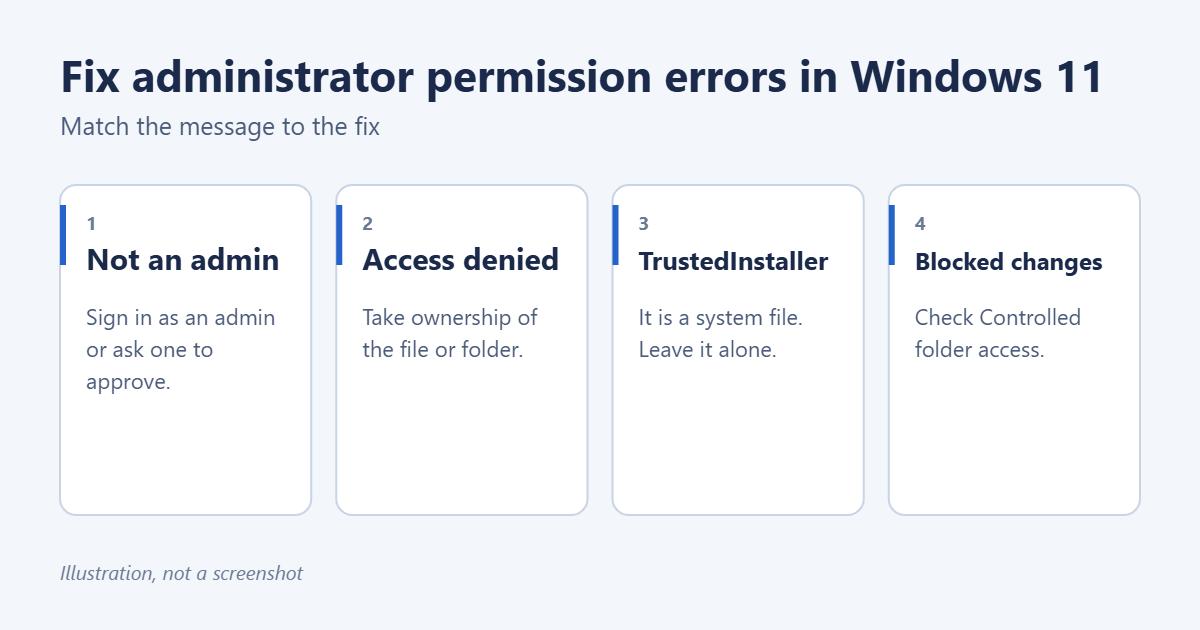
Most administrator permission errors in Windows 11 have one of three causes: your account isn’t an administrator, the file or folder belongs to another account or to Windows itself, or a security feature is blocking the change. Start by checking your account type in Settings > Accounts > Your info. If it shows Administrator and you still get the error, the fix depends on the exact message, as described below. Before changing any permissions, find out whether your Windows 11 account is an administrator or a standard user.
Applies to: Windows 11 Home and Pro. On a work or school PC, your IT department controls these permissions.
Step 1: Check whether you’re an administrator
- Open Settings > Accounts > Your info.
- Look under your name for Administrator or Standard user.
If you’re a standard user, Windows asks for an administrator’s password whenever you install apps or change system settings. Ask the person who manages the PC to type their password, or to give your account admin rights. A standard user can’t give themselves admin rights.
“You’ll need to provide administrator permission to delete (or copy, move) this folder”
This appears when you change something in a protected location, such as Program Files, Windows or the root of the C: drive.
- If you’re an administrator, select Continue. Windows asks you to confirm, then makes the change.
- If you’re a standard user, Windows asks for an administrator’s password.
To remove a program, uninstall it from Settings > Apps > Installed apps rather than deleting its folder.
“You don’t currently have permission to access this folder” or “Access is denied”
The folder belongs to another account, for example from an old Windows installation or another drive. As an administrator, you can take ownership of it.
- Right-click the file or folder and select Properties > Security > Advanced.
- Next to Owner, select Change.
- Type your user name, select Check Names and then OK.
- For a folder, tick Replace owner on subcontainers and objects.
- Select Apply, then OK, and close the Properties window.
- Open Properties > Security again, select Edit, choose your account, tick Full control under Allow and select OK.
Each permission option is explained in changing file permissions in Windows 11.
Take ownership with a command
For a large folder, this is faster. Open Terminal (Admin), switch to Command Prompt with Ctrl + Shift + 2, and run these two commands, replacing the path with yours:
takeown /f "D:\Old Files" /r /d yicacls "D:\Old Files" /grant %username%:F /t
The first makes you the owner of the folder and everything in it. The second gives your account full control. On a PC set to a language other than English, replace y with the local word for yes.
“You require permission from TrustedInstaller” or “from SYSTEM”
The file is part of Windows, and Windows protects it on purpose. Changing or deleting it can stop Windows starting or updating. Don’t take ownership of files in the Windows folder or other system folders.
If you’re trying to free up space, use Settings > System > Storage > Cleanup recommendations or Temporary files instead. To remove an old Windows.old folder, select Previous Windows installation(s) under Temporary files.
Windows Security’s Controlled folder access stops unknown apps from changing files in your personal folders, to protect against ransomware. Administrator rights don’t override it.
- Open Windows Security > Virus & threat protection.
- Under Ransomware protection, select Manage ransomware protection.
- Select Allow an app through Controlled folder access > Add an allowed app, and choose the app you trust.
“This app has been blocked for your protection”
Windows blocked an app because its publisher couldn’t be verified, or because a policy on the PC forbids it. If you trust the app and got it from the developer’s own website, right-click it and select Properties, tick Unblock at the bottom of the General tab, and try again. If the message mentions that your administrator blocked it, only the person or organization managing the PC can allow it.
Apps that need to run as administrator
Some older programs and tools need full rights every time. Right-click the app and select Run as administrator. To make it permanent, right-click it, select Properties > Compatibility, tick Run this program as an administrator and select OK. Steam games work a little differently because the desktop icon is only a shortcut, so follow running a Steam game as administrator to change the right .exe. When the error comes from a command in Terminal, adding sudo before it (see how sudo works in Windows 11) runs that one command with admin rights after a UAC prompt.
If permissions seem broken everywhere
If you get permission errors on your own files and nothing above helps, Windows system files may be damaged. Open Terminal (Admin) and run sfc /scannow, then DISM /Online /Cleanup-Image /RestoreHealth, and restart. You can also create a new administrator account and check whether the problem follows you.
Frequently asked questions
Should I turn on the hidden Administrator account?
Only as a temporary fix if you’ve lost access to every admin account, and turn it off afterwards. It runs everything with full rights and no confirmation prompts, which makes the PC easier to damage.
Can I turn off User Account Control to stop the prompts?
You can, but it’s not a good idea. UAC is what stops apps from making system changes without your knowledge.
Is it safe to take ownership of a folder?
Yes, for your own files and folders, such as data on an old drive. Avoid it for anything in the Windows or Program Files folders.
On a Windows 10 PC, the same ideas apply when you change file and folder permissions in Windows 10.

Matt Jacobs has been working as an IT consultant for small businesses since receiving his Master’s degree in 2003. While he still does some consulting work, his primary focus now is on creating technology support content for SupportYourTech.com.
His work can be found on many websites and focuses on topics such as Microsoft Office, Apple devices, Android devices, Photoshop, and more.