To change DNS in Windows 10, press Windows logo key + R, type ncpa.cpl, and press Enter. Right-click your connection, select Properties, then open Internet Protocol Version 4 (TCP/IPv4). Select Use the following DNS server addresses, enter the preferred and alternate servers, and select OK.
Applies to: Windows 10. Checked against Microsoft Support on September 26, 2026.
DNS servers turn website names into addresses. Your router normally supplies them. You might change them to use a DNS service that’s faster or filters sites, or because your company or school asked you to.
Change DNS in Network Connections
- Press Windows logo key + R, type ncpa.cpl, and press Enter.
- Right-click Ethernet or Wi-Fi and select Properties. Select Yes if asked.
- Select Internet Protocol Version 4 (TCP/IPv4) and then Properties.
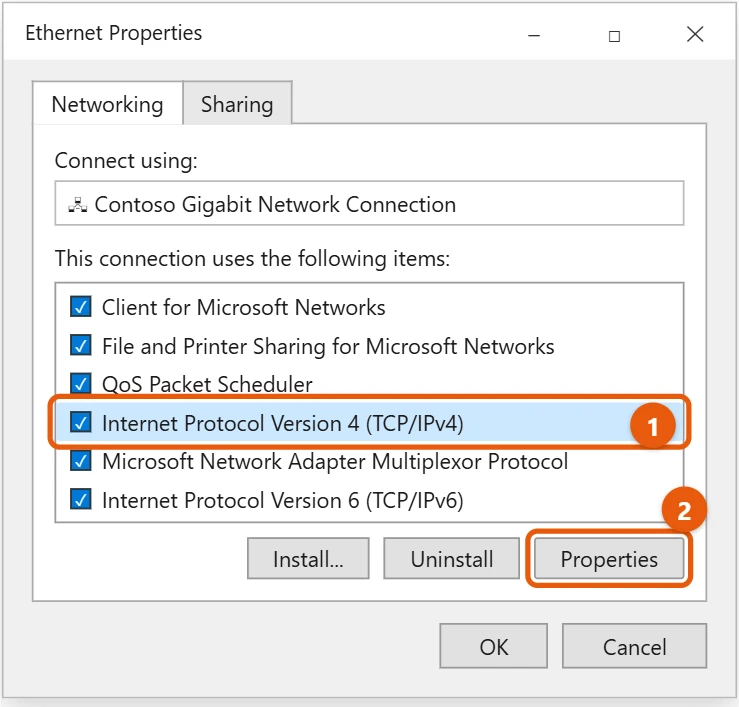
- Select Use the following DNS server addresses.
- Enter the Preferred DNS server and Alternate DNS server addresses from your DNS provider.
- Select OK, then Close.
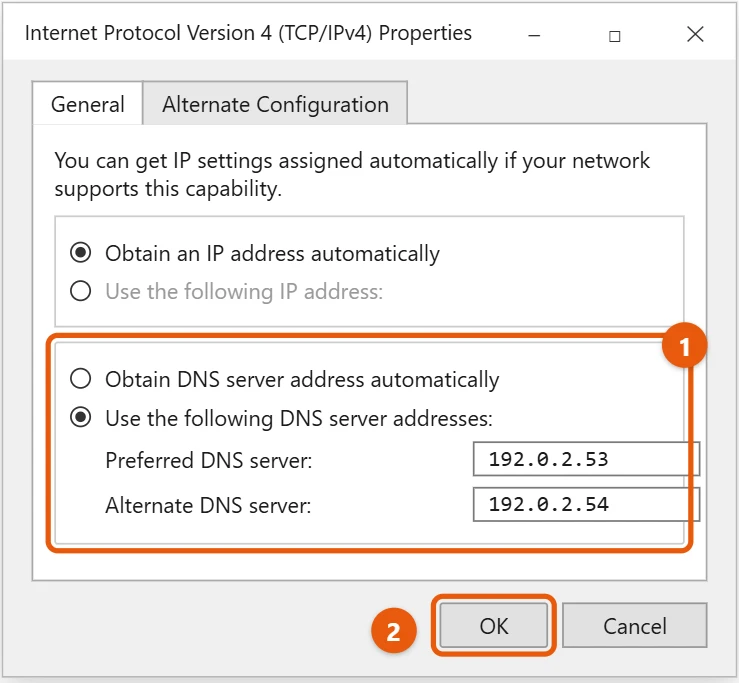
For IPv6 DNS servers, repeat the steps with Internet Protocol Version 6 (TCP/IPv6).
Change DNS in Settings
- Select Start > Settings > Network & Internet, then Ethernet or Wi-Fi.
- Select your network.
- Under IP settings, select Edit and choose Manual.
- Turn on IPv4, enter the Preferred DNS and Alternate DNS addresses, and select Save.
Choosing Manual here means you may also need to fill in the IP address, so Network Connections is often easier.
Change DNS with a command
In PowerShell as administrator, this sets DNS for your Wi-Fi adapter. Use your adapter’s name from Get-NetAdapter, such as Wi-Fi or Ethernet:
Set-DnsClientServerAddress -InterfaceAlias "Wi-Fi" -ServerAddresses ("1.1.1.1","1.0.0.1")
To go back to automatic DNS, run Set-DnsClientServerAddress -InterfaceAlias "Wi-Fi" -ResetServerAddresses.
Well-known public DNS services
- Cloudflare: 1.1.1.1 and 1.0.0.1
- Google Public DNS: 8.8.8.8 and 8.8.4.4
- Quad9: 9.9.9.9 and 149.112.112.112, which also blocks many known malicious sites
To use a DNS service on every device at home, change the DNS setting on your router instead. Check your router’s manual for where it is.
Clear the DNS cache after changing
- Type cmd in the search box and open Command Prompt.
- Run
ipconfig /flushdns. - Run
ipconfig /allto see which DNS servers each adapter is using.
Go back to automatic DNS
Open the IPv4 properties again and select Obtain DNS server address automatically. Your router’s DNS servers will be used again.
If the new DNS doesn’t seem to work
- A VPN is on: many VPNs use their own DNS servers while connected.
- Your browser has its own DNS setting: in Edge, check Settings > Privacy, search, and services > Use secure DNS. A provider chosen there overrides Windows for websites.
- ipconfig /all still shows the old servers: you may have changed a different adapter. Check that you edited the one you’re connected with.
Frequently asked questions
Does Windows 10 support DNS over HTTPS?
Not in its settings. Microsoft notes that the DNS over HTTPS option is only in Windows 11.
Websites stopped loading after I changed DNS. What now?
Check the addresses for typos, or switch back to automatic. If that doesn’t help, see how to reset network settings in Windows 10.
Will a different DNS server make my internet faster?
It can make pages start loading a little sooner, but it won’t raise your download speed. See how to increase internet speed in Windows 10.
Is it safe to change my DNS server?
Yes, if you use a well-known provider. The DNS service can see which sites you look up, so pick one whose privacy policy you’re comfortable with.
Can DNS block ads or adult sites?
Some DNS services offer filtering. Family versions of public DNS services block adult sites, and others block known ad and tracking domains. Check the provider’s site for the right addresses.
To connect to a work or school network securely, see how to set up a VPN on Windows 10.
To point just one name to a different address on your PC, you can edit the hosts file in Windows 10 instead.
To test whether IPv6 is causing a problem, see how to disable IPv6 in Windows 10.
Microsoft’s guide is Essential network settings and tasks in Windows. More help is on our Windows Help & Guides page.

Matt Jacobs has been working as an IT consultant for small businesses since receiving his Master’s degree in 2003. While he still does some consulting work, his primary focus now is on creating technology support content for SupportYourTech.com.
His work can be found on many websites and focuses on topics such as Microsoft Office, Apple devices, Android devices, Photoshop, and more.