To delete a header in Word, go to Insert > Header > Remove Header. You can also double-click the header, select everything in it, press Delete, then press Esc. If the header disappears from only part of the document, your file has more than one section, and you’ll need to remove it from each section or unlink them first.
Applies to: Word for Microsoft 365, Word 2024, 2021, 2019 and 2016 on Windows and Mac, and Word for the web. Last reviewed October 8, 2026.
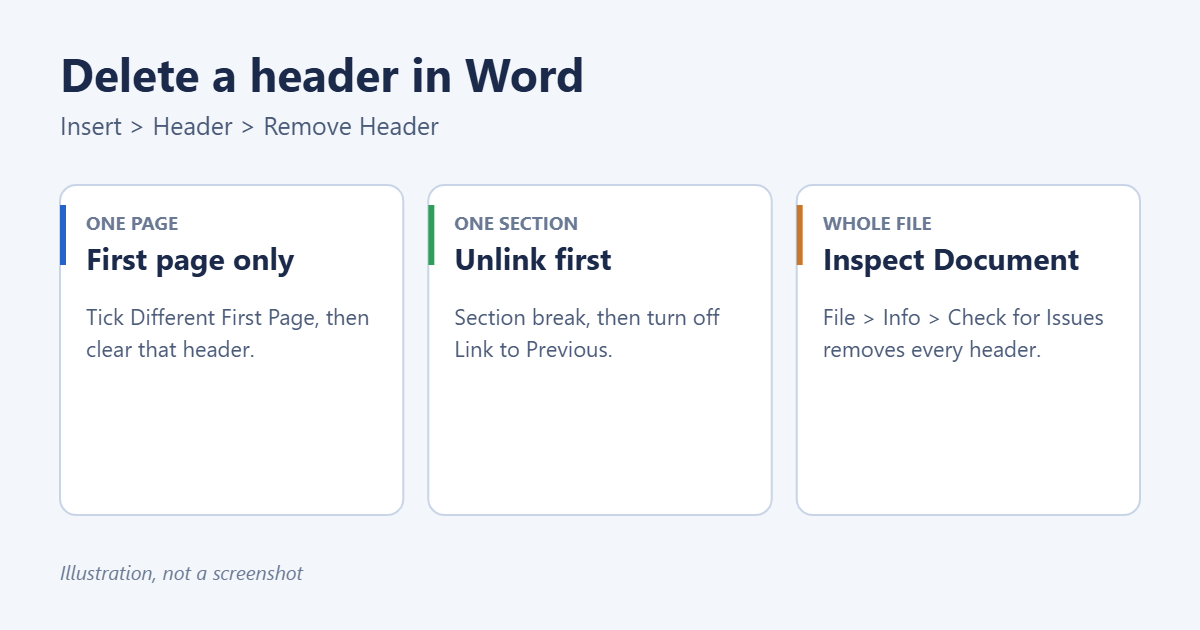
Method 1: Remove the header from the whole document
- Click anywhere in the document.
- Go to the Insert tab and select Header in the Header & Footer group.
- Select Remove Header at the bottom of the menu.
This clears the header in the current section. If the document has only one section, which is true for most documents, the header is gone from every page. Footers are removed the same way with Insert > Footer > Remove Footer.
Method 2: Delete the header text by hand
- Double-click the header area at the top of any page. The Header & Footer tab opens.
- Press Ctrl+A (Command+A on a Mac) to select everything in the header.
- Press Delete.
- Select Close Header and Footer or press Esc.
This method also works in Word for the web, which has no Remove Header command. Go to Insert > Header & Footer, delete the text, and click back in the body.
Method 3: Remove the header from the first page only
- Double-click the header on page 1.
- On the Header & Footer tab, tick Different First Page.
- Delete anything left in the first-page header. Headers on the other pages stay as they are.
The same tab has Different Odd & Even Pages if you want headers only on left or right pages. For more layouts, see how to make different headers in Word.
Method 4: Remove the header from some pages only
Word ties headers to sections, not pages. To remove the header from page 5 onward, for example:
- Click at the start of page 5 and go to Layout > Breaks > Next Page. See how to add a section break in Word for details.
- Double-click the header on page 5.
- On the Header & Footer tab, select Link to Previous to turn it off. The label “Same as Previous” disappears from the header.
- Delete the header text in this section. Headers before the break stay.
If you skip step 3, deleting the text removes it from the earlier section as well, because linked sections share the same header.
Method 5: Remove every header in the file at once
For a long document with many sections, Document Inspector is faster.
- Save a copy of the document first, because this can’t be undone.
- Go to File > Info > Check for Issues > Inspect Document.
- Make sure Headers, Footers, and Watermarks is ticked and select Inspect.
- Select Remove All next to Headers, Footers, and Watermarks, then Close.
This removes footers and watermarks as well as headers. Document Inspector is in Word for Windows only.
Troubleshooting
A line is still showing where the header was
Some header styles add a bottom border. Double-click the header, click in the empty line, go to Home > the Borders drop-down, and select No Border.
There’s still a gap at the top of the page
The space is the header margin, not the header. Go to Layout > Margins > Custom Margins > Layout tab and lower Header under From edge, or reduce the top margin. To shrink the header without removing it, see how to make the header smaller in Word.
The header came back on some pages
The document has several sections and only one was cleared. Check each section, or use Document Inspector.
The header is greyed out and I can’t select it
That’s normal when you’re editing the body. Double-click it to edit. If it looks faded even then, see why the header looks faded in Word.
The header is a logo or picture I can’t delete
It may be a watermark or an image anchored to the header. Open the header, click the image and press Delete, or go to Design > Watermark > Remove Watermark.
Frequently asked questions
Does removing the header delete the page numbers?
Only if the page numbers are in the header. Numbers in the footer stay. To put them back in a different spot, see how to start page numbers on a later page.
How do I keep the header but remove it from printing?
Word has no print-only setting for headers. Save a copy, remove the header from the copy, and print that.
Can I bring a deleted header back?
Press Ctrl+Z straight away. Otherwise insert a new one from Insert > Header, or set it to repeat across pages again.
Related: How to Add a Section Break in Word.
Related: how to add a watermark in Word.

Matt Jacobs has been working as an IT consultant for small businesses since receiving his Master’s degree in 2003. While he still does some consulting work, his primary focus now is on creating technology support content for SupportYourTech.com.
His work can be found on many websites and focuses on topics such as Microsoft Office, Apple devices, Android devices, Photoshop, and more.