Windows 10 doesn’t have a single switch called “Reading mode.” The feature with that name lives in Microsoft Edge: open an article, then select the Reading mode icon in the address bar or press F9. Edge strips the page down to its text and lets you pick a larger font, a wider or narrower column and a softer background color. For eye comfort across all of Windows 10, pair it with Night light (Start > Settings > System > Display), which shifts the screen to warmer colors.
Applies to: Windows 10 version 22H2 with the current Microsoft Edge. Windows 10 reached end of support on October 14, 2025, and only PCs enrolled in Extended Security Updates still get security fixes, through October 12, 2027. Edge itself keeps getting updates on Windows 10 22H2 until at least October 2028, according to Microsoft’s Edge support lifecycle page.
What “reading mode” means on Windows 10
People use “reading mode” for a few different things. Pick the row that matches what you want, then jump to that section.
| What you want | Feature to use | Where it works |
|---|---|---|
| A clean, ad-free view of a web article with bigger text | Reading mode in Microsoft Edge (called Immersive Reader in older versions) | Supported web pages in Edge |
| Warmer, less blue screen colors in the evening | Night light | The whole screen |
| Light text on a dark background | Dark mode | Windows menus and apps that support it |
| Bigger or sharper text everywhere | Text size, scaling and ClearType | The whole screen |
| A black-and-white, paper-like look | Grayscale color filter | The whole screen |
| A reading layout for a Word document | Read Mode in Word | Word documents |
You can combine them. A common evening setup is Edge’s Reading mode with a dark or sepia theme, Night light on a schedule, and screen brightness turned down to match the room.
Turn on Reading mode in Microsoft Edge
Edge comes with Windows 10, so there’s nothing to install. Microsoft’s help page now calls this feature Reading mode. If your Edge still shows the name Immersive Reader, it’s the same tool and the steps below still apply.
- Open Microsoft Edge from the taskbar or by typing Edge in the Start menu search box.
- Go to a page that’s mostly text, such as a news story, recipe or blog post. Home pages, shopping pages, web apps and video pages usually aren’t supported.
- Look at the right end of the address bar, where the web address is shown. On supported pages, Edge shows a small Reading mode icon there.
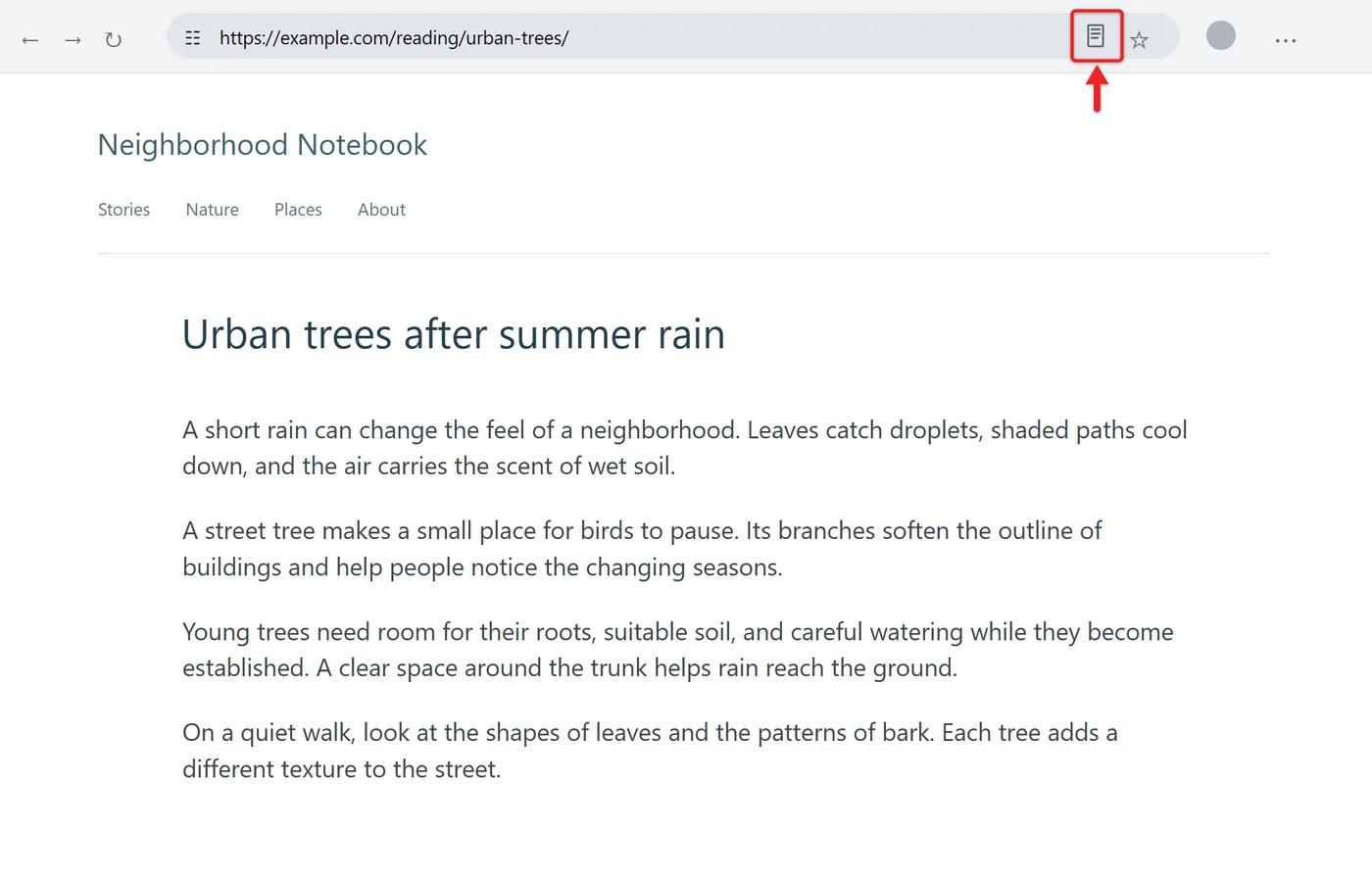
- Select the icon, or press F9. The page reloads as a simple column of text with the article’s own pictures, and menus, sidebars and most ads disappear. A toolbar appears across the top.
- To go back to the normal page, select the icon in the address bar again or press F9 again.
If the Reading mode icon doesn’t appear
- Turn on the button. Select Settings and more (the three dots at the top right) > Settings > Appearance. In the toolbar section, turn on Reading mode. Microsoft’s page notes the icon then appears in the address bar on supported pages.
- Open just the text you want. Select a paragraph or the whole article with your mouse, right-click the selection and choose Open selection in Reading mode. This works even on many pages where the icon doesn’t show.
- Try another page. If the page has very little text, or is built as an app (email, maps, online documents), Edge can’t find an article to show. That’s normal and doesn’t mean anything is broken.
- Update Edge. Select Settings and more > Help and feedback > About Microsoft Edge. Edge checks for updates and installs them. Restart it when asked.
Make Reading mode easier on your eyes
The defaults are fine, but a few changes make the biggest difference for long reading sessions. In Reading mode, select the Settings icon on the toolbar, then Appearance settings.
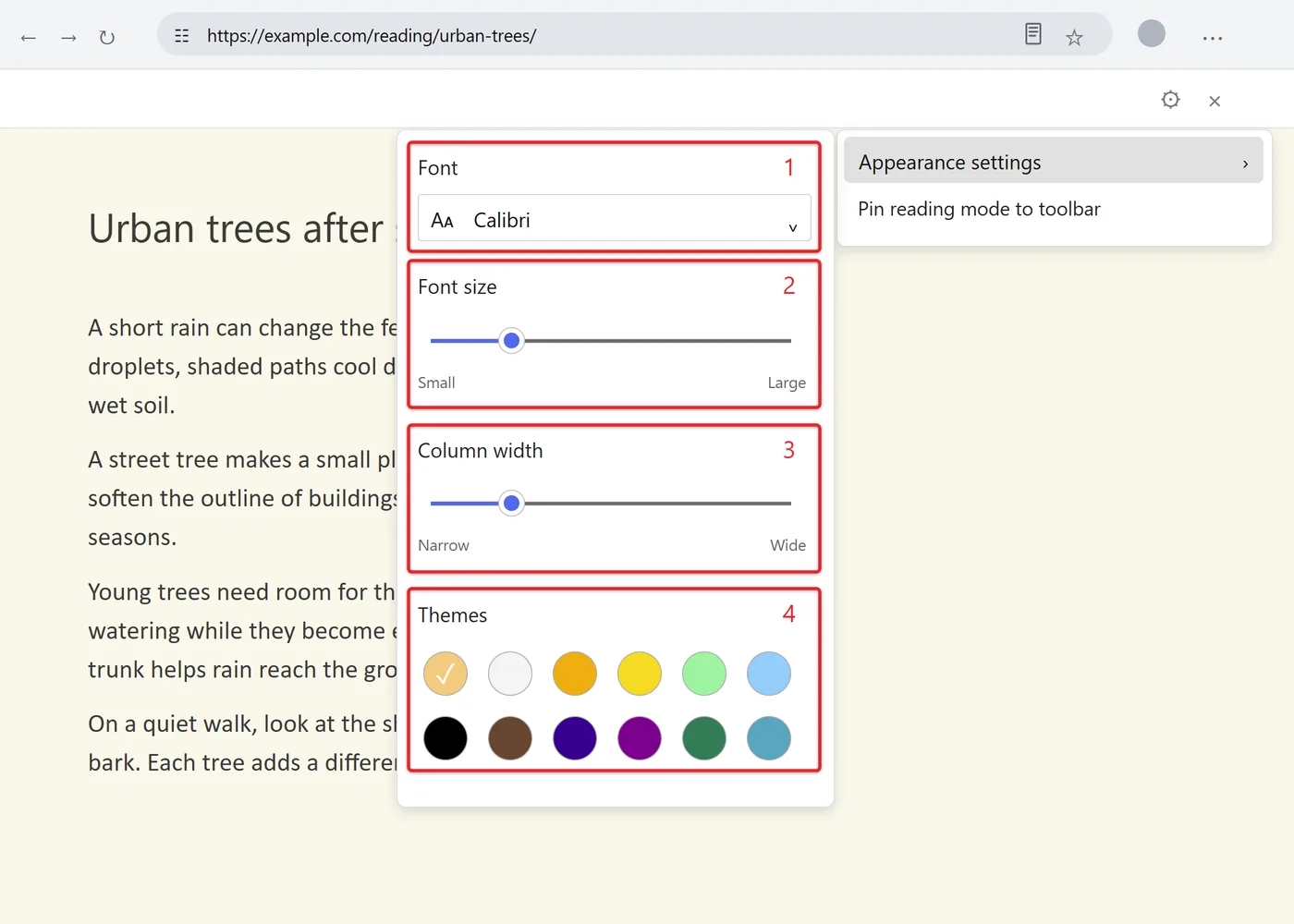
- Font: choose a typeface you find easy to read.
- Font size: drag the slider until you can read comfortably without leaning toward the screen.
- Column width: a narrower column means shorter lines, so your eyes travel less from the end of one line to the start of the next.
- Themes: change the background color. A dark theme suits a dim room, and a warm, paper-like color can be gentler than bright white in daylight. Microsoft notes some themes are inspired by Irlen Spectral Filters for people with Irlen Syndrome.
Two other toolbar buttons help when your eyes are tired:
- Read aloud reads the article to you. Use Voice options on the Read aloud bar to change the voice and speed, and select Pause or the X to stop. You can also start it on any page from Settings and more > More tools > Read aloud.
- Translate shows the article in another language, which can be easier than squinting through a page in a language you read slowly.
Depending on your Edge version and account, the toolbar can also show Copilot buttons such as Summarize and Explain, which open a side pane. They’re optional and don’t change how the page looks.
Older versions of the toolbar (still labeled Immersive Reader) put the same options under Text preferences, Reading preferences and Grammar tools. Reading preferences includes Line focus, which dims everything except one, three or five lines so it’s easier to keep your place.
For full details, see Microsoft’s Use Reading mode in Microsoft Edge page.
Turn on Night light for the whole screen
Reading mode only changes web pages. Night light changes the colors of everything on the display, including documents, PDF readers and email, by reducing blue light and making the picture look warmer.
- Select Start > Settings (the gear icon) > System > Display.
- Under Brightness and color, turn Night light on. Your screen turns slightly orange.
- Select Night light settings just below the switch to fine-tune it. Turn on now applies it immediately, and the Strength slider sets how warm the colors get.
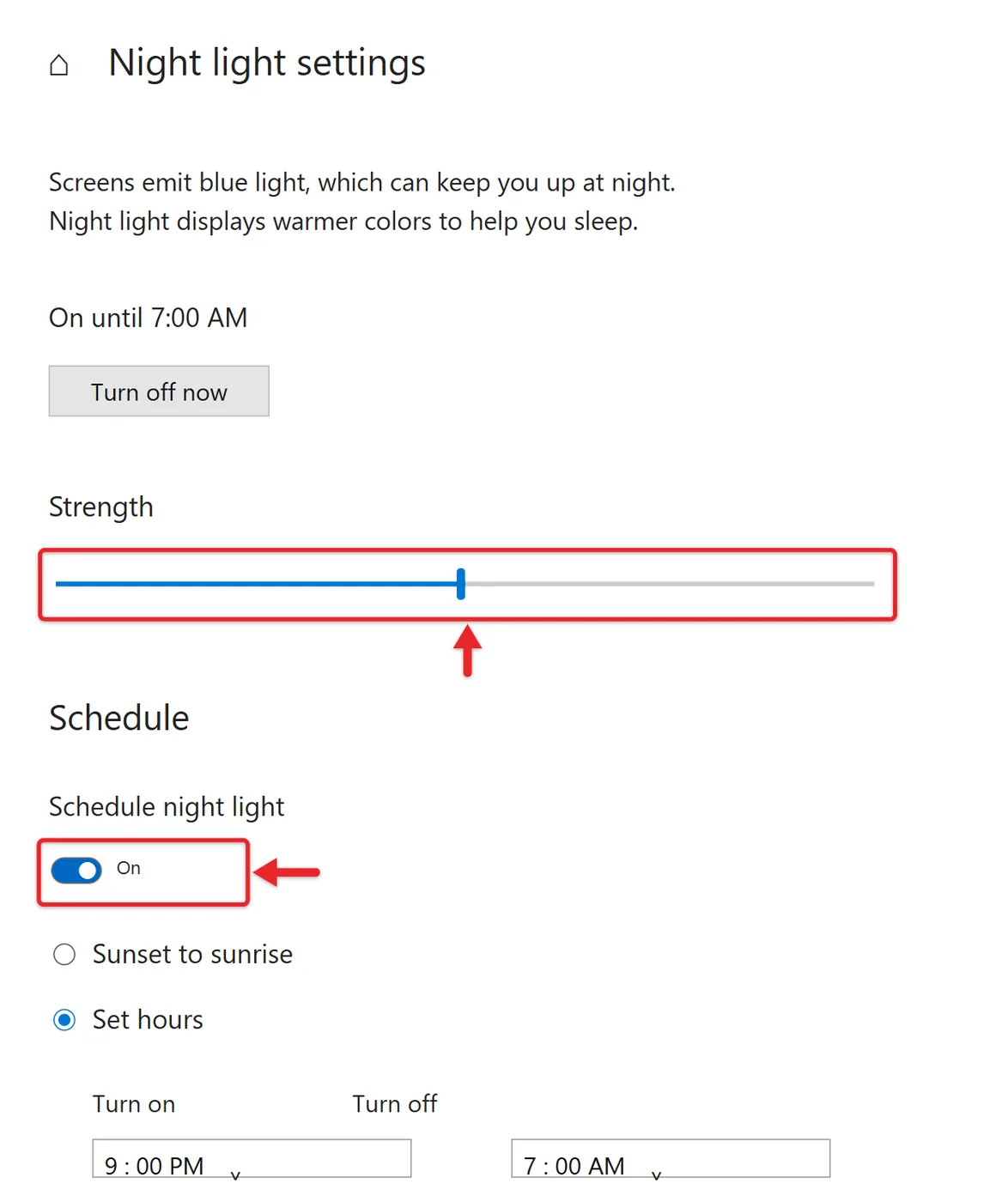
- To have it switch on by itself, turn on Schedule night light, then choose Sunset to sunrise or Set hours and enter your own times. Sunset to sunrise needs location services turned on.
For a quick on/off switch, open the Action Center (the speech-bubble icon at the right end of the taskbar, or press Windows key + A) and select the Night light tile. Expand the tiles if you don’t see it.
A strong setting makes colors inaccurate, so turn Night light off or lower the strength while editing photos or checking colors. If the switch is grayed out, Microsoft says your display driver may need updating, and Night light isn’t available with the DisplayLink or Basic Display drivers. Scheduling tips and fixes are covered in more depth in turning on Night light in Windows 10, and if you also use a newer PC, the steps for Night light in Windows 11 differ slightly. Microsoft’s own steps are on its Set your display for night time page.
Many monitors also have their own low blue light, reading or eye-care mode in the on-screen menu you open with the buttons on the monitor. It works the same way as Night light but is built into the screen, so use one or the other at a time to avoid an overly orange picture.
Switch to dark mode
Night light changes color temperature; dark mode changes the background of Windows itself from white to dark gray or black. Many people find it more comfortable in a dim room.
- Select Start > Settings > Personalization > Colors.
- Under Choose your color, select Dark. To keep the taskbar and Start menu one way and apps another, choose Custom and set the Windows mode and the app mode separately.
Settings, File Explorer and many apps turn dark right away. Apps that don’t support it stay light, and websites follow their own design unless you use Edge’s Reading mode with a dark theme. Microsoft covers this in Personalize your colors in Windows, and there’s a full walkthrough for dark mode in Windows 10, including Edge and Office.
Make text bigger and sharper
Squinting at small text is a common cause of tired eyes, and these settings affect every app, not just the browser.
- Bigger text only: go to Start > Settings > Ease of Access > Display. Drag the Make text bigger slider until the sample text is comfortable, then select Apply. Menus and title bars get larger text while pictures stay the same size.
- Everything bigger: on the same page, or under System > Display, change Make everything bigger (scaling) to a higher percentage, such as 125%. This is better than lowering the screen resolution, which makes text look blurry.
- Sharper text: type ClearType in the Start menu search box and open Adjust ClearType text. Make sure Turn on ClearType is checked, select Next, and pick the clearest sample on each screen.
- Zoom in for a moment: press Windows key + Plus (+) to open Magnifier, and Windows key + Esc to close it.
Inside Edge, Ctrl + Plus (+) and Ctrl + Minus (-) zoom a single page in and out, and Ctrl + 0 resets it. For more ways to resize text, see increasing the font size in Windows 10.
Use a grayscale filter for a paper-like look
Some apps advertise a “reading mode” that turns the screen black and white, a bit like an e-reader. Windows 10 can do this without extra software.
- Select Start > Settings > Ease of Access > Color filters.
- Turn on Turn on color filters and choose Grayscale.
The whole screen loses its color until you turn the switch off. On the same page you can allow a keyboard shortcut to toggle the filter, which is handy if you only want grayscale while reading.
Read Word documents in Read Mode
Edge’s Reading mode doesn’t affect documents. Word has its own reading layout: open the document and select View > Read Mode. The ribbon disappears and the text is laid out in screen-sized pages. Press Esc to go back to editing. Word can also read your document aloud, as explained in using Read Aloud in Word.
Habits that help with screen eye strain
Settings help, but how you use the screen matters as much. These are general comfort tips, not medical advice.
- Match brightness to the room. A bright screen in a dark room, or a dim screen in a sunny one, is harder to look at. Use the brightness slider in Settings > System > Display or in the Action Center, or follow the steps to change the brightness in Windows 10.
- Take regular breaks. A widely used rule of thumb is 20-20-20: about every 20 minutes, look at something roughly 20 feet away for around 20 seconds.
- Remember to blink. People tend to blink less while staring at a screen, which can leave eyes feeling dry.
- Cut glare. Position the screen so windows and lamps aren’t reflecting off it.
If your eyes still hurt, burn or blur after you’ve adjusted your setup, have them checked by an eye care professional. Software settings can make reading more comfortable, but they can’t correct vision problems.
Check that it worked, and how to undo it
- Reading mode: you’ll know it’s on when the page is a single column with no sidebars and the toolbar appears at the top. Press F9 or select the address bar icon to leave it.
- Night light: the screen looks warmer and the Night light tile in the Action Center is highlighted. Select the tile again, or turn the switch off in Display settings.
- Dark mode: Settings and File Explorer have dark backgrounds. Choose Light under Choose your color to switch back.
- Text size and grayscale: move the slider back to the left and select Apply, or turn off Turn on color filters.
FAQ
Is Reading mode the same as Immersive Reader?
Yes, in Microsoft Edge they’re the same feature. Microsoft’s current help page uses the name Reading mode and the right-click option is Open selection in Reading mode, while older Edge versions said Immersive Reader. The F9 shortcut works with either name.
Can I use Reading mode on PDF files?
No. When Edge opens a PDF, it uses its built-in PDF viewer instead, which has its own zoom controls and a Read aloud button on its toolbar. Night light, dark mode for the Windows interface, and Magnifier still help while you read a PDF.
Does Night light help me sleep?
Night light is a display setting that shows warmer colors in the evening, and many people find that easier to look at in a dark room. How much it affects sleep varies from person to person, so think of it as a comfort setting. Turning the screen off well before bed is the surest option.
Why does my screen look yellow even with Night light off?
Check whether a schedule turned it back on (see Schedule night light), whether your monitor’s own low blue light or reading mode is on, or whether a graphics driver utility or another app is applying a color filter.
Start with the one change that fits how you read most: Reading mode for long web articles, or a Night light schedule if you’re mostly on the computer after dark. Then adjust the text size until you can read without leaning in.

Matt Jacobs writes and maintains the guides on Support Your Tech, which he started in 2017. He spent most of his career keeping small-business PCs running and still takes the occasional consulting job, so the steps here come from fixing the same problems on other people’s computers. Every guide is checked on his own Windows 11, Windows 10, Mac, iPhone and iPad before it goes up.