To turn on Night light in Windows 11, select Start > Settings > System > Display, then turn on the Night light switch under Brightness & color. Your screen shifts to warmer, more yellow colors right away. For a faster on/off switch, press Windows key + A to open Quick Settings and select the Night light button.
Applies to: Windows 11 (versions 24H2 and 25H2; the same Settings path is used in earlier Windows 11 versions). The steps match Microsoft’s display brightness and color page.
What Night light does
Night light is Windows 11’s built-in blue light filter. When it’s on, Windows lowers the amount of blue in everything on the screen and shows warmer colors instead. White backgrounds look cream or amber, and blues look duller.
Your display gives off the same kind of blue light you see during the day, which can keep you up at night, and warmer colors are easier on your eyes after dark. Microsoft doesn’t promise any specific health benefit, so think of Night light as a comfort setting rather than a treatment.
A few things worth knowing before you start:
- It’s a color change, not a brightness change. Night light doesn’t dim the screen. For a darker screen too, change the brightness in Windows 11 as well.
- It isn’t dark mode. Dark mode changes apps and menus to dark backgrounds. Night light tints the whole screen, including photos and videos. You can use both at the same time. Dark mode has its own setting, covered in turning on dark mode in Windows 11.
- It’s set for your account. Turning it on doesn’t change the screen for other people who sign in to the same PC with their own accounts.
- No restart is needed. The change happens as soon as you flip the switch.
Method 1: Turn on Night light in Settings
Use Settings the first time, because it’s also where you’ll find the strength slider and the schedule.
- Select Start, then select Settings. You can also press Windows key + I to open Settings directly.
- Select System in the left pane.
- Select Display on the right. The Display page opens with Brightness & color near the top.
- Find Night light, which has the description “Use warmer colors to help block blue light,” and turn on its switch. The word next to the switch changes from Off to On, and the screen turns warmer within a second or two.
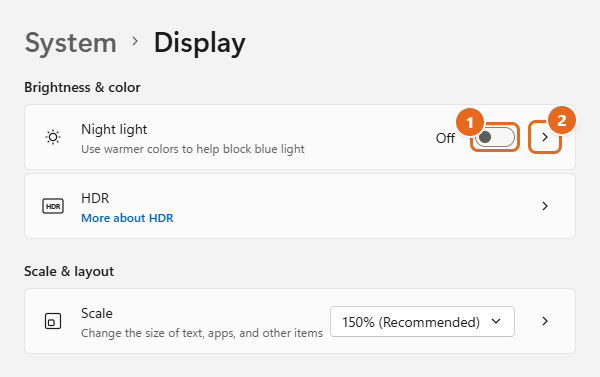
If you don’t see a Brightness slider on the same page, that’s normal on desktop PCs with an external monitor. Night light can still appear there, because it’s controlled by Windows and your graphics driver rather than the monitor’s own brightness.
Method 2: Turn on Night light from Quick Settings
Quick Settings is the panel that opens from the network, volume and battery icons at the right end of the taskbar. It’s the fastest way to switch Night light on and off once you’ve set it up.
- Select the Network, Volume or Battery icon on the right side of the taskbar, or press Windows key + A. The Quick Settings panel opens above the taskbar.
- Look for the Night light button. If you don’t see it on the first page of buttons, use the scroll arrow on the right side of the button area to see the rest.
- Select Night light. The button is highlighted in your accent color while Night light is on, and the screen turns warmer.
If the Night light button is missing: select the pencil icon (Edit quick settings) at the bottom of the panel, select Add, choose Night light from the list, then select Done. While you’re editing, you can also drag the Night light button to the first page so it’s always in view.
Quick Settings only turns Night light on or off. It uses whatever strength and schedule you chose in Settings.
Change how warm the screen looks
If the default tint looks too orange, or not different enough, change the strength.
- Go to Settings > System > Display.
- Select the Night light row itself, or the arrow at the right end of it, not just the switch. The System > Display > Night light page opens.
- If Night light is off, select Turn on now next to “Show warmer colors on your display to help you sleep.” The button changes to Turn off now.
- Drag the Strength slider. Moving it to the right makes the screen warmer, and moving it to the left makes it closer to normal. The screen updates as you drag, so stop when it looks comfortable.
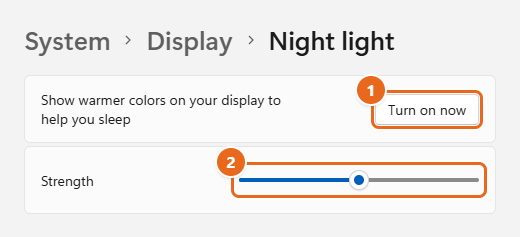
There’s no “correct” strength. Microsoft only describes the slider as adjusting the intensity of the blue light reduction. Several Windows sites report that the scale runs from roughly normal daylight color (about 6500K) at 0 to a very warm 1200K at 100, but Microsoft doesn’t publish those numbers. A good starting point is around the middle, then adjust after a few evenings of use.
Tip: Changes save automatically. There’s no Save or Apply button, so you can close Settings when you’re done.
Schedule Night light to turn on automatically
A schedule turns Night light on in the evening and off in the morning, so you don’t have to remember. You can follow sunset and sunrise for your location, or pick your own hours.
- Go to Settings > System > Display > Night light.
- Turn on Schedule night light. More options appear underneath.
- Choose one of these options:
- Sunset to sunrise: Windows works out the times from your location and shows them in brackets, for example “Sunset to sunrise (7:12 PM – 7:24 AM).” The times shift through the year on their own.
- Set hours: Choose your own times. Next to Turn on, select the hour, minutes and AM/PM, for example 10:00 PM. Next to Turn off, pick the morning time, for example 6:00 AM.
- Close Settings. Night light now turns on and off at those times every day.
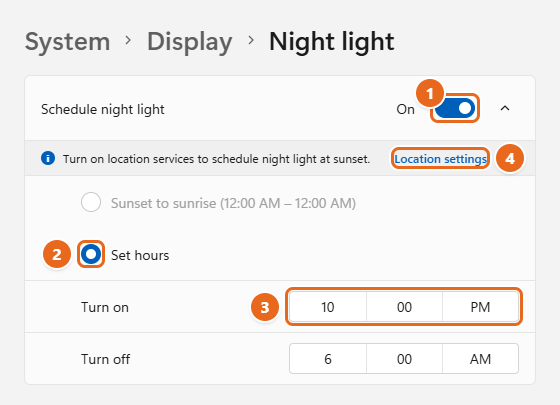
Sunset to sunrise is grayed out? Windows needs your location to know when the sun sets. If location services are off, the Night light page shows the message “Turn on location services to schedule night light at sunset” with a Location settings link. Select the link and turn on Location services, then go back to the Night light page. If you’d rather keep location off, use Set hours instead; it works without location.
With a schedule on, you can still override it. Selecting Turn on now or the Quick Settings button switches Night light on immediately, and the page shows how long it will stay on, such as “On until sunrise.” At the next scheduled time, the schedule takes over again.
Because the schedule follows your PC’s clock, a wrong time zone means the wrong switch-on time. If Night light turns on an hour early or late, change the time zone in Windows 11 to match where you are.
How to turn Night light off
You can turn Night light off the same ways you turned it on:
- Quick Settings: Press Windows key + A and select the highlighted Night light button so it’s no longer highlighted.
- Settings: Go to Settings > System > Display and turn off the Night light switch, or open the Night light page and select Turn off now.
If you have a schedule, turning Night light off only lasts until the next scheduled start time. To stop it from coming back each evening, open the Night light page and turn off Schedule night light. If the screen still looks yellow with Night light off, work through how to fix a yellow screen on Windows 11.
It’s a good idea to turn Night light off temporarily when you’re editing photos, picking paint or clothing colors online, or doing anything else where accurate color matters, because the tint changes how every color looks.
Troubleshooting
The Night light switch is grayed out or missing
Night light depends on your display driver. It isn’t available with certain drivers, such as DisplayLink or the Basic Display driver, and a grayed-out switch usually means you need to update the display driver.
- Right-click Start and select Device Manager.
- Expand Display adapters. If you see Microsoft Basic Display Adapter, Windows isn’t using the proper driver for your graphics hardware, and Night light won’t work until it is.
- Install the latest driver through Settings > Windows Update > Advanced options > Optional updates, or from your PC or graphics card maker’s website. Each option is explained in updating GPU drivers in Windows 11, and Microsoft’s update drivers through Device Manager page covers the Device Manager route.
- Restart your PC and check Settings > System > Display again.
If the monitor is connected through a USB docking station or USB display adapter that uses DisplayLink, Night light may not work on that screen even with updated drivers. Connecting the monitor directly to the PC’s HDMI, DisplayPort or USB-C video port is the most reliable fix.
Night light is on, but the screen doesn’t look different
- Open the Night light page and move the Strength slider further right. At low settings the change is subtle.
- Some graphics control panels have color settings that override Windows. For example, NVIDIA Control Panel has an Override to reference mode option under display color settings. If an option like this is on, turn it off and try again.
- If only one of two monitors changes, that screen may be connected through a DisplayLink adapter (see above).
- Restart the PC. If Night light worked before a Windows or driver update and stopped afterward, a restart often clears it.
The schedule doesn’t turn Night light on
- Make sure Schedule night light is still on and the times are correct, including AM and PM.
- For Sunset to sunrise, confirm location services are on (see the schedule section above).
- Check that your PC’s date, time and time zone are right.
The Night light button isn’t in Quick Settings
Add it with the pencil icon: Edit quick settings > Add > Night light > Done. If Night light doesn’t appear in the Add list, the display driver may not support it. Follow the grayed-out steps above.
FAQ
Is Night light the same as a blue light filter?
Yes. Night light is Microsoft’s name for the blue light filter built into Windows 11 and Windows 10. It reduces blue light by showing warmer colors. You don’t need a separate app for basic blue light filtering.
Does Night light help you sleep or prevent eye strain?
As covered above, it’s a comfort setting, and Microsoft makes no medical claims for it. Many people find a warmer screen more comfortable in a dark room. If you have ongoing sleep problems or eye discomfort, talk to a doctor or eye care professional rather than relying on a screen setting.
Is there a keyboard shortcut for Night light?
Windows 11 doesn’t include a dedicated Night light shortcut. The quickest keyboard route is Windows key + A to open Quick Settings, then select the Night light button.
Does Night light work on an external monitor?
Usually, yes. Night light applies to displays driven by your PC’s graphics hardware, including most monitors connected by HDMI, DisplayPort or USB-C. Monitors connected through DisplayLink docks and adapters are the common exception.
How do I turn on Night light in Windows 10?
The steps are similar but the menus look different, as shown in turning on Night light in Windows 10.
Once Night light is set up, try it for a few evenings with a schedule, then fine-tune the strength. If the screen still feels too bright at night, lower the brightness as well.

Matt Jacobs has been working as an IT consultant for small businesses since receiving his Master’s degree in 2003. While he still does some consulting work, his primary focus now is on creating technology support content for SupportYourTech.com.
His work can be found on many websites and focuses on topics such as Microsoft Office, Apple devices, Android devices, Photoshop, and more.