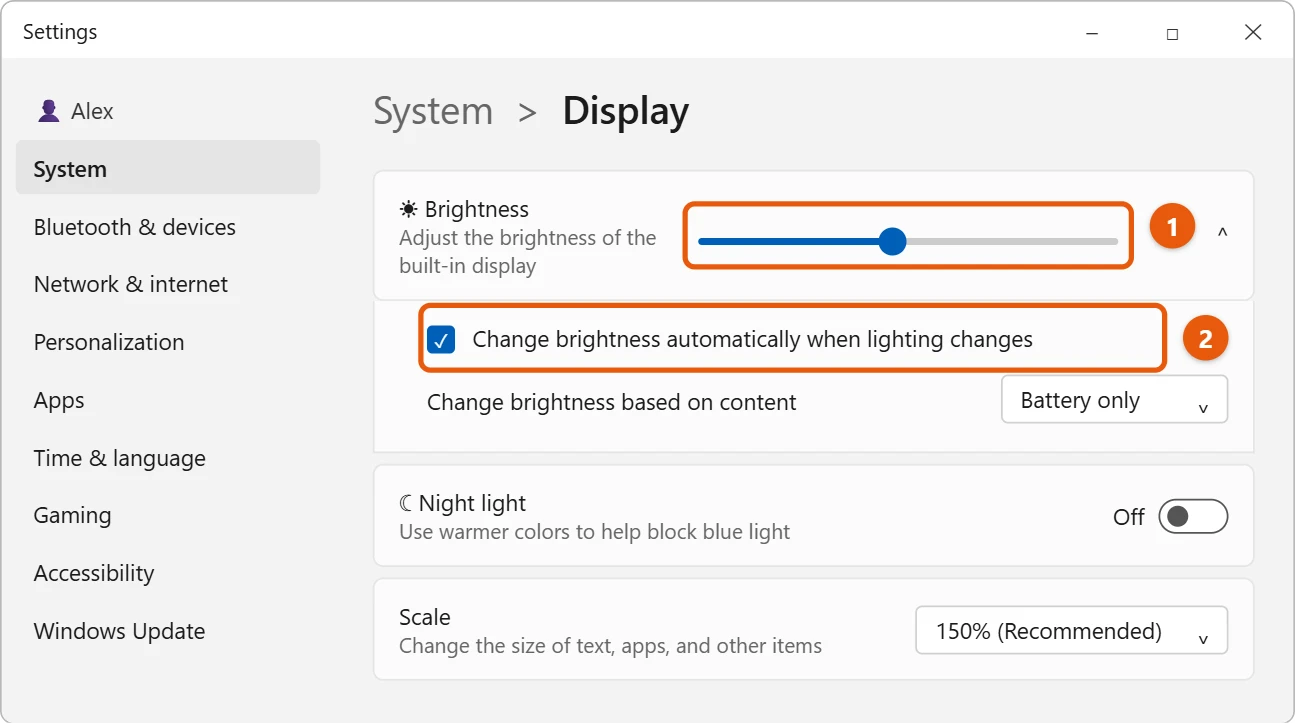
Select the network, sound or battery icon next to the clock, then drag the Brightness slider left to turn the screen down or right to turn it up. You can also use Start > Settings > System > Display > Brightness.
Applies to: Windows 11. Checked against Microsoft Support on September 29, 2026.
Change brightness from quick settings
- Select the Network, Sound or Battery icon on the right side of the taskbar.
- Drag the Brightness slider (the sun) left to dim the screen, or right to make it brighter.
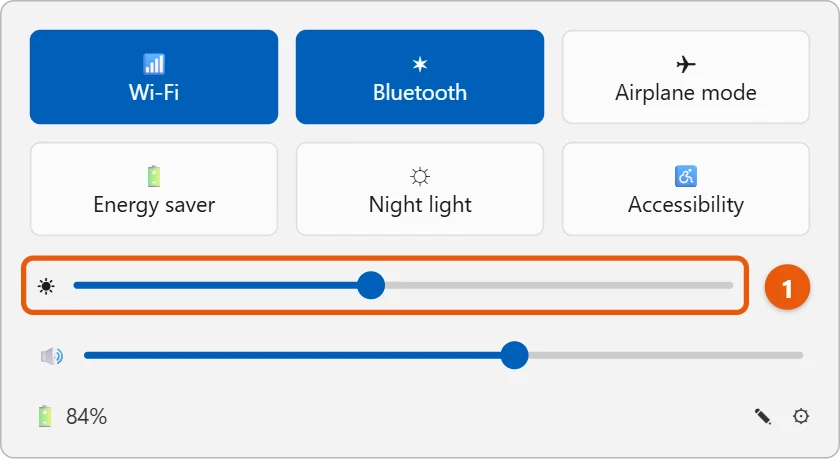
Many laptops also have brightness keys, often marked with a sun. You may need to hold Fn while you press them.
Change brightness in Settings
- Select Start > Settings > System > Display.
- Expand Brightness and drag the slider.
- To let Windows adjust it for you, check Change brightness automatically when lighting changes. Not every PC has this option.
If there’s no brightness slider
The slider may be missing on a desktop PC with a separate monitor. Use the buttons on the monitor to change its brightness instead.
Why does the brightness keep changing?
- Automatic brightness: uncheck Change brightness automatically when lighting changes.
- Content-based brightness: some PCs change brightness to match what’s on the screen. In Brightness, set Change brightness based on content to Off.
- Energy saver: on battery, energy saver can dim the screen to save power.
Frequently asked questions
How do I make the screen easier on my eyes at night?
Turn on Night light in Settings > System > Display. It makes the screen warmer, which is different from dimming it.
Does lower brightness save battery?
Yes. The screen is one of the biggest uses of battery power on a laptop. To see how your battery is doing, see how to check battery health in Windows 11.
A lower refresh rate can also help the battery last longer. See how to change the refresh rate in Windows 11.
Lower brightness also saves battery. See how to check PC power consumption in Windows 11.
For more display and color settings, see how to customize Windows 11.
Microsoft’s reference is Change display brightness and color in Windows. More help is on our Windows Help & Guides page.

Matt Jacobs has been working as an IT consultant for small businesses since receiving his Master’s degree in 2003. While he still does some consulting work, his primary focus now is on creating technology support content for SupportYourTech.com.
His work can be found on many websites and focuses on topics such as Microsoft Office, Apple devices, Android devices, Photoshop, and more.