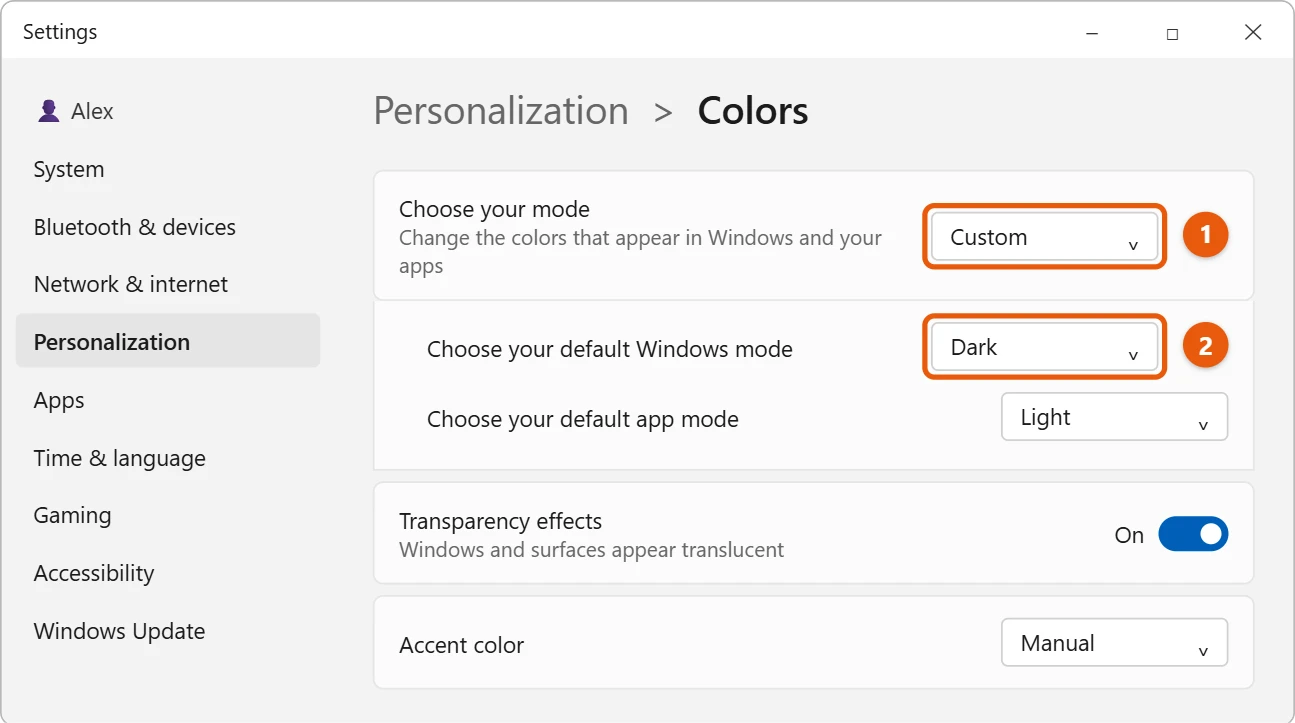
Select Start > Settings > Personalization > Colors. Set Choose your mode to Custom and Choose your default Windows mode to Dark. Then pick an accent color and turn on Show accent color on Start and taskbar.
Applies to: Windows 11. Checked against Microsoft Support on September 29, 2026.
Step 1: Switch Windows to dark mode
The taskbar can only use an accent color when Windows is in dark mode. Your apps can stay light. A dark taskbar is also one step in making the Windows 11 taskbar look like Windows 10.
- Select Start > Settings > Personalization > Colors.
- Next to Choose your mode, select Custom.
- Set Choose your default Windows mode to Dark. Leave Choose your default app mode on Light if you like light apps.
Step 2: Pick a color and show it on the taskbar
- On the same page, set Accent color to Manual.
- Select a color under Windows colors. For more choices, select View colors.
- Turn on Show accent color on Start and taskbar.

The taskbar and Start menu change color right away.
Let Windows match your wallpaper
Set Accent color to Automatic instead of Manual. Windows picks a color from your desktop background and changes it when the background changes. To change the picture, see how to change the wallpaper in Windows 11.
Go back to the normal taskbar
Turn off Show accent color on Start and taskbar. To go back to light mode everywhere, set Choose your mode to Light.
Match window title bars
For a matching look, turn on Show accent color on title bars and window borders on the same Colors page. App title bars and window edges then use your accent color too. This one works in light mode as well.
Use a theme instead
A theme changes the wallpaper, accent color and sounds together. Go to Settings > Personalization > Themes and pick one, or select Browse themes to get more free themes from Microsoft Store. Dark themes, such as Windows (dark) or Glow, already set the Windows mode to dark, so you only need to turn on Show accent color on Start and taskbar afterward.
Troubleshooting
- All the color settings are greyed out. Windows isn’t activated. Personalization settings are locked until it is. Check Settings > System > Activation.
- The taskbar turned black or white instead of your color. A contrast theme is on. Go to Settings > Accessibility > Contrast themes and choose None.
- The color keeps changing. Accent color is set to Automatic, which follows your wallpaper. Set it to Manual, especially if you use a slideshow background.
- The color looks faded. Transparency effects mix the color with your wallpaper. Turn off Transparency effects on the Colors page for a solid color.
- Your settings changed on a work PC. Your organization may control the look of Windows. Ask your IT team.
Frequently asked questions
Why is Show accent color on Start and taskbar grayed out?
Windows is in light mode. Set Choose your default Windows mode to Dark, as in step 1.
Can I make the taskbar see-through?
Turn on Transparency effects on the same Colors page. To hide the taskbar when you’re not using it, see how to hide the taskbar in Windows 11.
Can I use a custom color that isn’t in the list?
Yes. Under Windows colors, select View colors, then More to pick any color or enter a hex code. If a color is too light or too dark for readable text, Windows shows a warning that it isn’t supported.
Can I color the taskbar but not the Start menu?
No. In Windows 11, one setting controls both, so Start and the taskbar always share the same color.
To switch all of Windows to dark colors, see how to turn on dark mode in Windows 11.
Have an RGB keyboard? You can change the keyboard light color to match.
For a see-through taskbar instead of a solid color, see how to make the taskbar transparent in Windows 11.
Microsoft’s reference is Personalize your Colors in Windows. More help is on our Windows Help & Guides page.

Matt Jacobs has been working as an IT consultant for small businesses since receiving his Master’s degree in 2003. While he still does some consulting work, his primary focus now is on creating technology support content for SupportYourTech.com.
His work can be found on many websites and focuses on topics such as Microsoft Office, Apple devices, Android devices, Photoshop, and more.