Select Start > Settings > Personalization > Dynamic Lighting, select your keyboard, set Effects to Solid color, and pick a color. This works with keyboards that support Dynamic Lighting. For other RGB keyboards, use the app from the keyboard’s maker.
Applies to: Windows 11 with an RGB keyboard. Checked against Microsoft Support on September 29, 2026.
Before you start
Not every keyboard can change color. Many laptop keyboards have only a white backlight, which you can turn on and off but not change. If yours is like that, see how to turn on the keyboard light in Windows 11.
Change the color with Dynamic Lighting
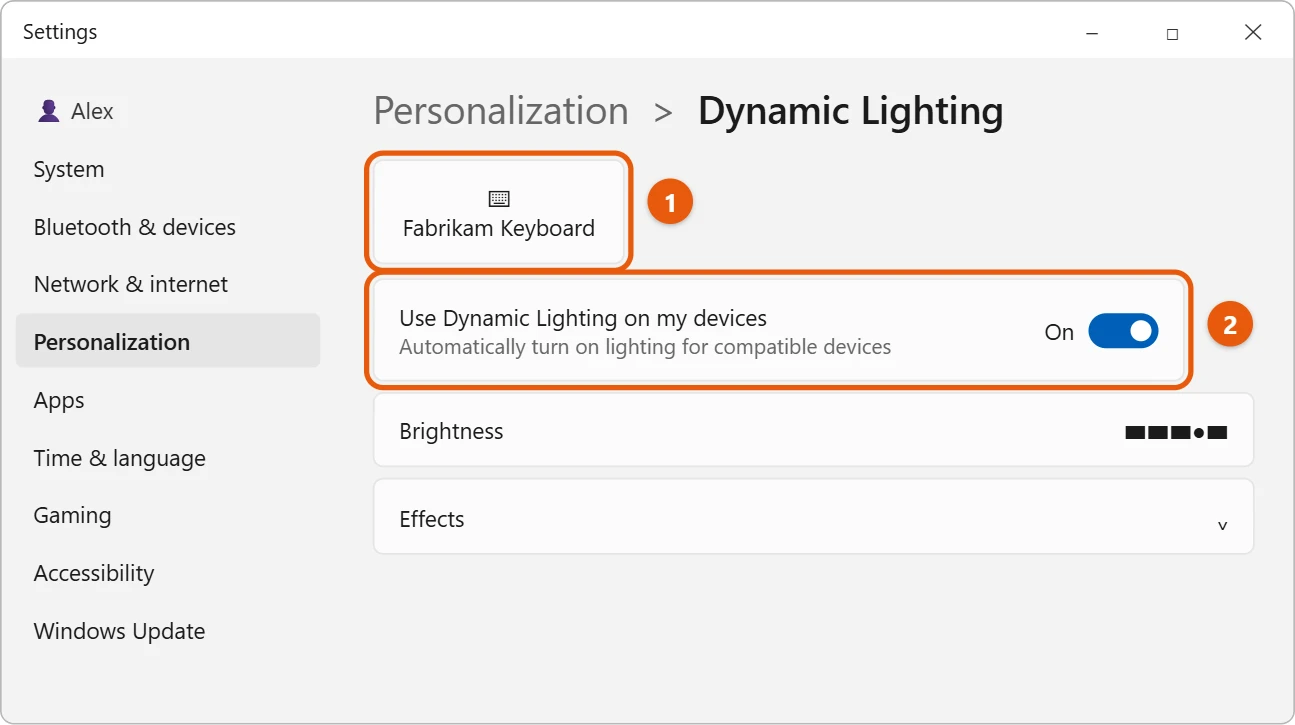
- Select Start > Settings > Personalization > Dynamic Lighting.
- Make sure Use Dynamic Lighting on my devices is On.
- Select your keyboard at the top of the page.
- Next to Effects, choose Solid color.
- Turn off Match my Windows accent color if it’s on, then pick a color, or select Custom to choose any color.
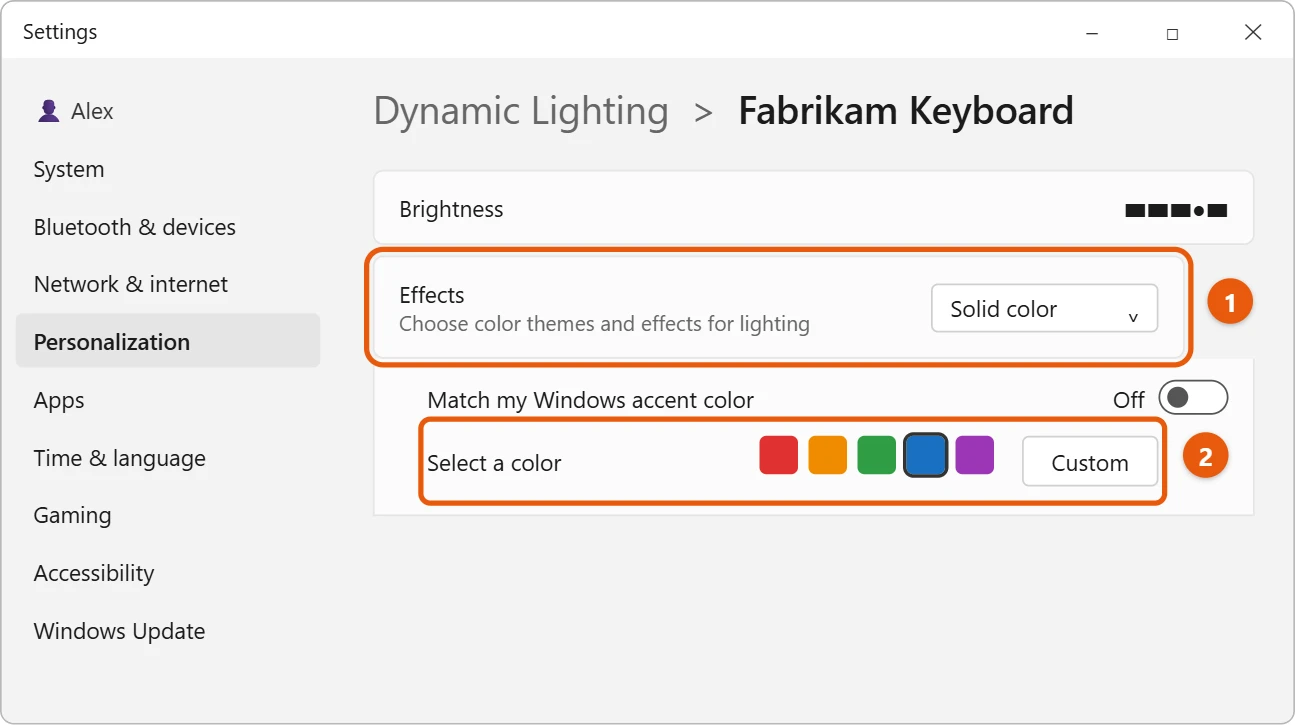
The keyboard changes color right away. To change every lighting device at once, use the settings on the main Dynamic Lighting page instead of selecting one device.
Other effects
Under Effects, you can also pick Breathing, Rainbow, Wave, Wheel, or Gradient. Some effects let you choose two colors and a speed. Drag Brightness to make the lights dimmer or brighter.
Set one color for every RGB device
If you also have an RGB mouse or headset, set the effect on the main Dynamic Lighting page instead of selecting one device. The color and effect then apply to all compatible devices together. Select a single device only when you want it to look different from the others.
Let games and apps control the lights
Some games and apps can drive your keyboard lighting, for example flashing red when your health is low. On the Dynamic Lighting page, turn on Compatible apps in the foreground always control lighting. Under Background light control, you can drag apps into the order you want them to take over when they’re running in the background.
If your keyboard isn’t listed
- The keyboard may not support Dynamic Lighting. Use the free app from the keyboard or laptop maker to change its colors.
- If the maker’s app and Dynamic Lighting both try to control the lights, turn one of them off so they don’t fight.
Troubleshooting
- Dynamic Lighting isn’t in Settings. It arrived in Windows 11 version 23H2. Install the latest updates from Windows Update.
- The keyboard is listed but the color doesn’t change. The maker’s app may be overriding Windows. Turn off its lighting control, or close it, and try again. A firmware update from the maker can also help.
- Colors go back to the maker’s rainbow after a restart. The maker’s app is starting with Windows and applying its own profile. Set your color in that app, or stop it from starting.
- Only part of the keyboard changes. Many laptops have a few lighting zones rather than per-key RGB, so the color applies to whole sections.
Frequently asked questions
Can the keyboard match my Windows colors?
Yes. Turn on Match my Windows accent color. To change the accent color itself, see how to change the taskbar color in Windows 11.
How do I turn the lights off?
Turn off Use Dynamic Lighting on my devices, or drag Brightness all the way down.
Which keyboards work with Dynamic Lighting?
Keyboards that follow the HID LampArray standard, which Microsoft lists on its support page. Many newer models from makers such as Razer, Logitech, ASUS and HP support it, sometimes after a firmware update.
Does RGB lighting drain a laptop battery?
A little. Bright, moving effects use more power than a dim solid color. Lower the brightness or turn the lights off when you’re on battery.
Can I set a different color for each key?
Not in Windows Settings, which applies one effect across the keyboard. The maker’s app often allows per-key colors on keyboards that support them.
Will my color stay after I restart?
Yes. Windows saves your Dynamic Lighting choice and applies it each time you sign in, unless another lighting app changes it.
Microsoft’s reference is Control Dynamic Lighting devices in Windows. More help is on our Windows Help & Guides page.

Matt Jacobs has been working as an IT consultant for small businesses since receiving his Master’s degree in 2003. While he still does some consulting work, his primary focus now is on creating technology support content for SupportYourTech.com.
His work can be found on many websites and focuses on topics such as Microsoft Office, Apple devices, Android devices, Photoshop, and more.