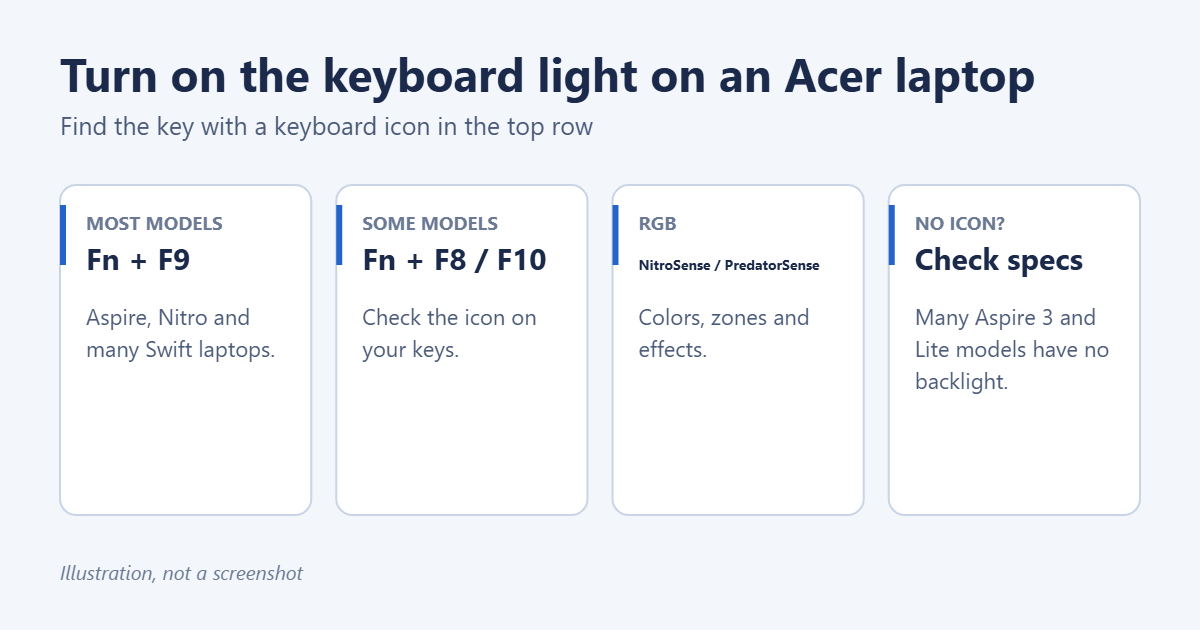
To turn on the keyboard light on most Acer laptops running Windows 11, press Fn + F9. On some models the backlight is on F8 or F10 instead, so look along the top row for the key with a small keyboard icon with light rays, then hold Fn and press it. Press the same keys again to change the brightness or turn the light off. If no key has that icon, your laptop probably doesn’t have a backlit keyboard.
Applies to: Acer Aspire, Swift, Nitro, Predator and TravelMate laptops with Windows 11. Last reviewed October 7, 2026.
Step 1: Check that your Acer has a backlit keyboard
Many Acer laptops, especially budget models such as some Aspire 3, Aspire Lite and Extensa laptops, don’t have keyboard lighting. To check:
- Look at the top row of keys for a keyboard icon with light rays above it.
- If you can’t find one, find your model number on the sticker under the laptop, or press Windows key + R, type
msinfo32and check System Model. - Search for that model on Acer’s support site and check the specifications for Backlit keyboard.
If the specs don’t mention it, there’s no setting that can add one.
Step 2: Use the backlight key
- Find the key with the keyboard light icon. On most Acer laptops it’s F9. On some it’s F8 or F10.
- Hold Fn and press that key once. The keyboard lights up.
- Press it again to step through the brightness levels, if your model has them, and then off.
If pressing the key on its own turns the light on, your laptop has the function keys set the other way round. That’s normal on some Acer models; see how to turn off Fn Lock in Windows 11 if you want to change it.
Gaming laptops: Nitro and Predator
Acer’s gaming laptops often have RGB keyboards with colors and lighting effects. Fn + F9 or a dedicated lighting key still turns the light on and off on many models, and you control colors in Acer’s own app:
- Nitro laptops: open NitroSense (or AcerSense on newer models) and select the lighting section.
- Predator laptops: open PredatorSense and select RGB Keyboard or Lighting.
Choose static, wave or other effects, pick colors for each zone, and set the brightness. If the app is missing, install it from the Microsoft Store or from your model’s page on Acer’s support site.
Windows 11’s own lighting settings in Settings > Personalization > Dynamic Lighting can also control RGB keyboards on some newer laptops. If the colors keep changing back, turn off Use Dynamic Lighting on my devices so Acer’s app takes control.
Stop the light turning off by itself
To save battery, many Acer laptops turn the keyboard light off after a few seconds of no typing. It comes back as soon as you press a key. On some models you can change this:
- Open Acer Quick Access or AcerSense from the Start menu and look for a keyboard backlight timer or Backlight auto-off setting.
- On some models, the timeout is set in the BIOS. Restart, press F2 while the Acer logo shows, and look on the Main or Advanced tab for a keyboard backlight option.
Troubleshooting
Fn + F9 does nothing
- Try Fn + F8 and Fn + F10, and the key on its own without Fn.
- Restart the laptop. A stuck hotkey service is a common cause.
- Install the latest Acer hotkey or Acer Quick Access software and the chipset driver from your model’s page on Acer’s support site.
- Check that a brightness setting isn’t at zero in NitroSense, PredatorSense or AcerSense.
The light works in the BIOS but not in Windows
If the keyboard lights up on the startup screen but goes off in Windows, an Acer app or Dynamic Lighting is turning it off. Check both, as described above.
Only some keys light up
Uneven lighting usually means a hardware fault in the backlight. Run Acer’s diagnostics or contact Acer support; see how to run hardware diagnostics on Windows 11.
Frequently asked questions
Can I change the keyboard color on any Acer laptop?
Only on models with an RGB keyboard, mostly Nitro and Predator. Most Aspire and Swift laptops have a single white backlight.
Does the keyboard light drain the battery?
A little. Turning it off or using the lowest brightness helps when you’re on battery.
Is this different on other brands?
The idea is the same, but the keys differ. See how to turn on the keyboard light in Windows 11 for Dell, HP, Lenovo and others.

Matt Jacobs has been working as an IT consultant for small businesses since receiving his Master’s degree in 2003. While he still does some consulting work, his primary focus now is on creating technology support content for SupportYourTech.com.
His work can be found on many websites and focuses on topics such as Microsoft Office, Apple devices, Android devices, Photoshop, and more.