To install a USB Wi-Fi adapter on Windows 10, plug it into a USB port and wait a minute while Windows sets it up. Then select the network icon on the taskbar, choose your Wi-Fi network, and select Connect. If Windows doesn’t find the adapter, install the driver from the adapter maker’s website.
Applies to: Windows 10. Windows 10 reached end of support on October 14, 2025, and only PCs enrolled in Extended Security Updates still get security fixes, through October 12, 2027.
Install the adapter
- Plug the adapter into a USB port. A USB 3.0 port (often blue) is faster if the adapter supports it.
- Wait while Windows installs the driver. You may see a message that the device is ready.
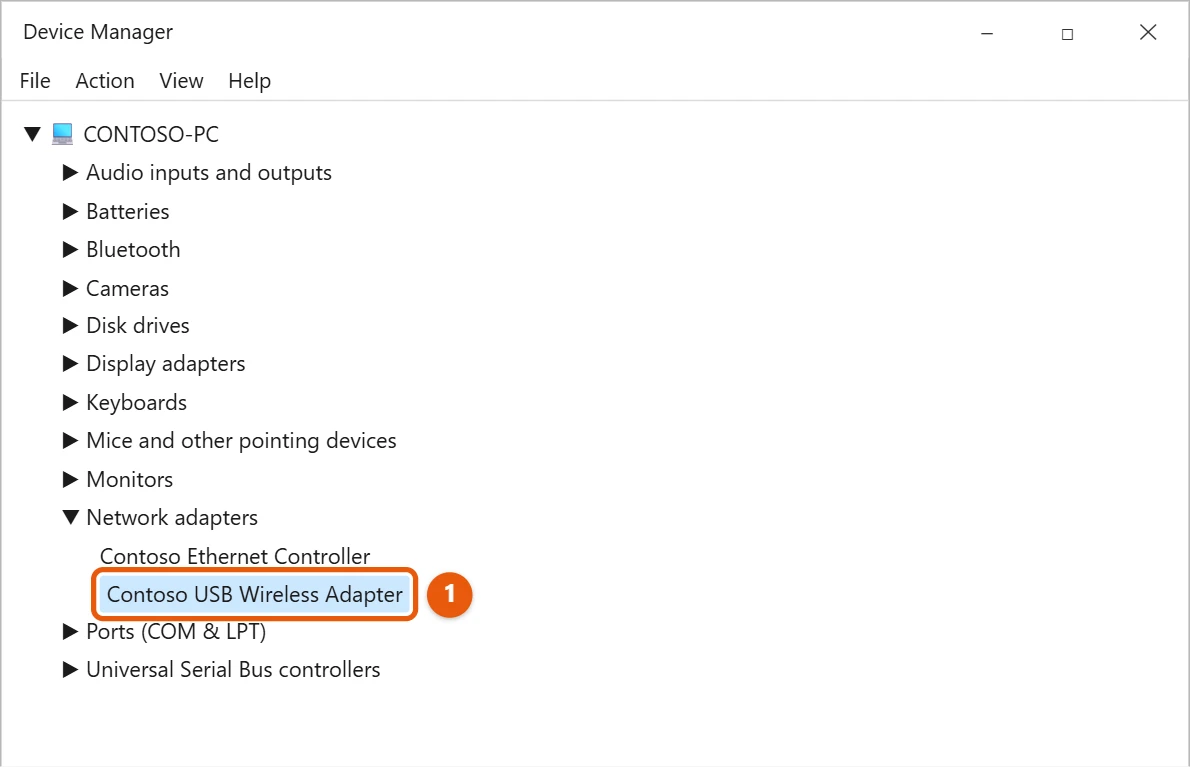
- To check, right-click Start and select Device Manager, then open Network adapters. The adapter should be in the list with no warning sign.
Connect to Wi-Fi
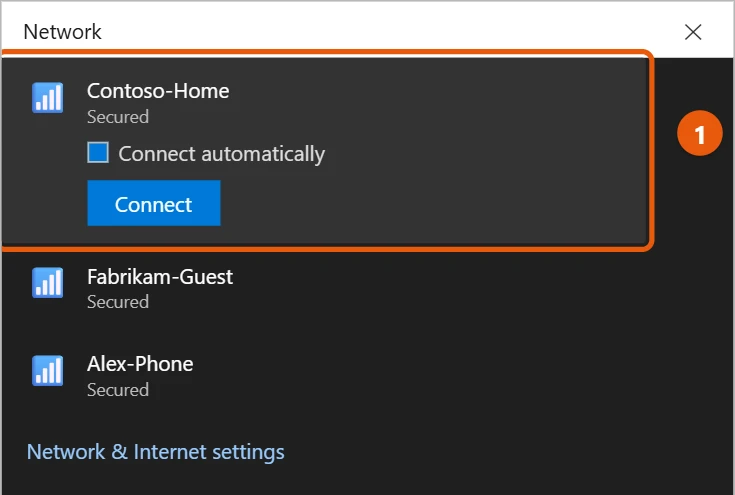
- Select the network icon on the taskbar.
- Select your network, check Connect automatically if you want, and select Connect.
- Type the network security key if asked.
No networks listed? Wi-Fi may be switched off; turning on Wi-Fi in Windows 10 covers that and connecting.
If Windows doesn’t find the adapter
- Try another USB port, and don’t use a USB hub.
- Get the driver from the adapter maker’s official website, using the steps in Install the driver yourself below. There’s more detail on installing a Wi-Fi driver in Windows 10.
- In Device Manager, right-click the adapter and select Update driver > Search automatically for drivers.
- When the adapter appears but still won’t connect, work through the fixes for Wi-Fi and network problems in Windows 10, and reset network settings as a last resort.
Install the driver yourself
If Windows can’t set the adapter up on its own, it shows under Other devices in Device Manager, often with a yellow warning sign.
- On a PC that’s online, find the exact model on the adapter or its box and download the Windows 10 driver from the maker’s support site. Copy it to a USB drive if needed.
- If the download is a setup file (.exe), run it and follow the steps.
- If it’s a folder of files, right-click the adapter in Device Manager, select Update driver > Browse my computer for drivers, and choose that folder.
- Restart the PC and look for Wi-Fi networks again.
Get the best signal
- Use a USB 3.0 port if the adapter supports it. USB 2.0 can limit the speed of faster adapters.
- On a desktop, the back ports are surrounded by the metal case, which weakens the signal. A short USB extension cable lets you place the adapter higher up and in the open.
- Connect to your router’s 5 GHz network if the adapter supports it. It’s usually faster when you’re in the same or the next room.
- Windows 10 doesn’t support the 6 GHz band, so a Wi-Fi 6E adapter works on 2.4 and 5 GHz only. 6 GHz needs Windows 11.
Troubleshooting
- The connection keeps dropping. In Device Manager, open the adapter’s Properties, select Power Management, and clear Allow the computer to turn off this device to save power.
- The adapter shows an error code. Unplug it, uninstall it in Device Manager, restart, plug it back in, and install the maker’s latest driver.
Frequently asked questions
Should I turn off my laptop’s built-in Wi-Fi?
You don’t have to. Windows uses one Wi-Fi connection at a time. If it keeps using the old one, disable the old adapter in Device Manager.
Does a USB adapter need a CD?
Usually not. Windows 10 often has the driver already, or the maker’s website has it.
Can a USB Wi-Fi adapter replace a broken built-in one?
Yes. That’s one of the most common uses. Plug it in and connect as shown above. You can disable the broken adapter in Device Manager so Windows stops trying to use it.
Will a USB adapter work with a desktop PC that has no Wi-Fi?
Yes. Most desktops have no Wi-Fi built in, and a USB adapter is the cheapest way to add it. Pick one with an external antenna for a stronger signal.
The driver options in Device Manager are explained in Update drivers through Device Manager in Windows.

Matt Jacobs has been working as an IT consultant for small businesses since receiving his Master’s degree in 2003. While he still does some consulting work, his primary focus now is on creating technology support content for SupportYourTech.com.
His work can be found on many websites and focuses on topics such as Microsoft Office, Apple devices, Android devices, Photoshop, and more.