To fix no sound in Windows 11, first make sure the right speakers or headphones are selected: select the speaker icon on the taskbar, select the arrow next to the volume slider, and pick the device you want to hear. If that doesn’t help, open Start > Settings > System > Sound, check that the volume isn’t muted, and then work through the fixes below in order. Most cases are solved by the first four.
Applies to: Windows 11 (versions 24H2 and 25H2; the same paths work on 23H2). On Windows 10, the menus differ, so use the steps to fix no sound in Windows 10 instead. The fixes here follow Microsoft’s sound troubleshooting article.
Which fix should you try first?
Start with what you notice. This table points you to the most likely fix, so you don’t have to work through everything.
| What you notice | Most likely cause | Start with |
|---|---|---|
| No sound anywhere, the volume icon looks normal | Sound is going to a different device | Fix 1 |
| The taskbar speaker icon has an X on it | Volume is muted | Quick checks |
| System sounds play, but one app is silent | That app is muted or routed elsewhere | Fix 2 |
| Sound stopped right after you plugged in a monitor, TV or dock | Windows switched output to the new device | Fix 1, then Fix 5 |
| “No audio output device is installed” | Driver missing or device disabled | Fix 7 and No output device |
| Sound stopped after a Windows update | Driver changed during the update | Fix 7 (roll back), then Fix 9 |
| Bluetooth headphones say Connected but stay silent | Wrong output or audio profile | Bluetooth section |
| Total silence, nothing else has helped | Audio service stuck | Fix 6 |
Quick checks before you change anything
These take a minute and fix a surprising number of “no sound” problems. Play a video or song while you check, so you know right away when sound comes back.
- Unmute and turn it up. Select the speaker icon on the taskbar. If the icon next to the volume slider shows an X, select it to unmute, then drag the slider up. If your keyboard has a mute key (often a speaker icon on F1 or a similar key, sometimes used with the Fn key), press it once and watch whether the on-screen volume indicator changes.
- Check the speakers or headphones themselves. Make sure external speakers are switched on, plugged into power, and turned up with their own volume knob. Many headphones and speakers have a separate volume or mute control.
- Check the cable and the jack. Unplug the cable and plug it back in firmly. On a desktop PC, the speaker output jack is usually green, and the pink jack is for a microphone. If you’re using a USB headset or speaker, try a different USB port.
- Unplug headphones to test the speakers. Built-in or external speakers may stay silent while headphones are connected. Unplug the headphones (or turn off Bluetooth headphones) and test again.
- Test with a different app. If YouTube in your browser is silent but a Windows notification sound plays, the problem is limited to one app. Go straight to Fix 2.
- Restart the PC. Select Start > Power > Restart. A restart reloads the audio driver and services, and it also finishes any updates that are waiting.
Fix 1: Pick the right output device
Windows sends sound to one output device at a time. When you connect a monitor, TV, docking station, USB headset or Bluetooth speaker, Windows may start sending sound there, even if that device has no speakers or is turned off. Your normal speakers then go quiet.
From the taskbar
- Select the speaker icon on the right side of the taskbar. If you don’t see it, select the Show hidden icons arrow first. The Quick Settings panel opens.
- Select the small arrow to the right of the volume slider. Its tooltip says Select a sound output. A list of your audio devices appears.
- Select the speakers or headphones you want to use. Sound switches to that device right away.
From Settings
- Select Start > Settings > System > Sound. You can also press Windows key+I to open Settings.
- Under Output, open Choose where to play sound and select the device you want. Choosing a device here also makes it the default.
- Check the Volume slider on the same page. Make sure it isn’t at 0 and the speaker icon next to it isn’t muted.
Device names can be confusing. “Speakers” or “Headphones” followed by “Realtek(R) Audio” or “High Definition Audio Device” is usually your computer’s own audio. A name with “NVIDIA High Definition Audio,” “Intel Display Audio” or “AMD High Definition Audio” is usually a monitor or TV connected by HDMI or DisplayPort. If your monitor has no built-in speakers, don’t pick it, or you won’t hear anything.
Fix 2: Check the Volume mixer for muted apps
Windows 11 keeps a separate volume level and output device for each app. If your browser, game or meeting app is silent while other sounds work, that app is probably muted, turned down, or sending sound to a different device.
- Select Start > Settings > System > Sound, then select Volume mixer (it’s under Advanced, further down the Sound page). You can also right-click the taskbar speaker icon and choose Open volume mixer.
- Under System, make sure Volume isn’t muted. A speaker icon with an X means it’s muted; select it to unmute.
- Check the Output device menu under System. It should show the speakers or headphones you want to use.
- Under Apps, find the app with no sound. The app must be open and have played some sound recently to appear in the list. Unmute it and drag its slider up.
- Select the app to expand it. Its Output device should be Default or the device you’re actually using. If it lists another device, change it.
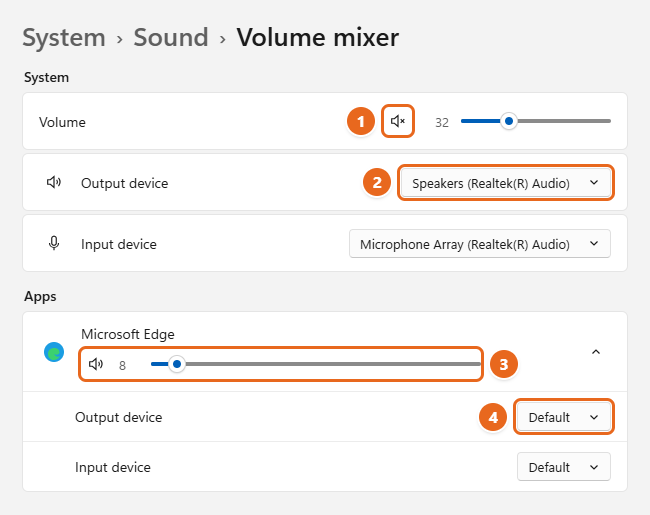
Also check the app’s own settings. Zoom, Microsoft Teams, Discord, games and media players often have their own speaker or output setting, and it can point to a different device than Windows does.
Fix 3: Run the audio troubleshooter
Windows 11 includes an automated audio troubleshooter that checks common causes, such as a muted or disabled device, and applies fixes it finds. On current versions of Windows 11 it runs in the Get Help app.
- Select Start > Settings > System.
- Scroll down and select Troubleshoot > Other troubleshooters.
- Find Audio and select Run. Older builds called this entry Playing Audio.
- Answer the questions the troubleshooter asks, such as which device you’re having trouble with, and allow it to apply any fix it suggests.
- Test the sound when it finishes. If it says it didn’t find a problem, move on to the next fix.
If the Troubleshoot page won’t open, open the Get Help app from the Start menu and search for “audio troubleshooter,” or use the link on Microsoft’s Fix sound or audio problems in Windows page.
Fix 4: Turn off audio enhancements
Audio enhancements are extra sound processing, such as bass boost, virtual surround or loudness equalization, that your audio driver adds. They sometimes clash with a driver or device and cause silence, crackling or muffled sound. Turning them off is safe and easy to undo.
- Select Start > Settings > System > Sound.
- In the Output section, select the device you’re using (for example, Speakers). The device’s properties page opens.
- Find Audio enhancements and set it to Off from the drop-down menu.
- Play something to test. If sound is back, leave enhancements off, or turn them back on later and see if the problem returns.
Some PCs also have a manufacturer audio app, such as Realtek Audio Console, Dolby Access or a laptop maker’s sound utility, with its own effects. If turning off Windows enhancements doesn’t help, check that app for effects or a muted output too.
Fix 5: Set the default device and make sure it isn’t disabled
The classic Sound control panel shows every playback device and its status, which makes it easier to spot a disabled or unplugged device. There are other ways to get to the Sound Control Panel in Windows 11 if this one doesn’t suit you.
- Select Start > Settings > System > Sound, scroll down, and select More sound settings. The Sound window opens. (You can also press Windows key+R, type
mmsys.cpl, and press Enter.) - Select the Playback tab. Each device shows a status under its name, such as Default Device, Ready, Not plugged in or Disabled.
- Select the device you want to hear sound from and select Set Default. A green check mark moves to that device.
- Select OK and test the sound.
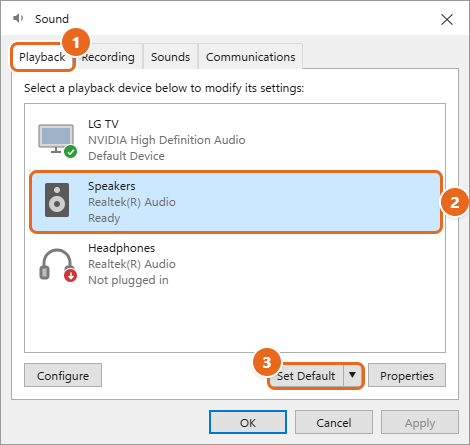
If your device is missing or disabled
- Right-click an empty area of the Playback list and make sure Show Disabled Devices and Show Disconnected Devices are checked. Hidden devices then appear.
- If a device shows Disabled, right-click it and choose Enable.
- You can also select the device, select Properties, and on the General tab make sure Device usage is set to Use this device (enable).
- A device showing Not plugged in means Windows doesn’t detect anything in that jack. Reseat the plug or try another jack.
Fix 6: Restart the Windows audio services
Two background services handle all sound in Windows: Windows Audio and Windows Audio Endpoint Builder. If one of them stops responding, everything goes silent even though your hardware and driver are fine. Restarting them doesn’t change your devices or settings.
- Select Start, type services, and open the Services app. (Or press Windows key+R, type
services.msc, and press Enter.) - Scroll to Windows Audio, right-click it, and select Restart. If Windows asks whether to restart related services too, select Yes.
- Right-click Windows Audio Endpoint Builder and select Restart.
- Check that Remote Procedure Call (RPC) shows Running. The audio services depend on it, so restart it too if needed.
- Test the sound.
If a service shows a blank status instead of Running, double-click it, set Startup type to Automatic, select Start, then select OK. Automatic is the normal setting for both audio services.
Fix 7: Update, roll back, or reinstall the audio driver
A driver is the small piece of software that lets Windows talk to your sound hardware. A damaged, outdated or newly changed driver is the most common deeper cause of no sound. All of these options are in Device Manager.
Update the driver
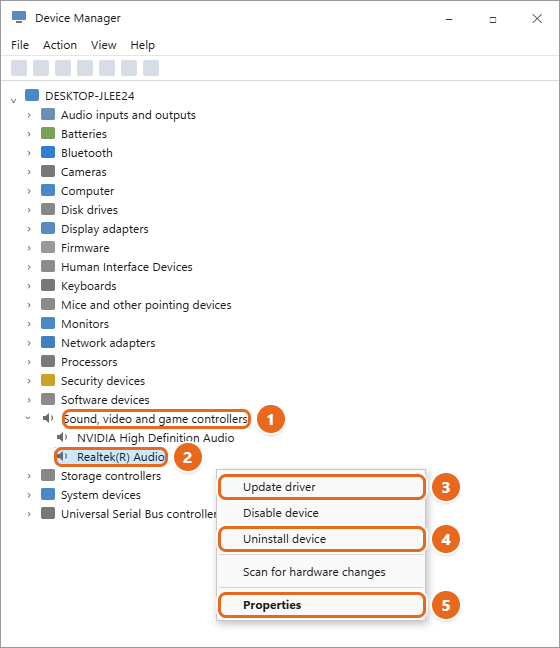
- Right-click Start and select Device Manager, or search for “device manager” from Start.
- Select the arrow next to Sound, video and game controllers to expand it.
- Right-click your sound device, such as Realtek(R) Audio or High Definition Audio Device, and select Update driver.
- Select Search automatically for drivers and follow the prompts.
- Restart your PC when it finishes.
If Windows says the best driver is already installed, check your PC or motherboard maker’s support website for a newer audio driver for your exact model. Manufacturer drivers sometimes include features or fixes that the version Windows finds doesn’t have.
Roll back the driver if sound broke after an update
- In Device Manager, right-click your sound device and select Properties.
- Select the Driver tab, then select Roll Back Driver.
- Choose a reason, select Yes, and restart your PC.
If Roll Back Driver is grayed out, Windows doesn’t have an earlier driver saved for that device, so use one of the other options instead.
Uninstall and reinstall the driver
Before you start: save your work. This step ends with a restart, and you won’t have sound until Windows reinstalls the driver.
- In Device Manager, right-click your sound device and select Uninstall device.
- In the Uninstall Device box, check Attempt to remove the driver for this device, then select Uninstall. Checking it removes the current driver files, which helps when the driver itself is damaged.
- Select Start > Power > Restart. Windows detects the sound hardware and reinstalls a driver automatically during startup.
- Test the sound. If Windows installed a basic driver and something is missing, such as the manufacturer’s audio app, install the driver from your PC maker’s website.
Try the generic Windows audio driver
If the manufacturer’s driver keeps failing, Windows has a basic built-in driver you can switch to.
- In Device Manager, right-click your sound device and select Update driver.
- Select Browse my computer for drivers > Let me pick from a list of available drivers on my computer.
- Select High Definition Audio Device (if it’s listed), select Next, and follow the prompts. Restart if asked.
This also applies to PCs with an IDT High Definition Audio CODEC listed in Device Manager. Not every PC has one.
Fix 8: Change the audio format
Some speakers, TVs and receivers don’t accept every sample rate. If the format is set to one your device can’t play, you may hear nothing at all.
- Open the Sound window (Settings > System > Sound > More sound settings).
- On the Playback tab, right-click the default device and select Properties.
- Select the Advanced tab. Under Default Format, choose a different setting, such as 24 bit, 48000 Hz (Studio Quality) or 16 bit, 48000 Hz (DVD Quality).
- Select Test to play a sound, then select OK. If you still hear nothing, try another format.
While you’re on the Advanced tab, note the Exclusive Mode options. When Allow applications to take exclusive control of this device is checked, one app can take over the device and block sound from others. Unchecking it is a useful test if sound disappears whenever a particular app is open.
Fix 9: Install Windows updates and restart
Microsoft sometimes fixes audio problems, or ships updated drivers, through Windows Update. An update that installed but is waiting for a restart can also leave audio in a half-finished state.
- Select Start > Settings > Windows Update, then select Check for updates.
- If updates are available, install them.
- Select Advanced options > Optional updates. If you see an audio driver under Driver updates, check it and select Download & install.
- Select Start > Power. If you see Update and restart, select it to finish installing updates.
If sound broke right after an update and no newer fix is available yet, rolling back the driver in Fix 7 is usually the quicker route.
Fix 10: Use System Restore
If sound worked a few days ago and none of the fixes above help, System Restore can return your system files, drivers and settings to an earlier restore point. Windows creates restore points automatically before many updates and driver installs.
Before you start: apps and drivers installed after the restore point will be removed. Your personal files, such as documents and photos, aren’t affected. Save your work first, because the PC restarts.
- Select Start, type Create a restore point, and open it.
- On the System Protection tab, select System Restore, then select Next.
- Pick a restore point from before the sound stopped working. Select Scan for affected programs to see what will be removed.
- Select Next > Finish and let the PC restart.
If the System Restore button is grayed out, System Protection is turned off for your drive and no restore points exist. For more options, see Microsoft’s Recovery options in Windows.
Fixes for specific situations
Bluetooth headphones or speakers are connected but silent
- Select the taskbar speaker icon, select the arrow next to the volume slider, and pick the Bluetooth device. A device can be connected without being the output. In Settings > System > Sound, confirm it’s selected under Output.
- Check the format. Select Start > Settings > Bluetooth & devices > Devices, select your device, and select Advanced sound properties (the device must be connected to see it). Under Output settings, try setting Format to 2 channels, 16 bit, 48000 Hz (DVD Quality).
- Remove and pair it again. In Settings > Bluetooth & devices, select More options (…) next to the device > Remove device. Put the headphones in pairing mode, then select Add device and pair them again.
- Turn Bluetooth off in Settings > Bluetooth & devices, wait about 10 seconds, and turn it back on.
- Update the Bluetooth adapter driver in Device Manager under Bluetooth. If that fails, reinstall the Bluetooth driver in Windows 11.
Headsets with a microphone often appear twice, once for high-quality stereo playback and once as a “Hands-Free” device for calls. If music sounds muffled or like a phone call, the Hands-Free entry is being used, and you can disable Hands-Free audio in Windows 11 to stop that.
Your Bluetooth device should also support the A2DP profile for high-quality audio; check the manufacturer’s specifications if you’re unsure. Pairing for the first time? Start with connecting Bluetooth headphones to a Windows 11 laptop. More checks are in Microsoft’s Bluetooth connected but no sound guide.
“No audio output device is installed”
This message, or an empty Output list in Sound settings, means Windows can’t see any working playback device.
- Open Device Manager and expand Sound, video and game controllers.
- If your audio device is listed, right-click it and select Enable device if that option appears.
- If it isn’t listed, select View > Show hidden devices, then select Action > Scan for hardware changes.
- A device with a yellow warning icon has a driver problem. Use the reinstall steps in Fix 7, or install the latest audio driver from your PC maker’s website and restart.
Microsoft’s missing or undetected audio output device page covers the same steps. If the sound hardware never shows up, even as a hidden device, it may be turned off in your PC’s firmware (BIOS/UEFI) settings or have a hardware fault. Check your PC maker’s support site before changing firmware settings.
No sound through HDMI to a TV or monitor
- Select the TV or monitor as the output in Fix 1. It usually appears with the TV’s name or “NVIDIA/AMD/Intel … Audio.”
- Make sure the TV’s own volume is up and its speakers are turned on in the TV’s settings.
- If the HDMI device doesn’t appear, update your graphics driver. HDMI sound uses the audio driver that comes with the graphics driver.
- Casting wirelessly instead? The setup is different when you cast Windows 11 to a TV.
Sound plays in only one ear or one speaker
Check that the plug is pushed all the way in, then try another pair of headphones to rule out a broken cable. In Windows, select Start > Settings > Accessibility > Audio and turn on Mono audio, which plays both channels through each side. Also check the balance: in the Sound window, open your device’s Properties > Levels > Balance and set left and right to the same level.
Sound is very quiet
Turn up the volume in Windows, in the Volume mixer for that app, and on the speakers themselves. Some sound sources, like older videos, are just recorded quietly. If only one app is quiet, Microsoft’s app audio guide points to the same Volume mixer checks as Fix 2. It can also help to turn on loudness equalization in Windows 11.
How to tell if it’s a hardware problem
- Plug the same headphones or speakers into a phone or another computer. If they’re silent there too, the speakers, headphones or cable are the problem.
- Plug a known-good pair of headphones into your PC. If they work, your original speakers are at fault. If they’re also silent, the problem is on the PC.
- If wired headphones work but the laptop’s built-in speakers don’t, after you’ve tried every fix above, the internal speakers may need repair.
FAQ
Why did my sound suddenly stop working in Windows 11?
The most common reason is that Windows switched output to another device, like a monitor, dock or Bluetooth headset you just connected. Muted apps, a stuck Windows Audio service and a driver change after an update are the next most likely causes.
How do I reset sound settings in Windows 11?
There’s no single reset button for every sound setting. The closest is the Reset button at the bottom of Settings > System > Sound > Volume mixer, which puts sound devices and app volumes back to the recommended defaults. Enhancements, the audio format and the driver are reset separately, as described in how to reset all audio settings in Windows 11.
Will reinstalling the audio driver delete my files?
No. Uninstalling a device in Device Manager only removes the driver for that device. Your documents, photos and apps aren’t touched. You may need to set your preferred output device and volume again afterward.
Why does Roll Back Driver appear grayed out?
Windows can roll back only when it still has a previous driver version stored for that device. If none is saved, the button stays gray. Uninstall and reinstall the driver, or install an older version from your PC maker’s website.
My headphones work but my speakers don’t. What should I check?
Unplug the headphones, then select the speakers as the output device in Fix 1. Make sure external speakers have power and their volume is up. If they’re plugged into a monitor’s audio jack, the monitor must also be the selected output.
Do these fixes work on Windows 10?
Many do, but some menus are in different places. The Windows 10 no-sound fixes have the right paths.
Next step
If you’ve worked through every fix and still hear nothing, test the speakers or headphones on another device to rule out a hardware fault. Then contact your PC maker’s support with the audio device name and driver version from the Driver tab in Device Manager, which helps them find the right driver for your model.

Matt Jacobs has been working as an IT consultant for small businesses since receiving his Master’s degree in 2003. While he still does some consulting work, his primary focus now is on creating technology support content for SupportYourTech.com.
His work can be found on many websites and focuses on topics such as Microsoft Office, Apple devices, Android devices, Photoshop, and more.