To connect external speakers to a Windows 10 laptop, plug the speaker cable into the laptop’s headphone jack or a USB port, and turn the speakers on. Then go to Start > Settings > System > Sound and choose the speakers under Choose your output device.
Applies to: Windows 10. Checked against Microsoft Support on September 28, 2026.
Plug in the speakers
- 3.5 mm cable: Plug it into the headphone jack on the laptop. Most speakers with this plug also need power from a wall outlet or USB.
- USB speakers: Plug them into a USB port. Windows sets them up in a few seconds.
- Speakers in a monitor or TV: If they’re connected with an HDMI cable, the sound can go through HDMI. See how to get HDMI working on Windows 10.
- Bluetooth speakers: These connect without a cable. See how to turn on Bluetooth in Windows 10 and connect a device.
Turn the speakers on and turn their own volume knob up about halfway.
Choose the speakers in Sound settings
- Select Start > Settings > System > Sound.
- Open the list under Choose your output device and select your speakers.
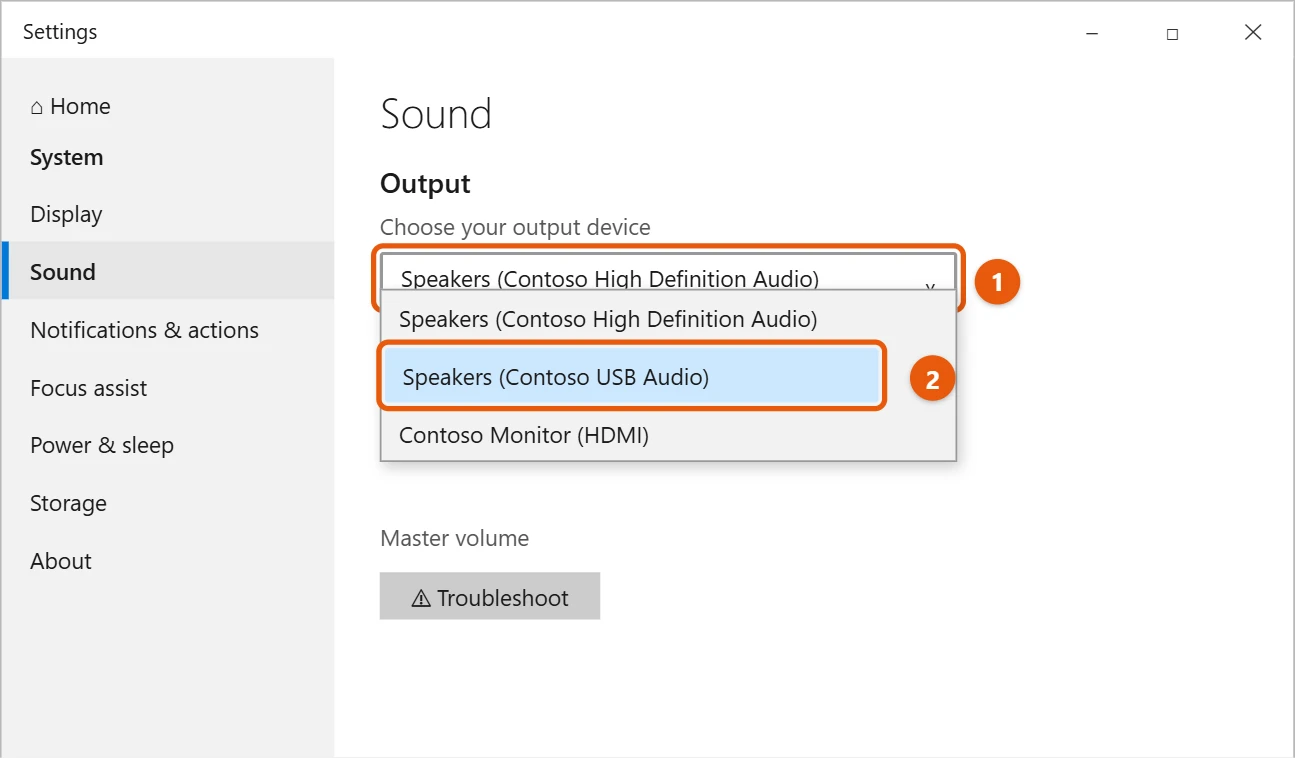
- Play something to check the sound.
To make Windows use them every time, see how to set the default audio device in Windows 10.
Switch speakers quickly from the taskbar
Select the speaker icon near the clock, then select the device name above the volume slider. Pick your speakers from the list. This is handy if you move between headphones and speakers.
Send one app to the speakers
You can keep most sound on the laptop and send just one app, such as a music player, to the external speakers. Go to Settings > System > Sound > Advanced sound options > App volume and device preferences, and pick the speakers under Output next to that app. The app has to be playing sound to appear in the list.
Speakers in a monitor or TV
If your speakers are built into a monitor or TV connected with HDMI or DisplayPort, the sound goes through that cable. Choose the display’s name under Choose your output device.
Test the speakers
- In Sound settings, select Sound Control Panel under Related Settings.
- On the Playback tab, right-click your speakers and select Test.
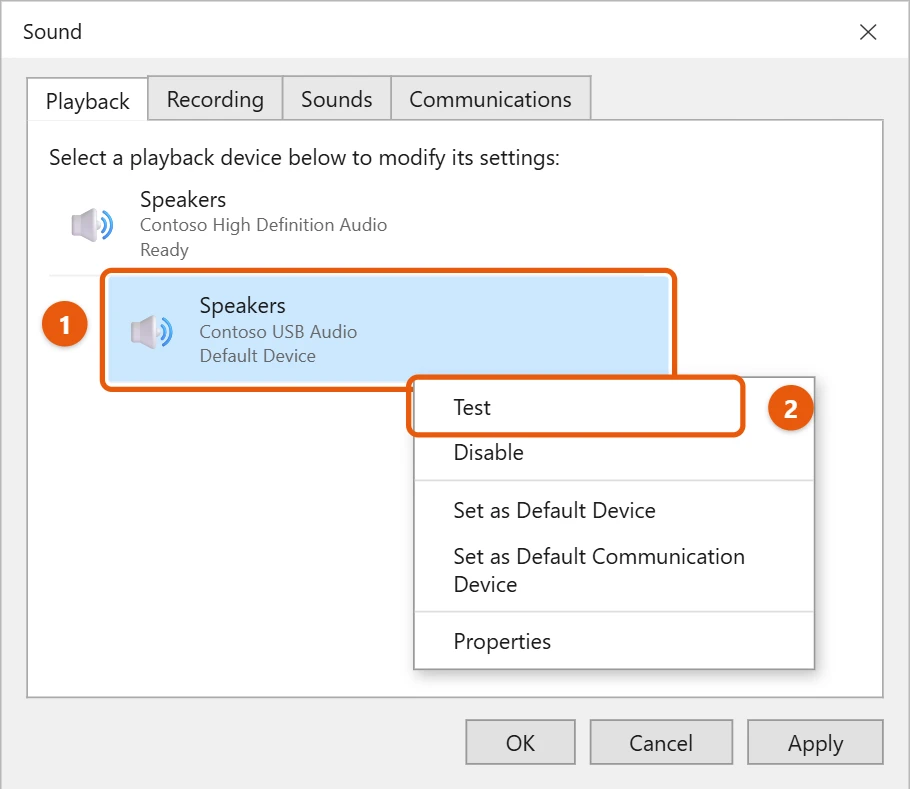
You should hear a sound from each speaker. If you have more than two speakers, select Configure on the same tab to set them up.
If there’s no sound
- Check that the speakers are on and their volume knob isn’t at zero.
- Check that the cable is in the right jack (the headphone jack, often green) and pushed all the way in.
- Make sure the laptop isn’t muted, and that the right device is picked under Choose your output device.
- In Sound settings, select Troubleshoot and follow the steps.
- Update the sound driver. See how to update audio drivers in Windows 10.
- USB speakers aren’t detected: plug them straight into the laptop instead of a hub, and try another USB port.
- Crackling or popping: try another port or cable. In Sound Control Panel, open the speakers’ Properties > Advanced tab and choose a different default format, such as 24 bit, 48000 Hz.
For more fixes, see how to fix no sound in Windows 10.
Frequently asked questions
Why do the laptop speakers turn off when I plug in the cable?
That’s normal. When you use the headphone jack, the laptop sends the sound there instead of to its own speakers.
Can I play sound through the speakers and the laptop at the same time?
Not with the normal settings. Windows plays sound through one output device at a time.
The sound is too quiet. What can I do?
Turn up the speaker knob, Master volume and the app’s volume. For more tips, see how to make sound louder in Windows 10.
Do I need to install a driver for USB speakers?
Usually not. Windows 10 has a built-in driver that works with most USB speakers. Install the maker’s software only if you want extra features like an equalizer.
On a Windows 11 PC, see how to turn on computer speakers in Windows 11.
Microsoft’s reference is Fix sound or audio problems in Windows. More help is on our Windows Help & Guides page.

Matt Jacobs has been working as an IT consultant for small businesses since receiving his Master’s degree in 2003. While he still does some consulting work, his primary focus now is on creating technology support content for SupportYourTech.com.
His work can be found on many websites and focuses on topics such as Microsoft Office, Apple devices, Android devices, Photoshop, and more.