To send different apps to different speakers or headphones, go to Settings > System > Sound > Volume mixer and pick an Output device for each app. To play the same sound on two devices at once, turn on Stereo Mix, then in its Listen tab check Listen to this device and choose the second device.
Applies to: Windows 11.
Send each app to a different device
This is built in and works on every PC.
- Plug in or connect both devices, such as speakers and headphones.
- Select Start > Settings > System > Sound > Volume mixer.
- Under Apps, select the app and choose its Output device.
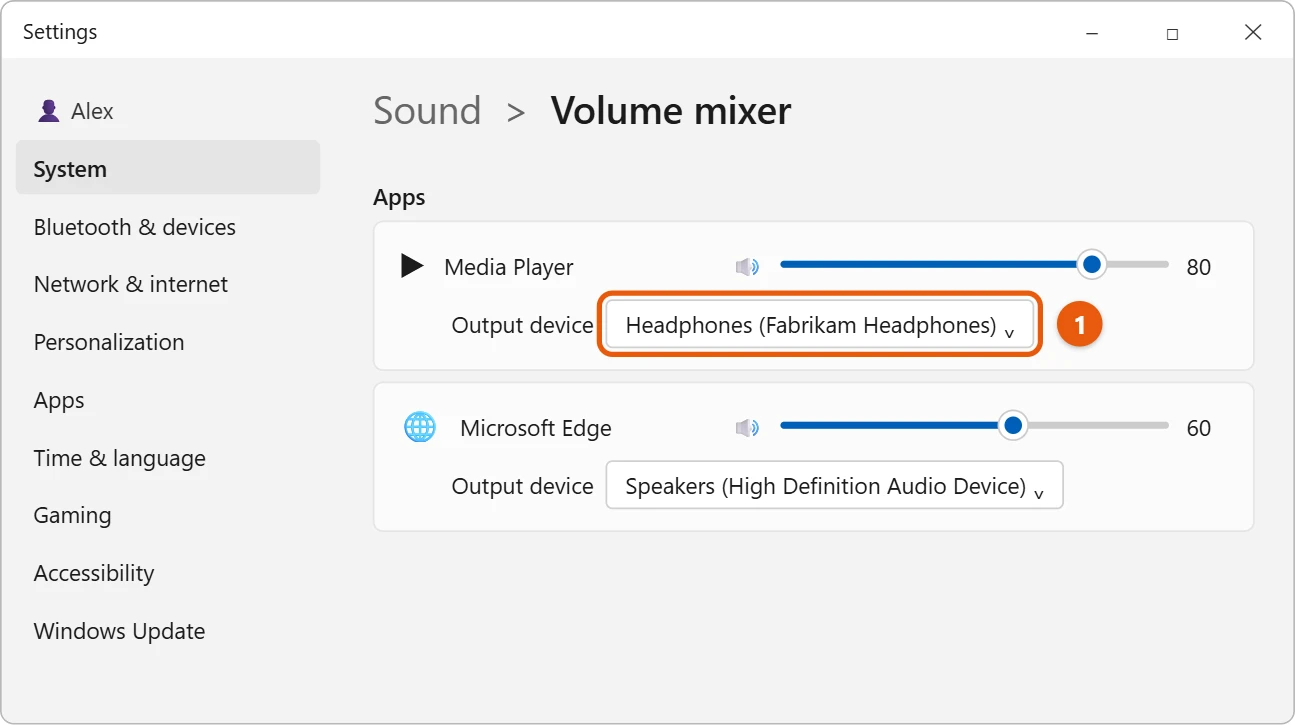
For example, music can play on the speakers while a video call uses your headphones. The app must be open to show up in the list.
Play the same sound on two devices
This uses Stereo Mix, which is included with many audio drivers but not all.
- Select Start > Settings > System > Sound > More sound settings.
- Select the Recording tab. Right-click an empty area and select Show Disabled Devices.
- Right-click Stereo Mix and select Enable, then select Properties.
- On the Listen tab, check Listen to this device.
- Under Playback through this device, choose your second device, then select OK.

Sound now plays on your main device and the device you chose. The second device can be slightly delayed, especially over Bluetooth.
Newer Windows 11 PCs can send the same sound to two Bluetooth headphones at once with Shared audio. It is rolling out gradually to Windows 11 versions 25H2 and later.
- Your PC and both headsets must support Bluetooth LE Audio. Many older headsets don’t.
- Pair and connect both headsets first.
- Open Quick Settings, select Shared audio, choose the two headsets, and select Start sharing.
If you don’t see Shared audio, your PC or headsets may not support it yet. Install the latest Windows updates and check again later, since it’s arriving gradually.
If you don’t see Stereo Mix
Your audio driver doesn’t include it. Use the Volume mixer method above instead, or check the sound app from your PC’s maker.
If sound doesn’t play on both devices
- The second device is out of sync: Bluetooth adds a small delay. Use two wired devices, or one wired and one built-in speaker, for closer timing.
- Listen to this device is grayed out: make sure Stereo Mix is enabled, not just shown, on the Recording tab.
- There’s an echo or feedback: don’t pick the same device as both your main output and the Listen target.
- An app ignores the Volume mixer setting: some apps, like video call apps, choose their own speaker in their audio settings.
Frequently asked questions
How do I switch back to one device?
Uncheck Listen to this device in Stereo Mix, or set each app back to Default in Volume mixer.
How do I choose my main output?
Select the arrow next to the volume slider in Quick Settings and pick a device. Setting the default audio device in Windows 10 uses similar steps. Wireless headphones are added by connecting Bluetooth headphones to a Windows 11 laptop.
Can I use two Bluetooth speakers at once?
Only with Shared audio and LE Audio speakers, as described above. Otherwise, Windows plays to one Bluetooth device at a time, though Stereo Mix can copy sound to a second device.
Does this work in Windows 10?
Partly. Windows 10 can send each app to a different device under Settings > System > Sound > App volume and device preferences, and Stereo Mix works the same way. Shared audio is only in Windows 11.
Will the second device sound worse?
Usually not much, though Stereo Mix can add a slight delay. For music or movies, sit closer to the main device.
Stereo Mix can also send your PC’s sound into a voice chat or recording, which is how you play music through your mic in Windows 11.
Microsoft’s related help is Fix sound or audio problems in Windows.
Related: how to enable and use Stereo Mix in Windows 10.

Matt Jacobs has been working as an IT consultant for small businesses since receiving his Master’s degree in 2003. While he still does some consulting work, his primary focus now is on creating technology support content for SupportYourTech.com.
His work can be found on many websites and focuses on topics such as Microsoft Office, Apple devices, Android devices, Photoshop, and more.