To hear yourself on your mic in Windows 11, open Settings > System > Sound, select More sound settings, open the Recording tab, select your microphone and choose Properties. On the Listen tab, check Listen to this device, pick your headphones as the playback device, and select Apply. Your voice now plays back through your headphones as you speak.
Applies to: Windows 11 (Settings app and the classic Sound control panel).
What “hearing yourself” means in Windows 11
Hearing your own voice while you talk is often called mic monitoring or sidetone. Windows 11 does it with a setting named Listen to this device, which sends whatever your microphone picks up straight to a speaker or headset. It’s handy when you want to check how loud you are, confirm that a new microphone works, or hear yourself naturally while wearing closed headphones that block your own voice.
This is different from the microphone test in Settings. The test shows a level meter and can record a short sample for you to play back afterward, but it doesn’t play your voice live. If you only want to know whether Windows hears your microphone at all, the test is quicker (see the section on checking without live playback below).
Before you start
- Use headphones or a headset. If your voice plays through open speakers, the microphone picks up its own output and can create a loud feedback squeal or echo.
- Connect the microphone first. Plug in your USB or 3.5 mm microphone or headset, or pair your Bluetooth headset, so it appears in the device list.
- Check microphone access. If microphone access is turned off in privacy settings, Windows may not receive any sound from the microphone. The troubleshooting section explains where to check.
Turn on Listen to this device in Windows 11
- Open Sound settings. Press Windows logo key + I to open Settings, then select System > Sound. The page lists your output and input devices.
- Open the classic Sound window. Scroll down to Advanced and select More sound settings. A separate Sound window opens with several tabs.
- Go to the Recording tab. Select the Recording tab. Every connected microphone is listed here. Speak into your microphone: the level bars next to the active one should move, which helps you pick the right device.
- Open the microphone’s properties. Select your microphone, then select Properties. A properties window for that microphone opens.
- Turn on listening. Select the Listen tab and check Listen to this device.
- Choose where your voice plays. In the playback device drop-down list on the same tab, choose your headphones or headset. If you leave it on the default device, your voice plays through whatever Windows is currently using for sound, which may be your speakers.
- Apply the change. Select Apply, then OK. Speak into the microphone. You should hear yourself in your headphones right away.
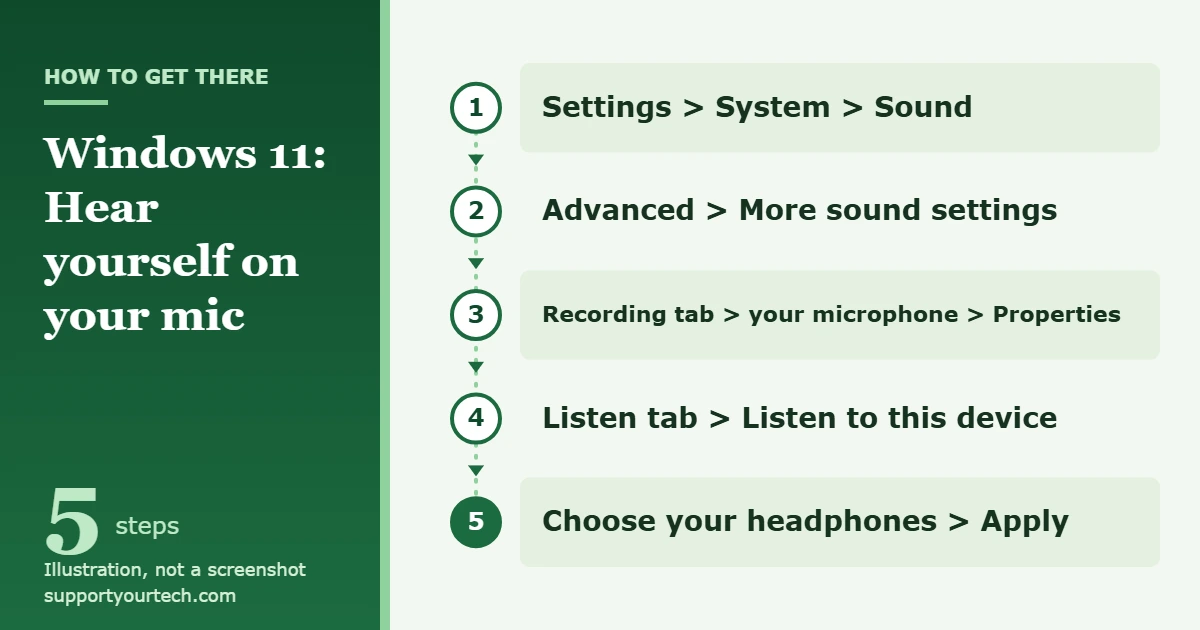
A slight delay between speaking and hearing yourself is normal, because Windows processes the sound before playing it back. It’s usually fine for checking your level and position, but it can be distracting if you’re singing or timing your speech closely.
Open the same setting from Control Panel
If you prefer Control Panel, or the Settings route looks different on your PC, you can reach the same Sound window another way:
- Select the search box on the taskbar, type control panel, and open Control Panel.
- Select Hardware and Sound, then Sound. The same Sound window opens.
- Select the Recording tab, select your microphone, and select Properties.
- On the Listen tab, check Listen to this device, choose your headphones as the playback device, then select Apply and OK.
Use your headset’s own monitoring feature instead
Many gaming headsets, USB microphones and audio interfaces have their own monitoring feature, sometimes called sidetone or mic monitoring. It’s controlled by a button on the device or by the maker’s companion app, not by Windows. Because the sound doesn’t pass through Windows first, hardware monitoring often has less delay. Check your headset or microphone manual, or the manufacturer’s support site, to see whether your model has it and how to turn it on.
If you use hardware monitoring, leave Listen to this device turned off in Windows, otherwise you may hear your voice twice with a small echo between the two.
Check your mic without live playback
If you only want to confirm that Windows hears your microphone, or hear a short recording of yourself, use the built-in test in Settings:
- Go to Settings > System > Sound.
- Under Input, choose your microphone in Choose a device for speaking or recording, then select > next to it to open its settings.
- Under Microphone test, select Start test and speak normally, then select Stop test.
- Under Recorded sample, select Play to hear what the microphone captured.
On the same page, the Input volume slider changes how loud your microphone is. If you sound too quiet or distorted when you hear yourself, adjust this slider while monitoring until your voice sounds clear.
You can also record a longer clip in the Sound Recorder app. Select Start recording (or press Ctrl + R), speak, then select Stop recording (or press Esc) and play the clip from the list. Each recording can be up to three hours long and is stored inside the app, as the Sound Recorder FAQ explains.
How to turn off Listen to this device
Turn monitoring off when you’re done, especially before a call. If it stays on and your voice plays through speakers, other people may hear an echo, and the microphone can feed back on itself.
- Go to Settings > System > Sound > More sound settings.
- On the Recording tab, select your microphone and select Properties.
- On the Listen tab, clear the Listen to this device check box, then select Apply and OK.
Troubleshooting
You don’t hear anything
- Wrong playback device: Open the Listen tab again and make sure the drop-down list shows the headphones you are wearing, not your speakers or a monitor’s built-in audio. Select Apply after changing it.
- Wrong microphone: On the Recording tab, speak and watch which device’s level bars move. Turn on listening for that device.
- Microphone muted or too quiet: Check the mute switch or button on your headset, then raise the Input volume slider in Settings > System > Sound. A microphone can be muted in several places, and you can unmute your mic in Windows 11 in each of them.
- Headphones disabled: In the Sound window, select the Playback tab, select your headphones and choose Properties. Under Device usage, make sure Use this device (enable) is selected.
Your microphone isn’t listed or never picks up sound
- Privacy settings: Go to Settings > Privacy & security > Microphone and turn on Microphone access. For apps, also turn on Let apps access your microphone and Let desktop apps access your microphone. If your microphone is built into a webcam, also turn on Camera under Privacy & security > Camera.
- Bluetooth headset: Make sure it is paired and connected. The pairing steps are linked from Fix microphone problems.
- Run the troubleshooter: In Settings > System > Sound, scroll to Advanced and, under Troubleshoot common sound problems, choose Input devices. You can also go to Settings > System > Troubleshoot > Other troubleshooters and select Run next to Audio.
- Driver problems: Right-click Start, select Device Manager, expand Sound, video and game controllers, right-click your audio device and choose Update driver > Search automatically for drivers. If the problem began after a driver update, open the device’s Properties and use Roll Back Driver on the Driver tab. More detail is in updating audio drivers in Windows 11.
You hear echo, squealing or a delay
- Feedback squeal: Your voice is playing through speakers that the microphone can hear. Switch the playback device to headphones, or turn monitoring off.
- Double voice or echo: Monitoring may be on in both Windows and your headset software. Turn off one of them.
- Noticeable delay: Some delay is expected with Windows monitoring. If it bothers you, use your headset’s hardware monitoring if it has one.
- Background noise in your monitored voice: Windows 11 has built-in noise reduction options. Here is how to turn on noise suppression in Windows 11.
Work or school PCs
On a PC managed by an employer or school, an administrator can control privacy settings such as microphone access. If those settings are greyed out or you can’t change them, contact your IT department.
Frequently asked questions
Can other people on a call hear my monitored voice?
Not directly. Listen to this device only plays your microphone on your own PC. But if your voice plays through speakers, the microphone can pick it up again, so others may hear an echo. Use headphones or turn monitoring off during calls.
Can I hear myself through Bluetooth headphones?
Yes. Choose the Bluetooth headphones in the playback device list on the Listen tab. Expect some delay, since both the Windows playback and the wireless connection add a little time.
Why does my voice sound strange when I hear myself?
Most people are surprised by their own voice, because you normally hear yourself partly through the bones of your head. The monitored sound is closer to what others hear. If it sounds muffled or harsh, check your microphone position and the Input volume slider.
Is there a way to hear myself without changing Windows settings?
Yes, if your headset or microphone has built-in sidetone or monitoring. Otherwise, use the Settings microphone test or Sound Recorder to record yourself and play it back.
Once you can hear yourself clearly, set your volume and microphone position, then turn monitoring off before your next call or recording.

Matt Jacobs has been working as an IT consultant for small businesses since receiving his Master’s degree in 2003. While he still does some consulting work, his primary focus now is on creating technology support content for SupportYourTech.com.
His work can be found on many websites and focuses on topics such as Microsoft Office, Apple devices, Android devices, Photoshop, and more.