To uninstall an update in Windows 11, select Start > Settings > Windows Update > Update history. Scroll down to Related settings, select Uninstall updates, then select Uninstall next to the update you want to remove and confirm. Restart your PC when Windows asks.
If Windows won’t start after an update, you can still remove it from the recovery menu: Troubleshoot > Advanced options > Uninstall Updates. Not every update can be removed, so the sections below also explain what to do when the update you want isn’t listed.
Applies to: Windows 11 (versions 24H2 and 25H2, Home and Pro). The steps follow Microsoft’s page on uninstalling a Windows update.
Before you uninstall an update
Warning: Most monthly Windows updates include security fixes. When you remove one, your PC loses those fixes until a newer update is installed. Make sure you understand the risks before uninstalling a security update. Only remove an update when it’s clearly causing a problem, and plan to reinstall a fixed version soon.
Check that the update is really the cause
Open Settings > Windows Update > Update history and expand Quality Updates. Each entry shows a KB number (Microsoft’s ID for the update, such as KB5086417) and the date it was installed. If your problem started the same day as an install date, that update is a good suspect. Write down the KB number; you’ll need it to find the update again later.
If the problem started weeks after the last update, removing the update probably won’t help. A slow first boot after an update is also normal, because Windows finishes setup tasks in the background. To see what’s normal during and after installation, check how long a Windows 11 update takes.
Know which kind of update you have
Windows 11 installs several kinds of updates, and each one is removed in a different place.
| Update type | What it is | How to remove it |
|---|---|---|
| Quality update (cumulative update) | The monthly security and bug-fix update, usually released on the second Tuesday of the month. Listed in Update history by date and KB number. | Settings or WinRE “Uninstall latest quality update”. The command line route needs extra steps (see Method 2). |
| Feature update | A new version of Windows 11, such as moving from 24H2 to 25H2. | Settings > System > Recovery > Go back (limited time), or WinRE “Uninstall latest feature update”. An enablement package may also appear in the Uninstall updates list. |
| Driver update | A new driver for a device such as a graphics card, printer, or Wi-Fi adapter. | Device Manager > Roll Back Driver. |
| Other updates | Smaller Windows component updates, and some Microsoft apps or runtimes. | Settings, if they appear in the Uninstall updates list. |
| Servicing stack update and Defender definitions | The component that installs updates, and Microsoft Defender’s virus definitions. | Can’t be removed. Definitions are replaced automatically several times a day. |
What you need
- An administrator account. Removing updates changes Windows system files, so Windows asks for administrator approval.
- Your BitLocker recovery key, if your drive is encrypted. Recovery tools may ask for it, especially if you have to use Method 3. Find your BitLocker recovery key and keep it handy before you start.
- Saved work. Uninstalling an update doesn’t delete your personal files, but Windows needs to restart. Save and close open documents first.
- A work or school PC? Your organization may manage updates and block removal. Ask your IT team instead.
Method 1: Uninstall an update in Settings
Use this method when Windows starts and you can sign in normally.
- Select Start > Settings, or press Windows key + I.
- Select Windows Update in the left pane. On a narrow window, select the menu button at the top left to show the pane.
- Under More options, select Update history. You’ll see your installed updates grouped into categories such as Quality Updates and Driver Updates.
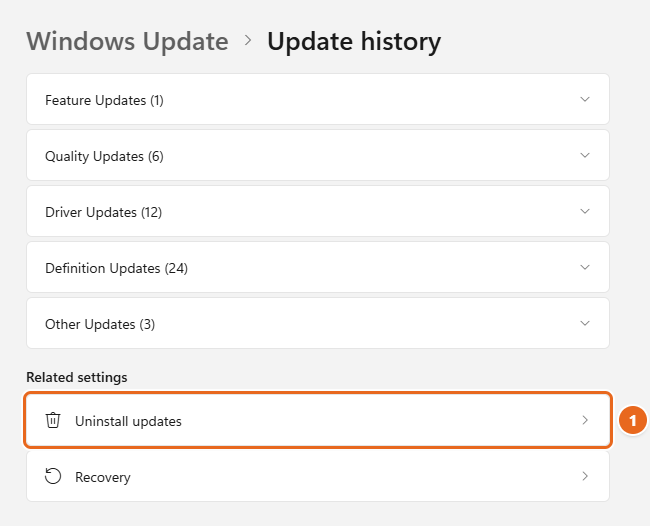
- Scroll to the bottom of the page. Under Related settings, select Uninstall updates.

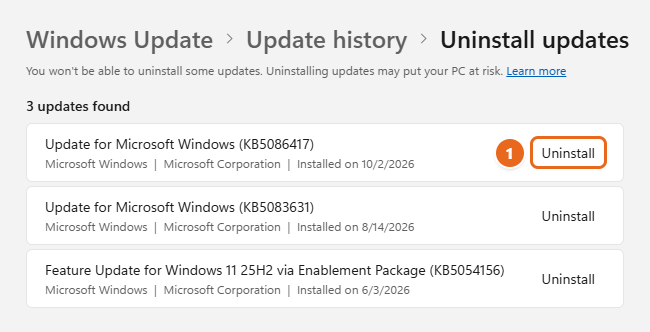
On the Update history page, scroll down to Related settings and select Uninstall updates (1). - The Uninstall updates page lists the updates you’re allowed to remove, with the number found at the top. Each entry shows the update name, its KB number, and an Installed on date. Find the update that matches the KB number you wrote down earlier.
- Select Uninstall next to that update.

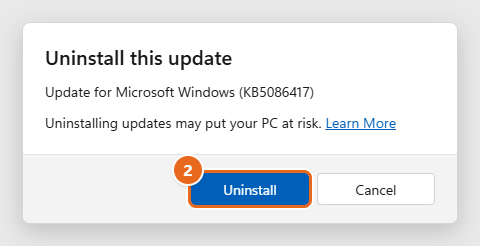
Find the update by its KB number and install date, then select Uninstall next to it (1). - An Uninstall this update box appears with the update’s name. Check that it’s the right one, then select Uninstall. Select Yes if User Account Control asks for permission.

Check that the dialog names the right KB number, then select Uninstall (2) to confirm. - Wait while Windows removes the update. This can take several minutes. When Windows asks you to restart, save your work and restart. Windows may show a “Working on updates” screen while it finishes; don’t turn off the PC during this time.
- After you sign in again, go back to Update history > Uninstall updates. The update should no longer be listed. Check whether your original problem is fixed.
Don’t see the update you want? Some updates can’t be uninstalled, and those don’t appear in this list. Skip to Updates you can’t uninstall for your options.
What happened to Control Panel’s installed updates list?
Older guides tell you to open Control Panel > Programs > Programs and Features > View installed updates. That classic list is gone in current Windows 11. Microsoft moved Uninstall Updates out of Control Panel and into Settings > Windows Update > Update history, a change that reached everyone with Windows 11 version 22H2.
If you follow an older guide and select View installed updates in Control Panel, Windows sends you to the Settings page instead, so you end up following Method 1 anyway. Going straight to Settings saves a few clicks.
The Settings method also works in Safe Mode. If Windows starts but crashes or freezes before you can finish, start Windows 11 in Safe Mode, then follow Method 1.
Method 2: Uninstall an update with a command
Commands are useful when the Settings app won’t open, or when you’re helping someone remotely and want to type one line. You need the update’s KB number.
Find the KB number
Many guides use the wmic qfe list command for this. It no longer works on current Windows 11: Microsoft has removed the WMIC tool from supported versions, including 24H2 and 25H2 starting with the August 2026 preview update, and recommends PowerShell instead.
- Right-click Start and select Terminal (Admin). Select Yes at the User Account Control prompt. A PowerShell tab opens.
- Type this command and press Enter:
Get-HotFix | Sort-Object InstalledOn -Descending - Look at the HotFixID column for the KB number and the InstalledOn column for the date. The newest updates are at the top.
Uninstall it with wusa
The Windows Update Standalone Installer (wusa.exe) can remove an update by its KB number. Type the number without the letters “KB”.
- In the same Terminal window, type this command, replacing
5086417with your update’s number, then press Enter:wusa /uninstall /kb:5086417 - A Windows Update Standalone Installer box asks if you want to uninstall the update. Select Yes.
- Restart the PC when prompted.
To run it without the confirmation box, add /quiet. The PC then restarts automatically if needed, unless you also add /norestart, as described in Microsoft’s wusa documentation.
If wusa won’t remove a monthly cumulative update
Since 2021, Microsoft has shipped the monthly cumulative update together with a servicing stack update (SSU) in one combined package. Running wusa /uninstall on the combined package won’t work, because the SSU can’t be removed; the release notes for Windows 11 24H2 updates, such as KB5043080, spell this out. Microsoft’s documented alternative is DISM. This is an advanced method, so try Method 1 or Method 3 first.
Warning: DISM removes exactly the package you name. Removing the wrong package can break Windows features. Copy the name carefully.
- Open Terminal (Admin) as above.
- List the installed packages:
dism /online /get-packages /format:table - Find the cumulative update package. Its name starts with
Package_for_RollupFixand ends with a build number that matches the update’s OS build (shown on Microsoft’s page for that KB). Check the Install Time column to confirm. - Remove it, pasting the full package name after
/packagename::dism /online /remove-package /packagename:PASTE_THE_FULL_PACKAGE_NAME_HERE - Restart when DISM asks.
Method 3: Uninstall an update when Windows won’t start
If an update leaves your PC stuck on a black screen, a boot loop, or a blue screen, use the Windows Recovery Environment (Windows RE or WinRE). It’s a separate set of repair tools that runs without loading Windows. Its Uninstall Updates tool removes only the most recent update of the type you pick, not older ones.
Open Windows RE
Use whichever of these works on your PC:
- If Windows still starts: go to Settings > System > Recovery and select Restart now next to Advanced startup. Or hold Shift while you select Power > Restart on the Start menu or sign-in screen.
- If Windows won’t start: turn on the PC, and as soon as the Windows or manufacturer logo appears, hold the power button until it shuts off. Do this two times. On the third start, Windows should show the Automatic Repair screen. Select Advanced options.
- If neither works: start the PC from a Windows 11 installation USB drive or recovery drive, and choose the repair option instead of installing Windows.
Each of these is explained in more detail in entering recovery mode in Windows 11. On some PCs, Windows first tries its own automatic repair before showing the menu. Let it finish, then continue to the options screen.
Uninstall the update from Windows RE
- On the Choose an option screen, select Troubleshoot.
- Select Advanced options.
- Select Uninstall Updates.
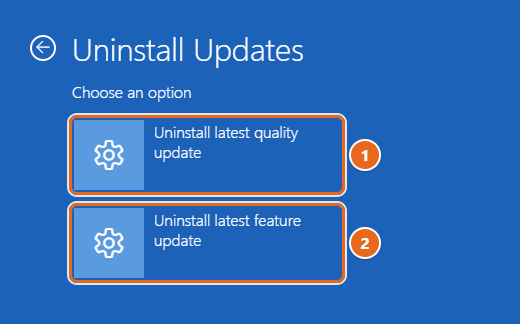
- Choose the option that matches the update that caused the problem:
- Uninstall latest quality update removes the most recent monthly update. Start here in most cases, since monthly updates are the ones installed most often.
- Uninstall latest feature update removes the most recent Windows 11 version upgrade. Use it only if the problem began right after moving to a new version.

In Windows RE, choose Uninstall latest quality update (1) for a monthly update, or Uninstall latest feature update (2) for a version upgrade. - If asked, choose an administrator account and type its password. If your drive is encrypted, you may need to enter the BitLocker recovery key first.
- Select the button to confirm (for example, Uninstall quality update) and wait. When it’s done, select Done, then Continue to start Windows.
If Windows still won’t start, return to Advanced options and try Startup Repair or System Restore. System Restore rolls back system files and settings, but not your personal files, to a restore point made before the update.
How to roll back a feature update (Go back)
A feature update moves you to a new Windows 11 version. When it installs as a full upgrade, it doesn’t show up in the Uninstall updates list. Instead, Windows keeps a copy of your previous version for a limited time. In most cases, you have 10 days.
- Select Start > Settings > System > Recovery.
- Under Recovery options, select Go back. If you don’t see it, or it’s unavailable, the rollback period has ended or the old files were removed.
- Answer the questions about why you’re going back, then follow the prompts. Your PC restarts and returns to the previous version.
Going back keeps your personal files, but it removes apps and drivers you installed after the upgrade, and any changes you made to settings. It also only works if you kept the windows.old and $windows.~bt folders, removed any user accounts added after the upgrade, and still have the USB drive you upgraded from (if you used one). Running Disk Cleanup or Storage Sense to delete “Previous Windows installation(s)” removes the files Go back needs.
Some version changes, such as 24H2 to 25H2, can install as a small enablement package instead of a full upgrade. In that case it can appear in the Uninstall updates list as “Feature Update for Windows 11 25H2 via Enablement Package”, and you remove it with Method 1.
How to roll back a driver update
If a device stopped working after a driver arrived through Windows Update, roll back that driver instead of uninstalling a Windows update.
- Right-click Start and select Device Manager.
- Expand the category for the device, such as Display adapters or Network adapters.
- Right-click the device and select Properties.
- Select the Driver tab, then select Roll Back Driver. If the button is grayed out, Windows doesn’t have an earlier driver saved for that device.
- Pick a reason, select Yes, and restart if asked.
Stop the update from coming back, and reinstall it later
Windows Update will usually offer a removed update again at the next check. If Microsoft hasn’t fixed the problem yet, pause updates for a week or two: open Settings > Windows Update and choose a time next to Pause updates. The pause options and their limits are covered in stopping (pausing) Windows 11 updates.
Treat the pause as temporary. Microsoft often fixes a problem in the next month’s cumulative update, and that newer update includes the security fixes you lost when you uninstalled the old one. To reinstall:
- Go to Settings > Windows Update.
- Select Resume updates if updates are paused.
- Select Check for updates, then install what Windows offers and restart.
The full process is covered in updating Windows 11.
Updates you can’t uninstall
Some updates can’t be uninstalled. Here are the common cases and what to do instead.
- Servicing stack updates. These update the part of Windows that installs updates. You can’t remove the SSU once it’s installed.
- Cumulative updates that aren’t in the list. If the monthly update you want to remove isn’t shown in Settings, try Uninstall latest quality update in Windows RE (Method 3). It only works for the most recent quality update. Advanced users can use the DISM steps in Method 2.
- Older updates. Monthly updates are cumulative, which means each one contains the fixes from earlier ones. Removing an update from a few months ago usually isn’t possible or useful. Use System Restore if you have a restore point from before the problem started.
- Feature updates after the rollback period. Once Go back is gone, the only way back to an earlier version is a clean install of that version, which erases apps and settings. Back up your files first.
- Microsoft Defender definition updates. These are replaced automatically several times a day, so there’s nothing to uninstall.
- Updates blocked by your organization. On managed work or school PCs, policies can hide the Uninstall option. Your IT team can remove the update centrally.
If nothing can be removed and your PC is still unstable, Reset this PC with Keep my files (in Settings > System > Recovery) reinstalls Windows while keeping your personal files. It removes your apps, so treat it as a last resort.
Troubleshooting
The Uninstall button doesn’t do anything
Make sure you’re signed in with an administrator account and that no other update is installing. If Windows Update shows “Restart required”, restart first, then try again. If the button still fails, use Method 2 or Method 3.
wusa reports the update isn’t installed
Check the number. Type only the digits after /kb:, and confirm the KB number with Get-HotFix. If the update is a combined SSU and cumulative update package, wusa can’t remove it; use the DISM steps or Windows RE.
“wmic” is not recognized
That’s expected on current Windows 11. Microsoft removed WMIC. Use Get-HotFix in PowerShell, or read the KB numbers in Update history.
Windows RE asks for a recovery key
Your drive is protected by BitLocker or device encryption. Look up the key in your Microsoft account on another device, then type it in. Without the key, Windows RE can’t change files on the drive.
The removed update installed itself again
Windows Update reinstalled it at the next scan. Uninstall it again, then pause updates right away until Microsoft releases a fix.
The problem is still there after uninstalling
The update probably wasn’t the cause. Reinstall it so you have the security fixes, then look at other recent changes, such as a new app, driver, or device. System Restore can undo several changes at once if you have a restore point from before the problem.
FAQ
Will uninstalling a Windows 11 update delete my files?
No. Removing a quality update doesn’t delete documents, photos, or apps. Going back from a feature update keeps your files but removes apps and drivers installed after the upgrade, along with settings changes. Backing up important files first is still a good idea.
How do I uninstall the latest update in Windows 11?
Go to Settings > Windows Update > Update history > Uninstall updates and select Uninstall next to the entry with the newest Installed on date. If Windows won’t start, use Uninstall latest quality update in Windows RE.
Is it safe to uninstall a security update?
It’s safe for Windows to run without it, but your PC is exposed to the problems that update fixed. Keep the gap short: pause updates briefly and install the next fixed update as soon as it’s available.
Why can’t I find “View installed updates” in Control Panel?
Microsoft moved the installed updates list to Settings > Windows Update > Update history > Uninstall updates in Windows 11 version 22H2. The old Control Panel links now point there.
How long do I have to roll back a Windows 11 version upgrade?
In most cases, 10 days. After that, Windows removes the previous version’s files and the Go back option disappears.
Can I uninstall more than one update at a time?
Not in one step. Remove them one at a time from the Uninstall updates list, starting with the newest, and restart when asked. Windows RE only removes the single latest quality or feature update.
How do I stop Windows from installing the update again?
Pause updates in Settings > Windows Update. When the pause ends, Windows installs the newest available updates, which by then often include Microsoft’s fix.
Next step
After you remove the update and confirm your problem is gone, set a reminder to resume updates in a week or two. Then check Settings > Windows Update for a newer cumulative update, which usually brings back the security fixes along with Microsoft’s correction.

Matt Jacobs has been working as an IT consultant for small businesses since receiving his Master’s degree in 2003. While he still does some consulting work, his primary focus now is on creating technology support content for SupportYourTech.com.
His work can be found on many websites and focuses on topics such as Microsoft Office, Apple devices, Android devices, Photoshop, and more.