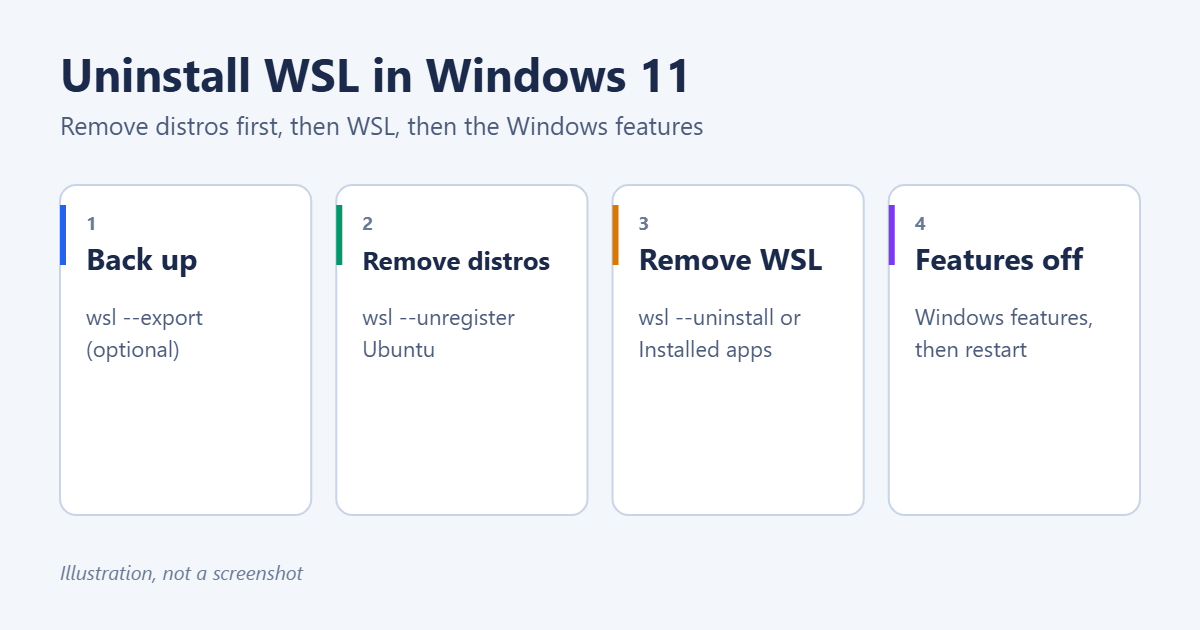
To uninstall WSL completely in Windows 11, remove it in three stages. First, delete your Linux distributions with wsl --unregister DistroName (or uninstall them from Settings > Apps). Next, remove WSL itself with wsl --uninstall, or uninstall Windows Subsystem for Linux from Installed apps. Finally, turn off the Windows Subsystem for Linux and Virtual Machine Platform features and restart. Unregistering a distribution permanently deletes its files, so export anything you want to keep first. Here are the steps in detail.
Should you remove WSL completely?
Not always. Common reasons to uninstall, and the lighter option for each:
| Reason | Lighter option |
|---|---|
| Free up disk space | Unregister distributions you don’t use, and keep WSL |
| A distribution is broken | Unregister and reinstall just that distribution |
| Startup or memory use | Run wsl --shutdown. WSL only runs when you use it |
| Company policy or security review | Remove everything, as in Steps 1 to 6 |
Step 1: See what’s installed
Open Terminal (PowerShell or Command Prompt) and run:
wsl --list --verbose
You’ll see each distribution, such as Ubuntu or Debian, its state, and whether it uses WSL 1 or 2. Note the exact names. You’ll need them in Step 3.
Step 2: Back up anything you need (optional)
Each distribution stores its own files, including your Linux home folder. To keep a copy, export it to a file:
wsl --export Ubuntu D:\Backups\ubuntu.tar
You can bring it back later with wsl --import. Alternatively, copy specific files out through File Explorer. Open Linux in the File Explorer sidebar, or type \\wsl$ in the address bar.
Step 3: Remove your Linux distributions
Option A: Command line
- Run
wsl --shutdownto stop everything. - For each distribution, run
wsl --unregister Ubuntu, replacing Ubuntu with the name from Step 1.
This deletes the distribution and all its data immediately, with no confirmation prompt.
Option B: Settings
- Go to Settings > Apps > Installed apps.
- Search for the distribution (for example, Ubuntu), click the … button, and choose Uninstall.
Uninstalling the app also removes its data. If a distribution still appears in wsl --list afterwards, unregister it with Option A.
Step 4: Uninstall WSL
On current versions of WSL, run this in Terminal:
wsl --uninstall
You can also go to Settings > Apps > Installed apps, search for Windows Subsystem for Linux, and choose Uninstall. On older setups, you may also see Windows Subsystem for Linux Update or WSLg Preview. Uninstall those too.
Step 5: Turn off the Windows features
- Press Windows + R, type
optionalfeaturesand press Enter. - Clear the Windows Subsystem for Linux box.
- Clear Virtual Machine Platform as well, unless other software needs it (see the warning below).
- Click OK and restart when asked.
The same thing from an administrator terminal:
dism /online /disable-feature /featurename:Microsoft-Windows-Subsystem-Linuxdism /online /disable-feature /featurename:VirtualMachinePlatform
Warning: Docker Desktop, Android emulators and some other apps rely on Virtual Machine Platform. If you use them, leave it turned on.
Step 6: Check that WSL is gone
After restarting, run wsl --status. If Windows says WSL isn’t installed, or offers to install it, the removal worked. The Linux entry also disappears from File Explorer.
Reinstall or reset instead?
- To start a distribution fresh without removing WSL, unregister just that distribution, then install it again with
wsl --install -d Ubuntu. - To set WSL up again later, see how to install WSL on Windows 11.
- If you only need Linux occasionally, a full virtual machine is another option. See how to set up a virtual machine, or how to dual boot Windows with Linux.
Troubleshooting
“The specified distribution was not found”
The name doesn’t match. Copy it exactly from wsl --list --verbose, including capitals.
wsl –uninstall isn’t recognized
You have an older WSL. Uninstall it from Installed apps and turn off the features as in Step 5.
Disk space wasn’t freed
Distributions store their data in a large virtual disk file. Unregistering removes it. If space still seems used, restart and check with Storage settings.
Virtualization settings
WSL 2 needed virtualization turned on in your PC’s firmware. You can leave it on, because it doesn’t affect anything else. See how to enable virtualization in Windows 11.
Frequently asked questions
Does uninstalling WSL delete my Windows files?
No. Only files stored inside the Linux distributions are deleted. Files in your Windows folders, including ones you opened from Linux through /mnt/c, stay where they are.
Will Docker Desktop still work?
Docker Desktop’s WSL 2 backend needs WSL. Switch Docker to another backend first, or keep WSL installed.
Summary
- List distributions with
wsl --list --verbose, and export any you want to keep. - Remove each with
wsl --unregister Name. - Run
wsl --uninstall, or uninstall it from Installed apps. - Turn off Windows Subsystem for Linux (and Virtual Machine Platform, if unused), then restart.

Matt Jacobs has been working as an IT consultant for small businesses since receiving his Master’s degree in 2003. While he still does some consulting work, his primary focus now is on creating technology support content for SupportYourTech.com.
His work can be found on many websites and focuses on topics such as Microsoft Office, Apple devices, Android devices, Photoshop, and more.