How to Wake Up Windows 10 from Sleep: A Complete Guide

We’ve all been there: you step away from your computer for a bit, it drifts off to sleep, and then you come back, eager to pick up where you left off, only to find it stubbornly snoozing. Don’t worry, waking up Windows 10 from sleep is usually a breeze. Most of the time, a simple wiggle of your mouse or a tap on any key on your keyboard will do the trick, instantly bringing your screen back to life. If those common methods don’t work, a quick press of the power button is your next best bet. Sometimes, though, we need to dig a little deeper into your computer’s settings to ensure it’s always ready to jump back into action when you are.

Tutorial – How to Wake Up Windows 10 from Sleep

It’s a common scenario, your computer goes into sleep mode to save energy, and then you need to bring it back to life. These steps will guide you through the easiest and most common ways to wake your Windows 10 computer. If those don’t work, we’ll look at some settings you can tweak to get things working smoothly.

Step 1: Move your mouse or press a key.

This is by far the most straightforward and most frequently used method for waking your computer from its slumber. Windows 10 is designed to be responsive, so a tiny bit of input from your keyboard or mouse is usually enough to signal that it’s time to get back to work.

Think of it like gently nudging a friend who’s fallen asleep on the couch; a light touch is often all it takes to rouse them. You don’t need to frantically click or hammer on the keys, just a simple movement or press should do the job, bringing your screen back to life almost instantly.

Step 2: Press the power button.

If your mouse wiggling and keyboard tapping aren’t getting a response, don’t panic, there’s another reliable trick up your sleeve: the power button. A quick, decisive press of your computer’s power button will usually jolt it awake.

Now, this is important: we’re talking about a quick press, like tapping a doorbell. You do not want to hold the power button down for several seconds, because that tells your computer to completely shut down, which is a different action entirely and can sometimes cause you to lose unsaved work.

Step 3: Check your power settings.

Sometimes, your computer is just being a bit stubborn because of how its power settings are configured. It’s like your computer has its own set of rules for waking up, and we need to make sure those rules are on your side.

To do this, head over to the Control Panel, then find “Power Options.” From there, click “Change plan settings” for your current power plan, then click “Change advanced power settings.” Here, you’ll want to expand “Sleep” and look for “Allow wake timers” to ensure it’s enabled, and also check “USB selective suspend setting” under “USB settings” to make sure your USB devices, like your mouse or keyboard, can wake the PC.

Step 4: Adjust your device settings in Device Manager.

Even if your general power settings are good, specific devices like your mouse or keyboard might be individually prevented from waking your computer. It’s like they have their own little “do not disturb” sign.

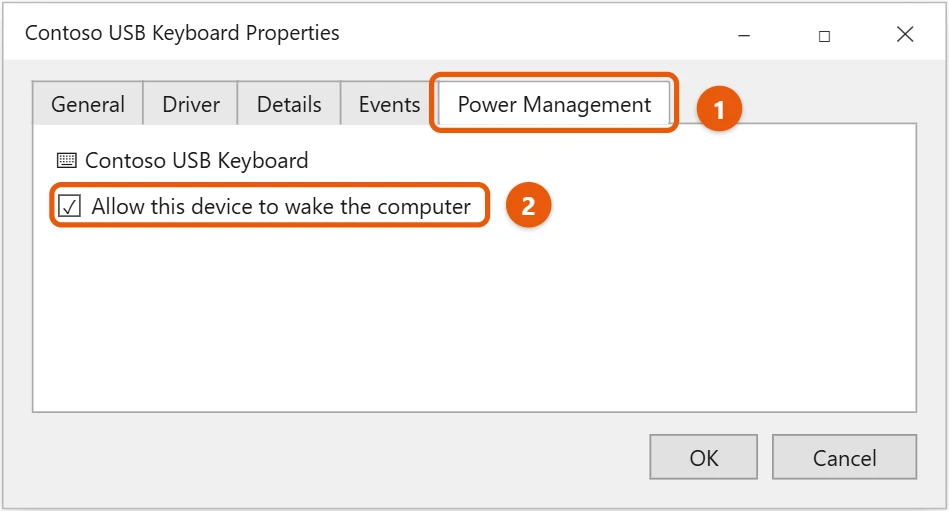
To fix this, right-click on the Start button and select “Device Manager.” In the Device Manager window, expand “Keyboards” and “Mice and other pointing devices.” Right-click on your specific mouse or keyboard, choose “Properties,” and then go to the “Power Management” tab. Make sure the box that says “Allow this device to wake the computer” is checked.

After you complete these steps, your computer should spring back to life, showing your lock screen or desktop, ready for you to continue whatever you were doing. It’s like hitting the play button on a paused video, instantly bringing everything back into view.

Tips for Waking Up Windows 10 from Sleep

  • Always make sure your mouse and keyboard are properly connected. If they’re wireless, check their batteries and ensure the receiver is plugged in correctly. Sometimes the simplest things are the easiest to overlook.
  • Consider updating your device drivers, especially for your graphics card, chipset, and USB controllers. Outdated drivers can sometimes cause strange sleep and wake behaviors, so keeping them up to date is good practice.
  • Disable Fast Startup in your power options. While it’s designed to make your computer boot faster, it can sometimes interfere with sleep mode, leading to wake-up issues.
  • Run the built-in Power Troubleshooter. You can find this by searching for “Troubleshoot settings” in the Start menu, then selecting “Power” and running the troubleshooter. It can often identify and fix common power-related problems automatically.
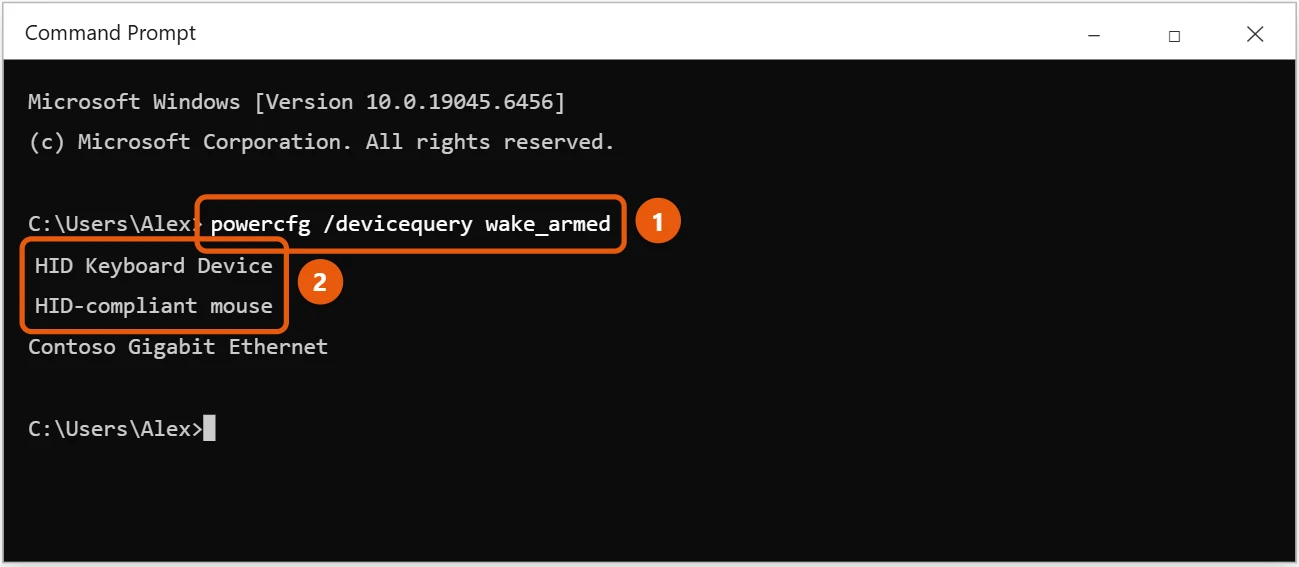
  • If your computer keeps waking up on its own, open Command Prompt as an administrator and type powercfg /lastwake. This command will tell you what device or event last woke your PC, giving you a clue to what might be happening.
  • Check your computer’s BIOS or UEFI settings. Some motherboards have specific settings related to power management and how devices can wake the system. While less common, it’s worth exploring if software solutions don’t work.
  • If all else fails, a full shutdown and restart can often resolve temporary glitches that prevent your computer from waking up correctly. Think of it as a complete refresh for your system.

Frequently Asked Questions

Why won’t my computer wake up when I move the mouse or press the keyboard?

This is a super common question, and it usually boils down to a couple of things. Either the specific settings for your mouse or keyboard in Device Manager aren’t allowing them to wake the computer, or sometimes, outdated drivers for those devices can cause them to be unresponsive after sleep. It’s also possible that your computer’s general power plan settings are preventing any device from waking it up.

Is it bad to press the power button to wake it up?

Absolutely not, as long as you’re doing it correctly. A quick, gentle press of the power button is perfectly fine and designed to wake your computer from sleep or hibernate mode. What you want to avoid is holding the power button down for several seconds, because that forces a shutdown and can lead to data loss if you haven’t saved your work.

What are wake timers, and why do they matter?

Wake timers are scheduled events that tell your computer to wake at a specific time, even if it’s asleep. For example, a scheduled backup or a Windows Update might use a wake timer. They matter because if they’re disabled, your computer might not wake up for these important tasks; if they’re enabled improperly, it might wake up unexpectedly. You can usually manage them in your advanced power settings.

My computer wakes up by itself. Why?

Ah, the mysterious self-waking computer! This can be a bit spooky, but it’s usually due to something benign. Common culprits include wake timers (as we just discussed), network activity (like your computer checking for emails), or even scheduled tasks that Windows runs in the background. Sometimes, even a slight bump or vibration can trigger a sensitive mouse or keyboard. Using the powercfg /lastwake command in Command Prompt can often pinpoint the exact cause.

Should I just shut down my PC instead of using sleep?

That’s a great question, and it really depends on your habits! Sleep mode is fantastic for short breaks because your computer springs back to life almost instantly, letting you pick up right where you left off. It also uses very little power. A full shutdown, on the other hand, is better for longer periods away, or if you’re experiencing strange issues, as it clears the computer’s memory and gives it a fresh start. Both have their place, so use what fits your needs best.

Summary

  1. Move mouse or press any keyboard key.
  2. Quickly press the computer’s power button.
  3. Adjust “Allow wake timers” in advanced power settings.
  4. Enable “Allow this device to wake the computer” in Device Manager for input devices.

Conclusion

Getting your Windows 10 computer to wake up from its slumber should be straightforward, and with the knowledge we’ve covered, you’re now well-equipped to handle any stubborn sleep issues. We’ve explored the most common and intuitive methods, like a simple mouse wiggle or a key tap, which are often all it takes to bring your desktop back to life. Think of these as your first line of defense, the gentle nudge that says, “Hey, it’s time to get back to work!”

But what happens when that gentle nudge isn’t enough? That’s when we graduate to the slightly more assertive, but still perfectly safe, quick press of the power button. It’s your reliable backup, ensuring that your computer doesn’t get stuck in dreamland when you need it most. And for those times when your computer seems to be marching to the beat of its own drum, refusing to wake up consistently, we dove into the deeper configuration options. Adjusting those critical power settings, such as “Allow wake timers,” or ensuring your mouse and keyboard are permitted to rouse the system via Device Manager, gives you ultimate control. These aren’t just technical fixes; they’re about tailoring your PC’s behavior to fit your exact workflow and preferences.

Understanding these steps not only resolves immediate problems but also empowers you to troubleshoot future quirks. A computer that wakes up reliably saves you precious time and frustration, letting you jump straight back into your tasks without delay. Remember, Windows 10 is a powerful and flexible operating system, but sometimes it needs a little guidance from its user to perform optimally. By mastering these techniques for waking up Windows 10 from sleep, you’re not just fixing a minor annoyance; you’re ensuring a smoother, more efficient, and, frankly, less frustrating computing experience. Don’t be afraid to experiment with the settings, always keeping our tips in mind, and you’ll find your Windows 10 machine will be ready to go whenever you are.

Get Our Free Newsletter

How-to guides and tech deals

You may opt out at any time.
Read our Privacy Policy