To back up an iPhone to iCloud, connect to Wi-Fi, open Settings, tap your name, tap iCloud, then tap iCloud Backup. Turn on Back Up This iPhone so your iPhone backs itself up every day, and tap Back Up Now if you want a fresh backup right away. When it finishes, the time of your last successful backup appears under the button.
The steps take less than a minute. The part that trips most people up is storage: every Apple Account gets 5 GB of free iCloud storage, and many iPhones need more than that. This guide covers the setup, how to check that the backup actually worked, and what to do when iCloud reports it’s full.
Applies to: iPhone with iOS 27 or iOS 26 (the steps and labels are the same in both, and the path is the same in iOS 18). The steps match Apple’s iCloud backup support article.
Before you start
Check these four things first. Each one can stop a backup from starting or finishing.
- You’re signed in with your Apple Account. Open Settings. If your name appears at the top, you’re signed in. If you see a prompt to sign in instead, tap it and sign in with the email address or phone number you use for Apple services.
- You’re on Wi-Fi. iCloud backups run over Wi-Fi. Some 5G iPhones can also back up over cellular, which is covered below.
- You have room in iCloud. The free plan is 5 GB, and that space is shared with iCloud Photos, iCloud Drive, iCloud Mail and everything else in iCloud. Your iPhone tells you if a backup won’t fit.
- You have some time. The first backup is the largest and can take a while on a slow connection. Later backups are usually much quicker.
Updating iOS isn’t required to back up, but if a backup keeps failing, install any available update in Settings > General > Software Update.
What an iCloud backup includes
An iCloud backup isn’t a copy of everything you have in iCloud. It’s a copy of the things on your iPhone that don’t already sync to iCloud. Anything that syncs, such as iCloud Photos or Notes stored in iCloud, is already safe in iCloud and isn’t stored a second time in the backup.
| Data | In your iCloud backup? |
|---|---|
| Device settings, Home Screen layout and app organization | Yes |
| App data for apps you downloaded (games, social and messaging apps, and Apple apps that don’t sync with iCloud) | Yes, unless the app stores its data in iCloud Drive |
| Purchased ringtones and your Visual Voicemail password | Yes (Visual Voicemail needs the same SIM or eSIM that was in use during the backup) |
| Apple Watch backup | Yes, as part of the iPhone backup |
| Photos and videos | Only if iCloud Photos is turned off. With iCloud Photos on, they sync to iCloud instead |
| iMessage, SMS and MMS messages | Only if Messages in iCloud is turned off |
| Notes, contacts, calendars and other data that already sync to iCloud | No, they’re already stored in iCloud |
| Gmail, Exchange and other non-Apple cloud data, and Apple Mail data | No |
| Face ID or Touch ID settings, Apple Pay information and settings | No |
| iCloud Music Library, App Store content and offline maps | No (apps and purchases download again from Apple when you restore) |
Between the backup and the data that syncs, everything Apple manages is covered. Two things are worth a quick check, though:
- Chat apps with their own backup. Some messaging apps, such as WhatsApp, keep chat history in a separate backup that you turn on inside the app. Look in that app’s settings for a chat backup option rather than assuming the iPhone backup has it.
- Accounts outside Apple. Email, files or photos stored in Google, Microsoft or other services stay with those services. Signing back in to the app brings them back.
Turn on iCloud Backup
Once this is on, your iPhone backs up by itself. You don’t need to remember to do anything.
- Connect your iPhone to Wi-Fi.
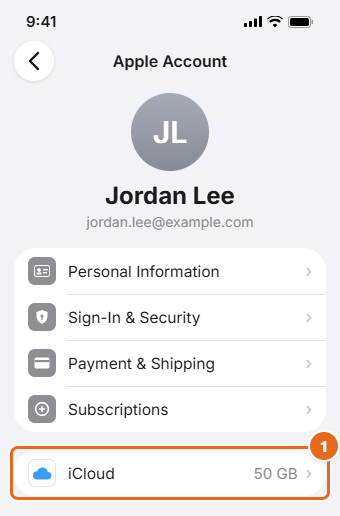
- Open the Settings app and tap your name at the top. The Apple Account screen opens, showing your name and email address.
- Tap iCloud. The number next to it is your total iCloud storage, such as 5 GB or 50 GB.

In Settings, tap your name to open Apple Account, then tap iCloud (1). - On the iCloud screen, tap iCloud Backup. The Backup screen opens.
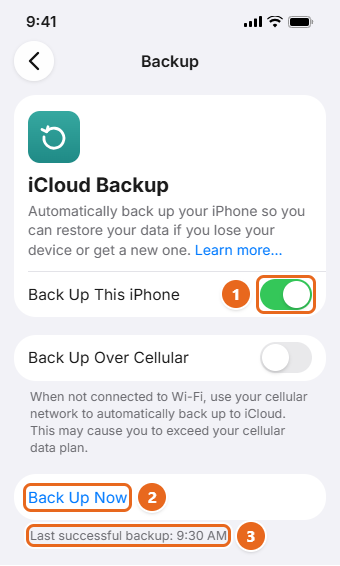
- Turn on Back Up This iPhone. The switch turns green.
- If a message warns that you don’t have enough iCloud storage, follow the onscreen steps to upgrade, or see If you don’t have enough iCloud storage.
From now on, iCloud backs up your iPhone once a day when all three of these are true at the same time:
- The iPhone is connected to power.
- The screen is locked.
- The iPhone is connected to Wi-Fi.
For most people, that happens overnight while the phone charges on the nightstand. If you never charge on Wi-Fi, for example because you only charge in the car, automatic backups won’t run and you’ll need to tap Back Up Now from time to time.
Back up right now
Use Back Up Now before you update iOS, send your iPhone in for repair, erase it, or trade it in. It doesn’t matter whether automatic backups are on.
- Make sure you’re connected to Wi-Fi.
- Go to Settings > your name > iCloud > iCloud Backup.
- Tap Back Up Now. The screen shows the backup’s progress.
- Stay connected to Wi-Fi until the backup finishes. For a long first backup, plug the iPhone into power too so the battery doesn’t run low partway through.
- When it’s done, the Last successful backup time under Back Up Now updates to the time you just finished.

Turn on Back Up This iPhone (1), tap Back Up Now (2), then check the last successful backup time (3).
If an alert warns that there isn’t enough iCloud storage, the backup won’t run until you free up space or upgrade. Follow the onscreen steps, or see the storage section below.
Tip: Wondering how long it will take? There’s no fixed time. It depends on how much new data there is and on your upload speed. A phone that backs up every night may finish in a few minutes, while a first backup of a phone full of videos (with iCloud Photos off) can take hours.
Check that your backup worked
A switch that’s turned on doesn’t prove a backup happened. Check the date every so often, and always before you erase or replace your iPhone.
- Go to Settings > your name > iCloud > iCloud Backup.
- Look at the line under Back Up Now. It shows when the last successful backup finished. If it’s more than a day or two old and automatic backups are on, see Troubleshooting.
- For more detail, tap your iPhone (it’s labeled This iPhone) in the list of backups on the same screen. You’ll see the last backup, the size of the next backup, and the apps whose data is included.
You can also find the same list in Settings > your name > iCloud > Storage (labeled Manage Account Storage on some versions) > Backups. That route also shows backups from your other devices, such as an iPad or an old iPhone.
Back up over cellular instead of Wi-Fi
On iPhone models that support 5G, your carrier may let you back up over your cellular network. If it’s available, you’ll see Back Up Over Cellular on the iCloud Backup screen.
- Go to Settings > your name > iCloud > iCloud Backup.
- Turn on Back Up Over Cellular.
Watch your data plan. The screen itself warns that backing up over cellular may cause you to go over your data plan. A first backup can be several gigabytes. If you have a limited plan, leave this off and back up on Wi-Fi instead.
If you don’t see the switch, your iPhone or carrier doesn’t offer it, and you’ll need Wi-Fi.
If you don’t have enough iCloud storage
When iCloud is full, your iPhone stops backing up. (New photos also stop uploading to iCloud Photos, and iCloud Mail can’t send or receive.) Start by finding out how big the backup is.
- Go to Settings > your name > iCloud. The bar at the top shows how much storage you’ve used and what’s using it.
- Tap Storage or Manage Account Storage, then tap Backups.
- Tap the iPhone you’re using. Next Backup Size shows how much space the next backup needs. It can take a few minutes to calculate.
Then pick one or more of these fixes:
Leave large apps out of the backup
On that same screen, each app is listed with the size of its backup data. Turn off apps you don’t need backed up, such as a game you’ve finished or a streaming app whose downloads you can grab again.
Warning: When you tap Turn Off to confirm, iCloud deletes that app’s existing backup data, not just future backups. Only turn off apps whose data you could live without. Some apps are always backed up and can’t be turned off.
Delete old backups you no longer need
Backups from an iPhone or iPad you sold years ago may still be using space. In Backups, tap the old device, then tap Turn Off and Delete from iCloud and confirm.
Warning: A deleted backup can’t be recovered, and deleting a device’s backup also turns off iCloud Backup for that device. Make sure the device name and date are the ones you mean before you confirm. Never delete the backup for the iPhone you’re trying to protect.
Move photos out of the backup
If iCloud Photos is off, your whole photo library is inside the backup, and it’s usually the largest item. You have two options. Save your photos and videos to a computer and remove them from the iPhone, which makes the backup smaller. Or turn on iCloud Photos, which stores them in iCloud Photos instead of the backup. Either way, look at Photo Library in the backup’s app list to see how much space it takes.
Apple’s Recommended for You section (in Settings > your name > iCloud, on iOS 17 and later) also suggests ways to free up space, such as removing large files or old backups.
Upgrade to iCloud+
If your backup needs more room, a paid iCloud+ plan is the easiest fix. You can upgrade from the iCloud screen in Settings, and you’re billed monthly. US prices from Apple’s pricing page:
| iCloud+ plan | US price per month | Good for |
|---|---|---|
| 50 GB | $0.99 | One iPhone backup plus a modest photo library |
| 200 GB | $2.99 | A large photo library, or sharing with family |
| 2 TB | $9.99 | Several devices and big video libraries |
| 6 TB | $29.99 | Very large libraries |
| 12 TB | $59.99 | Very large libraries shared across a family |
Every paid plan can be shared with up to five other family members through Family Sharing, so one plan can cover a whole household’s backups. Prices outside the US and taxes vary, so check the price shown on your iPhone before you confirm.
Backing up before you switch to a new iPhone
If you’re buying a new iPhone and your old one won’t fit in your iCloud storage, you don’t have to pay for an upgrade just to move your data. Apple offers free temporary iCloud storage for exactly this.
- Update your current iPhone to the latest version of iOS, and make sure you know your Apple Account email or phone number and password.
- On your current iPhone, open Settings and tap General.
- Scroll down and tap Transfer or Reset iPhone.
- Under Prepare for New iPhone, tap Get Started.
- If you see iCloud Backup is Turned Off, tap Turn On Backup to Transfer.
- If your storage is too small, a message tells you you’re eligible for free extra iCloud storage. Tap Continue. If you don’t see that message, you already have enough room.
- Wait for the backup to finish.
You then have 21 days to restore that backup to the new iPhone. If the new phone is delayed, tap Keep My Backup Longer in Settings on the old iPhone for another 21 days. After you restore, the temporary backup stays for 7 days and is then deleted.
Important: Don’t erase your old iPhone until the new one has finished restoring from the temporary backup.
How to restore from an iCloud backup
A backup is only useful if you know how to get it back. You restore an iCloud backup during setup, either on a new iPhone or on one that has been erased.
- Turn on the iPhone and follow the setup steps until you reach Transfer Your Apps & Data. If the iPhone is already set up, it has to be erased first.
- Tap From iCloud Backup and sign in with your Apple Account.
- Check the date and size of each backup and choose the one you want, usually the most recent.
- Sign in again if asked, so your apps and purchases can download.
- Keep the iPhone on Wi-Fi and power until the progress bar finishes. Photos, music and apps keep downloading in the background for a while after setup.
Quick Start and the other setup options are covered in setting up a new iPhone. If you’re erasing your current phone, read resetting an iPhone first so you pick the right kind of reset.
iCloud backup or computer backup?
You don’t have to choose just one, and backing up both ways gives you a spare. Here’s how they compare:
| iCloud backup | Computer backup | |
|---|---|---|
| Where it’s stored | In iCloud, online | On your Mac or Windows PC |
| Space | Your iCloud plan (5 GB free, paid plans up to 12 TB) | Free space on your computer |
| Encryption | Always encrypted | Optional, off by default (Health, Activity and Keychain data are only included when it’s on) |
| Runs automatically | Yes, daily on power, locked and Wi-Fi | Only when you connect and start it |
| Best for | Hands-off, everyday protection | Large libraries without paying for storage, or a second copy |
To back up to a computer, connect your iPhone with a cable. On a Mac, select the iPhone in the Finder sidebar, click General, select Back up all of the data on your iPhone to this Mac, then click Back Up Now. On a Windows PC, use the Apple Devices app (or iTunes on older setups). If you back up to a Windows PC, where iPhone backup files are stored on Windows shows how to find them.
Troubleshooting
“Not enough iCloud storage”
Check Next Backup Size as described in If you don’t have enough iCloud storage, then leave out large apps, delete old backups, move photos out of the backup, or upgrade your plan.
“The last backup could not be completed”
Work through these in order:
- Open Settings > Wi-Fi and confirm you’re connected.
- Go to Settings > General > Software Update and install any update.
- Try backing up on a different Wi-Fi network.
- Make sure you have enough iCloud storage for the next backup.
The backup is taking forever
Confirm you’re on Wi-Fi and check your upload speed, since uploads are often much slower than downloads on home internet. Leave the iPhone connected to power and Wi-Fi for 24 hours. If it still hasn’t finished, save your most important data another way (for example, a computer backup) and try again.
Back Up Now is gray
This usually means the iPhone isn’t on Wi-Fi (and cellular backup is off or unavailable). Connect to Wi-Fi and the button becomes available.
The iCloud Backup option is grayed out
- A restore is still running. The iCloud Backup screen shows that the iPhone is being restored and will back up automatically when it’s done. Wait for the restore to finish.
- A profile restricts backups. Work or school iPhones may have a profile that blocks iCloud Backup. Check Settings > General > VPN & Device Management, and ask whoever manages the device.
Automatic backups don’t happen
If Back Up This iPhone is on but the last backup date is old, one of the three conditions probably isn’t being met. The iPhone has to be charging, locked and on Wi-Fi at the same time. Leave it plugged in and locked on your home Wi-Fi overnight, then check the date in the morning.
How to turn off iCloud Backup or delete a backup
To stop automatic backups, go to Settings > your name > iCloud > iCloud Backup and turn off Back Up This iPhone. Your existing backup isn’t deleted right away. Apple keeps backups for 180 days after you turn off or stop using iCloud Backup, then deletes them.
To delete a backup immediately and free up the space, go to Settings > your name > iCloud > Storage (or Manage Account Storage) > Backups, tap the device, then tap Turn Off and Delete from iCloud and confirm. This can’t be undone. A backup that’s currently being used to restore a device can’t be deleted.
To turn backups back on later, return to the iCloud Backup screen and turn on Back Up This iPhone. iCloud makes a new backup the next time the iPhone is charging, locked and on Wi-Fi, or right away if you tap Back Up Now.
FAQ
How often does iCloud back up my iPhone?
Once a day, whenever the iPhone is connected to power, locked and on Wi-Fi. You can also start one at any time with Back Up Now.
Does iCloud Backup save my photos?
Only if iCloud Photos is turned off. When iCloud Photos is on, your photos and videos sync to iCloud continuously instead of being stored in the backup, so they’re protected either way as long as you have enough storage.
Is my iCloud backup encrypted?
Yes. iCloud backups are always encrypted. Computer backups are only encrypted if you turn on Encrypt local backup.
Can I back up my iPhone to iCloud without Wi-Fi?
Only on 5G iPhones whose carrier offers Back Up Over Cellular. Otherwise you need Wi-Fi, or you can back up to a computer with a cable.
How much iCloud storage do I need?
Check Next Backup Size in Settings > your name > iCloud > Storage > Backups > your iPhone, then add what you use for iCloud Photos, iCloud Drive and Mail. If the total is close to your plan’s limit, pick the next size up so backups don’t stop as your data grows.
If I delete an iCloud backup, do I lose my photos?
Not the ones in iCloud Photos. A backup and iCloud Photos are stored separately, and deleting a backup doesn’t touch iCloud Photos, iCloud Drive, contacts or other synced data. You would lose anything that existed only in that backup, such as photos from a phone that had iCloud Photos turned off.
Can I restore an iPhone backup to an iPad?
Yes, but some things don’t transfer to a different kind of device. Those include photos (unless you use iCloud Photos), messages (unless you sync them with iCloud), Voice Memos and apps that aren’t compatible with the new device.
Do I need to back up if I already use iCloud Photos and iCloud Drive?
Yes. Those services sync your photos and files, but your settings, Home Screen layout, app data and other on-device information are saved only by a backup (iCloud or computer), not by those services.
Now that backups are running, open Settings > your name > iCloud > iCloud Backup tomorrow morning and confirm the last successful backup date has updated. If it has, your iPhone is protected.

Matt Jacobs has been working as an IT consultant for small businesses since receiving his Master’s degree in 2003. While he still does some consulting work, his primary focus now is on creating technology support content for SupportYourTech.com.
His work can be found on many websites and focuses on topics such as Microsoft Office, Apple devices, Android devices, Photoshop, and more.