In Windows 11, you usually don’t need to log in to a separate administrator account. If your own account is an administrator, Windows asks for permission when a task needs it, and you select Yes. To check, open Settings > Accounts > Your info. If you see Administrator under your name, you already have admin rights.
If it shows Standard user, sign in with an account that is an administrator, or ask the PC’s owner to change your account type. Don’t have the administrator’s password yourself? Here’s how to ask the administrator for permission in Windows 11 without sharing their account.
Applies to: Windows 11.
Check whether your account is an administrator
- Press Windows + I to open Settings.
- Select Accounts, then Your info.
- Look under your name. It shows Administrator or Standard user.
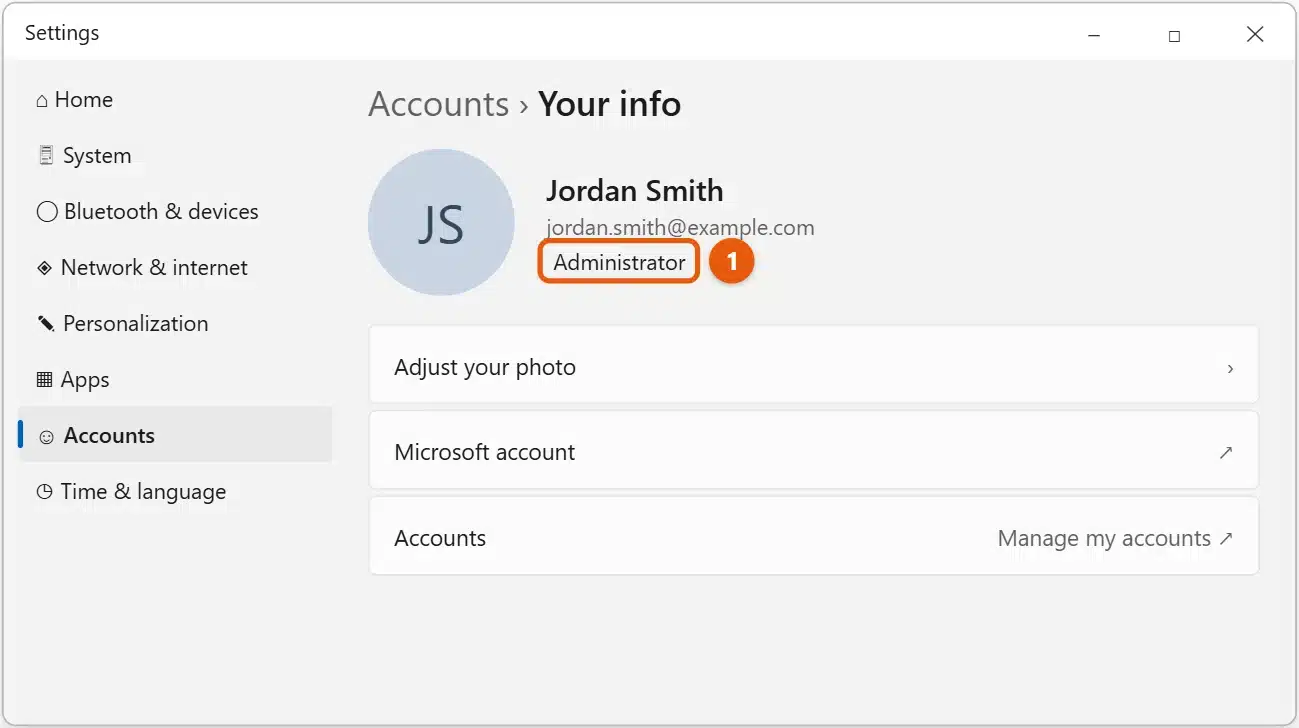
Not sure what you’re looking at? There are more ways to check if you have admin rights on Windows 11.
Sign in with a different administrator account
If someone else’s account on the PC is an administrator:
- Select Start, then your account picture.
- Choose the other account, or select Sign out and pick it on the sign-in screen.
- Sign in with that account’s password or PIN.
You can also stay signed in to your own account. When Windows asks for permission, it lets an administrator type their user name and password in the prompt.
Run an app as administrator
Right-click the app in Start or its shortcut and select Run as administrator, then select Yes. For the command line, right-click Start and choose Terminal (Admin). Both options, along with running Command Prompt as admin, are covered in running apps as administrator in Windows 11.
A few other ways to start something with admin rights:
- From search or Run: type the app’s name in Start search or the Run box (Windows + R), then press Ctrl + Shift + Enter instead of Enter.
- From Task Manager: press Ctrl + Shift + Esc, select Run new task, type the program name, such as
cmd, and check Create this task with administrative privileges. - Every time: right-click the app’s desktop shortcut, select Properties, then Advanced, and check Run as administrator. Only do this for apps that really need it.
Make an account an administrator
You need to be signed in as an administrator to do this.
- Go to Settings > Accounts > Other users.
- Select the account, then select Change account type next to Account options.
- Choose Administrator and select OK.
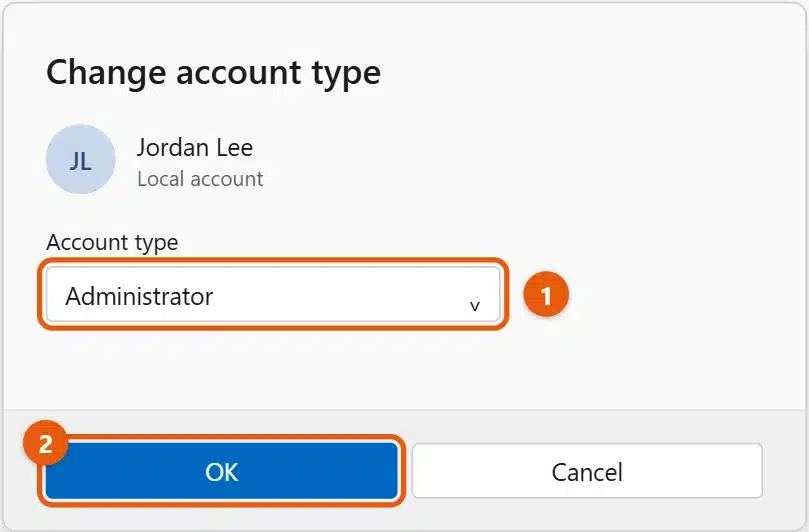
- The person signs out and back in for the change to take effect.
Keep the number of administrators small, because administrators have full control of the PC. For everyday use, a standard account is safer, so only give a user admin rights in Windows 11 when they need them.
Other places to change the account type, if Settings won’t cooperate:
- Control Panel: open User Accounts > User Accounts > Manage another account, select the account, and choose Change the account type.
- netplwiz: press Windows + R, type
netplwiz, and press Enter. Select the account, select Properties, and on the Group Membership tab choose Administrator.
If no one has admin rights
If you’re on a standard account and don’t know an administrator’s password:
- Home PC: ask the person who set up the PC. On a PC that uses a Microsoft account, the account owner can reset the password at Microsoft’s official account site.
- Work or school PC: ask your IT team. Organizations control admin rights on purpose.
Don’t use tools or tricks that claim to give you admin access without permission. They can damage Windows or break your organization’s rules.
A work PC you set up yourself. If you chose to set up the PC for work or school and signed in with your organization’s account, the organization decides who is a local administrator, even if you bought the PC. Commands such as net user fail with “Access is denied” (error 5). Your IT admin can add you as a local administrator for that device; there’s no supported way around it on the PC itself.
About the built-in Administrator account
Windows has a hidden account called Administrator. It’s turned off by default, and Microsoft requires PC makers to keep it turned off, because it skips the usual permission prompts. Most people never need it. If an IT professional needs it for troubleshooting, an existing administrator can turn it on:
- Right-click Start and select Terminal (Admin).
- Run
net user administrator /active:yes. - Set a strong password for it with
net user administrator *. - Sign out, then choose Administrator on the sign-in screen.
When you’re done, sign back in to your normal account and turn it off again with net user administrator /active:no.
In PowerShell, Enable-LocalUser -Name "Administrator" and Disable-LocalUser -Name "Administrator" do the same. On a PC set up in another language, the account has a translated name, such as Administrateur. To find it, run Get-LocalUser | Where-Object SID -like "*-500", which lists the built-in account whatever it’s called. Don’t leave the account turned on, and give it a password while it’s on, because it may not have one.
If you’re an administrator but still get “Access denied”
Being an administrator doesn’t mean every app runs with full rights. Windows starts apps with standard permissions and only raises them when you approve a User Account Control prompt. A few common cases:
- A command fails with “Access is denied” or “requires elevation.” Close the window, right-click Start, choose Terminal (Admin), and run the command again.
- You can’t change files in a system folder. Folders such as Windows and WindowsApps belong to the system on purpose. Changing their ownership can break updates, so copy the file somewhere else instead of forcing access.
- An app shows “This app has been blocked for your protection.” Windows blocked the installer because its publisher couldn’t be verified. Download it again from the official site rather than turning off the protection.
- Your admin account isn’t on the sign-in screen. Select it in the list at the bottom left, or choose Other user and type the account name. A newly turned-on built-in Administrator account only appears after you sign out.
On a work or school PC, these limits are often set by your organization, and only your IT team can change them.
Frequently asked questions
Why does Windows keep asking for permission?
That’s User Account Control. It checks before apps make changes to the PC. As an administrator, you select Yes. As a standard user, you type an administrator’s password.
Can I have more than one administrator?
Yes, but keep it to the people who really need it.
How do I stop being an administrator?
Another administrator can change your account to Standard user with the steps above. There must always be at least one administrator on the PC.
Should I use an administrator account every day?
Many people do, and it’s fine as long as User Account Control stays on. For extra safety, you can do everyday work on a standard account and keep a separate administrator account for installing software and changing settings. Windows will ask for that account’s password when it’s needed.
To set up a new administrator from scratch, use the Create a local user or administrator account in Windows page. If the administrator account uses the wrong email, you can change the administrator email on Windows 11.

Matt Jacobs has been working as an IT consultant for small businesses since receiving his Master’s degree in 2003. While he still does some consulting work, his primary focus now is on creating technology support content for SupportYourTech.com.
His work can be found on many websites and focuses on topics such as Microsoft Office, Apple devices, Android devices, Photoshop, and more.