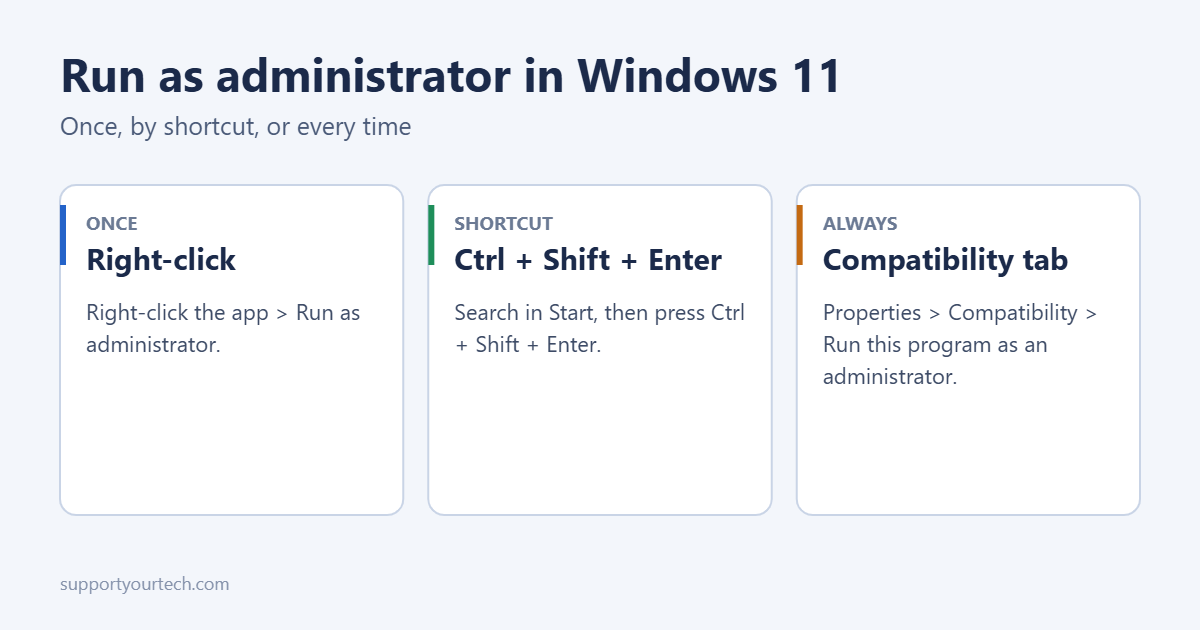
To run a program as administrator in Windows 11, right-click it (in the Start menu, on the desktop or in File Explorer) and choose Run as administrator, then click Yes on the User Account Control prompt. From Start search, you can also select the app and press Ctrl + Shift + Enter. To make a program always open with admin rights, turn on Run this program as an administrator on its Compatibility tab.
What “run as administrator” does
Even on an administrator account, Windows runs programs with standard rights until you approve more. Running as administrator gives that one program permission to change system files, settings and other users’ data. You need it for installers, some troubleshooting tools, system commands and older software that expects full access. If your account isn’t an administrator, Windows asks for an admin password instead. See how to check admin rights.
Method 1: Right-click
- Find the program in Start, on the desktop, or in File Explorer.
- Right-click it and choose Run as administrator. In the Start menu’s All list, it may be under More.
- Click Yes on the User Account Control prompt.
Method 2: Keyboard shortcut from Start
- Press the Windows key and type the program’s name, such as
cmdornotepad. - With it highlighted, press Ctrl + Shift + Enter.
- Press Alt + Y or click Yes on the prompt.
For pinned taskbar apps, hold Ctrl + Shift and click the icon.
Method 3: Always run as administrator
- Right-click the program’s .exe file or shortcut and choose Properties. For a Start menu app, right-click it, choose More > Open file location, then right-click the shortcut.
- On the Compatibility tab, tick Run this program as an administrator. On a shortcut you can also use Shortcut > Advanced > Run as administrator.
- Click OK.
You’ll still see a UAC prompt each time, which is a safety feature. Only set this for programs you trust. For games, see how to run a game as administrator and how to run a Steam game as administrator.
Method 4: Terminal, Command Prompt and PowerShell
- Right-click Start and choose Terminal (Admin).
- Or search
cmdand press Ctrl + Shift + Enter. More options in how to run Command Prompt as admin in Windows 11. - On recent Windows 11 versions, you can turn on sudo in Settings > System > For developers, then run one command with admin rights by typing
sudobefore it. See how to use sudo in Windows 11.
Method 5: Task Manager
Useful when File Explorer or Start isn’t responding. Press Ctrl + Shift + Esc, click Run new task, type the program name (for example regedit), tick Create this task with administrative privileges, and click OK.
Troubleshooting
Run as administrator is missing
Some file types, such as documents, don’t have it. Run the program first as administrator, then open the file from inside it. Microsoft Store apps also don’t offer it in most cases.
Nothing happens after clicking Yes
The program may have opened behind other windows, or it’s blocked by antivirus. Check the taskbar and Windows Security’s Protection history.
No Yes button, only a password box
Your account is a standard user. Enter an administrator’s password, or ask the PC’s owner to change your account type. See how to change the administrator on Windows 11 and how to log in as administrator.
Frequently asked questions
Is it safe to always run programs as administrator?
No. A program with admin rights can change anything on your PC, so a harmful download could do much more damage. Use it only when a program needs it.
What about the built-in Administrator account?
That’s a separate, hidden account. It isn’t needed for running programs as admin. See how to enable the Administrator account in Windows 11.
Summary
- Once: right-click > Run as administrator.
- Faster: search in Start, then Ctrl + Shift + Enter.
- Every time: Properties > Compatibility > Run this program as an administrator.
- Command line: Terminal (Admin), or sudo on newer builds.
Related: how to check if you have admin rights on Windows 11.

Matt Jacobs has been working as an IT consultant for small businesses since receiving his Master’s degree in 2003. While he still does some consulting work, his primary focus now is on creating technology support content for SupportYourTech.com.
His work can be found on many websites and focuses on topics such as Microsoft Office, Apple devices, Android devices, Photoshop, and more.