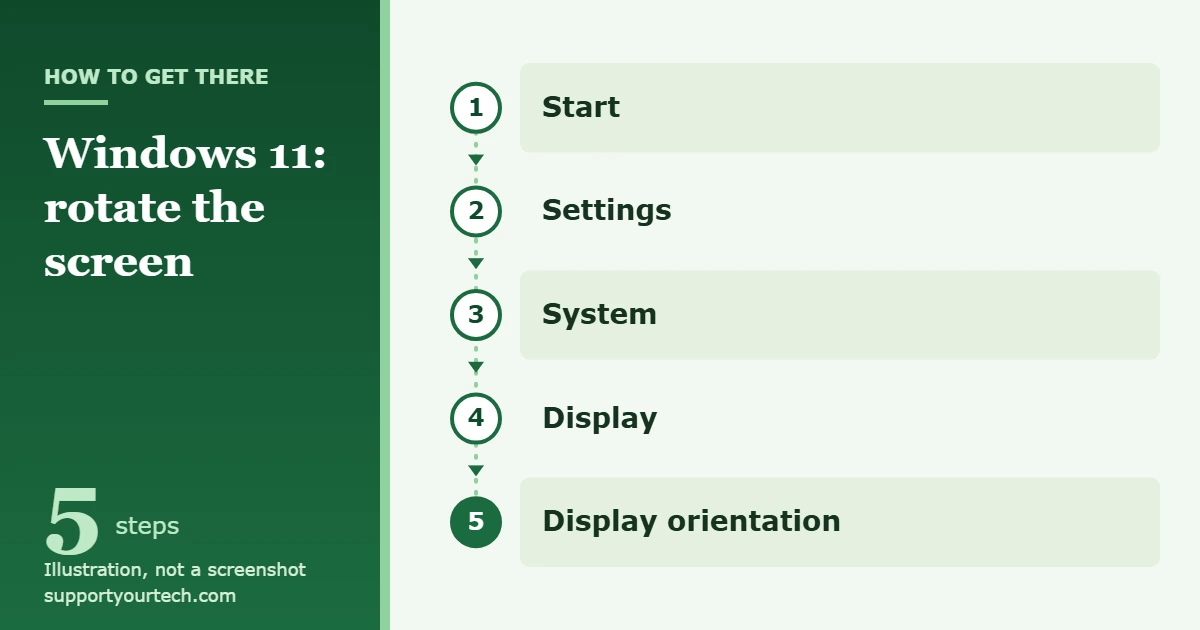
To rotate the screen in Windows 11, select Start > Settings > System > Display, then choose landscape or portrait from the drop-down list next to Display orientation. The same list turns a sideways or upside-down screen back the right way.
Applies to: Windows 11 on desktops, laptops, tablets and 2-in-1 PCs.
Before you start
- You don’t need extra software. Screen rotation is part of Windows 11 Settings, and it works with a built-in laptop screen or an external monitor.
- Know which way you want the picture to face. Landscape is the normal wide view. Portrait is the tall view, which suits a monitor that has been turned on its side for reading long documents, web pages or code.
- Check that your monitor stand can pivot. Windows only turns the picture. If you change the orientation of a monitor, you also need to physically rotate the screen, so make sure the stand or mount allows it and that the cables have enough slack.
- Keep your mouse handy. While the picture is sideways, the pointer moves sideways too. If the screen is already turned the wrong way, tilting your head (or the monitor) to match makes the steps below much easier.
Rotate the screen in Settings
- Select Start, then select Settings. You can also right-click Start and select Settings, or press Windows logo key + I. The Settings window opens.
- Select System, then select Display. The Display page shows your connected screens at the top and the settings for the selected screen below.
- If you have more than one screen, select the display you want to change. Each screen is shown as a numbered box; if you aren’t sure which is which, select Identify and a number appears on each screen.
- Find Display orientation and open the drop-down list next to it. Windows marks the orientation it recommends for that screen.
- Choose the orientation you want: landscape for the normal wide view, or portrait for a tall view. The list also has flipped versions of each, which turn the picture upside down. The picture turns as soon as you choose.
- If Windows asks whether you want to keep the new display setting, confirm it. If you don’t confirm, Windows goes back to the previous orientation by itself, which protects you if the new setting leaves the screen hard to read.
- If you rotated an external monitor, physically turn the monitor to match the new orientation.
The same route is described on Change your screen resolution and layout in Windows.
Fix a screen that is sideways or upside down
A screen that suddenly turns the wrong way is fixed with the same setting. Go to Start > Settings > System > Display, open the list next to Display orientation, and choose landscape, the orientation Windows normally recommends for a standard monitor or laptop screen. Then confirm the change when Windows asks.
If the sideways pointer makes this hard, press Windows logo key + I to open Settings without hunting for the Start button, then move the mouse slowly until you get a feel for which way the pointer travels.
Rotate only one monitor
Orientation is set separately for each screen, so you can keep your main monitor in landscape and turn a second one to portrait. On the Display page, select the display you want to change before you open Display orientation; the choice applies only to the selected screen.
If a monitor you connected doesn’t appear on the page, select Start > Settings > System > Display > Multiple displays > Detect. After rotating a monitor, you may also want to drag its numbered box on the same page so it matches where the monitor sits on your desk, then select Apply. Arranging, extending and duplicating screens are explained in more detail under setting up multiple monitors in Windows 11.
Stop a tablet or 2-in-1 from rotating by itself
Tablets and 2-in-1 PCs can turn the picture automatically when you turn the device. If you’d rather the screen stayed put, for example while reading in bed, hold the device the way you want it and press Windows logo key + O to lock the device orientation. Press it again to let the screen rotate freely.
This only applies to devices that can sense how they are being held. A regular desktop monitor or a standard laptop doesn’t rotate by itself, so on those PCs you use the Settings steps above.
Is there a keyboard shortcut to rotate the screen?
The official Windows 11 steps for changing the screen orientation use the Settings page only, so that is the route to rely on. In the past, some PCs with Intel graphics had rotation hotkeys supplied by Intel’s software rather than by Windows. Intel has removed the rotation setting and the rotation hotkeys from Intel Graphics Command Center version 1.100.4779.0 and newer, and directs people to the Windows screen orientation setting instead. Intel explains the change in Unable to Change the Resolution and Rotation Setting in Intel Graphics Command Center.
In practice, this means a rotation shortcut you remember from an older PC may do nothing on a current one. That is expected, and nothing is broken.
Rotate the screen with NVIDIA Control Panel
If your PC has NVIDIA graphics and NVIDIA Control Panel is installed, you can rotate the screen there as an alternative to Windows Settings.
- Open NVIDIA Control Panel.
- In the navigation pane on the left, under Display, select Rotate display. The rotation page opens.
- If you use more than one display, select the display you want to rotate.
- Choose a rotation. The default is No rotation (Landscape). The other choices are 90 degrees to the left (Portrait), 90 degrees to the right (Inverted Portrait) and 180 degree rotation (Inverted Landscape).
The options are also explained in the Control Panel help for display rotation. Both methods change the same thing, so use whichever you find easier; you don’t need to set it in both places.
Check that it worked, or undo it
You’ll know the change worked when the desktop, taskbar and pointer all face the new direction and Display orientation shows your choice. To undo it, return to Start > Settings > System > Display and choose the previous orientation from the same list. Nothing else on the PC is changed by rotating the screen, so switching back and forth is safe.
Troubleshooting
The wrong screen rotated
The setting applies to whichever display is selected at the top of the Display page. Set the wrong screen back, select Identify to see which number belongs to which screen, select the correct one, and change Display orientation again.
The orientation setting is missing or can’t be changed
Display settings depend on the graphics driver, which is the software that lets Windows talk to your graphics hardware. When display settings behave unexpectedly, check for updated drivers: select Start > Settings > Windows Update > Check for updates, install what is offered, restart the PC and look again.
The screen went back to how it was
This happens when the change isn’t confirmed in time. Choose the orientation again and confirm it when Windows asks.
The picture rotated but looks blurry or doesn’t fill the screen
On the same Display page, check Display resolution and choose the option marked (Recommended). Lower resolutions can look less sharp or leave the picture small, centered or edged with black.
The settings are locked on a work or school PC
Organizations can manage display settings and installed software on the computers they own. If you can’t change the orientation on a work or school device, ask your IT administrator rather than trying to work around it.
Frequently asked questions
Why did my screen turn sideways by itself?
On a tablet or 2-in-1, the device was probably turned and the picture followed it. On other PCs, the orientation setting was changed, sometimes by accident. Either way, set Display orientation back to landscape in Settings > System > Display.
Can I rotate just one of two monitors?
Yes. Select that monitor on the Display page first, then change Display orientation. The other monitor keeps its own setting.
Does rotating the screen change my files or apps?
No. It only changes the direction the picture is drawn. Your files, apps and other settings stay as they are, and you can switch back at any time.
Which orientation should I use for a vertical monitor?
Use portrait. If the picture ends up upside down after you turn the monitor, choose the flipped portrait option instead, because the correct one depends on which direction you pivoted the screen.
I’m on Windows 10. Is it the same?
It’s very similar, with a few differences covered in rotating the screen in Windows 10.
Once your screen faces the right way, open Settings > System > Display one more time and confirm the resolution is set to the recommended option so text stays sharp in the new orientation.

Matt Jacobs writes and maintains the guides on Support Your Tech, which he started in 2017. He spent most of his career keeping small-business PCs running and still takes the occasional consulting job, so the steps here come from fixing the same problems on other people’s computers. Every guide is checked on his own Windows 11, Windows 10, Mac, iPhone and iPad before it goes up.