To calibrate your monitor in Windows 11, select Start > Settings > System > Display > Color profile, choose your monitor, and select Calibrate display. The Display Color Calibration wizard walks you through gamma, brightness, contrast and color balance, then saves the result as a new color profile for that screen. If you have an HDR monitor, Windows sends you to the free Windows HDR Calibration app instead.
Applies to: Windows 11 (versions 24H2 and 25H2). Display Color Calibration also works in Windows 10. The Windows HDR Calibration app needs Windows 11 and an HDR-capable display. The steps match Microsoft’s display brightness and color page.
Which calibration tool should you use?
Microsoft offers three calibration tools for Windows 11 (two are built in, and one is a free app from the Microsoft Store), and each one is for a different kind of screen. A fourth option, a hardware colorimeter, is a separate purchase. Pick the row that matches your setup.
| Your screen | Tool | What it adjusts |
|---|---|---|
| Any standard (SDR) monitor or laptop screen | Display Color Calibration | Gamma, brightness, contrast and color balance, by eye |
| An HDR monitor, or a laptop that supports HDR games and apps | Windows HDR Calibration app (free from the Microsoft Store) | The darkest and brightest details you can see, peak brightness and color saturation |
| A laptop screen that can play HDR video but not HDR games | Display calibration for HDR video, in Settings | The balance between dark and bright detail in streaming HDR video |
| Any screen used for photo, print or video work | A hardware colorimeter and its software | Measured color, white point, gamma and brightness |
The built-in tools rely on your eyes, so they are best at fixing an obvious problem, such as a blue or green tint, a washed-out picture or shadows that turn into solid black. They can’t make two monitors match exactly or guarantee that a photo will print the way it looks on screen. That job needs a colorimeter, covered later in this guide.
If you only want the screen to look warmer, cooler or more vivid and don’t care about accuracy, you don’t need to calibrate at all. For that, changing monitor color in Windows 11 covers Night light, color profiles and the monitor’s own picture settings.
Before you start
A few minutes of preparation makes the result much more reliable. Calibration matches the screen to the conditions you calibrate in, so anything that changes the picture temporarily will be baked into your new profile.
- Let the monitor warm up. Leave it on for about 30 minutes first. Many displays shift slightly in brightness and color while they warm up.
- Use your normal lighting. Calibrate in the room lighting you usually work in, and avoid sunlight falling directly on the screen. The same advice applies to the HDR Calibration app.
- Turn off Night light. Night light warms the screen on purpose. Go to Settings > System > Display and turn it off, and check that a schedule won’t turn it back on halfway through.
- Turn off automatic brightness changes on laptops. On the Display page, select Brightness and set Change brightness based on content to Off, if your PC has it. This feature changes brightness and contrast depending on what is on screen, which defeats calibration.
- Reset the monitor’s picture settings. If your monitor has an on-screen menu, write down your current settings (or photograph the menu), then choose the factory default or standard picture mode. Turn off dynamic contrast, eco or eye-care modes and low blue light modes.
- Use the native resolution. Make sure Display resolution on the Display page shows the setting marked (Recommended).
- Clean the screen. Dust and smudges make the fine test patterns harder to judge.
- Have an administrator account ready. Windows may ask for administrator approval before it saves a new calibration.
Method 1: Calibrate with Display Color Calibration
Display Color Calibration is the classic Windows wizard, sometimes called by its file name, dccw.exe. It shows a series of test images and asks you to change settings until each one looks right. Some adjustments use sliders in the wizard. Brightness and contrast use the buttons on your monitor, because Windows can’t change those settings on most external monitors.
Open the calibration wizard
- Select Start > Settings, or press Windows key + I.
- Select System > Display.
- Under Brightness & color, select Color profile. The Color management page opens.
- At the top of the page, use the drop-down next to Select a display to change its settings to choose the monitor you want to calibrate.
- Under Color calibration, select Calibrate display. The Display Color Calibration window opens. If Windows asks for permission, select Yes.
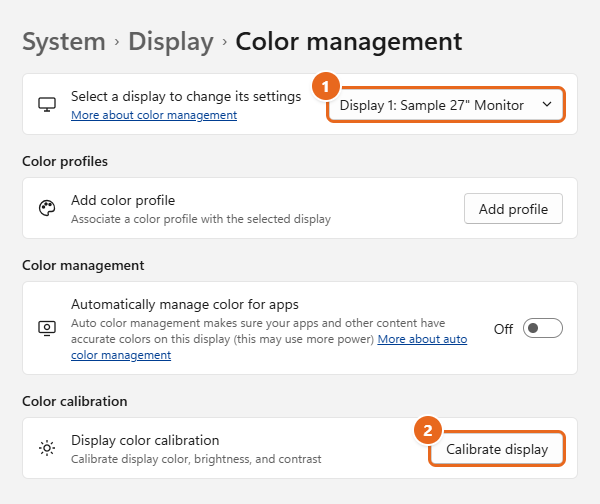
There are two faster ways to open the same wizard:
- Select Start, type
calibrate display color, and select Calibrate display color in the results. - Press Windows key + R, type
dccw, and press Enter.
On older Windows 11 builds that don’t have a Color profile page, open Color Management from the Start menu, select the Advanced tab, and select Calibrate display.
Work through the wizard
- Move the window to the right screen. If you have more than one monitor, drag the wizard onto the monitor you want to calibrate before you select Next. Windows creates the new profile for whichever display the window is on.
- Reset the monitor if you haven’t already. The next screen reminds you to set your monitor’s color settings to the factory defaults. Do that with the monitor’s buttons, then select Next.
- Study the gamma examples. Gamma controls how quickly the screen moves from dark to light, which affects how mid-tones such as skin and shadows look. The wizard shows a picture with gamma too low, one that is just right, and one too high. Note what the correct example looks like, then select Next.
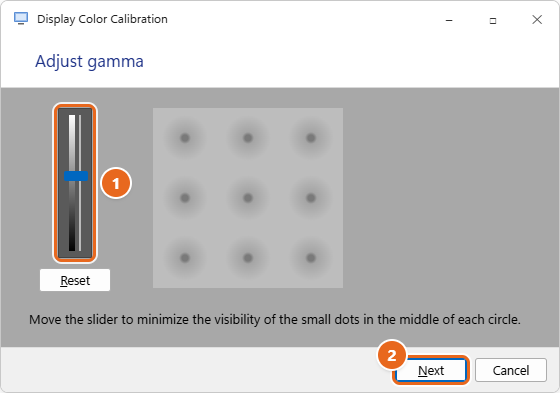
- Adjust gamma. Drag the slider on the left up or down until the small dots in the middle of each circle are as faint as you can get them. Lean back a little and squint if it helps. Select Reset to return to the starting point, or Next when the circles look even.

Drag the gamma slider (1) until the dots in the circles are as hard to see as possible, then select Next (2). - Decide about brightness and contrast. The wizard asks you to find your monitor’s brightness and contrast controls. If your screen has none, as on most laptops, select Skip brightness and contrast adjustment and go to step 8. Otherwise, select Next.
- Adjust brightness. After the example screen, you’ll see a picture of a man in a dark suit and shirt against a wall with an X on it. Use the brightness control on your monitor until you can tell the shirt from the suit and the X is only just visible. Select Next.
- Adjust contrast. On the next test image, raise the contrast on your monitor as high as it will go while you can still see the wrinkles and buttons on the shirt. If those details disappear into white, turn the contrast back down a little. Select Next.
- Read the color balance example. The wizard shows gray bars that are correct and bars with a color tint. Select Next.
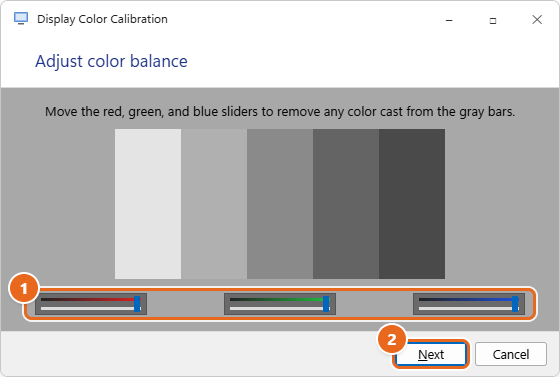
- Adjust color balance. Move the red, green and blue sliders at the bottom until all the bars look neutral gray, with no hint of pink, green or blue. Small movements make a big difference, so if one color is too strong, it often works better to lower that slider than to raise the other two.

Move the red, green and blue sliders (1) until every bar looks neutral gray, then select Next (2). - Compare and save. On the last screen, select Previous calibration and Current calibration a few times to compare the old and new looks. Select Finish to save the new calibration, or Cancel to keep the old one.
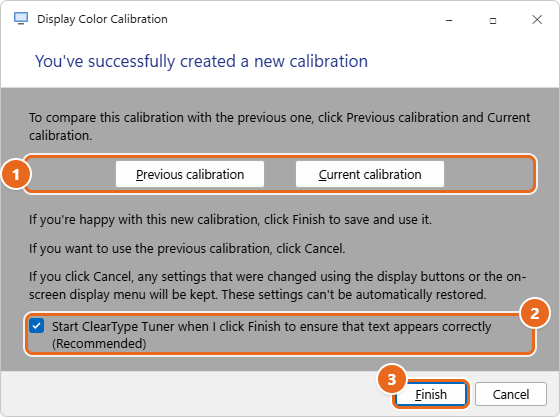
Before you select Cancel, note that it only discards the changes made inside Windows. Brightness and contrast you changed with the monitor’s buttons stay as they are, and you’ll need to put them back yourself.
What happens when you select Finish
Windows saves your adjustments as a new color profile, an .icm file that describes how your screen shows color, and sets it as the default for that monitor. You can see it on the Color profile page. Profiles are stored in C:\Windows\System32\spool\drivers\color.
If Start ClearType Tuner when I click Finish is checked, the ClearType Text Tuner opens next. It is optional and only affects how text is drawn. It shows a few text samples and asks you to pick the clearest one on each screen. Uncheck the box if you don’t want to do it now.
Method 2: Calibrate an HDR display with the Windows HDR Calibration app
HDR (high dynamic range) displays can show much brighter highlights and a wider range of colors than standard screens. The classic wizard isn’t designed for that, so Microsoft makes a separate app. On an HDR-enabled external display, Calibrate display prompts you to use this app instead of the wizard.
The app needs:
- Windows 11 and an HDR-capable display, built-in or external.
- HDR turned on in Settings > System > Display > HDR.
- The app running full screen.
- A newer graphics chip for the color saturation step: AMD RX 400 series or later (or AMD Ryzen processors with Radeon Graphics), Intel 11th Gen integrated graphics or later (or Intel DG1 or later), or NVIDIA GTX 10-series or later.
- A display driver at WDDM 2.7 or later. Install the latest updates from Settings > Windows Update or your graphics card maker.
- Install Windows HDR Calibration from the Microsoft Store.
- Turn on HDR: select Start > Settings > System > Display, select your HDR display, and turn on Use HDR. Also turn on HDR in the monitor’s own menu if it has a separate setting.
- Turn off post-processing effects in the monitor’s menu, such as dynamic contrast or a vivid picture mode, if you can. The app may not work as expected with them on.
- Select Start > All apps > Windows HDR Calibration. If you have more than one monitor, make sure the app is on the HDR display.
- Work through the three test patterns. On each one, drag the slider until the pattern is no longer visible. These tests find the darkest detail you can see, the brightest detail, and the maximum brightness of your display.
- On the color saturation screen, drag the slider from left (less saturated, the default) toward the right if you want more vivid colors. Go easy: too much makes HDR content look unnatural. The change may be subtle on some displays.
- Compare the before and after views, then finish. The app saves the result as a color profile for that display.
HDR-certified displays usually look good without calibration, but the app is still worth running. Run it again whenever you change your setup, such as adding or replacing a monitor.
Method 3: Calibrate a laptop screen for HDR video
Some laptops can play streaming HDR video but don’t support HDR games and apps. To check, open Settings > System > Display > HDR and look under Display capabilities. If HDR video streaming, games, apps and more shows Not supported, use this method instead of the HDR Calibration app. It only works on built-in screens.
- Select Start > Settings > System > Display.
- Make sure your built-in display is selected at the top of the page.
- Select HDR, then select Calibrate next to Display calibration for HDR video. The Calibrate your display screen opens full screen, showing buildings and a snowy mountain.
- Drag the slider at the bottom. Move it right to bring out detail in the snow, or left to bring out detail in the buildings. Aim for a balance where you can see both.
- Select Exit full screen in the lower-right corner.
- Play an HDR video in a streaming app. If bright scenes look washed out, calibrate again and move the slider right. If dark scenes lack detail, move it left.
To go back to the original setting, select Restore default under Display calibration for HDR video.
When a hardware colorimeter is worth it
Every built-in Windows tool depends on how you see the test images. Your eyes adapt to the room and to the screen itself, so two people can calibrate the same monitor and get different results. That’s fine for fixing a tint, but it isn’t a measurement.
A colorimeter is a small sensor that hangs over the front of the screen. Its software displays a series of color patches, measures what the screen actually produces, and builds a color profile from the readings. It can also set a specific white point (often D65, about 6500K, for web and video work) and a target brightness. Calibrite and Datacolor are two well-known makers. Expect to pay from roughly $150 to several hundred dollars, depending on the model and whether it handles HDR brightness levels.
A colorimeter is worth buying if you:
- Edit photos for print or for clients, and need screen and print to match.
- Grade video or design work where brand colors have to be exact.
- Use two or more monitors side by side and want them to match closely.
- Have a monitor whose colors drift noticeably over time.
It’s probably not worth it for gaming, browsing, office work or watching video. For those, the built-in tools, or choosing your monitor’s sRGB or standard picture mode, will get you close enough.
If you do use a colorimeter, follow its software’s instructions instead of Display Color Calibration. Don’t run the Windows wizard afterward, because it would replace the measured profile with a by-eye one. The colorimeter’s profile appears in the Color profile list, where you can set it as the default. Some higher-end monitors support hardware calibration, which stores the result inside the monitor itself; check your monitor maker’s support page to see whether yours does.
How to undo a calibration
Calibration never changes your photos or files, only how the screen displays them. To go back to how the screen looked before:
- Select Start > Settings > System > Display > Color profile.
- Select the monitor in the drop-down at the top.
- In the Color profiles list, select the profile you used before (often the one named after your monitor model) and select Set profile to make it the default.
- To delete the calibrated profile, expand it and select Remove.
- Use your monitor’s menu to restore the brightness and contrast values you wrote down, or use its reset option.
You can also remove profiles in the older Color Management tool: select Start, type color management, open it, select the All Profiles tab, select the profile and select Remove. Use this route to remove a profile created by the HDR Calibration app.
Troubleshooting
Calibrate display opens the HDR Calibration app instead of the wizard
This is expected on an external display with HDR turned on. Use the HDR app, or turn off Use HDR for that display if you want to calibrate it for standard content with Display Color Calibration.
Windows warns that the display uses a wide-gamut color profile
Some users with wide-gamut monitors report a message that the wizard will create a profile with a conventional gamut, which may not suit the display. If you see it, check whether the monitor maker offers a profile for your model, or switch the monitor to its sRGB mode before you calibrate. For accurate results on a wide-gamut screen, a colorimeter is the better choice.
There’s no Color profile option in Settings
Install the latest updates in Settings > Windows Update. Until then, open the wizard with dccw or through Color Management in Control Panel as described in Method 1.
The calibration looks wrong after you finish, or seems to disappear
- Check that Night light isn’t on or scheduled.
- Check that the right monitor is selected on the Color profile page, and that the calibrated profile is set as the default for it.
- Close any monitor or graphics card app that applies its own color settings, then check again.
- If the monitor itself was reset or its picture mode changed, the profile no longer matches the screen. Restore your settings and calibrate again.
Laptop colors keep shifting
Set Change brightness based on content to Off under Brightness on the Display page. If the brightness itself is the issue rather than color, change the brightness in Windows 11 instead.
The screen still looks yellow after calibrating
A yellow tint is usually Night light or a monitor mode rather than a calibration problem. Work through our steps to fix a yellow screen on Windows 11.
The Windows HDR Calibration app won’t run or the saturation slider does nothing
Make sure HDR is on, the app is full screen, and your graphics card and driver meet the requirements in Method 2. Update the graphics driver, then try again.
Windows asks for an administrator password
Saving a calibration can require administrator approval. Sign in with an administrator account, or ask whoever manages the PC. On a work or school PC, display settings may be locked by your organization.
FAQ
How often should I calibrate my monitor?
For everyday use, calibrating once when you set up the monitor and again every few months is plenty. Recalibrate sooner if you move the monitor to a room with different lighting, change its picture mode, or notice a tint. Photographers and video editors using a colorimeter often recalibrate monthly.
Can I calibrate a laptop screen?
Yes. Display Color Calibration works on built-in screens. Most laptops don’t have separate brightness and contrast controls for the wizard, so select Skip brightness and contrast adjustment and adjust gamma and color balance only.
Do I need to calibrate each monitor separately?
Yes. Each display gets its own profile. Run the wizard once for each monitor, moving the window onto that monitor each time.
Does calibration affect screenshots or files I share?
No. Calibration changes how your screen displays colors. It doesn’t change the colors stored in your images, screenshots or documents.
Will calibrating improve games?
It can fix a tint or crushed shadows. For HDR games, the Windows HDR Calibration app is the better tool. Its three test patterns follow recommendations from the HDR Gaming Interest Group (HGIG).
Is the monitor’s sRGB mode a good alternative?
Often, yes. Many monitors include an sRGB mode that is set at the factory. On a reasonably good monitor it can look more accurate than a by-eye calibration. Try it first, and calibrate on top of it only if you still see a tint.
Does Display Color Calibration work in Windows 10?
Yes. The wizard is the same. Open it by searching for calibrate display color from Start or running dccw.
Once your colors look right, check that your monitor is using its full refresh rate as well; changing the refresh rate in Windows 11 shows where to set it. The full HDR requirements are in Microsoft’s guide to calibrating an HDR display with the Windows HDR Calibration app.

Matt Jacobs has been working as an IT consultant for small businesses since receiving his Master’s degree in 2003. While he still does some consulting work, his primary focus now is on creating technology support content for SupportYourTech.com.
His work can be found on many websites and focuses on topics such as Microsoft Office, Apple devices, Android devices, Photoshop, and more.