To check whether Windows 10 is 32-bit or 64-bit, select Start > Settings > System > About. Under Device specifications, look at System type. It shows 64-bit operating system or 32-bit operating system, and it also tells you what kind of processor you have.
Applies to: Windows 10.
Check in Settings
- Select Start > Settings (or press Windows logo key + I).
- Select System, then scroll down and select About.
- Under Device specifications, read System type.
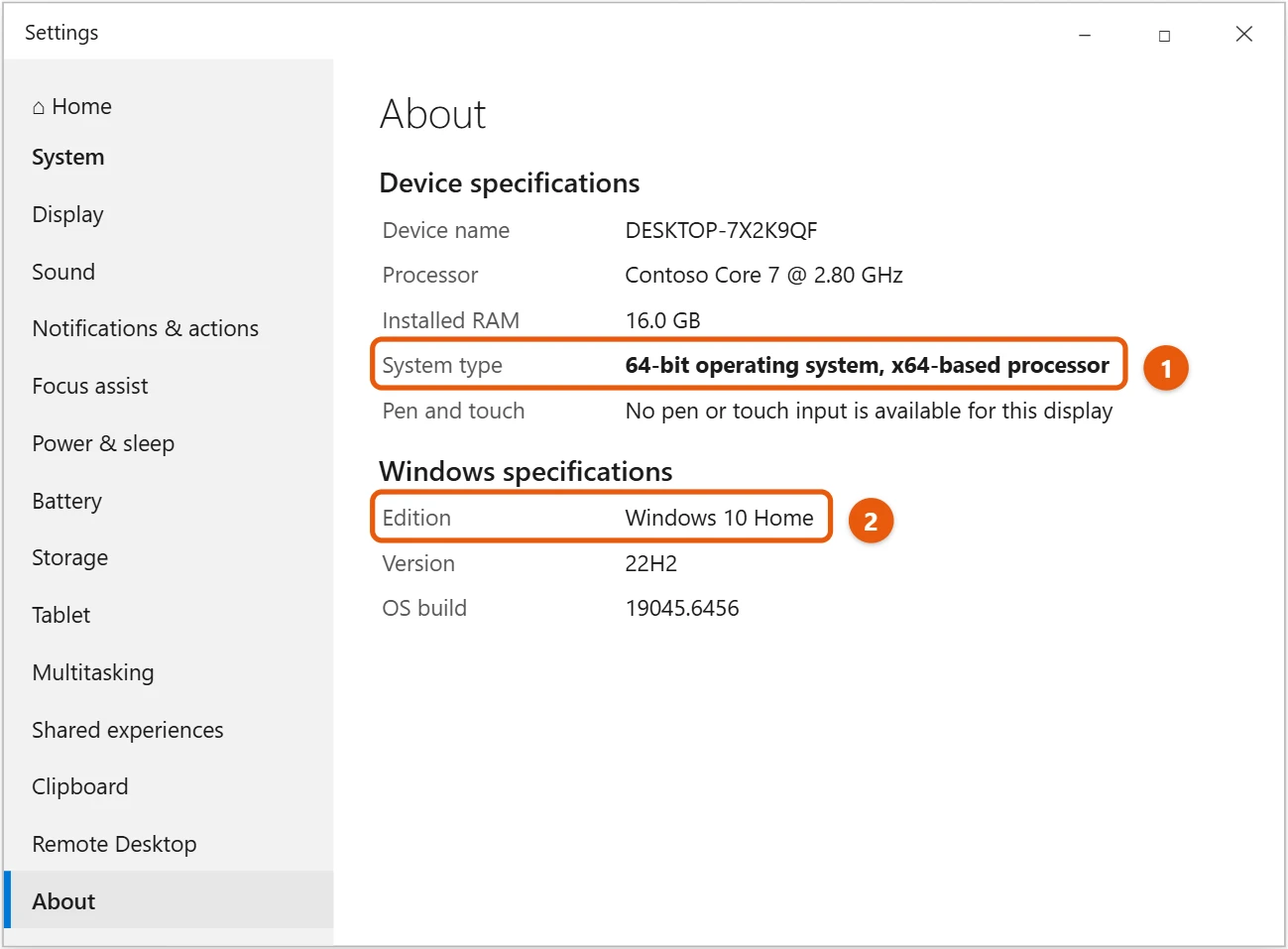
You can also press Windows logo key + Pause/Break, or right-click Start and select System, to go straight to this page.
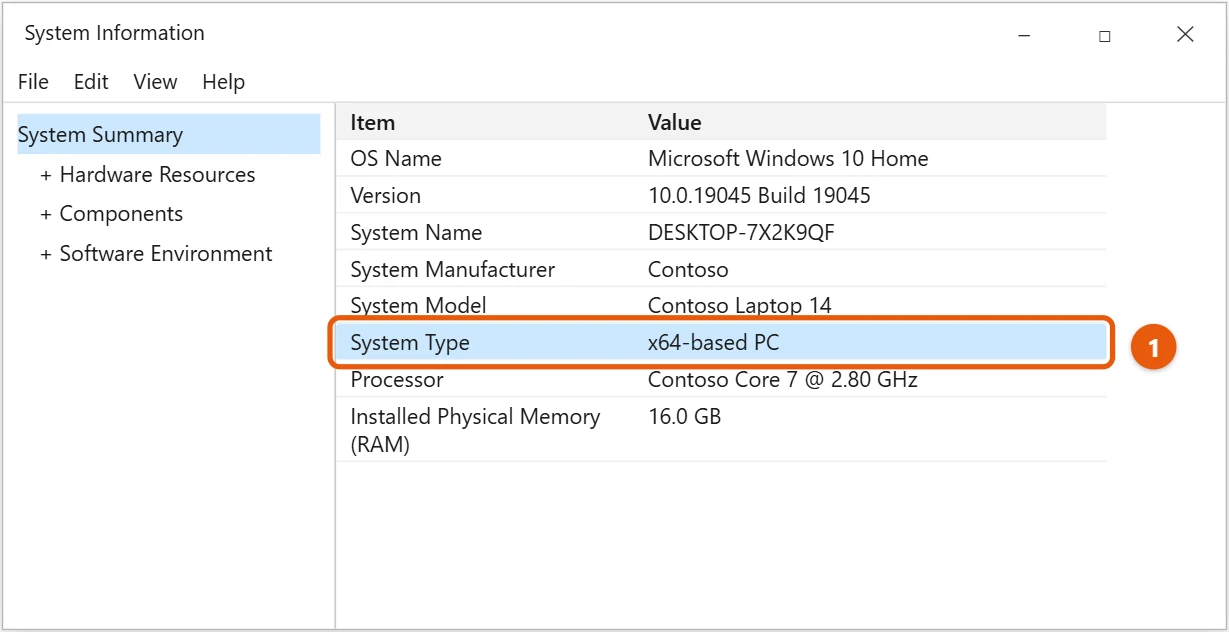
Check in System Information
- Select Start, type System Information, and open it. (Or press Windows logo key + R, type
msinfo32, and press Enter.) - With System Summary selected, find System Type in the list on the right.
Other quick ways to check
- File Explorer: open This PC > Local Disk (C:). If you see both Program Files and Program Files (x86), Windows is 64-bit. A 32-bit system has only Program Files.
- PowerShell: right-click Start, select Windows PowerShell, and run [Environment]::Is64BitOperatingSystem. True means 64-bit, False means 32-bit.
- Command Prompt: run systeminfo and look for System Type. x64-based PC means 64-bit Windows, and X86-based PC means 32-bit.
What the results mean
| System type shows | What it means |
|---|---|
| 64-bit operating system, x64-based processor | You have 64-bit Windows. This is the usual setup. |
| 32-bit operating system, x64-based processor | Windows is 32-bit, but the processor can run 64-bit Windows. |
| 32-bit operating system, x86-based processor | Both are 32-bit. The PC can’t run 64-bit Windows. |
64-bit Windows can use more than 4 GB of RAM and runs both 64-bit and most 32-bit apps. When a download page asks which version you need, pick the one that matches your system type.
Can I change from 32-bit to 64-bit?
Only with a clean install, and only if the processor is x64-based. Moving from 32-bit to 64-bit means reformatting the drive, installing 64-bit Windows, and reinstalling your apps. Back up your files first. Windows 11 is 64-bit only, so a 32-bit PC can’t upgrade to Windows 11.
If the result looks confusing
- It shows 32-bit operating system, x64-based processor. Your hardware can run 64-bit Windows, but 32-bit Windows is installed. You can switch with a clean install, as described above.
- It shows ARM-based processor. Your PC uses an ARM chip, like some thin laptops. Pick ARM64 downloads when they’re offered. Windows 10 on ARM can also run 32-bit (x86) apps, but not 64-bit (x64) ones.
- An app insists it needs 64-bit, but you have it. You may have downloaded the 32-bit installer by mistake. Go back to the download page and pick the x64 or 64-bit version.
Frequently asked questions
Is x64 the same as 64-bit?
Yes. x64 means 64-bit. x86 means 32-bit.
How do I see my other PC specs?
The same About page shows your processor, RAM, and device name. For a fuller list, check your PC specs in Windows 10.
How do I check my Windows 10 version?
Scroll down to Windows specifications on the same page. What each line means is covered in checking your Windows 10 version.
How much RAM can 32-bit Windows use?
Up to 4 GB, and usually only about 3 to 3.5 GB of that is available. 64-bit Windows 10 Home can use up to 128 GB.
Should I install 32-bit or 64-bit apps?
On 64-bit Windows, pick the 64-bit version when there’s a choice. It can use more memory and often runs faster. Use the 32-bit version only if an older add-on or plug-in needs it.
Do new PCs ever come with 32-bit Windows?
No. Starting with Windows 10, version 2004, Microsoft stopped giving 32-bit Windows 10 to PC makers, so new PCs come with 64-bit Windows. Windows 11 doesn’t have a 32-bit version at all.
Does 32-bit Windows 10 still get updates?
It follows the same schedule as 64-bit Windows 10. Free updates ended on October 14, 2025, and Extended Security Updates cover both versions.
More background is in 32-bit and 64-bit Windows: Frequently asked questions.

Matt Jacobs has been working as an IT consultant for small businesses since receiving his Master’s degree in 2003. While he still does some consulting work, his primary focus now is on creating technology support content for SupportYourTech.com.
His work can be found on many websites and focuses on topics such as Microsoft Office, Apple devices, Android devices, Photoshop, and more.