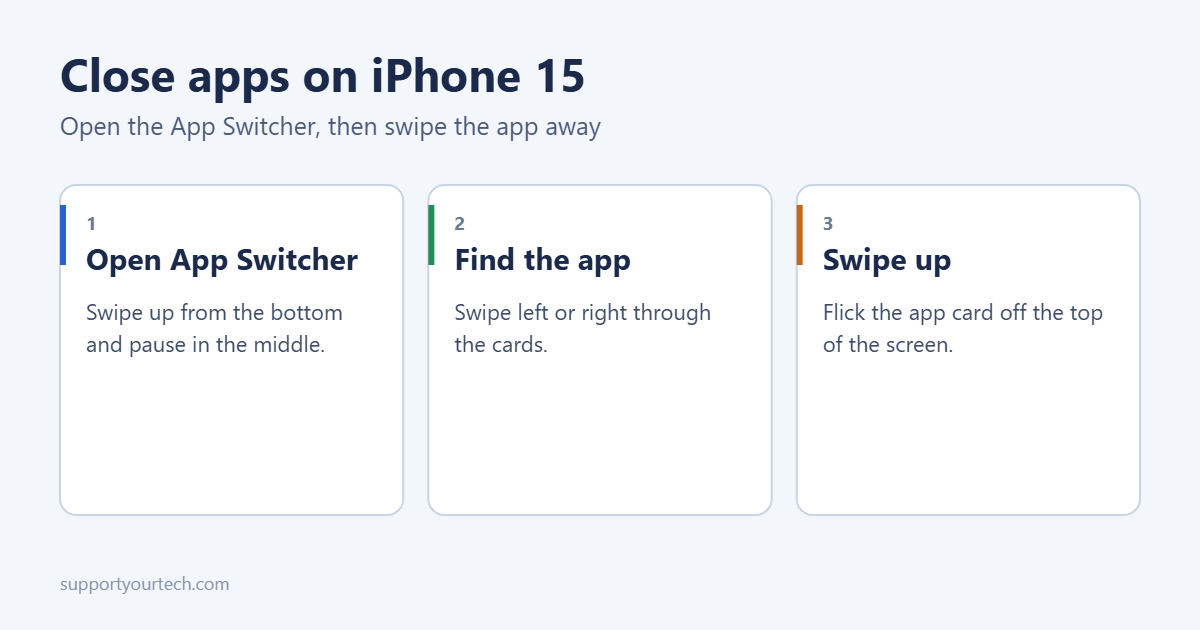
To close an app on iPhone 15, swipe up from the bottom of the screen and pause in the middle until the App Switcher appears, swipe left or right to find the app, then swipe its card up and off the top of the screen. The app closes completely. You only need to do this when an app is frozen or misbehaving, though. iOS manages background apps on its own, and closing them routinely doesn’t save battery.
Close one app
- From the Home Screen or inside any app, swipe up from the very bottom edge and hold your finger in the middle of the screen for a moment.
- Let go when you see the app cards.
- Swipe left or right to find the app you want to close.
- Swipe the app’s card up off the top of the screen.
Tap any empty area or swipe up from the bottom again to return to the Home Screen.
Close several apps at once
In the App Switcher, place two or three fingers on different app cards and swipe them up together. There’s no “close all” button on iPhone, so this is the fastest way.
Should you close apps at all?
Apple’s advice is to force close an app only if it’s unresponsive. Apps in the App Switcher are mostly suspended and don’t use battery or processing power. Reopening a closed app from scratch takes more power than resuming it, so constant closing can slightly reduce battery life.
Close an app when:
- It’s frozen or won’t respond to taps.
- It shows the wrong content or won’t load until restarted.
- It’s playing audio or using location and you want it to stop.
Stop apps working in the background
If an app uses battery or data in the background, change its permissions instead of closing it repeatedly:
- Background App Refresh: Settings > General > Background App Refresh. Turn it off for individual apps.
- Location: Settings > Privacy & Security > Location Services. Set apps to While Using the App or Never.
- Battery usage: Settings > Battery shows which apps used the most power.
Live Activities and the Dynamic Island
Timers, rides, sports scores and music can stay in the Dynamic Island and on the Lock Screen even after you close the app. To end one, touch and hold it in the Dynamic Island and tap the stop button, or swipe it left on the Lock Screen and tap Clear. See how to use the Dynamic Island on iPhone 15.
If an app still won’t close or the iPhone is frozen
Force restart the iPhone 15: press and release volume up, press and release volume down, then press and hold the side button until the Apple logo appears. Your data isn’t affected. More in how to restart iPhone 15.
If one app keeps crashing, update it in the App Store, or offload and reinstall it. See how to offload apps on iPhone.
Troubleshooting
The App Switcher won’t open
Start the swipe from the very bottom edge, below the screen’s home bar line, and pause in the middle. If Reachability opens instead, you swiped down; try again.
The app reopens to the same screen
Many apps save their state and restore it on launch, even after being closed. That’s normal.
Frequently asked questions
Is this the same on iPhone 15 Pro and other models?
Yes. All iPhones with Face ID use the same swipe-up gesture. iPhones with a Home button double-press the Home button to open the App Switcher.
How do I clear all apps for a fresh start?
Restart the iPhone. It closes everything properly. A full erase is only needed when selling the phone; see how to erase and factory reset an iPhone 15.
Summary
- Swipe up from the bottom and pause to open the App Switcher.
- Swipe an app card up to close it.
- Use two or three fingers to close several at once.
- Close apps only when they misbehave; iOS manages the rest.

Matt Jacobs has been working as an IT consultant for small businesses since receiving his Master’s degree in 2003. While he still does some consulting work, his primary focus now is on creating technology support content for SupportYourTech.com.
His work can be found on many websites and focuses on topics such as Microsoft Office, Apple devices, Android devices, Photoshop, and more.