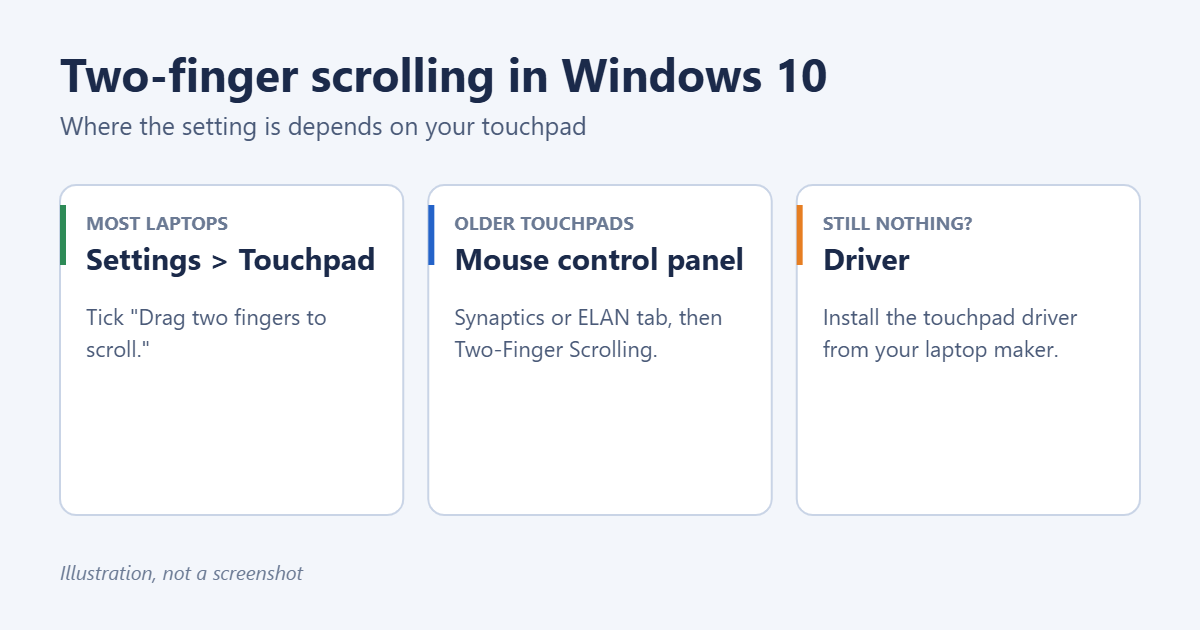
To turn on two-finger scrolling in Windows 10, open Settings > Devices > Touchpad and tick Drag two fingers to scroll. That works on most laptops made in the last several years, which have what Microsoft calls a precision touchpad. Older laptops with Synaptics or ELAN touchpads keep the option in the classic Mouse control panel instead. If you can’t find it in either place, the touchpad driver usually needs updating. Here’s how to handle each case.
Method 1: Settings (precision touchpads)
- Press Windows + I to open Settings.
- Click Devices, then Touchpad on the left.
- Under Scroll and zoom, tick Drag two fingers to scroll.
- Optional: use the Scrolling direction drop-down to choose whether moving your fingers down scrolls the page down or up.
The change takes effect immediately. Put two fingers on the touchpad and slide up, down, left, or right to scroll.
Not sure which touchpad you have? At the top of the Touchpad page, Windows says Your PC has a precision touchpad if it does. If you don’t see that line or the scroll options, use Method 2.
Method 2: Mouse control panel (Synaptics, ELAN, and others)
- In Settings, go to Devices > Mouse and click Additional mouse options on the right. Or search the Start menu for Mouse settings or Control Panel > Mouse.
- In the Mouse Properties window, look for a tab named after your touchpad, such as Device Settings, ELAN, ClickPad, or Touchpad.
- Select the touchpad and click Settings or Options.
- Find the scrolling section, often under Multi-Finger Gestures or Scrolling, and tick Two-Finger Scrolling (wording varies by manufacturer).
- Click Apply and OK.
Some laptops have their own touchpad app instead, such as Dell Peripheral Manager or Lenovo Vantage. Search the Start menu for your laptop brand if the Mouse Properties window has no touchpad tab.
Method 3: Update or reinstall the touchpad driver
If the scroll option is missing from both places, Windows may be using a basic driver that doesn’t support gestures.
- Go to your laptop manufacturer’s support website, enter your model or serial number, and download the latest touchpad driver for Windows 10.
- Run the installer and restart.
- Check Methods 1 and 2 again.
You can also try Windows Update’s optional drivers: Settings > Update & Security > Windows Update > View optional updates > Driver updates. See how to update all drivers on Windows 10.
Other touchpad settings worth checking
- Reverse scrolling: if the page moves the opposite way from what you expect, change the scrolling direction. See how to reverse scroll direction in Windows 10.
- Touchpad sensitivity: in Settings > Devices > Touchpad, adjust Touchpad sensitivity if scrolling triggers by accident or doesn’t register.
- Pinch to zoom: in the same section, tick Pinch to zoom to zoom with two fingers.
- Three- and four-finger gestures: further down the same page, set swipes to switch apps or show the desktop.
Troubleshooting
The touchpad doesn’t respond at all
It may be switched off. Many laptops toggle the touchpad with an Fn key combination or a small light in the corner of the touchpad. Also check the Touchpad switch at the top of the Settings page. See how to turn the touchpad on or off in Windows 10.
Scrolling works in some apps but not others
Some older programs don’t support touchpad scrolling well. Make sure the window you want to scroll is active by clicking inside it first.
Scrolling is too fast or too slow
For mouse wheels and many touchpads, go to Settings > Devices > Mouse and change Choose how many lines to scroll each time. Precision touchpads may also follow this setting.
Frequently asked questions
Does this work on Windows 11?
Yes, but the setting is under Settings > Bluetooth & devices > Touchpad > Scroll & zoom.
Can I add two-finger scrolling to a touchpad that doesn’t support it?
Usually only with the manufacturer’s driver. Unofficial drivers exist for some hardware, but they can cause problems and aren’t recommended.
Why did two-finger scrolling stop working after an update?
A Windows update may have replaced the manufacturer’s touchpad driver with a generic one. Reinstall the driver from the manufacturer’s website.
Summary
Go to Settings > Devices > Touchpad and tick Drag two fingers to scroll. If it isn’t there, look in the Mouse control panel’s touchpad tab, and if it’s in neither, install the touchpad driver from your laptop’s manufacturer.

Matt Jacobs has been working as an IT consultant for small businesses since receiving his Master’s degree in 2003. While he still does some consulting work, his primary focus now is on creating technology support content for SupportYourTech.com.
His work can be found on many websites and focuses on topics such as Microsoft Office, Apple devices, Android devices, Photoshop, and more.