To turn the touchpad on or off in Windows 10, select Start > Settings > Devices > Touchpad, and switch Touchpad to On or Off. Many laptops also have a key that does the same thing.
Applies to: Windows 10. Checked against Microsoft Support on September 25, 2026.
Turn the touchpad on or off in Settings
- Select Start > Settings > Devices > Touchpad.
- Switch Touchpad to Off to turn it off, or On to turn it back on.
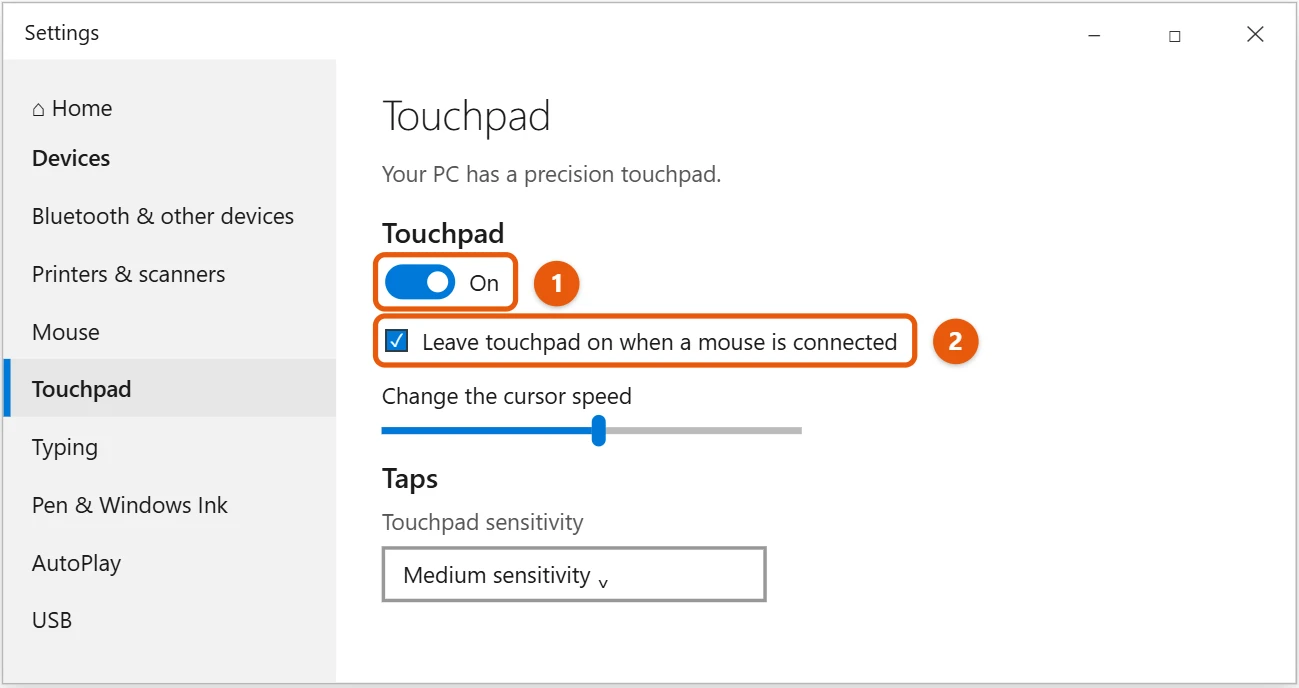
To turn it off only while a mouse is plugged in, leave Touchpad on and clear Leave touchpad on when a mouse is connected.
If you don’t see the Touchpad switch, your laptop doesn’t have a precision touchpad. Use your laptop’s key or Device Manager instead.
Tip: If the touchpad is off and you have no mouse, press the Windows logo key, type touchpad, and press Enter. Then press Tab until the switch is selected and press Spacebar.
Use your laptop’s touchpad key
Many laptops have a key with a touchpad icon, usually one of the F keys. Press it, or hold Fn and press it. If your touchpad stopped working suddenly, this key is the most common cause. Check your laptop maker’s manual for the exact key.
Turn the touchpad off in Device Manager
- Right-click Start and select Device Manager.
- Expand Human Interface Devices or Mice and other pointing devices.
- Right-click your touchpad and select Disable device, then select Yes.
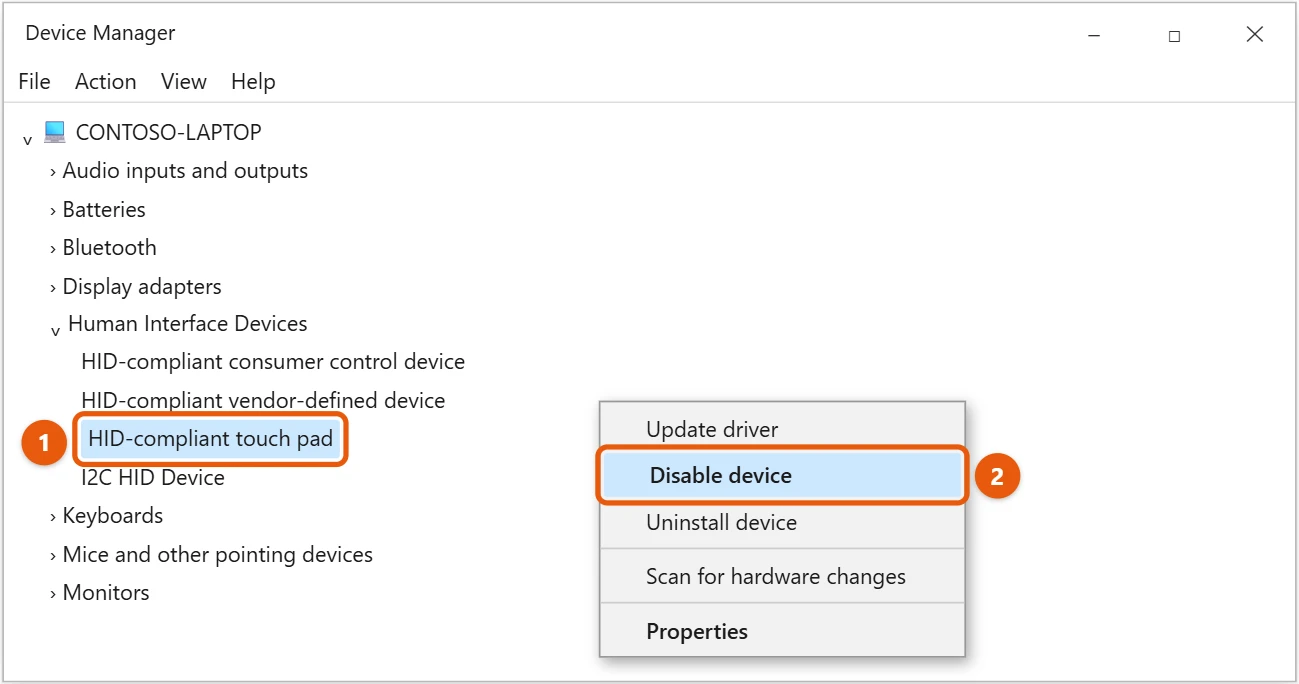
To turn it back on, right-click it again and select Enable device. The name varies, such as HID-compliant touch pad. Don’t disable devices you aren’t sure about, or you could turn off your mouse or keyboard too.
If the touchpad won’t turn back on
- Check the touchpad key and the Touchpad switch above.
- Restart your PC.
- Update or reinstall the touchpad driver from your laptop maker’s website. See how to update all drivers on Windows 10.
Frequently asked questions
How do I change touchpad scrolling or sensitivity?
Use the same Touchpad page. See how to reverse scroll direction in Windows 10 and how to change mouse sensitivity in Windows 10.
Can I turn off the touch screen instead?
Yes. See how to turn off the touch screen in Windows 10.
On a Windows 11 laptop, see how to right-click on a laptop in Windows 11.
Microsoft’s guides are Touch gestures for Windows and Fix touchpad problems in Windows. More help is on our Windows Help & Guides page.
Related: how to enable two-finger scrolling in Windows 10.

Matt Jacobs has been working as an IT consultant for small businesses since receiving his Master’s degree in 2003. While he still does some consulting work, his primary focus now is on creating technology support content for SupportYourTech.com.
His work can be found on many websites and focuses on topics such as Microsoft Office, Apple devices, Android devices, Photoshop, and more.