You don’t need to install curl on Windows 10. It’s built in on version 1803 and later. Open Command Prompt and type curl –version to check. If you see a version number, curl is ready to use. In Windows PowerShell, type curl.exe instead of curl.
Applies to: Windows 10 version 1803 and later. Checked against Microsoft on September 28, 2026.
Check that curl is there
- Select Start, type cmd, and open Command Prompt.
- Type curl –version and press Enter.
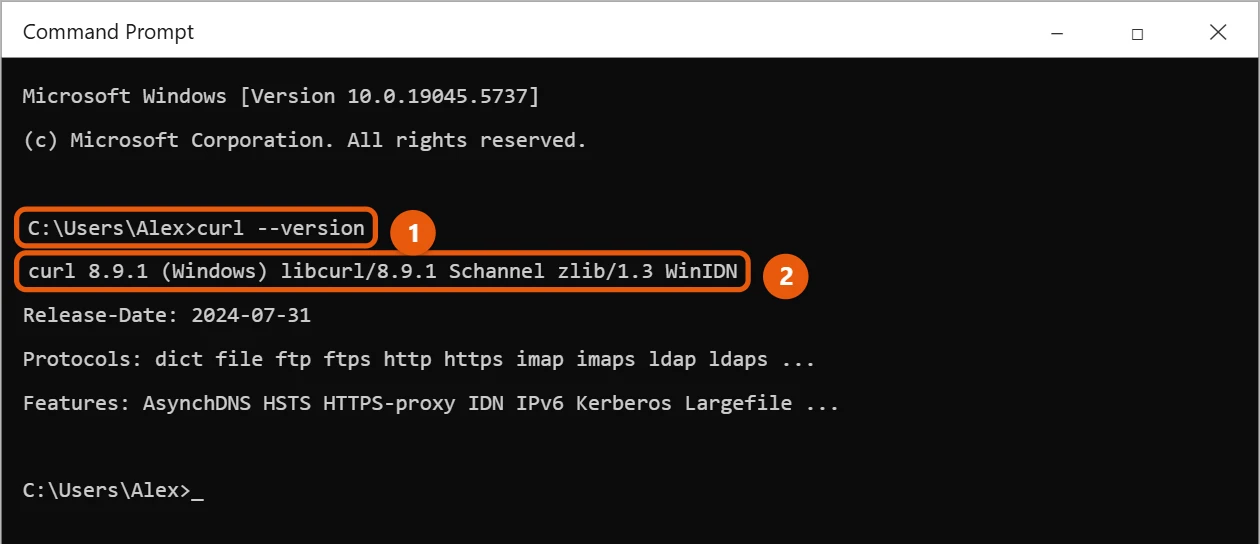
If you see “curl is not recognized,” your Windows 10 is older than version 1803. Install the latest updates from Settings > Update & Security > Windows Update, then try again.
For more ways to open it, see how to open Command Prompt in Windows 10.
Try a simple command
- curl https://www.example.com shows the web page’s code in the window.
- curl -o page.html https://www.example.com saves it as a file in the folder you’re in.
- curl -I https://www.example.com shows only the response headers, which is handy for checking that a site is up.
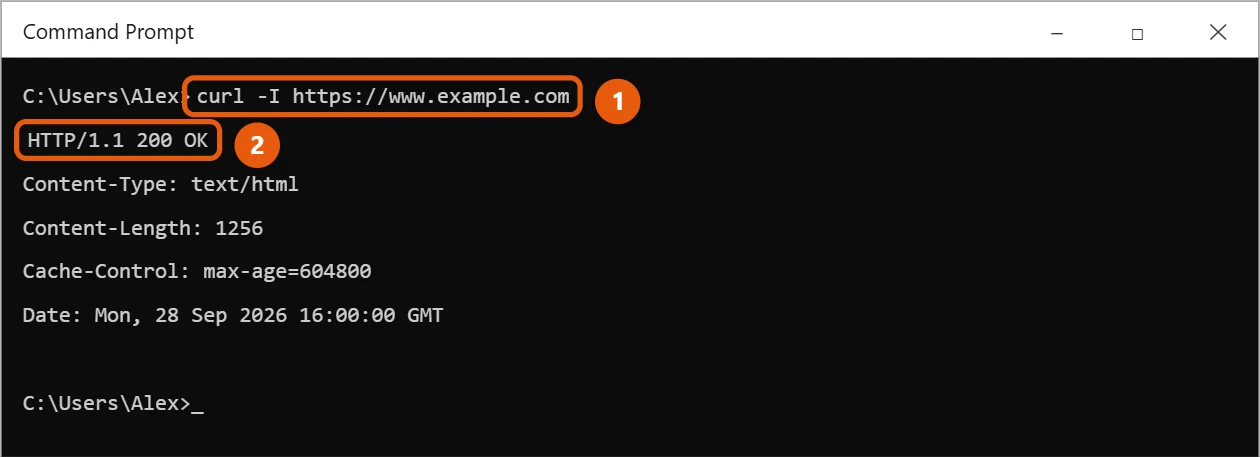
To test a connection another way, see how to check ping in Windows 10.
More useful curl options
-Osaves a download with its original file name, for examplecurl -O https://www.example.com/file.zip.-Lfollows redirects. Many download links redirect, so add it if you get an empty or tiny file.-C -resumes a download that stopped partway.-vshows every step of the connection, which helps when something fails.
Send data to a web API
Online examples are often written for Mac or Linux and use single quotes, which Command Prompt doesn’t understand. On Windows, use double quotes and put a backslash before any double quote inside the data:
curl -X POST -H "Content-Type: application/json" -d "{\"name\":\"test\"}" https://www.example.com/api
For longer data, save it in a file such as data.json and use -d @data.json instead. Linux examples also split long commands with a backslash at the end of a line; in Command Prompt, use ^ instead.
Check a site’s status or upload a file
- To see just the status code, such as 200 for OK or 404 for not found, type
curl -s -o NUL -w "%{http_code}" https://www.example.com. The-o NULpart throws away the page itself. - To upload a file to a form that accepts files, use
-F, for examplecurl -F "[email protected]" https://www.example.com/upload. Only send files to sites you trust.
Using curl in PowerShell
In Windows PowerShell, curl is a shortcut for a different command (Invoke-WebRequest), so the options above won’t work. Type curl.exe to run the real curl, for example curl.exe –version.
If curl shows an error
- curl: (6) Could not resolve host: check the address for typos and make sure the PC is online.
- curl: (60) or another certificate error: a work network or security app may be inspecting secure traffic. Ask your IT team. Don’t turn off certificate checks except for quick tests on sites you trust.
- It works on one network but not at work: your organization may use a proxy. Add
--proxywith the address IT gives you. - A command copied from a guide fails: check the quotes and line breaks as described above.
Frequently asked questions
Where is curl on my PC?
It’s in C:\Windows\System32\curl.exe. Windows updates it along with the rest of Windows.
Should I download curl from another website?
You don’t need to. The built-in copy works for most tasks, and Windows keeps it updated.
Is wget built into Windows 10 too?
No. Only curl is built in. In Windows PowerShell, typing wget runs Invoke-WebRequest instead, just like curl does. Use curl.exe -O to download files the way wget would.
Do I need administrator rights to use curl?
No. Any account can run curl. You only need an admin window if you save files to protected folders, such as Program Files.
Is curl also in Windows 11?
Yes. Windows 11 includes curl too, and the commands in this guide work the same way there.
How do I update curl?
Windows Update keeps the built-in curl up to date, so install updates as usual. The version may be a little older than the newest release, which is fine for everyday use.
Microsoft’s reference is Tar and Curl Come to Windows! More help is on our Windows Help & Guides page.

Matt Jacobs has been working as an IT consultant for small businesses since receiving his Master’s degree in 2003. While he still does some consulting work, his primary focus now is on creating technology support content for SupportYourTech.com.
His work can be found on many websites and focuses on topics such as Microsoft Office, Apple devices, Android devices, Photoshop, and more.