To fix Calculator in Windows 10, go to Settings > Apps > Apps & features, select Calculator, then Advanced options, and select Repair or Reset. If Calculator is missing, open the Microsoft Store, search for Windows Calculator, and select Get or Install. It’s free.
Applies to: Windows 10. Checked against Microsoft Support on September 28, 2026.
Repair or reset Calculator
Try this first if Calculator won’t open or keeps closing.
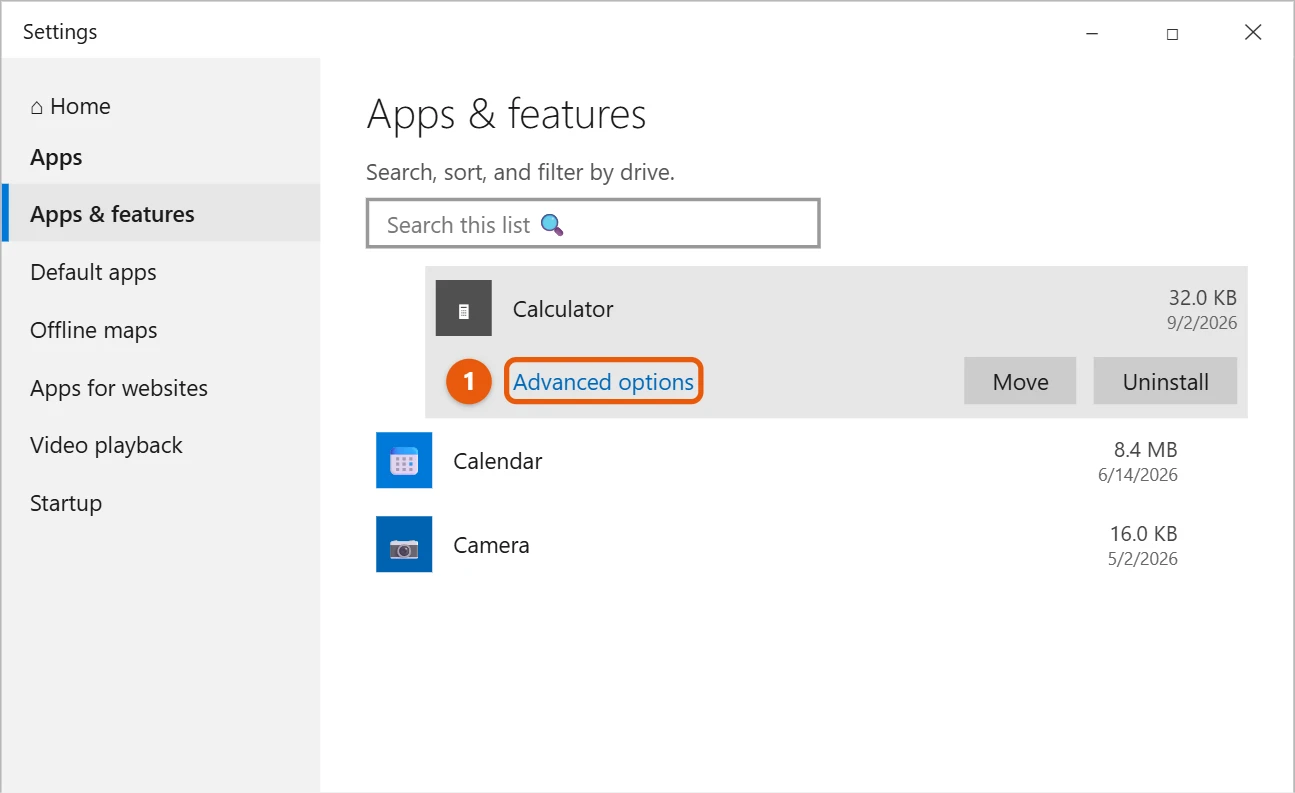
- Select Start > Settings > Apps > Apps & features.
- Find Calculator in the list, select it, and select Advanced options.
- Select Repair. If that doesn’t help, select Reset.
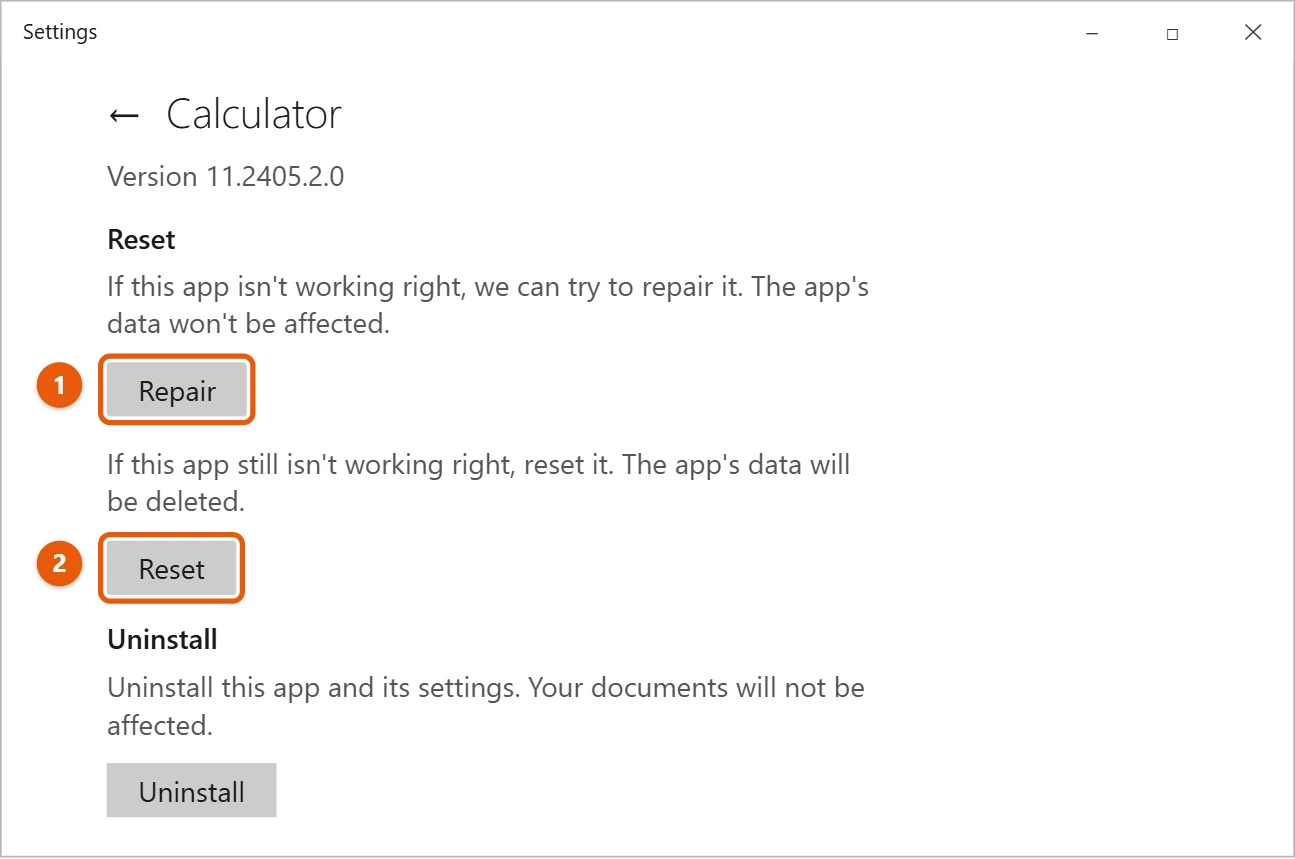
Reset clears Calculator’s history and saved settings. It doesn’t touch your files.
Reinstall Calculator from the Microsoft Store
Use this if Calculator isn’t on your PC anymore, or if repair and reset didn’t work.
- If Calculator is still listed in Apps & features, select it and select Uninstall.
- Open the Microsoft Store from the Start menu.
- Search for Windows Calculator and select it.
- Select Get or Install.
To open Calculator quickly, press Windows key + R, type calc, and press Enter.
After reinstalling: useful Calculator features
Select the menu button (three lines) at the top left to switch modes:
- Standard for everyday sums. Select Keep on top to pin a small Calculator window over other apps.
- Scientific for powers, roots, trigonometry and logs.
- Graphing to plot equations, added in a 2020 update.
- Programmer for binary, hex and bitwise operations.
- Date calculation to count the days between two dates, or add days to a date.
- Converters for currency, length, weight, temperature, time and more.
Select the clock icon to see your history. Calculator keeps it until you clear it or reset the app. To find Calculator faster next time, right-click it in Start and select Pin to taskbar.
Reinstall Calculator with a command
If the Store app won’t cooperate, use PowerShell or Command Prompt instead.
- Re-register it (fixes a damaged install without downloading): open PowerShell as an administrator and run
Get-AppxPackage *WindowsCalculator* | Foreach {Add-AppxPackage -DisableDevelopmentMode -Register "$($_.InstallLocation)\AppXManifest.xml"}. - Install it with winget: run
winget install 9WZDNCRFHVN5 --source msstoreand accept the terms. That ID is Windows Calculator’s Microsoft Store listing.
Troubleshooting
- Calculator opens and closes right away. Press Windows + R, type
services.msc, and make sure Windows License Manager Service isn’t disabled. Then sign out and back in. - The Store says the app can’t be installed. Run
wsreset.exeto clear the Store cache, check for Windows updates, and try again. - Calculator is blocked on a work PC. Your organization may remove built-in apps. Ask your IT team.
- Calculator shows the wrong number format. It follows your region settings. Check Settings > Time & Language > Region.
Frequently asked questions
Is there a Calculator download outside the Store?
Use the Microsoft Store. Calculator downloads from other websites can come with unwanted software.
What if the Microsoft Store won’t open either?
See how to fix apps not opening in Windows 10. Your work or school may also block the Store. If so, ask the person who manages the PC.
Where can I learn more about managing apps?
See how to install apps in Windows 10, how to uninstall programs and how to clear app data.
How do I open Calculator quickly?
Press Windows + R, type calc, and press Enter. Some keyboards also have a Calculator key.
Can I get the old Windows 7 Calculator back?
Not officially. The classic version isn’t supported on Windows 10, and downloads from other sites can bundle unwanted software. The current Calculator includes the same modes and more.
Does Calculator need the internet?
No, except for the currency converter, which downloads current exchange rates. Everything else works offline.
Can I use keyboard shortcuts in Calculator?
Yes. Type numbers and operators on the keyboard, press Enter for equals and Esc to clear. Press Alt + 1 for Standard and Alt + 2 for Scientific mode.
Is Calculator the same on Windows 11?
Yes. It’s the same app with the same modes, and the repair and reinstall steps work the same way.
Microsoft’s references are Repair apps and programs in Windows and Fix problems with apps from Microsoft Store. More help is on our Windows Help & Guides page.

Matt Jacobs has been working as an IT consultant for small businesses since receiving his Master’s degree in 2003. While he still does some consulting work, his primary focus now is on creating technology support content for SupportYourTech.com.
His work can be found on many websites and focuses on topics such as Microsoft Office, Apple devices, Android devices, Photoshop, and more.