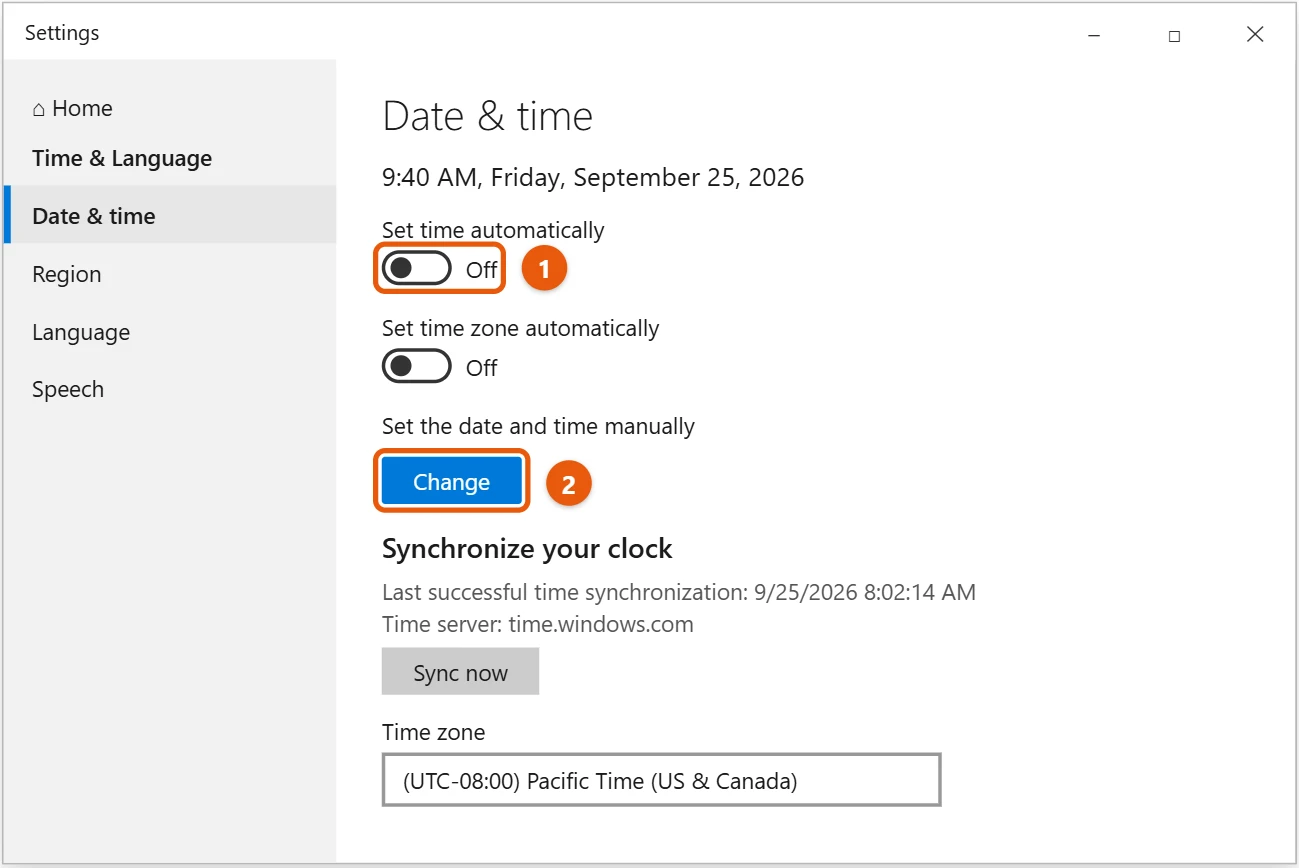
To change the date and time in Windows 10, select Start > Settings > Time & Language > Date & time. Turn off Set time automatically, then select Change under Set the date and time manually. Pick the new date and time and select Change.
Most people should leave Set time automatically on. Windows then keeps the clock right by itself.
Applies to: Windows 10. Changing the time needs an administrator account. Checked against Microsoft Support on September 25, 2026.
Change the date and time in Settings
- Right-click the clock on the taskbar and select Adjust date/time. Or go to Start > Settings > Time & Language > Date & time.
- Turn off Set time automatically.
- Under Set the date and time manually, select Change.
- Set the date and time, then select Change.
If the time is off by exactly one or more hours, the time zone is probably wrong. See how to change the time zone in Windows 10.
Sync the clock with an internet time server
- Go to Settings > Time & Language > Date & time.
- Turn on Set time automatically.
- Under Synchronize your clock, select Sync now. You’ll see the last successful sync time and the server, usually
time.windows.com.
Change the date and time in Control Panel
- Press Windows + R, type
timedate.cpl, and press Enter. - On the Date and Time tab, select Change date and time.
- Set the date and time and select OK.
Change the time server
- In
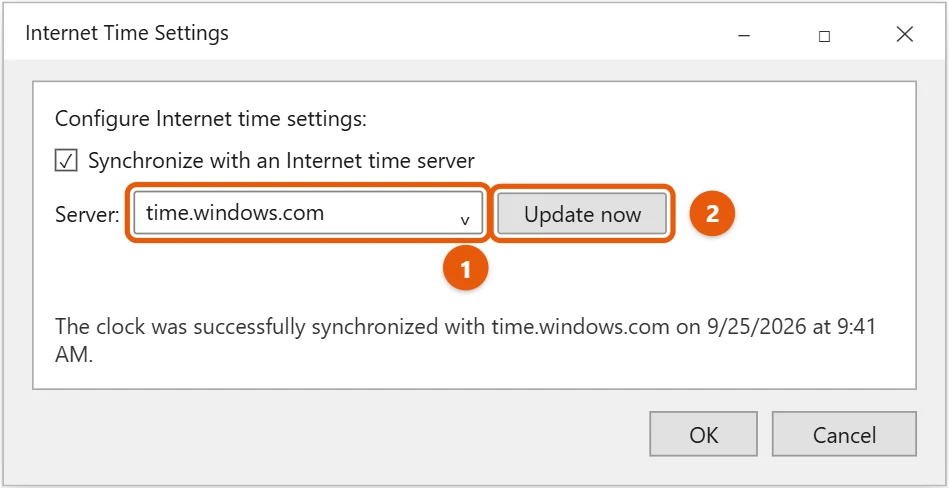
timedate.cpl, select the Internet Time tab, then Change settings. - Check Synchronize with an Internet time server.
- Choose or type a server, such as
time.windows.comortime.nist.gov, and select Update now. - Select OK.
Sync the time with a command
Open Command Prompt as administrator and type w32tm /resync. If you see an error that the service hasn’t started, type net start w32time first.
If the clock keeps going wrong
- Wrong time zone or daylight saving: turn on Set time zone automatically and Adjust for daylight saving time automatically.
- Clock resets after you turn off the PC: the small battery on the motherboard (CMOS battery) may be dead. A repair shop or your PC maker can replace it.
- Clock is off by hours after using Linux on the same PC: Linux and Windows store the time differently. Turn on Set time automatically in Windows to correct it.
- Sync fails: check your internet connection, then try another time server.
- Work or school PC: your organization may set the time for you.
Show the time and date on the taskbar
If the clock is missing, right-click the taskbar, select Taskbar settings > Turn system icons on or off, and turn on Clock.
To change how the date looks, such as dd/MM/yyyy, see how to change the date format in Windows 10.
Frequently asked questions
Why is the Change button grayed out?
Set time automatically is on. Turn it off first. You also need an administrator account.
Why does my time keep changing back?
Windows syncs the clock when Set time automatically is on. If the result is wrong, the time zone is usually the problem.
Does the wrong time cause problems?
Yes. Websites may show security errors, and Windows Update can fail.
Can I show seconds on the taskbar clock?
Windows 10 has no setting for it, but a registry value does it. In Registry Editor, go to HKEY_CURRENT_USER\Software\Microsoft\Windows\CurrentVersion\Explorer\Advanced, create a DWORD (32-bit) value named ShowSecondsInSystemClock, set it to 1, and sign out and back in. Back up the registry first.
Can I set the clock to an old date to run old software?
You can, but secure websites, sign-ins and Windows Update may stop working until you put the correct date back.
To show the time as 12-hour or 24-hour, see how to change the time format in Windows 10.
To show the time in other places as well, see how to add clocks for different time zones in Windows 10.
If you would rather not see the time on the taskbar, see how to hide the clock on the taskbar in Windows 10.
Microsoft’s guide is Set time, date, and time zone settings in Windows. More help is on our Windows Help & Guides page.
Related: how to check the CMOS battery in Windows 10.

Matt Jacobs has been working as an IT consultant for small businesses since receiving his Master’s degree in 2003. While he still does some consulting work, his primary focus now is on creating technology support content for SupportYourTech.com.
His work can be found on many websites and focuses on topics such as Microsoft Office, Apple devices, Android devices, Photoshop, and more.