To show multiple clocks in Windows 11, select Start > Settings > Time & language > Date & time, expand Show time and date in the System tray, and set a time zone and a name for an additional clock. You can add two extra clocks, and they appear when you point to the time on the taskbar.
Applies to: Windows 11. Checked against Microsoft Support and the Windows Insider Blog on October 7, 2026.
What to know before you start
- The limit is two extra clocks. Windows shows your local time plus up to two additional clocks, so three in total. For more places, use the Clock app method below.
- The extra clocks are not shown all the time. The taskbar keeps showing only your local time. The other clocks appear when you point to the time or select it.
- Your own time does not change. An additional clock is display only. It does not change your PC’s time zone, your calendar or your alarms.
- The setting has moved. Microsoft added additional clocks to the main Date & time page in recent Windows 11 updates. On PCs that don’t have that section, the classic Date and Time window does the same job.
Add a clock for another time zone in Settings
- Select Start > Settings. The Settings window opens.
- Select Time & language, then select Date & time. You see your current time, time zone and clock options.
- Find Show time and date in the System tray and make sure it is turned on. The system tray is the area at the right end of the taskbar where the time is shown.
- Expand that row. The section opens and lists two additional clocks.
- Open the first additional clock, pick the time zone you want from the list, and type a short name for it, such as London or Head office. The name is what you’ll see next to that time, so a city or a person’s name works better than a zone name.
- Save the change, then repeat for the second additional clock if you want a third time on screen.
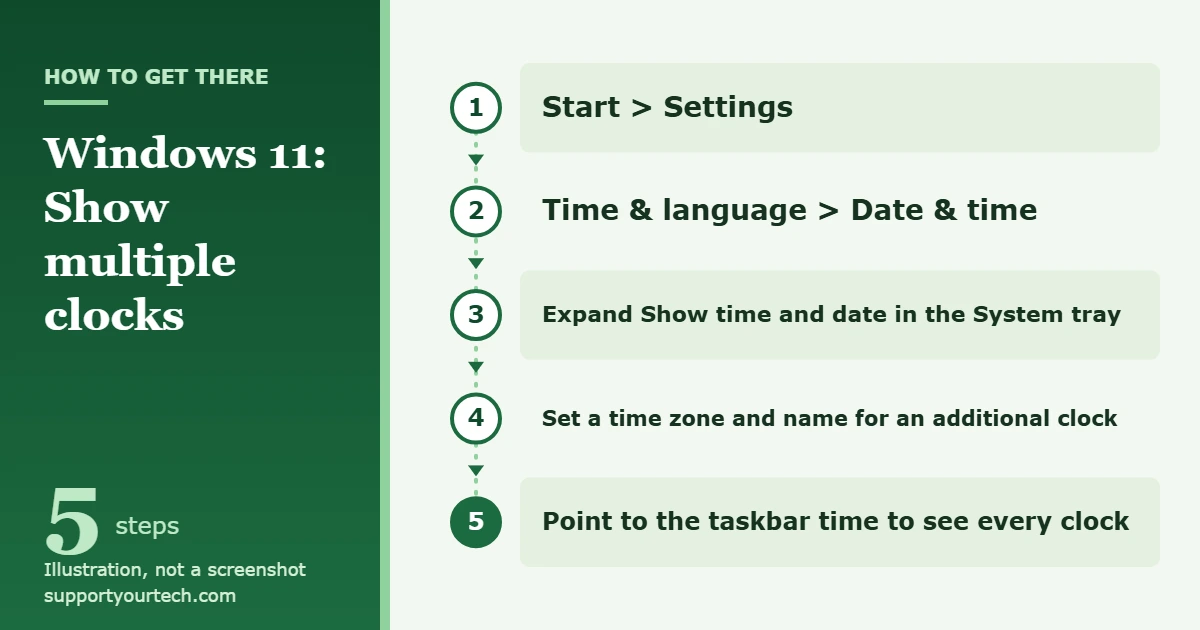
Microsoft describes this location in its Windows Insider Blog announcement: additional clocks are under the collapsed section for showing the time and date in the system tray.
Use the classic Date and Time window instead
Use this method if the Date & time page on your PC has no additional clocks in that section. It sets the same two clocks, so you only need one of the two methods.
- Press Windows key + R. The Run box opens.
- Type timedate.cpl and press Enter. The Date and Time window opens.
- Select the Additional Clocks tab. It has two identical sets of options, one for each extra clock.
- Check Show this clock for the first clock. The time zone list and name box below it become available.
- Choose a time zone from the list and type a display name.
- Check Show this clock for the second clock and fill it in the same way, if you need it.
- Select OK. The window closes and the clocks are saved.
On some older versions of Windows 11, the Date & time page has an Additional clocks link under Related links. That link opens this same tab. You can also reach the window from Control Panel by opening Date and Time.
See your clocks and confirm it worked
Point to the time at the right end of the taskbar and hold the pointer there for a moment. A small pop-up lists your local time and each additional clock with the name you typed. Selecting the time also shows the extra clocks in the panel that opens with the calendar.
If a clock shows the wrong hour, the wrong time zone was picked for it. Go back to the same setting and choose a different zone; many cities share a zone, so look for the UTC offset if the city you want isn’t named.
Change or remove an additional clock
Return to whichever method you used. To change a clock, pick a new time zone or type a new name and save. To remove one in the classic window, clear Show this clock on the Additional Clocks tab and select OK. Removing an additional clock has no effect on your PC’s own time.
Track more than two places with the Clock app
The Clock app that comes with Windows 11 has a world clock with room for more cities. It’s the better choice when you work with several time zones or want to compare times before scheduling a call.
- Select Start, type Clock, and open the Clock app.
- Select World clock. If you don’t see it, open the navigation menu at the side of the app first.
- Select Add a new city at the bottom of the window.
- Type the name of a city, choose it from the list, and select Add. The city appears with its current time.
- To check a future time, select Compare and move the slider. Every city updates to match the time you pick. Select the back arrow in the upper-left corner when you’re done.
These steps follow Microsoft’s guide to using the world clock in the Clock app. Cities added here stay inside the Clock app; they don’t appear when you point to the taskbar clock.
If additional clocks are missing or don’t show
- There are no clocks in the expanded section. Not every PC has the newer Date & time page. Use the timedate.cpl method above, or install the latest updates from Settings > Windows Update and look again.
- You can’t find an Additional clocks link. Guides written for earlier versions point to a link under Related links. Newer versions of Windows 11 don’t have that link; the clocks are inside the Show time and date in the System tray section instead. People asking about this on Microsoft’s Q&A site found them there.
- Nothing appears when you point to the time. Keep the pointer still over the time for a second or two. Then confirm the clock was saved: reopen the setting and check that the time zone and name are still there.
- There is no time on the taskbar at all. Turn on Show time and date in the System tray on the Date & time page. Without the taskbar clock there is nothing to point to.
- It’s a work or school PC. Your organization may manage date and time settings. If a control is unavailable, ask your IT administrator.
Frequently asked questions
Can I keep two clocks visible on the taskbar all the time?
No. Windows 11 shows one time on the taskbar. Additional clocks appear only when you point to the time or select it. To keep several times in view, leave the Clock app open on its World clock page.
How many clocks can Windows 11 show?
Three: your local time and two additional clocks. The Clock app’s world clock is the built-in way to follow more places than that.
Does adding a clock change my time zone?
No. If your own clock is wrong, see how to change the time zone in Windows 11 instead.
Can the extra clocks use 24-hour time?
The time format is a Windows-wide setting rather than something you choose for each clock. See how to change the time format in Windows 11 to switch between 12-hour and 24-hour time.
Can I show seconds as well?
Yes, on the main taskbar clock. The option is on the same Date & time page; see how to show seconds on the clock in Windows 11.
Once your clocks are set, point to the taskbar time before your next call to check the hour at the other end. If you regularly plan meetings across zones, add those cities to the Clock app too and use Compare.

Matt Jacobs has been working as an IT consultant for small businesses since receiving his Master’s degree in 2003. While he still does some consulting work, his primary focus now is on creating technology support content for SupportYourTech.com.
His work can be found on many websites and focuses on topics such as Microsoft Office, Apple devices, Android devices, Photoshop, and more.