Select Start > Settings > Time & language > Language & region. Expand Regional format, select Change formats, then pick a Short time. Choose a format with tt or AM for 12-hour time, or HH (such as 13:40) for 24-hour time. The taskbar clock changes right away.
Applies to: Windows 11. Checked against Microsoft Support on September 29, 2026.
Switch between 12-hour and 24-hour time
- Select Start > Settings > Time & language > Language & region.
- Expand Regional format, then select Change formats.
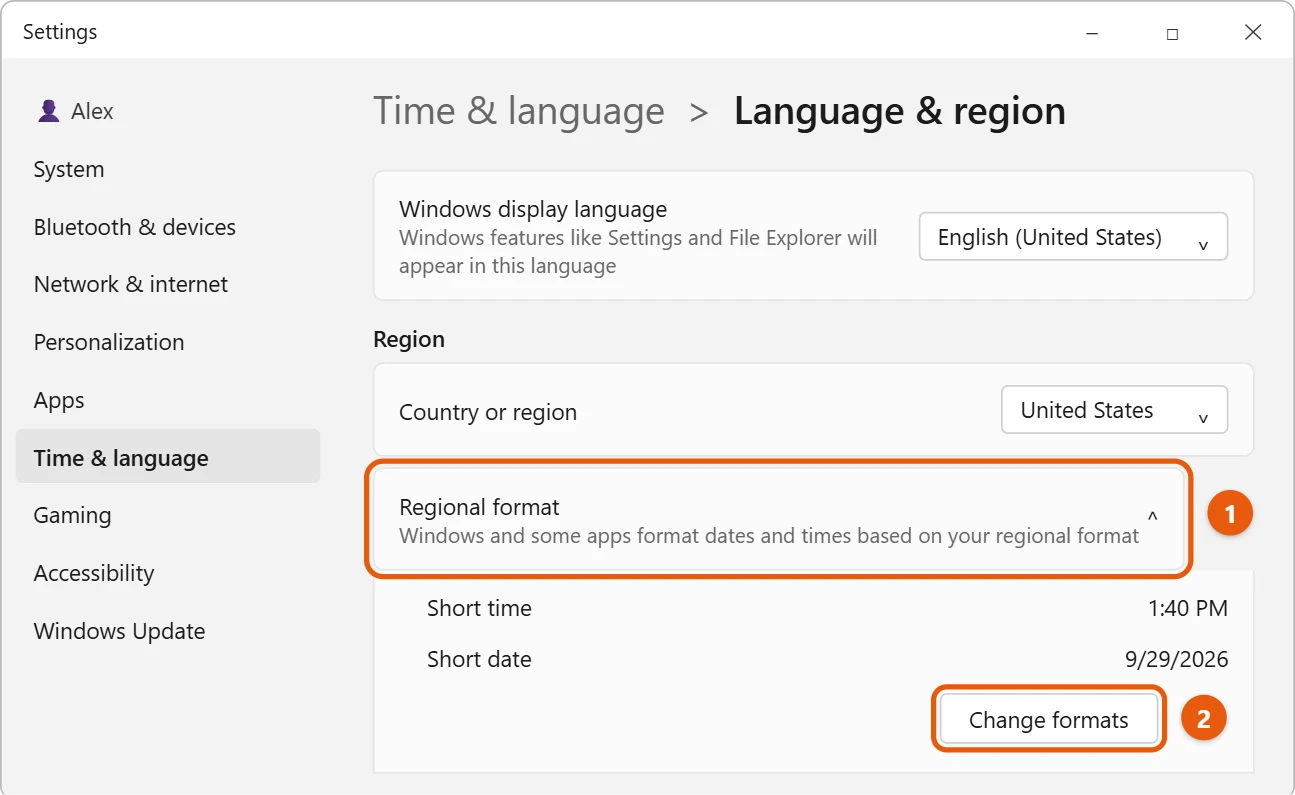
- Choose a Short time. This is the time on the taskbar.
- Choose a matching Long time. Some apps use this one.
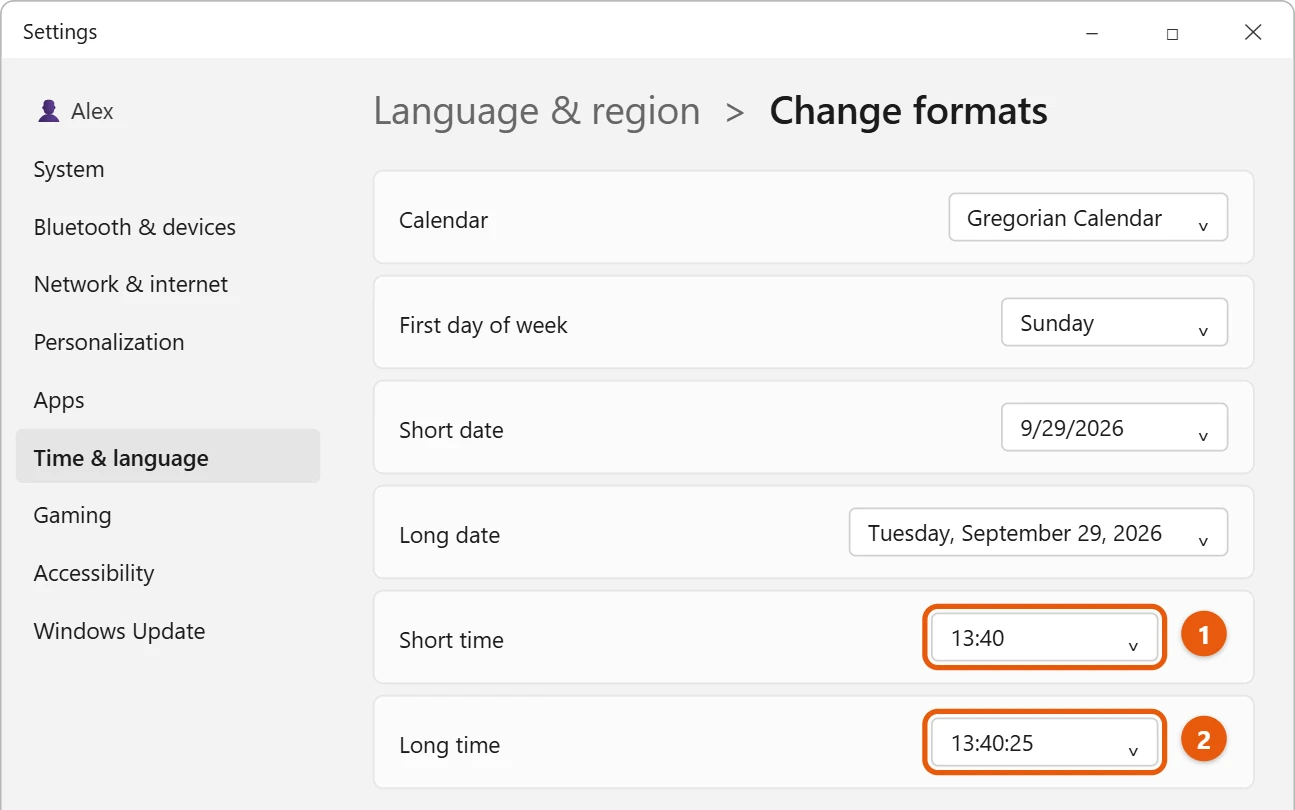
The letters in each format tell you what you’ll see:
- h is 12-hour time, and H is 24-hour time.
- tt adds AM or PM.
- ss shows seconds, which only apps that use the long time display.
Change the date format too
On the same Change formats page, pick a Short date and Long date. For example, choose dd/MM/yyyy to show the day before the month.
Show seconds on the taskbar clock
Select Start > Settings > Time & language > Date & time, then turn on Show seconds in system tray clock. Microsoft notes that it uses more power. On older versions of Windows 11, this setting is under Personalization > Taskbar > Taskbar behaviors.
Make your own time format
Settings only offers a few choices. For anything else, use the older Control Panel page:
- Press Windows + R, type
intl.cpl, and press Enter. - Select Additional settings, then the Time tab.
- Type your own Short time format. For example,
HH:mmshows 14:05, andh:mm ttshows 2:05 PM. - Change the AM symbol and PM symbol if you want, such as a.m. and p.m., and select OK.
Show the day of the week on the taskbar
On the same Additional settings window, open the Date tab and set Short date to ddd dd/MM/yyyy (or ddd M/d/yyyy for US order). The taskbar then shows something like Wed 07/10/2026. Use dddd for the full day name, though it takes up more room.
If the format won’t change or keeps switching back
- Your regional format is set to Recommended. On the Language & region page, set Regional format to your country instead, then change the formats again.
- A language or region change reset it. Picking a new Regional format replaces your custom formats with that country’s defaults. Set the region first, then the formats.
- Windows synced old settings. If you use a Microsoft account, go to Settings > Accounts > Windows backup and turn off Language preferences under Remember my preferences.
- One app still shows the old format. Restart the app. A few apps, such as Outlook and some browsers, have their own time settings.
- The taskbar clock didn’t update. Sign out and back in, or restart File Explorer from Task Manager.
Frequently asked questions
Why did my time format change back?
Changing Regional format to another country resets the formats to that country’s defaults. Pick your formats again after changing it.
Does this change the time zone?
No. To change the time zone, see how to change the time zone in Windows 11.
Does this change the lock screen clock?
Not always. The sign-in screen can keep the old format. To copy yours there, open intl.cpl, go to the Administrative tab, select Copy settings, check Welcome screen and system accounts, and select OK. This needs administrator rights.
Can different users have different formats?
Yes. Time and date formats are saved per account, so each person on the PC can pick their own.
How do I add a second clock?
Go to Settings > Time & language > Date & time and select Additional clocks. You can add up to two clocks for other time zones, and they appear when you hover over or select the taskbar clock.
To add or switch keyboard layouts on the same Language & region page, see how to change the keyboard layout in Windows 11.
To show seconds on the taskbar clock too, see how to show seconds on the clock in Windows 11.
Microsoft’s reference is Set time, date, and time zone settings in Windows. More help is on our Windows Help & Guides page.

Matt Jacobs has been working as an IT consultant for small businesses since receiving his Master’s degree in 2003. While he still does some consulting work, his primary focus now is on creating technology support content for SupportYourTech.com.
His work can be found on many websites and focuses on topics such as Microsoft Office, Apple devices, Android devices, Photoshop, and more.