To hide the time on the Windows 10 taskbar, right-click the taskbar and select Taskbar settings. Under Notification area, select Turn system icons on or off, then turn Clock off. The time and date disappear from the taskbar right away.
Applies to: Windows 10. Checked against Microsoft Support on September 28, 2026.
Hide the clock
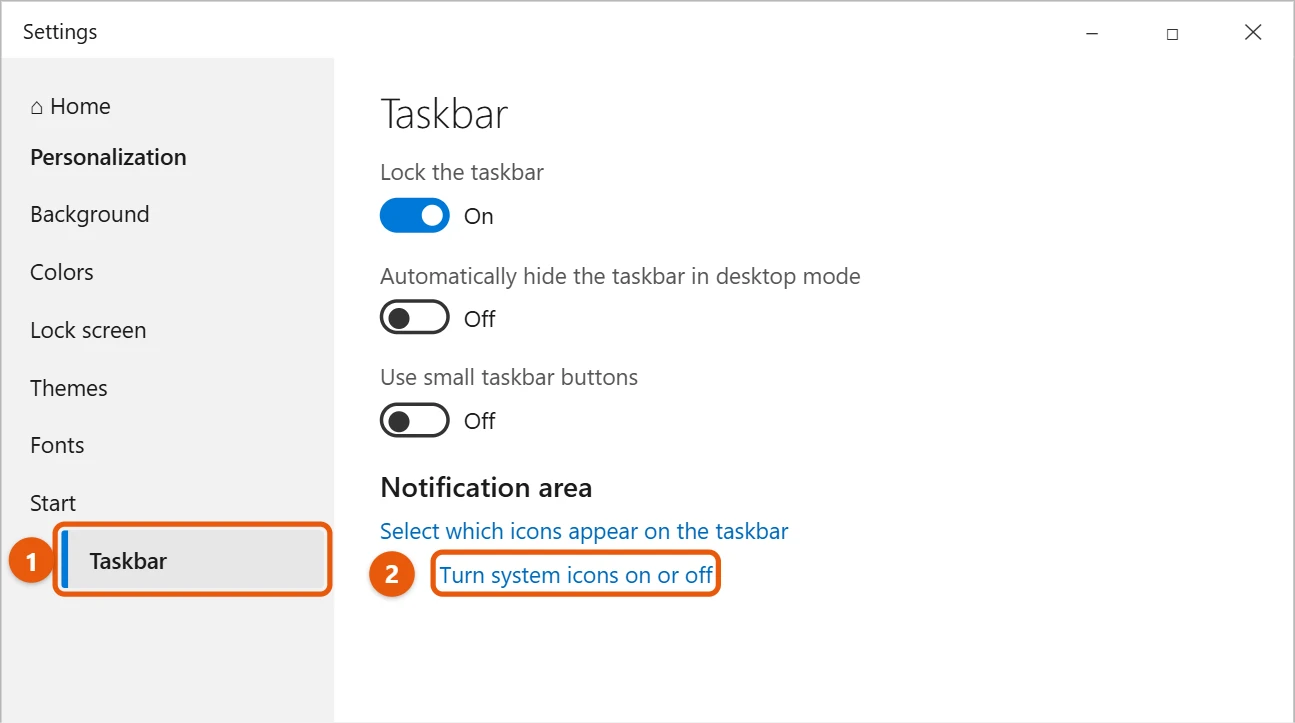
- Right-click an empty part of the taskbar and select Taskbar settings. Or go to Start > Settings > Personalization > Taskbar.
- Scroll down to Notification area and select Turn system icons on or off.
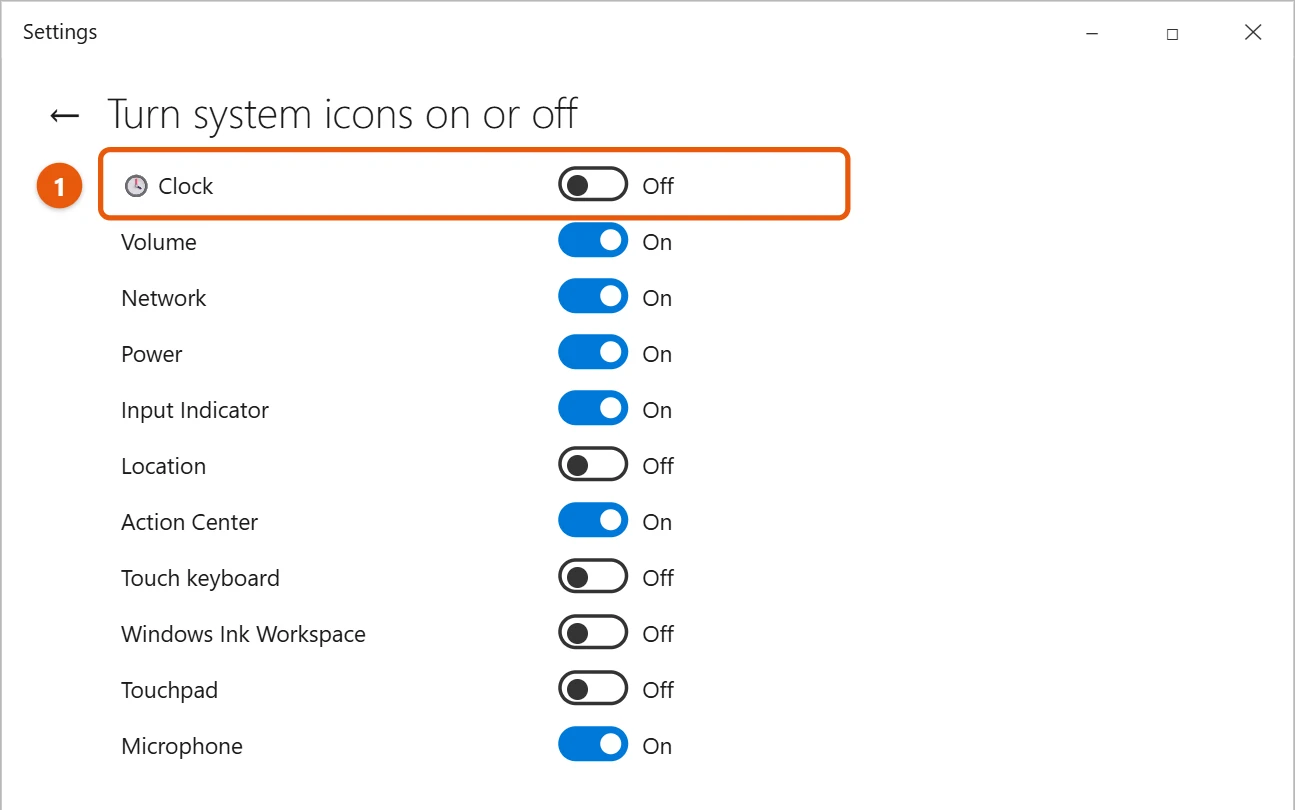
- Turn Clock off.
Show the clock again
Go back to Turn system icons on or off and turn Clock on.
What hiding the clock does and doesn’t do
- The date is hidden too, because it’s part of the clock.
- Your PC still keeps the right time. Alarms, reminders and time zone settings keep working.
- To see the time while it’s hidden, press Windows key + L to show the lock screen, or open the Alarms & Clock app. You can also pin Alarms & Clock’s live tile to Start.
Add clocks for other time zones
If you keep the clock showing, you can add up to two more clocks for other places:
- Go to Start > Settings > Time & Language > Date & time.
- Under Related settings, select Add clocks for different time zones.
- Check Show this clock, pick a time zone, type a name, and select OK.
The extra clocks show when you select or point to the time on the taskbar.
Change the time format
To switch between a 12-hour and 24-hour clock, go to Settings > Time & Language > Region and select Change data formats. Under Short time, pick a format such as 9:40 AM or 09:40. See how to set a 12-hour clock in Windows 10 for more.
If the clock doesn’t behave as expected
- The clock is missing on a second monitor. Windows 10 only shows the clock on the main taskbar. Make a monitor your main display in Settings > System > Display to move it.
- The clock vanished on its own. Check the Clock switch again. If it’s on, restart Windows Explorer from Task Manager: select it on the Processes tab and select Restart.
- The time is wrong. Go to Settings > Time & Language > Date & time and select Sync now.
Frequently asked questions
Why is the Clock setting grayed out?
It can be locked by your work or school. Ask the person who manages the PC.
Can I show the time without the date?
Turn on Use small taskbar buttons on the Taskbar settings page. The taskbar gets thinner, and the clock shows only the time.
Can I hide the whole taskbar instead?
Yes. See how to hide the taskbar in Windows 10. To tidy other items, see how to show or hide weather on the taskbar.
How do I fix the wrong time or add more clocks?
See how to change the date and time in Windows 10 and how to add another clock in Windows 10.
What else can I hide on the same page?
Turn system icons on or off also lets you hide Volume, Network, Power, Input Indicator, Location, and the Action Center icon. Each one has its own switch, so you can hide only what you don’t use.
Does hiding the clock affect other people on the PC?
No. The setting only applies to your account. Other users keep their clock unless they turn it off themselves.
Will I still get notifications?
Yes. Hiding the clock doesn’t turn off notifications. They still pop up in the corner of the screen, and you can see them in Action Center with Windows key + A.
Can I make the clock bigger?
Not on its own. To make all text on the screen larger, including the clock, go to Settings > System > Display and choose a higher Scale.
Why would I hide the clock?
Some people find it distracting while they focus, or want a cleaner taskbar for screenshots, recordings, or presentations. You can turn it back on any time in a few seconds.
Microsoft’s reference is Customize the Taskbar in Windows. More help is on our Windows Help & Guides page.

Matt Jacobs has been working as an IT consultant for small businesses since receiving his Master’s degree in 2003. While he still does some consulting work, his primary focus now is on creating technology support content for SupportYourTech.com.
His work can be found on many websites and focuses on topics such as Microsoft Office, Apple devices, Android devices, Photoshop, and more.