Windows 11 has no setting that locks desktop icons in place. The closest built-in option is to right-click an empty area of the desktop, select View, and clear Auto arrange icons, which stops Windows from re-sorting your icons into columns. Icons then stay where you put them, although anyone using the PC can still drag them.
Applies to: Windows 11 (Home and Pro). Checked against Microsoft Support on October 6, 2026.
What “locking” desktop icons means in Windows 11
People ask for a lock for two different reasons, and Windows handles them differently:
- Windows keeps rearranging the icons by itself. This is the part you can control. The View menu on the desktop decides whether Windows packs icons into tidy columns or leaves them where you drop them. If there are simply too many icons to keep in order, you can clear your desktop without deleting files first.
- Someone drags an icon by accident. Windows 11 has no built-in switch that stops an icon from being dragged. The settings below reduce unwanted movement, but they do not freeze the layout.
Two options on the View menu do the work:
| Option | When it is checked | Best setting for a fixed layout |
|---|---|---|
| Auto arrange icons | Windows lines icons up in columns starting at the top left and fills any gaps, so you cannot leave an icon in a spot of your own. | Cleared |
| Align icons to grid | Each icon snaps to the nearest position on an invisible grid, so rows and columns stay straight and icons do not overlap. | Checked |
How to stop Windows 11 from rearranging desktop icons
You do not need administrator rights for this. The change applies only to the account you are signed in to.
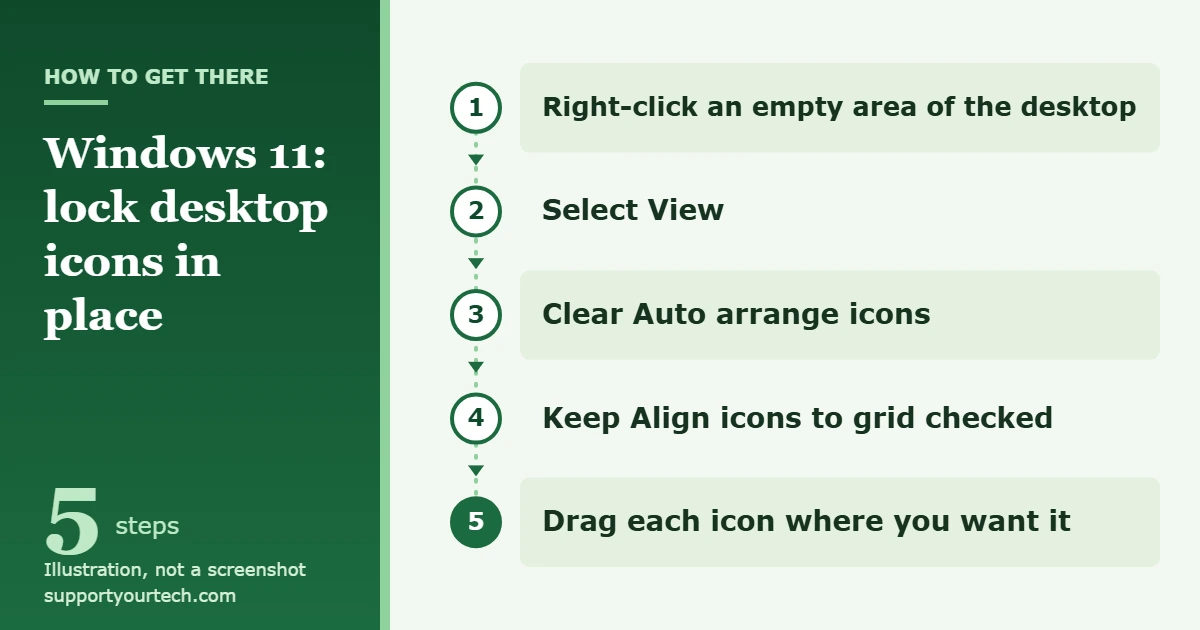
- Right-click an empty area of the desktop. Pick a spot that is not on an icon. A menu opens next to the pointer.
- Select View. A second menu opens with the icon sizes at the top and the arrangement options below them.
- Clear Auto arrange icons. If there is a check mark next to it, select it once to remove the check mark. The menu closes. If there is no check mark, leave it alone.
- Keep Align icons to grid checked. Open View again and confirm the check mark is there. Select it only if the check mark is missing.
- Drag each icon where you want it. With auto arrange off, an icon stays in the spot where you release it and snaps to the nearest grid position.
If you want to place icons freely, with no grid at all, clear Align icons to grid as well. Icons can then overlap or sit slightly out of line, so most people are better off leaving it on.
Stop themes from changing your desktop icons
A theme can replace the pictures used for the built-in desktop icons, such as This PC and Recycle Bin. That does not move anything, but it can make a familiar layout look different after you switch themes. To prevent it:
- Open Settings and select Personalization > Themes.
- Select Desktop icon settings. A small window opens with check boxes for This PC, User’s Files, Network and Recycle Bin.
- Clear Allow themes to change desktop icons, then select OK.
Microsoft describes this window in its article on customizing the desktop icons in Windows.
How to confirm it worked, and how to undo it
Drag one icon to an empty spot away from the others, such as the right edge of the screen. If it stays there, auto arrange is off. If it jumps back to the first free place in the left-hand columns, Auto arrange icons is still checked.
To undo the change, right-click the desktop, select View, and select Auto arrange icons again. Windows immediately pulls every icon back into columns from the top left, and your custom layout is gone. Windows has no built-in way to save a layout and bring it back later, so only turn auto arrange on if you are happy to rebuild the layout by hand.
Why icons still move after you turn off auto arrange
Icon positions depend on how much desktop space is available. When that space changes, Windows may have to shift icons to fit, even with Auto arrange icons cleared. These are the usual triggers and what to do about each one.
The screen resolution or scale changed
Select Start, open Settings, and go to System > Display. Under Scale & layout, check Scale and Display resolution. Microsoft says it is usually best to keep the options marked (Recommended). Arrange your icons after these values are set, and avoid changing them afterward. Microsoft’s steps are in Change your screen resolution and layout in Windows.
If the resolution changes without you touching it, Microsoft notes that the graphics driver might need to be updated, and that Windows Update can supply the newer driver.
You connected or disconnected a monitor
Plugging a laptop into an external screen, or unplugging it, changes the size of the desktop, so icons often move. Three things help:
- Press Windows logo key + P and use the same mode every time: PC screen only, Duplicate, Extend or Second screen only. Switching between modes changes the desktop area.
- In Settings > System > Display, select Identify to see which screen is which, drag the displays to match how they sit on your desk, and select Apply.
- If a screen is not found, expand Multiple displays and select Detect.
Our guide to setting up multiple monitors in Windows 11 covers those settings in more detail, and Microsoft documents them in How to use multiple monitors in Windows.
You changed the icon size
Choosing Large icons, Medium icons or Small icons on the View menu, or holding Ctrl while you scroll the mouse wheel on the desktop, changes how many icons fit in a column. Larger icons can push some into a new position. Pick a size first, then arrange. See how to change desktop icon size in Windows 11 for all the size options.
You sorted the desktop
The desktop right-click menu also has a sort command that reorders every icon at once. Using it replaces a hand-made layout, so avoid it once your icons are where you want them.
Troubleshooting
- An icon will not stay where you drop it. Auto arrange icons is checked. Clear it on the View menu.
- Icons overlap or look crooked. Align icons to grid is cleared. Check it on the View menu.
- All the icons have vanished. Right-click the desktop, select View, and make sure Show desktop icons is checked. While icons are hidden, you can still reach the same files by opening File Explorer and selecting Desktop in the navigation pane. Our article on hiding desktop icons in Windows 11 explains that switch.
- The settings keep changing back on a work or school PC. Your organization may manage the desktop. Ask your IT administrator before trying anything else.
- Icons scatter after every restart even though auto arrange is off. Check the display settings above first. Replies on Microsoft’s own Q&A forum also suggest registry edits for this problem, but those are not part of Microsoft’s published support articles, and a mistake in the registry can cause other problems, so they are not covered here.
Frequently asked questions
Does Windows 11 have a “lock desktop icons” option?
No. There is no lock command on the desktop menu or in Settings. Clearing Auto arrange icons stops Windows from re-sorting icons, which is the nearest built-in equivalent.
Can I lock just one icon?
No. Auto arrange icons and Align icons to grid apply to the whole desktop, not to individual icons.
Should Align icons to grid be on or off?
Leave it on if you want straight rows and columns with no overlapping. Turn it off only if you want to place icons at any point on the screen.
Do these settings affect other people who use the PC?
No. Each Windows account has its own desktop and its own View settings, so other users need to make the change in their own accounts.
Are there apps that lock or save icon positions?
Yes, third-party utilities can save a desktop layout and restore it later. They are not made or supported by Microsoft. If you choose one, download it only from its developer and confirm that it supports your version of Windows 11.
Will a Windows update reset my icon layout?
It can if the update changes the graphics driver or the display resolution. Open the View menu afterward to confirm Auto arrange icons is still cleared, check the display settings, and then put any moved icons back.
Once auto arrange is off and your display settings are settled, arrange the desktop one time and it should hold. If your icons disappeared instead of moving, turn Show desktop icons back on from the same View menu.

Matt Jacobs has been working as an IT consultant for small businesses since receiving his Master’s degree in 2003. While he still does some consulting work, his primary focus now is on creating technology support content for SupportYourTech.com.
His work can be found on many websites and focuses on topics such as Microsoft Office, Apple devices, Android devices, Photoshop, and more.