To turn off the firewall in Windows 11, open Start, search for Windows Security, and open it. Select Firewall & network protection, select the network marked (active), then turn the Microsoft Defender Firewall switch to Off and select Yes when User Account Control asks. To turn it back on, return to the same page and select Turn on.
Before you do that, check whether you really need to. If one app, game, or device is being blocked, allowing that single app through the firewall usually fixes the problem and keeps the rest of your PC protected.
Applies to: Windows 11 (versions 24H2 and 25H2, Home and Pro). The steps match Microsoft’s Windows Security firewall page and the Windows Firewall documentation.
Read this before you turn it off
Warning: With the firewall off, Windows stops filtering network traffic for that network type. Other devices on the same network can then reach any program or service on your PC that listens for connections. Turning the firewall off could make your device more vulnerable to unauthorized access, and allowing a blocked app is the safer fix. Never turn it off on public Wi-Fi, such as a hotel, airport, school, or coffee shop network.
A firewall is a filter between your PC and the network. By default, Windows Firewall blocks incoming connections that your PC didn’t ask for, unless a rule allows them, and it allows outgoing traffic. That’s why turning it off rarely fixes a problem where your PC can’t get online: the firewall wasn’t blocking your outgoing traffic in the first place.
When turning it off makes sense
- Short troubleshooting tests. You want to find out whether the firewall is the reason a game, printer, file share, or local server isn’t reachable. Turn it off for a few minutes on your home network, test, and turn it right back on.
- Another firewall is protecting the PC. Many security suites install their own firewall. In that case, let the security suite manage Windows Firewall. Other firewall products can switch off only the parts of Windows Firewall they need, so you shouldn’t disable it yourself for this purpose.
Turning off the firewall won’t make your PC faster or fix slow internet, and it isn’t a good permanent fix for a blocked app.
What you need
- An administrator account. Changing firewall settings needs admin rights. On a standard account, Windows asks for an administrator’s password.
- Your own PC. On a work or school PC, your organization may lock the firewall settings. Ask your IT team instead of trying to work around them.
- To know your network type. Windows keeps a separate firewall setting for each network type, described next.
Domain, private, and public networks
Windows Firewall has three profiles, and each one has its own on/off switch. Only the profile your PC is using right now affects your current connection.
| Profile | Used for | Should you turn it off? |
|---|---|---|
| Domain network | Work PCs joined to a company domain. Windows applies it automatically when it can reach the domain controller. | No. Leave it to your IT team. |
| Private network | Networks you trust, such as your home Wi-Fi. | Only briefly, for a test at home. |
| Public network | Hotels, cafes, airports, and any network Windows doesn’t recognize. It’s the default for unidentified networks. | No. This is the profile that protects you on untrusted networks. |
If your home network shows up as Public, that’s normal and safe. You can change it to Private in Settings > Network & internet > Wi-Fi (or Ethernet) > your network’s properties if you trust the network and want devices to find each other.
Firewall or antivirus?
The firewall and the antivirus are separate parts of Windows Security. Turning off the firewall doesn’t stop Microsoft Defender Antivirus from scanning files, and turning off antivirus doesn’t turn off the firewall. If a download or program is being deleted or quarantined, that’s the antivirus, which is covered in turning off Windows Defender antivirus in Windows 11.
Why the names don’t match
You’ll see three names for the same feature. Microsoft’s documentation now calls it Windows Firewall. The switch in the Windows Security app is labeled Microsoft Defender Firewall, and Control Panel and the Services list still say Windows Defender Firewall. They all refer to the built-in firewall in Windows 11.
Safer option: allow one app through the firewall
Most people who want the firewall off really need one program to connect, such as a game, a chat app, a media server, or a remote access tool. Allowing just that app keeps the firewall on for everything else. Adding an app to the allowed list is less risky than opening a port, because an allowed app opens the ports it needs only while it’s running.
- Open Windows Security from the Start menu, then select Firewall & network protection.
- Select Allow an app through firewall. The Allowed apps window opens with a list of apps and features.
- Select Change settings at the top right, and select Yes or enter an administrator password if asked. The list becomes editable.
- Find the app in the list and select the checkbox next to its name.
- Choose where the app may connect: check Private for your home network. Check Public only if the app really must work on public networks.
- If the app isn’t listed, select Allow another app, then Browse, find the app’s program file (it usually ends in
.exeand is inC:\Program Files), select Add, and set its network types. - Select OK to save. Close and reopen the app, then try connecting again.
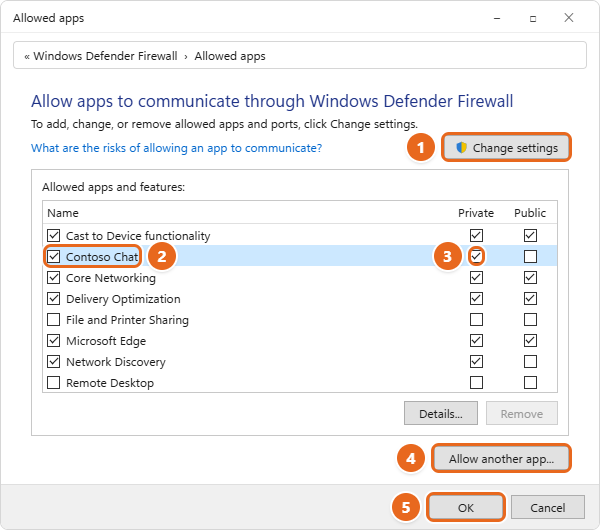
A few tips for allowing apps safely:
- Only allow apps you recognize. Never let an unknown app communicate through the firewall.
- Remove apps you no longer use. Clear the app’s checkbox, or select it and choose Remove, then select OK.
- Watch for the first-run prompt. Many apps trigger a Windows Security alert the first time they try to accept connections. Choosing Allow on that prompt creates the same kind of exception. If someone chose Cancel by mistake, the app may stay blocked until you allow it here.
- Some apps need a specific port. Game servers and some media servers ask for a port number instead. In that case, open the port on Windows 11 for private networks only.
If allowing the app fixes the problem, you’re done and don’t need to turn off the firewall at all.
Method 1: Turn off the firewall in Windows Security
This method turns off the firewall for one network profile at a time, so you can leave the others protected.
- Select Start, type Windows Security, and select the app in the results. You can also go to Settings > Privacy & security > Windows Security > Firewall & network protection.
- In the left menu, select Firewall & network protection. If the window is narrow, the menu shows only icons; the firewall icon looks like a small antenna with signal waves.
- Look at the three profiles: Domain network, Private network, and Public network. The one your PC is using has (active) after its name. Select that profile.
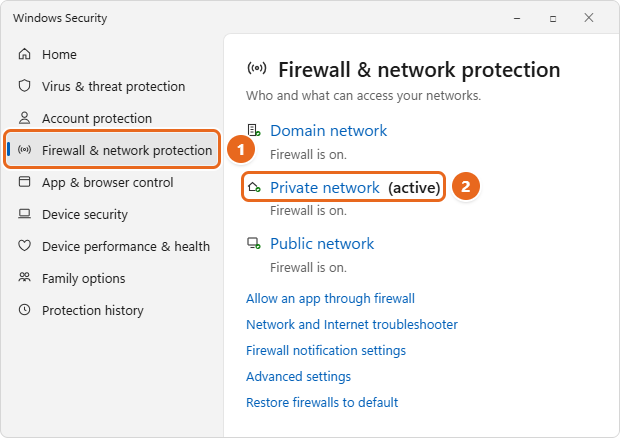
- Under Microsoft Defender Firewall, turn the switch to Off.
- When the User Account Control prompt appears, select Yes. The switch now reads Off, and Windows shows a red warning such as Private firewall is off. Your device may be vulnerable. The change takes effect right away. You don’t need to restart.
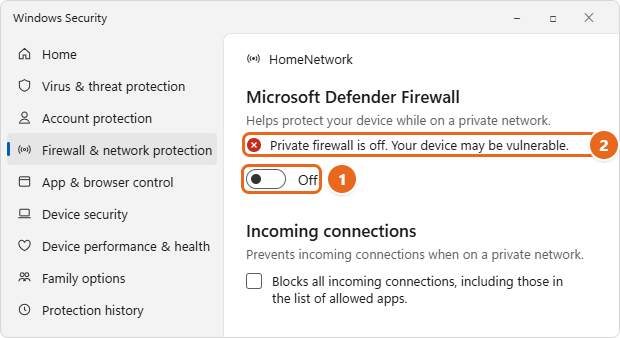
Leave the checkbox under Incoming connections alone. Blocks all incoming connections, including those in the list of allowed apps does the opposite of what you want here: it makes the firewall stricter and ignores your allowed apps.
While the firewall is off, the Windows Security icon in the taskbar’s notification area shows a warning, and Windows may show notifications asking you to turn it back on. That’s expected.
If your test needs the firewall off on another profile too, go back with the arrow at the top left and repeat steps 3 to 5 for that profile. For most home tests, turning off only the active Private network profile is enough.
Method 2: Turn off the firewall in Control Panel
The classic Windows Defender Firewall settings are still in Windows 11 Control Panel. This screen is handy because it shows the private and public settings on one page.
- Press Windows logo key + R, type
firewall.cpl, and press Enter. Or open Control Panel and select System and Security > Windows Defender Firewall. Can’t find Control Panel? Start with opening Control Panel in Windows 11. - In the left pane, select Turn Windows Defender Firewall on or off. The link has a shield icon because it needs administrator approval. Select Yes if asked.
- The Customize settings page shows Private network settings and Public network settings (and Domain network settings on a work PC).
- Under the network type you want to change, select Turn off Windows Defender Firewall (not recommended). For a home test, change only the private section.
- Select OK. The main Windows Defender Firewall page now shows a red shield for that network type.
The settings here and in Windows Security are the same settings. If you turn off the private profile in Control Panel, Windows Security shows it as off too.
Method 3: Turn off the firewall with a command
Commands are useful when the Windows Security app won’t open, when you manage a PC remotely, or when you want a quick on/off you can repeat. Both tools below need an administrator window.
- Right-click the Start button and select Terminal (Admin). Select Yes on the User Account Control prompt. Terminal opens with a PowerShell tab, which also accepts the
netshcommands below. - Type one of the commands from the table and press Enter.
| What you want | Command |
|---|---|
| Turn off only the profile you’re using now | netsh advfirewall set currentprofile state off |
| Turn off only the private profile | netsh advfirewall set privateprofile state off |
| Turn off the private profile (PowerShell) | Set-NetFirewallProfile -Profile Private -Enabled False |
| Turn off all three profiles (not recommended) | netsh advfirewall set allprofiles state off |
| Check the current state of each profile | netsh advfirewall show allprofiles state |
What you’ll see: netsh replies with Ok. when the command works. Set-NetFirewallProfile prints nothing when it succeeds, so run the check command afterward if you want confirmation. If you get an error about permissions, the window isn’t running as administrator. Close it and open Terminal (Admin) again.
To turn off all profiles from PowerShell, the command is Set-NetFirewallProfile -Profile Domain,Public,Private -Enabled False. That works, but it also removes protection on public networks, so prefer the single-profile commands for testing.
How to turn the firewall back on
Turn the firewall back on as soon as your test is finished. A simple habit is to set a phone timer when you switch it off. Use whichever method matches the one you used to turn it off, or any of them; they all change the same settings.
In Windows Security
- Open Windows Security and select Firewall & network protection.
- Any profile that’s off shows Firewall is off. with a Turn on button under it. Select Turn on, then select Yes on the User Account Control prompt.
- Check that every profile now shows Firewall is on.
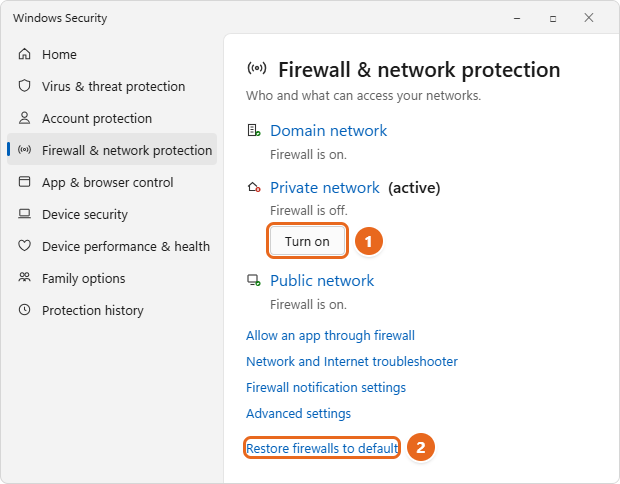
You can also select the profile and turn the Microsoft Defender Firewall switch back to On.
In Control Panel
- Press Windows logo key + R, type
firewall.cpl, and press Enter. - Select Turn Windows Defender Firewall on or off in the left pane.
- Select Turn on Windows Defender Firewall under each network type, then select OK. When the firewall is off, the main page may also offer a Use recommended settings button that turns it on for all network types in one step.
With a command
In Terminal (Admin), run netsh advfirewall set allprofiles state on, or in PowerShell, Set-NetFirewallProfile -Profile Domain,Public,Private -Enabled True. Then run netsh advfirewall show allprofiles state and confirm each profile reports ON.
Reset the firewall to default settings
If you’ve changed several settings and aren’t sure what’s left, use Restore firewalls to default on the Firewall & network protection page. It resets the firewall to the way it was when you first got the PC. Be aware that it also removes allowed apps and rules that you or your apps added, so some programs may ask for permission again the next time they connect. On a managed PC, your organization’s policies are reapplied after the reset.
Methods to avoid
Some guides suggest other ways to disable the firewall. They’re harder to undo and can cause new problems:
- Don’t stop or disable the firewall service. The service is called Windows Defender Firewall (service name
MpsSvc). Stopping it isn’t supported and can stop the Start menu from working, make apps fail to install or update, and break phone activation of Windows. The correct way is to turn off the profiles and leave the service running. - Avoid Group Policy and registry edits for a temporary test. Policies such as Windows Defender Firewall: Protect all network connections force the firewall off, gray out the switches in Windows Security, and stay in place until you reverse the policy. They’re meant for administrators who manage many PCs. If you set one in the past and now can’t turn the firewall on, set the policy back to Not Configured.
- Don’t leave the firewall off “permanently.” If you keep needing it off, the real fix is an allowed app, a port rule, or a properly configured third-party firewall.
Troubleshooting
The switch is grayed out or shows it’s managed by your organization
If your device is managed by an organization, policy settings might prevent you from changing the firewall. On a work or school PC, contact your IT administrator. On your own PC, make sure you’re signed in with an administrator account. If a security suite is installed, it may have taken over the firewall; check its settings instead.
The app is still blocked after you turned the firewall off
- You turned off the wrong profile. Check which profile shows (active). Turning off the private profile does nothing while your PC is on a network marked public.
- Another firewall is running. Norton, McAfee, Bitdefender, and similar suites have their own firewall, and the Windows switch doesn’t control it.
- The block is somewhere else. Your router, a VPN app, or the other device’s firewall can block the connection. If nothing works, try resetting network settings in Windows 11.
- The firewall wasn’t the cause. If the problem is the same with the firewall off, turn it back on right away and look elsewhere.
The firewall turns itself back on
A policy from your organization, a security app, or a firewall reset can turn it back on. That’s usually a sign the firewall should stay on. Use the allowed-app method for the program you need.
The firewall won’t turn back on
- Press Windows logo key + R, type
services.msc, and press Enter. - Find Windows Defender Firewall and check that its status is Running. If it isn’t, right-click it and select Start.
- Try Turn on in Windows Security again, or run
netsh advfirewall set allprofiles state onin Terminal (Admin). - If it still won’t turn on, select Restore firewalls to default, and check whether a Group Policy setting is forcing it off.
An app stops working after you turn the firewall back on
That confirms the firewall was blocking it. Follow the allow an app steps above. Remote Desktop is an exception: turning it on normally allows it through the firewall for you, as covered in setting up Remote Desktop on Windows 11.
FAQ
Is it safe to turn off the firewall in Windows 11?
For a few minutes on your trusted home network while you test something, the risk is low. Anywhere else, or for longer, it’s risky, because programs on your PC that accept connections become reachable by other devices on the network. Keep the public profile on at all times.
How do I turn off the firewall for just one app?
You can’t switch the firewall off for a single app, but you can get the same result by allowing that app through it. Go to Windows Security > Firewall & network protection > Allow an app through firewall > Change settings, and check the app.
Do I need to restart after turning the firewall off or on?
No. Changes made in Windows Security, Control Panel, or with netsh or PowerShell take effect immediately. Group Policy changes may need gpupdate /force or a restart.
Does turning off the firewall turn off antivirus?
No. Microsoft Defender Antivirus keeps running. The firewall and antivirus have separate settings in Windows Security.
Will turning off the firewall speed up my internet or games?
No. The firewall doesn’t slow down normal browsing or downloads in any way you’d notice. If a game can’t connect or host, allow the game through the firewall instead.
Is the firewall the same in Windows 11 Home and Pro?
Yes. Windows Firewall is included and turned on by default in every edition. Windows Security, Control Panel, and the commands work the same way. Only the Local Group Policy Editor is missing from Home.
Do I need the Windows firewall if my router has one?
Yes. A router’s firewall protects your home network from the internet, but it doesn’t protect your PC from other devices on the same network, and it does nothing when you take a laptop to public Wi-Fi.
How can I tell if the firewall is on?
Open Windows Security > Firewall & network protection. Each profile shows Firewall is on. or Firewall is off. You can also run netsh advfirewall show allprofiles state in Terminal.
Next step
If you turned the firewall off to test a connection, turn it back on now and add an allowed app or a port rule for the program that needed it. Before you add exceptions, read Microsoft’s page on the risks of allowing apps through Windows Firewall.

Matt Jacobs has been working as an IT consultant for small businesses since receiving his Master’s degree in 2003. While he still does some consulting work, his primary focus now is on creating technology support content for SupportYourTech.com.
His work can be found on many websites and focuses on topics such as Microsoft Office, Apple devices, Android devices, Photoshop, and more.