To turn off widgets in Windows 11, right-click an empty spot on the taskbar and select Taskbar settings. Under Taskbar items, turn the Widgets switch Off. The Widgets button (and the weather that sits in it) disappears from the taskbar right away, and nothing opens when you hover over that corner anymore.
That switch only hides the button, though. Widgets can still open with Windows key + W, and they can still show on your lock screen. To shut Widgets off completely, use the Group Policy or registry method below.
Applies to: Windows 11 Home, Pro, Enterprise and Education, versions 24H2 and 25H2 (most steps also match 23H2). Group Policy needs Pro, Enterprise or Education. Details follow Microsoft’s Widgets help page and the Microsoft Learn policy reference.
Which method do you need?
“Widgets” in Windows 11 shows up in three places: the button on the left side of the taskbar (usually showing the temperature), the Widgets board that slides out from the left edge, and small widgets on the lock screen. Each method below reaches a different set of these.
| Method | What it turns off | Windows edition | How easy to undo |
|---|---|---|---|
| Taskbar switch | The taskbar button, weather on the taskbar and hover pop-ups | All | One click |
| Widgets board settings | Hover opening, badges, the Discover news feed | All | One click |
| Lock screen setting | Weather and other widgets on the lock screen | All | One click |
| Group Policy: Allow widgets | The whole Widgets feature, for every account on the PC | Pro, Enterprise, Education | Set the policy back to Not Configured |
| Registry policy value | The same thing as the Group Policy setting | Any (officially documented for Pro and up) | Delete the value |
| Uninstall the Web Experience Pack | Removes the app that runs Widgets | All | Reinstall from the Microsoft Store |
If the button just gets in your way, Method 1 is enough. If you share the PC, want Widgets gone for every account, or keep opening the board by accident with the keyboard shortcut, use Method 3 (Pro) or Method 4 (Home).
This works the same way in every edition of Windows 11. You don’t need administrator rights.
- Open taskbar settings. Right-click an empty part of the taskbar, away from any app icon, and select Taskbar settings. The Settings app opens on Personalization > Taskbar. You can also get there with Start > Settings > Personalization > Taskbar.
- Expand Taskbar items. Near the top of the page, select Taskbar items if the list is collapsed. You’ll see Search, Task view and Widgets, and possibly other items depending on your PC.
- Turn Widgets off. Select the switch next to Widgets so it reads Off. The Widgets button and its weather readout vanish from the taskbar immediately. There’s no confirmation and no restart.
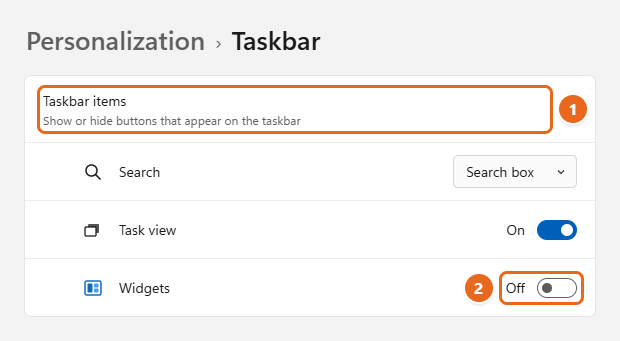
What still works after this: the Widgets board can still be opened with Windows key + W or by swiping in from the left edge of a touch screen. Widgets also keep running in the background, so you may still see Widgets processes in Task Manager. If that’s a problem for you, continue to Method 3, 4 or 5.
While you’re on the Taskbar page, you can also hide other buttons you don’t use, such as Task view. If the Copilot button bothers you as well, you can turn off Copilot in Windows 11 too.
Stop hover pop-ups, badges and the news feed
Maybe you like having the weather on the taskbar but hate the board popping open every time your mouse passes over it, or you want the widgets without the stream of news stories. Widgets has its own settings for that. Open the board first (select the Widgets button or press Windows key + W), then select the settings (gear) button on the board’s navigation bar.
- Stop it opening on hover: Turn Open Widgets board on hover to Off. The board then opens only when you click the button.
- Remove the news feed: Under Dashboards, turn Discover to Off. This removes the Discover news dashboard from the board’s navigation bar while leaving your other widgets in place.
- Stop the taskbar badges: Under More settings, select Notifications, then turn off Show badges on the taskbar and, if you like, Show badges on the navigation bar. You can also turn notifications off for individual dashboards on the same page.
- Remove a single widget: On the board, select the More options (three dots) button in the corner of the widget, then select Remove widget.
The Widgets board is updated through the Microsoft Store, so if an option looks slightly different on your PC, update the Windows Web Experience Pack from the Store’s Library page and check again.
Method 2: Turn off widgets on the lock screen
Turning off the taskbar button doesn’t touch the lock screen. Weather, sports, traffic and stock cards can still appear there. To remove them:
- Open lock screen settings. Select Start > Settings > Personalization > Lock screen.
- Find the widgets setting. On current versions of Windows 11, look for Your widgets (described as “Manage the widgets on your lock screen”). Microsoft’s support page labels it Widgets.
- Turn it off. Set the switch to Off. The next time you lock your PC (press Windows key + L to check), the widgets are gone and only the time and date remain.
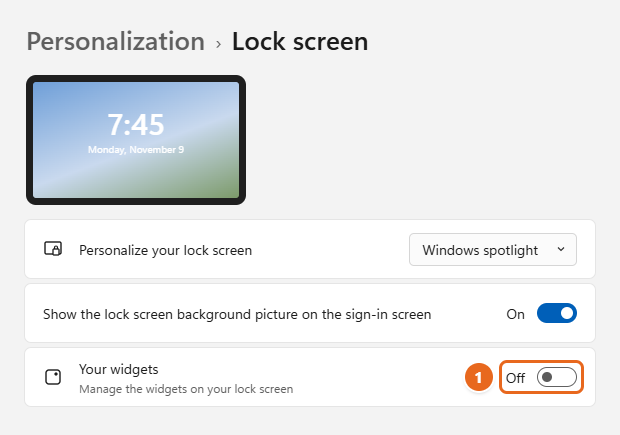
Older Windows 11 builds: If you don’t see a widgets switch on the Lock screen page, your PC is likely using the earlier design. Look for Lock screen status instead and change it from Weather and more to None.
If you’d rather keep the widgets and only want a different picture behind them, change the lock screen wallpaper instead.
Method 3: Turn off Widgets with Group Policy (Pro)
The Allow widgets policy switches off the whole Widgets experience for every account on the PC, including the taskbar button and the Windows key + W shortcut. The policy description states that it “applies to the entire widgets experience, including content on the taskbar.” It isn’t documented whether it also removes lock screen widgets, so use Method 2 for the lock screen as well.
Before you start: You need Windows 11 Pro, Enterprise or Education and an administrator account. Windows 11 Home doesn’t include the Local Group Policy Editor, so use Method 4 instead. Not sure which edition you have? Select Start > Settings > System > About and check Edition. On a work or school PC, your IT department may already manage this setting.
- Open the Local Group Policy Editor. Press Windows key + R, type
gpedit.msc, and press Enter. Select Yes if User Account Control asks for permission. - Go to the Widgets folder. In the left pane, open Computer Configuration > Administrative Templates > Windows Components > Widgets. Make sure you’re under Computer Configuration. There’s no Widgets folder under User Configuration.
- Open Allow widgets. In the right pane, double-click Allow widgets.
- Disable it. Select Disabled, then select OK.
- Apply the change. Restart the PC, or sign out and back in. If you’d like to apply it without restarting, open Terminal as administrator and run
gpupdate /force, then sign out and in.
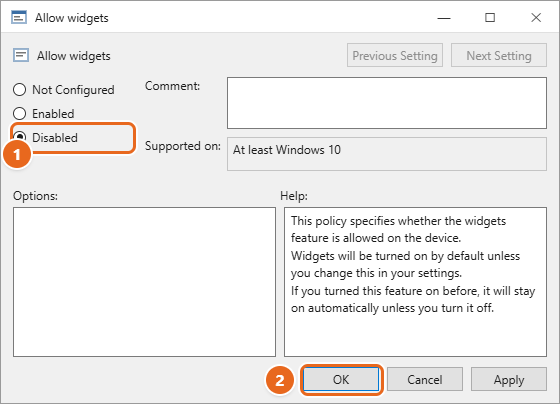
Once the policy is active, the Widgets button is gone, Windows key + W does nothing, and the Widgets switch in taskbar settings can no longer turn it back on.
Two narrower policies you may see
Newer builds can show two more policies in the same Widgets folder. They were first released for Windows Insider builds (and the lock screen policy first in the European Economic Area), so they may not appear on every PC yet:
- Disable Widgets Board: set to Enabled to block the board and remove its taskbar entry point.
- Disable Widgets On Lock Screen: set to Enabled to remove lock screen widgets but leave widgets available elsewhere.
Note the wording. For these two, Enabled turns the feature off, which is the opposite of Allow widgets. If you only want Widgets gone entirely, Allow widgets set to Disabled is the one setting you need.
Method 4: Turn off Widgets with the registry (Home)
The Allow widgets policy is stored in the registry, so you can set the same value directly. This is the usual route on Windows 11 Home.
Warning: Editing the registry incorrectly can cause problems that are hard to undo. Change only the value below, type the path exactly, and create a restore point first (search for Create a restore point in Start, select Create, and name it; System Protection must be on for your system drive). You need an administrator account.
On Windows 11 Home: the policy is documented for Pro, Enterprise and Education. Many Home users apply the same registry value, and it is widely reported to work there, but Home isn’t listed as supported, so treat it as unofficial.
Option A: Registry Editor
- Open Registry Editor. Press Windows key + R, type
regedit, press Enter, and select Yes at the User Account Control prompt. - Go to the policy folder. Paste
HKEY_LOCAL_MACHINE\SOFTWARE\Policies\Microsoftinto the address bar at the top and press Enter. - Create the Dsh key if needed. If there’s no folder named Dsh under Microsoft, right-click Microsoft, select New > Key, and name it
Dsh. Then select it. - Create the value. Right-click an empty area in the right pane, select New > DWORD (32-bit) Value, and name it
AllowNewsAndInterests. The name has no spaces. - Set it to 0. Double-click AllowNewsAndInterests, make sure Value data is
0, and select OK. A value of 0 means “not allowed.” - Restart your PC. After you sign back in, the Widgets button should be gone and Windows key + W should no longer open the board.
Option B: One command
The same change in one line. Right-click Start, select Terminal (Admin), select Yes, and run:
reg add "HKLM\SOFTWARE\Policies\Microsoft\Dsh" /v AllowNewsAndInterests /t REG_DWORD /d 0 /f
You should see “The operation completed successfully.” Restart the PC to apply it.
The name “News and Interests” is left over from Windows 10’s taskbar news feature. Windows 11 still uses that name for the Widgets policy. On a Windows 10 PC the feature works differently, as explained in showing or hiding weather on the taskbar in Windows 10.
Method 5: Uninstall the Windows Web Experience Pack
The Windows Web Experience Pack is the app that delivers and updates Widgets through the Microsoft Store. Removing it is the most drastic option, and most people don’t need it.
Warning: This removes a Microsoft component, not just a setting. Things to know before you run it:
- Widgets relies on both the Windows Web Experience Pack and the Start Experiences app, so the result of removing just one package can vary between builds.
- Store updates or a Windows feature update can install the pack again later. The policy in Method 3 or 4 keeps working even if that happens, so pairing the two is the more reliable choice.
- Lock screen widgets and other web-powered pieces of Windows may stop working too.
- Only run commands you’ve typed or copied from a source you trust, and run them in an administrator Terminal.
- Open an administrator Terminal. Right-click Start, select Terminal (Admin), and select Yes.
- Run the uninstall command. Type
winget uninstall "Windows Web Experience Pack"and press Enter. If winget asks you to accept source agreements, type Y and press Enter. If the name isn’t found, use the package ID instead:winget uninstall MicrosoftWindows.Client.WebExperience_cw5n1h2txyewy - Wait for “Successfully uninstalled.” Then restart the PC.
To reinstall it later, open the Windows Web Experience Pack page in the Microsoft Store and select Get or Install, or run winget install --id 9MSSGKG348SP in Terminal. Then turn the Widgets switch back on in taskbar settings. The Web Experience Pack update page shows how to check it’s current afterward.
What about PCs in Europe?
Under the EU’s Digital Markets Act, Microsoft changed Windows in the European Economic Area (EEA). As a result, EEA users can uninstall Microsoft Edge, Bing web search in Windows and the Microsoft Store, and that other companies can provide feeds for the Widgets board. Widgets itself isn’t listed as an app you can uninstall from Settings in the EEA, so the steps in this guide are the same there. The lock screen widgets switch and the Disable Widgets On Lock Screen policy did reach EEA PCs first.
Methods to skip
Some popular guides recommend steps that either aren’t documented by Microsoft or don’t hold up:
- Disabling a “Windows Widgets” service in services.msc. There’s no documented Widgets service you can disable, and many PCs don’t have one in the list. Use the policy instead.
- An “AllowWindowsWidgets” value under the Explorer key, or a “DisableWidgets” value. Neither is a documented Widgets setting. The documented values live under
HKLM\SOFTWARE\Policies\Microsoft\Dsh. - Allow widgets under User Configuration. The policy exists only under Computer Configuration.
- Ending Widgets in Task Manager. It starts again the next time you sign in or open the board.
- Editing the taskbar’s own registry value (TaskbarDa) or using “debloat” scripts. Recent Windows 11 builds may block direct edits to that value, and scripts can remove far more than Widgets. The Settings switch does the same job safely.
How to turn widgets back on
Undo the method you used:
- Taskbar switch: Right-click the taskbar, select Taskbar settings, and turn Widgets back On under Taskbar items.
- Lock screen: Go to Settings > Personalization > Lock screen and turn Your widgets back on (or set Lock screen status to Weather and more on older builds).
- Group Policy: Open Allow widgets again, select Not Configured, select OK, and restart. Not Configured is the default and gives control back to the Settings switch.
- Registry: In Registry Editor, right-click AllowNewsAndInterests under the Dsh key and select Delete, or run
reg delete "HKLM\SOFTWARE\Policies\Microsoft\Dsh" /v AllowNewsAndInterests /fin an administrator Terminal. Restart the PC. - Uninstall: Reinstall the Windows Web Experience Pack from the Microsoft Store as described above, then turn the taskbar switch on.
Troubleshooting
The Widgets switch is missing or grayed out
A policy is controlling it. Either you (or a program) set Allow widgets or the AllowNewsAndInterests registry value, or your organization manages the PC. Remove the policy as shown in How to turn widgets back on. On a work or school PC, ask your IT department. If you uninstalled the Web Experience Pack, the switch may also disappear until you reinstall it.
Widgets came back after an update
Feature updates can reset taskbar choices, and Store updates can reinstall the Web Experience Pack. Turn the switch off again. If it keeps happening, use the policy in Method 3 or 4, which stays in place through updates.
Windows key + W still opens Widgets
That’s expected after Method 1. The taskbar switch only hides the button. Use Method 3 or 4 to block the board itself.
“Windows cannot find gpedit.msc”
Your PC runs Windows 11 Home, which doesn’t include the Local Group Policy Editor. Use the registry method instead. If you need Group Policy for other reasons, upgrading from Windows 11 Home to Pro is the way to get it.
The registry change did nothing
- Check the location. It must be under HKEY_LOCAL_MACHINE, not HKEY_CURRENT_USER.
- Check the spelling of both Dsh and AllowNewsAndInterests, and that the type is DWORD (32-bit) with a value of 0.
- Restart the PC instead of only closing Registry Editor.
The weather is still on my lock screen
The taskbar switch doesn’t affect the lock screen. Follow Method 2 to turn off the lock screen widgets.
FAQ
Does turning off widgets make Windows 11 faster?
Hiding the button doesn’t stop Widgets from running, so on its own it won’t change much. Blocking Widgets with the policy or uninstalling the pack stops it from loading, which frees a small amount of memory and network activity. On most PCs the difference is hard to notice. If your PC is slow, apps running in the background usually matter more, and you can turn off background apps in Windows 11.
Can I keep the weather but get rid of the news?
Yes. Leave the taskbar switch on, open the Widgets board, select the settings button, and turn Discover off under Dashboards. You can also turn off Open Widgets board on hover so it only opens when you click.
Do I need to be an administrator?
Not for the taskbar switch, the Widgets board settings or the lock screen setting. Group Policy, the registry and uninstalling the Web Experience Pack all need an administrator account.
Does turning off widgets on one account affect other users?
The taskbar and lock screen switches apply only to the account you’re signed in to. The Group Policy setting and the registry value apply to every account on the PC.
Is it safe to uninstall the Windows Web Experience Pack?
It’s a Microsoft Store app and can be reinstalled from the Store, so the removal can be undone. Still, it’s more than most people need, and the result can vary because other Microsoft components also power Widgets. The Allow widgets policy is the cleaner way to turn Widgets off completely.
Will turning off widgets remove the weather from the taskbar?
Yes. In Windows 11, the weather on the taskbar is the Widgets button, so turning off the Widgets switch removes the weather too. There isn’t a separate weather-only setting for the taskbar.
Start with the taskbar switch. If Widgets still gets in your way, add the Allow widgets policy (Pro) or the AllowNewsAndInterests registry value (Home) to switch it off for good.

Matt Jacobs writes and maintains the guides on Support Your Tech, which he started in 2017. He spent most of his career keeping small-business PCs running and still takes the occasional consulting job, so the steps here come from fixing the same problems on other people’s computers. Every guide is checked on his own Windows 11, Windows 10, Mac, iPhone and iPad before it goes up.