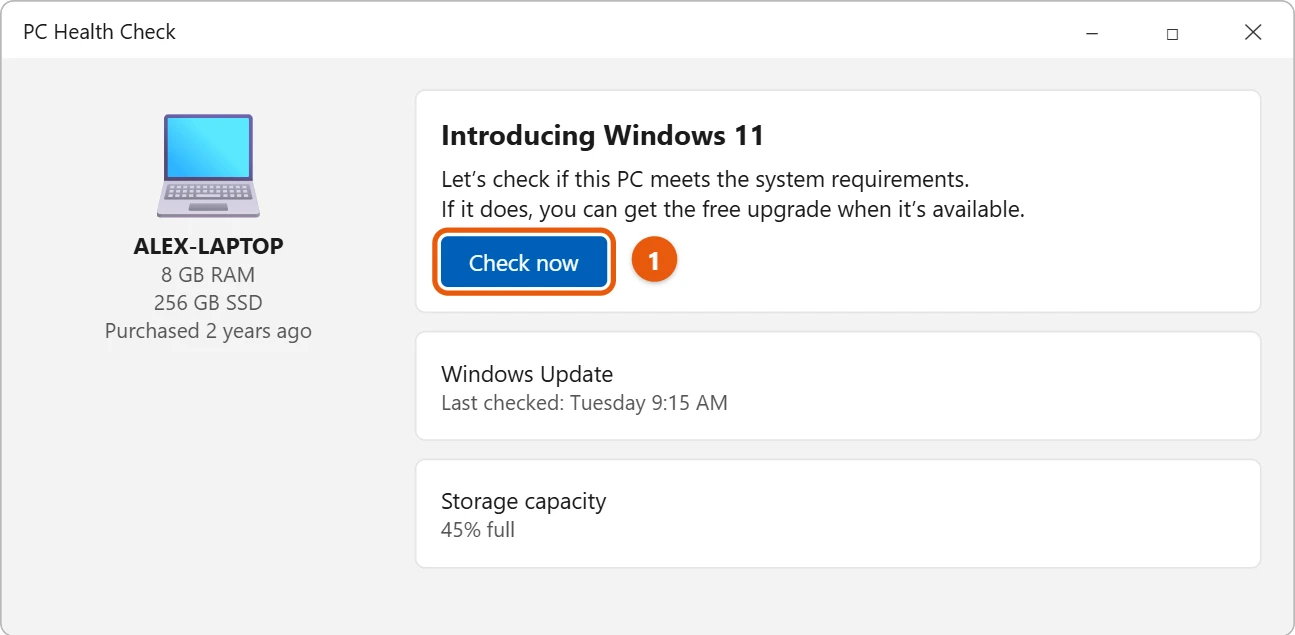
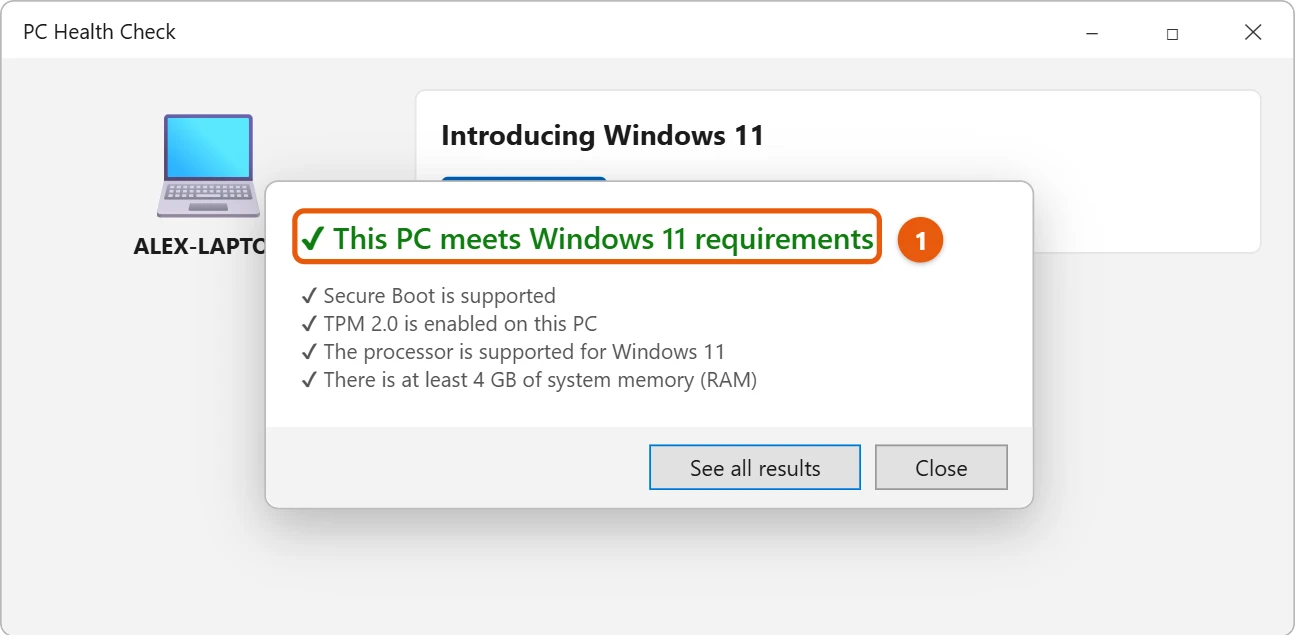
Open the PC Health Check app and select Check now under Introducing Windows 11. It tells you if your PC meets the Windows 11 requirements, and why if it doesn’t. You can also select Start > Settings > Update & Security > Windows Update > Check for updates on Windows 10.
Applies to: PCs running Windows 10 that you want to upgrade. Checked against Microsoft Support on September 29, 2026.
Check with PC Health Check
- Select Search on the taskbar, type PC Health Check, and open it. If you don’t have it, get it from Microsoft at aka.ms/GetPCHealthCheckApp.
- Under Introducing Windows 11, select Check now.
- Read the result. See all results shows each requirement.
Check in Windows Update
On Windows 10, select Start > Settings > Update & Security > Windows Update, then select Check for updates. If your PC is ready, you’ll see an offer to upgrade to Windows 11.
What Windows 11 needs
The main requirements are:
- A supported 64-bit processor
- At least 4 GB of memory (RAM) and 64 GB of storage
- TPM version 2.0
- Secure Boot support (UEFI)
- A supported version of Windows 10
PC Health Check checks all of these for you. To see your processor and memory yourself, see how to check your PC specs in Windows 11.
If your PC doesn’t meet the requirements
- If the problem is TPM or Secure Boot, they’re often just turned off. See how to check and enable TPM in Windows 10.
- If the processor isn’t supported, the PC can’t get the Windows 11 upgrade. Windows 10 support ended on October 14, 2025, and Extended Security Updates for home users only run until October 12, 2027, so plan for a newer PC.
- Sometimes Microsoft holds back the upgrade because of a known issue with an app or driver. PC Health Check tells you when that happens, and the upgrade comes later.
The full list of requirements
| Part | Minimum |
|---|---|
| Processor | 1 GHz or faster, 2 or more cores, 64-bit, on Microsoft’s supported list |
| Memory (RAM) | 4 GB or more |
| Storage | 64 GB or larger drive |
| System firmware | UEFI, capable of Secure Boot |
| TPM | Trusted Platform Module version 2.0 |
| Graphics | DirectX 12 compatible with a WDDM 2.0 driver |
| Display | Larger than 9 inches, at least 720p (HD) |
| Internet and account | Needed for updates; Windows 11 Home setup also needs a Microsoft account |
On older PCs, the processor, TPM, and Secure Boot are the parts that most often block the upgrade.
Check the requirements yourself
- TPM: press Windows + R, type
tpm.msc, and press Enter. Under TPM Manufacturer Information, Specification Version should start with 2.0. If it says a compatible TPM can’t be found, TPM may be turned off in the PC’s UEFI settings. - Secure Boot and UEFI: press Windows + R, type
msinfo32, and press Enter. Look for BIOS Mode: UEFI and Secure Boot State. “Off” means it’s supported but turned off; “Unsupported” usually means the PC is in Legacy BIOS mode. - Processor: in the same window, note the Processor name. Most Intel 8th-generation and AMD Ryzen 2000-series or newer chips are supported. Microsoft publishes the full lists.
If your drive uses Legacy BIOS (MBR)
If msinfo32 shows BIOS Mode: Legacy, Secure Boot can’t be turned on until the system drive uses GPT instead of MBR. Windows includes a tool that converts it without deleting your files:
- Back up your files first.
- Open Command Prompt as an administrator and run
mbr2gpt /validate /allowFullOS. If it reports that validation completed successfully, continue. - Run
mbr2gpt /convert /allowFullOS. - Restart, enter the UEFI settings, switch the boot mode from Legacy or CSM to UEFI, and turn on Secure Boot.
If you skip the last step, the PC won’t start from the converted drive. Change the setting back to Legacy to boot again, then try once more.
Refresh the check after changing hardware
Windows Update rechecks eligibility on a schedule, so it may still say the PC isn’t eligible after you turn on TPM or upgrade parts. To run the check right away:
- Open Command Prompt as an administrator.
- Run
schtasks.exe /Run /TN "\Microsoft\Windows\Application Experience\Microsoft Compatibility Appraiser". - Wait a few minutes, then go to Settings > Update & Security > Windows Update and select Check for updates.
You can also run the same task from Task Scheduler under Task Scheduler Library > Microsoft > Windows > Application Experience. Right-click Microsoft Compatibility Appraiser and select Run.
If PC Health Check gives a result you don’t expect
- It says TPM or Secure Boot is missing after you turned them on. Restart the PC and run the check again. Select Refresh in PC Health Check if it doesn’t update.
- It won’t install or open. Download the latest version from Microsoft’s Windows 11 page and run the installer again.
- Windows Update says the PC is eligible but nothing downloads. Microsoft may be holding the upgrade back on your model for a known issue. Leave it a few weeks, or use the Windows 11 Installation Assistant from Microsoft.
Frequently asked questions
Is my PC already on Windows 11?
See how to tell if you have Windows 10 or Windows 11.
My PC is eligible. How do I upgrade?
See how to upgrade Windows 10 to Windows 11.
Can I install Windows 11 on an unsupported PC anyway?
There are workarounds, but Microsoft doesn’t support them. Such PCs may not get updates and aren’t covered by Microsoft support, so it’s not a good option for a PC you rely on.
Is the upgrade to Windows 11 free?
Yes, for eligible PCs running a genuine copy of Windows 10. Your files and most apps come with you.
To turn on TPM or Secure Boot, see how to enter BIOS (UEFI) in Windows 11.
If an older program won’t run on Windows 11, see how to run a program in compatibility mode.
Microsoft’s references are How to use the PC Health Check app and Can I upgrade to Windows 11?. More help is on our Windows Help & Guides page.

Matt Jacobs has been working as an IT consultant for small businesses since receiving his Master’s degree in 2003. While he still does some consulting work, his primary focus now is on creating technology support content for SupportYourTech.com.
His work can be found on many websites and focuses on topics such as Microsoft Office, Apple devices, Android devices, Photoshop, and more.