Right-click the program (or its shortcut) and select Properties. On the Compatibility tab, check Run this program in compatibility mode for, pick an older version such as Windows 8 or Windows 7, and select OK. Then open the program again.
Applies to: Windows 11. Checked against Microsoft Support on September 29, 2026.
Before you try it
Check for a newer version of the program first. The maker’s website or Microsoft Store may have one that works on Windows 11. Compatibility mode is for older programs that have no update.
Turn on compatibility mode
- Find the program’s shortcut on the desktop or its file in File Explorer. For a program in Start, right-click it and select Open file location first.
- Right-click the program and select Properties.
- Select the Compatibility tab.
- Check Run this program in compatibility mode for.
- Choose the Windows version the program was made for.
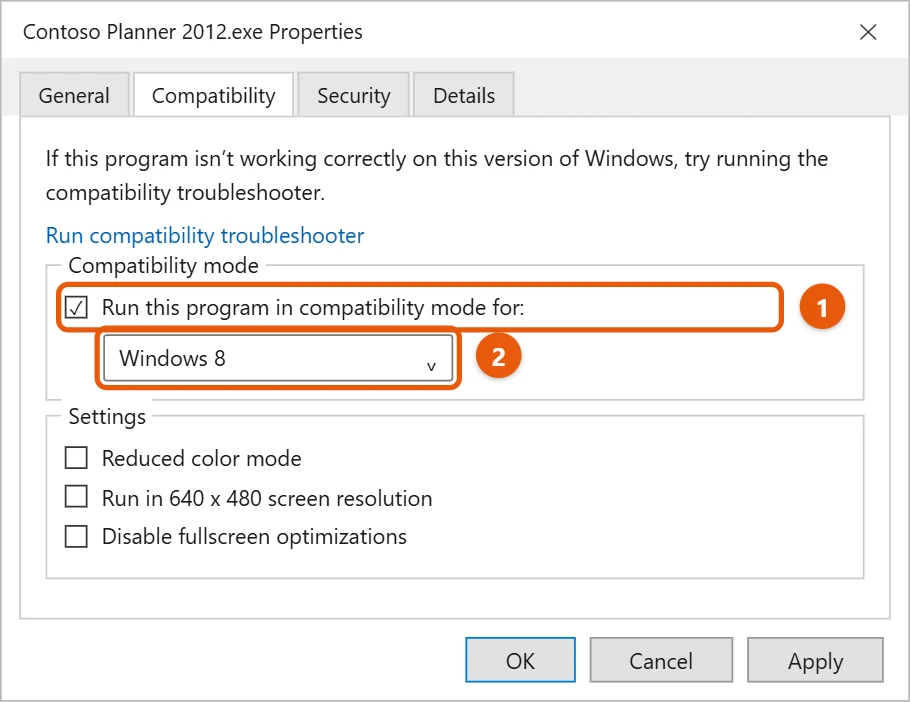
- Select Apply, then OK, and open the program.
If it still doesn’t work, try a different version in the list, or one of the options under Settings, such as Reduced color mode for very old games.
Let Windows pick the settings
- Select Start > Settings > System > Troubleshoot > Other troubleshooters.
- Next to Program Compatibility Troubleshooter, select Run.
- Choose the program and follow the steps. Windows tries settings for you and lets you test them.
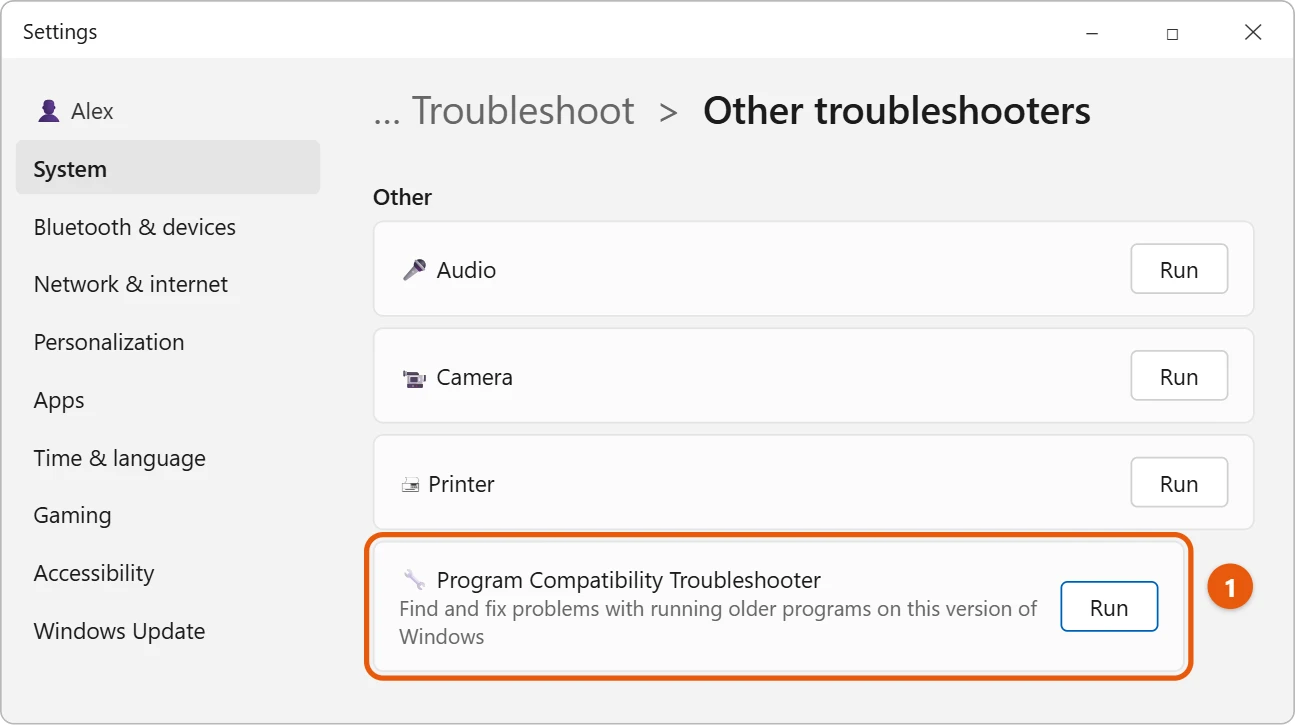
You can also select Run compatibility troubleshooter at the top of the Compatibility tab.
Things to know
- Compatibility mode only affects that one program.
- It can’t fix programs that need very old parts of Windows, such as 16-bit programs.
- To turn it off, clear the check box on the Compatibility tab.
What the other options on the Compatibility tab do
| Option | When to use it |
|---|---|
| Reduced color mode | Very old games that expect 256 or 65,536 colors and show wrong colors or crash. |
| Run in 640 x 480 screen resolution | Old programs whose windows are tiny or drawn wrong on modern screens. |
| Disable fullscreen optimizations | Games that stutter, flicker, or have input lag in full screen. |
| Run this program as an administrator | Older programs that try to write to protected folders and fail with access errors. |
| Change high DPI settings | Programs that look blurry or have tiny text. Check Override high DPI scaling behavior and try Application or System (Enhanced). |
If compatibility mode doesn’t help
- The program is 16-bit. Windows 11 only comes in 64-bit, which can’t run 16-bit programs from the Windows 3.1 era or many 1990s installers at all. Compatibility mode won’t change that.
- It needs .NET Framework 3.5. Many older programs do. Search Start for Turn Windows features on or off, check .NET Framework 3.5, and select OK.
- It’s an old DOS game. The free DOSBox emulator runs most of them better than Windows can.
- Nothing works. Run an older version of Windows in a virtual machine. Windows 11 Pro includes Hyper-V; on Home, a free app such as VirtualBox does the same. You’ll need your own license for the older Windows.
- Check for an update first. Many developers have released free updates or remasters that run natively on Windows 11.
Frequently asked questions
Why can’t I change the settings for all users?
That button needs an administrator. The steps above only change the program for you, which is usually all you need.
What if the program won’t install at all?
Try compatibility mode on the installer file (often called setup.exe). If you’re not sure a program works on Windows 11, see how to check Windows 11 compatibility.
Which Windows version should I pick?
Start with the version the program’s box or website lists. If you don’t know, try Windows 7 first, then Windows XP (Service Pack 3). Most programs that run on Windows 7 work on Windows 11 without any changes.
Is compatibility mode safe?
Yes. It only changes how Windows presents itself to that one program. It doesn’t lower security for the rest of the PC, though very old programs may have their own security weaknesses.
Microsoft’s reference is Make older apps or programs compatible with the latest version of Windows. More help is on our Windows Help & Guides page.
Related: how to run a game as administrator in Windows 11.
Related: get out of Compatibility Mode in Word.

Matt Jacobs has been working as an IT consultant for small businesses since receiving his Master’s degree in 2003. While he still does some consulting work, his primary focus now is on creating technology support content for SupportYourTech.com.
His work can be found on many websites and focuses on topics such as Microsoft Office, Apple devices, Android devices, Photoshop, and more.